
On this page
Start here
Quick answer
For a new internet-and-TV bundle, first confirm that the exact address and unit are serviceable, then verify property permission and installer access. From safe, accessible areas, note existing coax or network entry points, suitable dry equipment locations, TV locations, and power availability. Give those observations to the provider when scheduling a new-customer installation. Do not drill, open utility boxes, move building wiring, or treat an outage, billing question, cancellation, or existing-account problem as an installation diagnosis.
Before you begin
Safety first
- Do not drill, cut, open communications or electrical panels, move utility wiring, enter restricted spaces, disconnect equipment, or work near exposed conductors. Keep pets and trip hazards controlled during a visit.
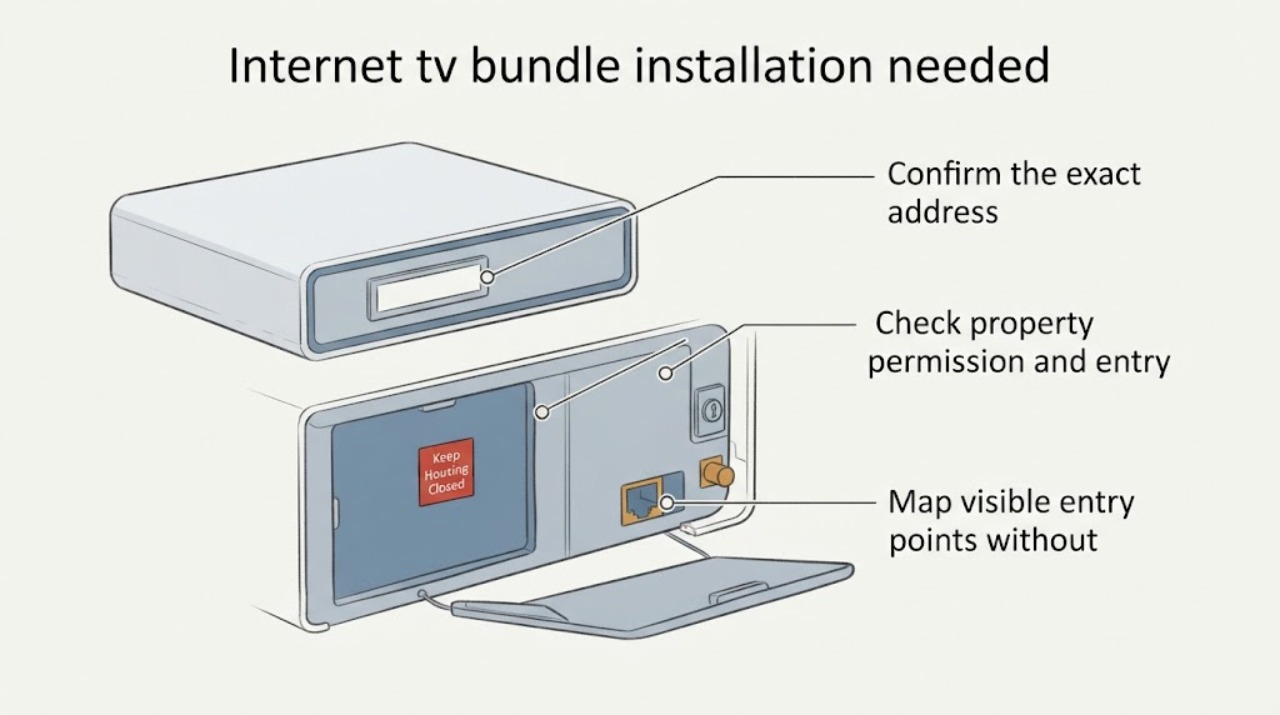
Work through in order
Diagnostic checks
Use only checks that match the exact appliance or system and its official guide.
-
Confirm the exact address and unit
Use the provider's official new-service availability flow with the complete street address, apartment or suite identifier, city, state, and ZIP code; do not substitute a neighboring address.
Expected result: Record whether the result identifies the correct building and unit and whether a new internet-and-TV installation can be requested there. An independent availability check can be used as a cross-check, not as a guarantee of bundle eligibility.
Next step: Save the confirmation or note the exact address-format issue and ask the provider's new-customer installation team to resolve it before arranging a visit.
Stop if: Stop this preparation if the address or unit cannot be identified confidently; do not place an order against another property.
Why this matters
Why: A green or serviceable result supports scheduling, but an address mismatch, missing unit, unavailable result, or conflicting result means the provider must validate the location before an installation window is treated as confirmed.
-
Check property permission and entry access
For a rental, condominium, HOA property, gated community, or shared building, confirm that the owner or property manager permits the proposed service visit and identify who can unlock gates, utility rooms, basements, or communications closets.
Expected result: Permission is documented and an authorized adult can provide access, or permission, a key, an escort, or a building contact is missing.
Next step: Obtain the required property approval and coordinate access with the building contact before selecting an installation window; disclose any restriction on exterior equipment or new penetrations.
Stop if: Stop and reschedule if the person who can approve or unlock the required area will not be available.
Why this matters
Why: Ready access reduces the risk of an incomplete visit. Missing permission or a locked shared area can prevent the installer from inspecting the service entry, even when the address is otherwise serviceable.
-
Map visible entry points without touching wiring
From safe, accessible areas, look for labeled or familiar coax wall outlets, a visible cable entry point, an optical/network termination location, an Ethernet jack, or a communications cabinet; note the room and whether each point is unobstructed.
Expected result: One or more points are visible and reachable, the points are blocked or damaged, or no likely point is visible. Do not remove a cover, open a cabinet, probe a cable, or enter a restricted space.
Next step: Tell the provider which rooms and visible points were found, and request that the installer assess the entry route. Leave all building wiring and utility equipment untouched.
Stop if: Stop if inspecting the point would require opening a panel, entering an unsafe space, moving building infrastructure, or contacting exposed wiring.
Why this matters
Why: Visible, accessible points give the installer useful placement context. No visible point or an inaccessible, damaged, or shared point may require a site assessment or a different installation plan; it does not prove that service is impossible.
-
Choose candidate equipment and TV locations
List each TV room and choose a dry, ventilated, reachable candidate area for the Internet gateway or router and any TV equipment, noting a nearby usable outlet, visible coax or network point, furniture clearance, and any rooms where Wi-Fi coverage matters.
Expected result: The candidate area has safe access to power and the visible low-voltage point, or it is damp, enclosed, obstructed, too far from the likely entry, or lacks a usable outlet.
Next step: Give the installer the preferred room, alternate room, TV count, and coverage concerns, while leaving the final location decision to the authorized installer and the service requirements.
Stop if: Stop if the only proposed location is wet, hot, sealed inside furniture, inaccessible, or dependent on electrical or structural work.
Why this matters
Why: A suitable candidate helps the installer evaluate placement. A poor candidate can force a different location or a professional wiring/site assessment; it does not justify drilling or relocating an outlet yourself.
-
Prepare the appointment information
Before booking, assemble the exact address and unit, new-customer internet-and-TV installation request, preferred access window, authorized adult's availability, parking or gate restrictions, property contact, pet or safety constraints, TV room list, and the visible wiring/equipment observations.
Expected result: The appointment record contains the same address and unit used for availability, a reachable contact, a workable access window, and any site restrictions, or one of those items is still unknown.
Next step: Schedule through the provider's official new-service channel and retain the confirmation details. Ask what equipment the provider supplies and what the installer expects to find, without buying a part based only on a generic bundle description.
Stop if: Stop and request an installation-team review if the request is actually about an outage, billing, cancellation, or an existing account, because those are outside this new-customer installation guide.
Why this matters
Why: A complete record lets the provider decide whether a standard installation or a site assessment is appropriate. Missing access or site information can produce a failed visit or a revised appointment, not an outage diagnosis.
Use your observations
Decision map
Find the observation that best matches what you see, then follow the next safe action.
-
PATH 01Safety boundary
What you see
The exact address and unit are recognized, permission is ready, access can be provided, and at least one safe equipment location is available.
Do this next
Proceed with a new-customer internet-and-TV installation appointment and provide the installer with the room and access notes.
Why this path and its safety boundary
Safety stop: Pause if the address, access, or proposed location changes before the visit.
-
PATH 02Safety boundary
What you see
The provider cannot validate the address or unit, or the result conflicts with the building's actual address.
Do this next
Request address validation or a location/site assessment from the provider; do not use another unit's address.
Why this path and its safety boundary
Safety stop: Do not schedule a standard installation until the serviceable location is clear.
-
PATH 03Safety boundary
What you see
Landlord, HOA, owner, or building access permission is missing.
Do this next
Obtain the required approval and coordinate keys, escort, gate access, or utility-room access before booking or rescheduling.
Why this path and its safety boundary
Safety stop: Stop if the required authority will not approve the proposed work or no one can provide access.
-
PATH 04Safety boundary
What you see
No visible entry point or suitable equipment location is available without entering a restricted space or altering the building.
Do this next
Disclose the limitation and request an installer site assessment.
Why this path and its safety boundary
Safety stop: Stop all DIY preparation at the boundary of visible, low-risk observation.
-
PATH 05Safety boundary
What you see
The request turns out to be an outage, billing, cancellation, or existing-account issue rather than a new installation.
Do this next
Use the provider's account or service-support path instead of applying this installation checklist.
Why this path and its safety boundary
Safety stop: Stop the installation workflow until the service request is correctly classified.
Helpful context
Understand the symptom
What the installation visit needs
A bundle installation is a readiness and scheduling problem rather than a repair to perform at home. Availability is tied to the exact serviceable location, and the installer may need access to the building entry point, cable outlets, a utility area, and the rooms where equipment will be placed. The final route and equipment choice depend on the provider's service type and the conditions found at the property.
Keep the preparation observational
Use only what can be seen from a normal, safe position. Do not open panels, touch unknown wiring, enter restricted utility spaces, drill, cut walls, run cable through a structure, disconnect electrical equipment, or move heavy furniture. Photographing a visible outlet or entry point without recording personal account details can help communicate the layout.
Only after diagnosis
Potential parts
- wifi-router
Consider this category only if the provider confirms that customer-supplied routing equipment is permitted for the selected service and the installer confirms the required connection type.
Confirm provider approval, service technology, and model compatibility before purchase; the installation appointment may include provider-supplied equipment. - ethernet-cable
Consider this category only after the equipment locations and required run length or connector type are confirmed by the provider or installer.
Do not route cable through walls or ceilings based on a generic listing; confirm connector type, length, and the installation plan first. - HDMI-cable
Consider this category only if the supplied TV equipment and the display require a replacement cable after the installation plan is known.
Verify the TV and equipment connector requirements and the required length; the provider may supply the needed cable.
When checks do not resolve it
Need a professional?
Contact the provider's official new-customer installation team when the exact address is unavailable or ambiguous, property approval is needed, the entry point is inaccessible, no safe equipment location exists, or the bundle requires a site assessment.
Safety scope: Do not drill, cut, open communications or electrical panels, move utility wiring, enter restricted spaces, disconnect equipment, or work near exposed conductors. Keep pets and trip hazards controlled during a visit.
Have this ready
- Provide the exact address and unit, the availability result, permission or building-contact status, access restrictions, visible coax/network and outlet locations, TV rooms, preferred equipment location, and the appointment window you can support.
Common questions
FAQ
Can I schedule the bundle if the provider's availability result shows a nearby address but not my unit?
Pause and have the provider validate the exact building and unit. A nearby or neighboring address is not a safe substitute for the serviceable location, especially in a multi-unit property.
What should I prepare if I rent or live in an HOA community?
Confirm the owner's or association's rules before the visit, identify any restrictions on exterior equipment or building entry, and arrange access to shared spaces. Keep the provider informed about those restrictions.
Do I need to find the cable entry point myself?
Only note a visible, safe-to-reach entry point or outlet. Do not open a box, enter a restricted utility space, probe wiring, drill, or route cable; an installer can assess an unclear path.
What if the request is really about an existing service outage or bill?
This article covers new-customer bundle installation. Use the provider's account or service-support workflow for outage, billing, cancellation, or existing-account questions.
Read the exact guide
Official sources
- Verizon 5G Home Internet professional setup FAQsVerizon Support · Use only as an example of provider-specific installation prerequisites; the reader must follow the selected provider's own instructions.
- What's on the National Broadband MapFederal Communications Commission Broadband Data Collection Help Center · Use as a cross-check for the address and location identity; provider ordering remains the source for bundle eligibility and installation scheduling.
- How to Submit a Location ChallengeFederal Communications Commission Broadband Data Collection Help Center · Supports checking the exact building and unit when an address or location result is missing or inconsistent.
Community feedback
Share a repair observation
Share a plain-text repair observation. Accepted observations are published automatically; this page may take a moment to update.