
On this page
Start here
Quick answer
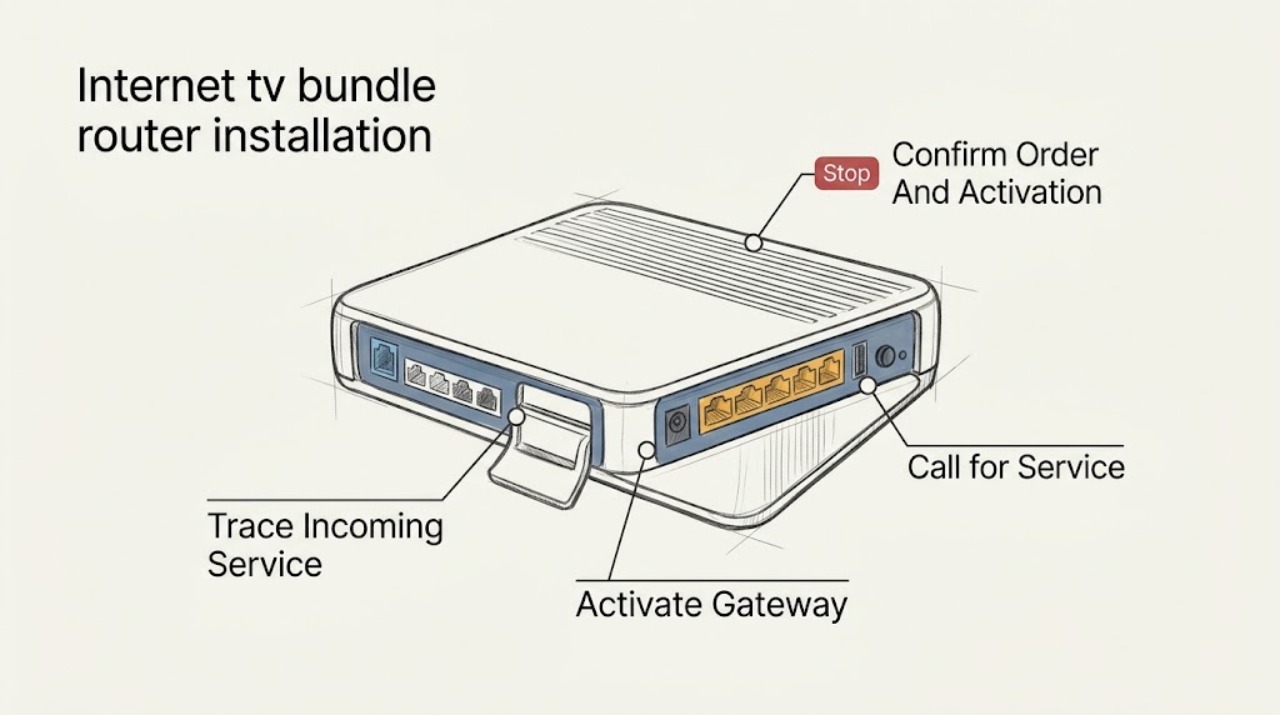
An internet-and-TV bundle that says installation is needed is usually waiting for account activation, the provider's incoming connection, or the TV equipment setup; the message alone does not identify a failed router. Confirm the order and activation window first, then connect the provider-approved incoming line to the router's WAN or Internet path, power it with the supplied adapter, and complete the provider's activation flow. Once internet service is working, connect the TV box or wireless receiver using its own approved path and select the matching TV input. If the account requires a technician, inside wiring, an optical network terminal, or an unavailable activation step, stop trying cable combinations and arrange the provider installation.
Work through in order
Diagnostic checks
Use only checks that match the exact appliance or system and its official guide.
-
Check 1
Open the provider account or activation app and confirm the service address, equipment delivery, activation date, and whether this order is approved for self-install. If you are changing providers, keep the existing working service connected until the new service has been tested.
Expected result: The account says the equipment and address are ready for self-install and offers an activation step, or it says the order is pending, a technician is required, new wiring or an optical network terminal is needed, or activation is not available yet.
Next step: Continue only when the account is ready. Otherwise check the appointment or equipment status with the provider and arrange the required installation; do not disconnect a working service to force activation.
Stop if: Stop if the account, address, equipment, or activation status does not match the service you ordered.
Why this matters
Why: A ready order supports the physical setup below. A pending order or a requirement for site work means the router cannot complete installation by itself.
-
Check 2
From a safe, accessible position, trace the provider's incoming connection to the router's WAN or Internet path. Check that the supplied coax or Ethernet connector is fully seated and undamaged, and that the router has its supplied power adapter; do not open an optical network terminal, look into a fiber connector, or change hidden wiring.
Expected result: The expected provider line reaches the correct labeled input with no bent connector, cut jacket, loose joint, or inaccessible handoff, or the line is missing, damaged, connected to a LAN port, or depends on wiring that is not present.
Next step: Correct only an obvious, manual-approved connection error. If the incoming handoff is absent, damaged, or unclear, photograph the connections and contact the provider instead of opening equipment or substituting an unknown cable.
Stop if: Stop for exposed conductors, damaged fiber or coax hardware, water near powered equipment, unsafe access, or any need to remove a cover or alter inside wiring.
Why this matters
Why: A correctly connected, undamaged handoff makes activation or TV-side setup more likely than a missing cable. A missing, damaged, or unavailable handoff points to provider equipment, site wiring, or a service appointment.
-
Check 3
Power the gateway with the supplied adapter and allow its startup or update period to finish. Connect one nearby device using the network name and password on the gateway label or a single Ethernet LAN port, then open the provider's activation page or app and follow its prompts.
Expected result: The gateway reaches the provider's normal status and one device reaches the activation page or internet, or the gateway stays in an abnormal state, the activation page cannot provision the service, or the device connects to Wi-Fi without internet access.
Next step: Record the exact activation message and the gateway's visible status, retry the provider flow once if its guide permits, and contact the provider if it fails again. Do not factory-reset, bypass provider equipment, or switch to a personal router during this first diagnosis.
Stop if: Stop if the guide calls for an unavailable account action, concealed wiring, or a hardware reset whose effect you cannot undo.
Why this matters
Why: A completed activation with internet access establishes that the router path is working; a TV-only failure should then be investigated separately. A repeated activation failure or abnormal gateway state is more consistent with provisioning, signal, or equipment support than with a TV HDMI setting.
-
Check 4
After internet access is confirmed, connect one TV receiver using the provider-approved coax or wireless path, connect its HDMI output to the television, power both devices, select the HDMI input that matches the connection, and follow the receiver's on-screen activation. For a wireless receiver, use the provider's specified access point or pairing procedure rather than guessing at a router button.
Expected result: The receiver shows its setup screen and completes activation, the TV shows the wrong input or no signal, the receiver reports a connection or pairing error, or the receiver remains offline while the gateway is online.
Next step: Reseat one visible cable and select the matching input once. If the receiver is wireless, test its setup location only as the provider guide permits; if the error returns, record the receiver message and arrange provider support.
Stop if: Stop if the TV equipment, cable, outlet, or access point is damaged, hot, wet, or requires opening a case or changing hidden wiring.
Why this matters
Why: A setup screen or wrong-input message points to the TV-side connection or source selection. A pairing or offline result after the gateway is online points to the TV receiver's authorized path, wireless range, coax signal, or account authorization, not automatically to a failed router.
-
Check 5
Run one controlled validation from a clear position: test internet on one device and live TV or the provider interface on one receiver, without repeatedly rebooting either device. Note whether both services fail, only internet fails, or only TV fails.
Expected result: Both services work; both fail; internet works while TV fails; or TV works while internet fails.
Next step: Keep the working result, capture the failing device's message and visible indicators, and give those details to the provider. Leave the service out of use if the provider cannot confirm a safe operating state.
Stop if: Stop after one controlled validation if the same installation message returns or either service requires unsafe access.
Why this matters
Why: Both failing after an otherwise correct setup makes activation, the incoming service handoff, or provider-side provisioning more likely. Internet-only failure keeps attention on the gateway path; TV-only failure keeps attention on receiver wiring, input, pairing, range, or TV authorization.
Use your observations
Decision map
Find the observation that best matches what you see, then follow the next safe action.
-
PATH 01Safety boundary
What you see
The account is pending or says a technician, optical network terminal, additional wiring, or an unavailable activation step is required.
Do this next
Keep the equipment and existing service in place, confirm the appointment or equipment status, and arrange the provider installation.
Why this path and its safety boundary
Why it matters: The installation boundary is at the address or provider system, not a loose TV cable. Self-install is not a safe substitute for site work or provisioning.
Safety stop: Do not open provider boxes, run hidden wiring, or disconnect a working service to bypass this state.
-
PATH 02Safety boundary
What you see
The gateway completes activation and one device reaches the internet, but the TV receiver has no setup screen, cannot pair, or reports a connection error.
Do this next
Check one visible TV-side connection and the selected input, then use the receiver-specific provider guide or contact provider support with the receiver message.
Why this path and its safety boundary
Why it matters: The internet router path is less likely to be the main fault. The remaining possibilities are the TV receiver's coax or wireless path, TV input, receiver authorization, or range.
Safety stop: Do not factory-reset the gateway or buy a router because the TV receiver is not activated.
-
PATH 03Safety boundary
What you see
The expected incoming line is connected, but the gateway never reaches its normal state and the TV receiver also cannot activate.
Do this next
Stop repeated setup attempts, record the order status, gateway indicators, receiver message, and connection photos, and ask the provider to test the service handoff and equipment.
Why this path and its safety boundary
Why it matters: A shared incoming signal, equipment handoff, order-provisioning, or service outage is more likely than two independent TV cables failing at once.
Safety stop: Stop immediately for damaged wiring, exposed conductors, water, unsafe access, or instructions to alter concealed equipment.
-
PATH 04Safety boundary
What you see
One service works while the other does not after a single controlled validation.
Do this next
Preserve the working setup, troubleshoot only the failed path with its provider guide, and escalate if the failure repeats or needs account-side changes.
Why this path and its safety boundary
Why it matters: A working internet result narrows the issue toward TV equipment or authorization; a working TV result with no internet keeps the gateway, incoming line, or activation path in focus.
Safety stop: Do not keep swapping cables between router and TV equipment when the guide does not identify the connection.
Helpful context
Understand the symptom
What the installation message means
The router is only one part of a combined service. The provider may still need to authorize the order, bring the incoming service to the address, finish gateway activation, or pair and activate the TV equipment. A working power light is not the same as an activated internet account, and a TV with no picture can be an input, coax, HDMI, wireless-range, or TV-account issue even when the router is online.
Keep the router and TV paths distinct
Set up the gateway before diagnosing the TV side. Depending on the provider and equipment, the incoming service may arrive through an optical network terminal, Ethernet outlet, or coax outlet. The TV box may then use coax or a wireless access point plus HDMI to the television. Use the exact guide for the supplied model; do not assume that a port or splitter used by one provider is correct for another.
What a successful check looks like
A successful setup has two separate confirmations: one device reaches the internet through the new gateway, and one TV receiver completes its own activation and displays the provider interface. If only one confirmation succeeds, keep that result and troubleshoot the other path. If neither succeeds after one careful setup attempt, the useful next step is provider diagnosis rather than repeated resets or buying unverified parts.
Safety boundary
Stop conditions
- Stop for exposed conductors, damaged or wet powered equipment, unsafe access, or a missing or damaged provider handoff.
- Do not open an optical network terminal or other provider equipment, look into a fiber connector, alter concealed wiring, or bypass a safety or network control.
- After one careful activation and one controlled internet/TV validation, stop repeated resets and arrange provider diagnosis if the installation message returns.
Only after diagnosis
Potential parts
- provider-approved coax cable
Consider this only if the provider guide identifies a damaged coax cable on the TV or incoming-service path; a replacement cannot correct missing activation or provider-side wiring.
Confirm the provider, equipment model, connector type, and approved specifications before selecting any cable. - Ethernet cable
Consider this only when the provider's exact setup uses Ethernet and the supplied cable is visibly damaged or a qualified check identifies a missing link.
Confirm the correct WAN, LAN, or access-point role and the provider's cable requirements; do not substitute an Ethernet cable for an optical or coax handoff. - HDMI cable
Consider this only when internet is working, the receiver powers on, and the TV reports no signal after the matching input and visible connections have been checked.
Confirm the receiver and television ports and the provider's supported connection type before selecting a cable. - two-way coax splitter
Consider this only when the provider's installation guide explicitly permits a router and set-top box to share one coax outlet; an unapproved splitter can reduce or disrupt signal.
Use only the provider-specified splitter and rating for the exact service, and do not add one to solve an unknown activation failure.
When checks do not resolve it
Need a professional?
Call the provider or a qualified installer when self-install is not approved, an optical network terminal or inside wiring is required, the incoming line is missing or damaged, activation fails repeatedly, the gateway remains abnormal, or the TV receiver cannot activate after one careful setup attempt.
Have this ready
- Provider name and service address
- Order or activation status and scheduled date
- Gateway and TV receiver model names if shown
- Exact on-screen message and visible status indicators
- Which service works, which fails, and which connections were not opened or changed
Common questions
FAQ
Does an installation-needed message mean the router is bad?
No. It can mean the account is not activated, the address needs provider work, the incoming service line is not connected, or the TV equipment still needs its own activation. Confirm internet and TV separately before considering equipment replacement.
Should the router be installed before the TV box?
Usually yes: establish the gateway's incoming connection and internet activation first, then connect and activate the TV receiver using the provider's instructions. This separates a shared service problem from a TV-side connection or input problem.
What if the account says a technician is required?
Treat that as an installation boundary, not a cable puzzle. Confirm the appointment or equipment status and let the provider handle an optical network terminal, new inside wiring, testing, or activation work that is not available for self-install.
What should I tell support?
Provide the provider and address, activation status, equipment models, exact gateway and TV messages, which service works, photos of only safe accessible connections, and what you did not open, disconnect, or change.
Read the exact guide
Official sources
- Verizon Fios Installation - Internet, TV & Home PhoneVerizon · Provider-specific example of when a technician handles the optical terminal, inside wiring, router connection, TV coax, and service activation.
- Install a Wireless Access Point and U-verse TV receiverAT&T · Provider-specific example for bundled internet/TV equipment where a wireless access point and receiver are supplied; do not generalize its buttons or timing to other providers.
- Verizon Fios Internet, TV and Home Phone self-installationVerizon · Provider-specific example of a bundled internet and TV self-install flow; other providers and equipment may use different ports and activation steps.
- Fios setup instructionsVerizon · A model-specific Verizon legacy guide used only to illustrate why exact supplied equipment instructions matter; connector paths and status indicators vary by provider and model.
- Activate Set-top Box or DVRVerizon · Provider-specific example of the TV-side sequence after the router is installed.
Community feedback
Share a repair observation
Share a plain-text repair observation. Accepted observations are published automatically; this page may take a moment to update.