
On this page
Start here
Quick answer
A Smart TV disconnecting only while an LG microwave is running can be 2.4 GHz Wi-Fi interference, but the timing does not prove microwave leakage or a microwave defect. Confirm whether other devices lose Wi-Fi, check whether the TV is using 2.4 GHz, and try the TV on 5 GHz or Ethernet if the equipment supports it. Test the TV on another network while the microwave is off. From outside the microwave, inspect the door, hinges, latches, seal and glass; if the door is bent, loose, damaged or will not close correctly, stop using the microwave and arrange qualified service. Do not open the cabinet, defeat an interlock or try to measure microwave leakage.
Work through in order
Diagnostic checks
Use only checks that match the exact appliance or system and its official guide.
-
Check 1
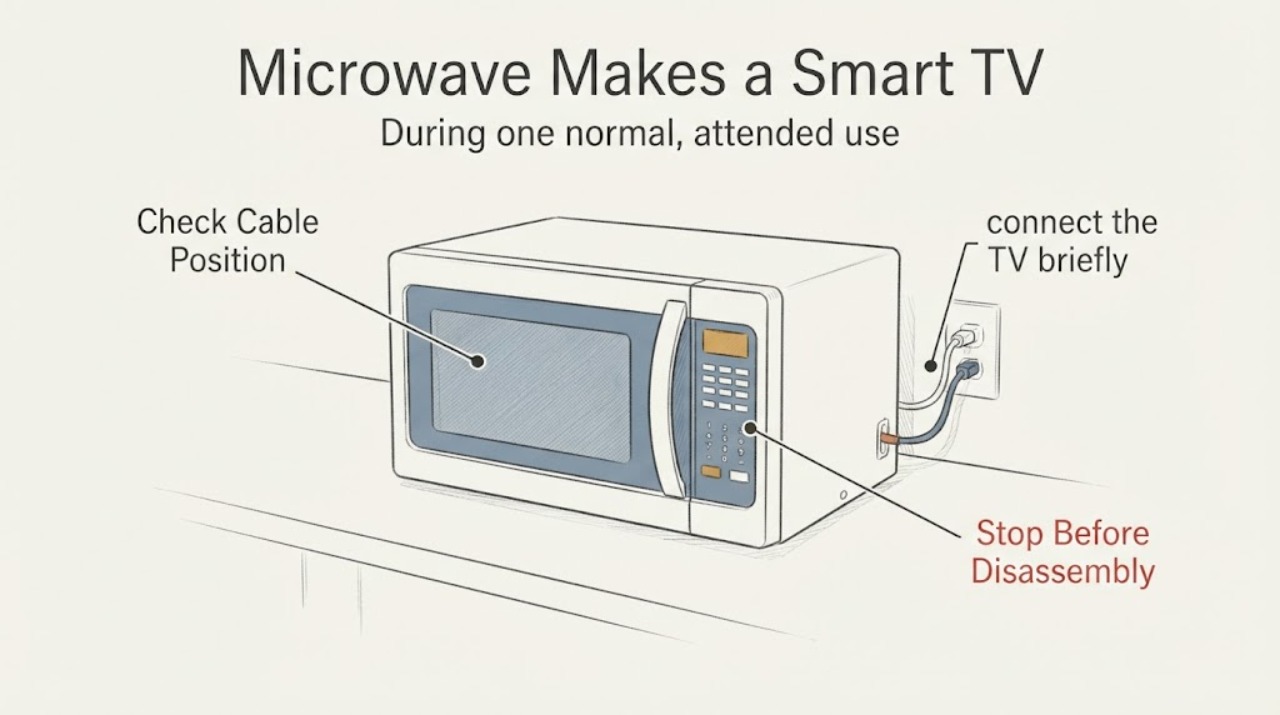
During one normal, attended use of the microwave with suitable food or water, note whether the TV disconnects only while the microwave is heating and whether a phone or another Wi-Fi device in the kitchen/living-room path also drops. Do not run the microwave empty or keep repeating a test if there is sparking, smoke, a burning smell or visible damage.
Expected result: Only the TV drops, several nearby 2.4 GHz devices drop, or the TV also fails when the microwave is off.
Next step: Record which devices and bands were affected, then use the band, placement and alternate-network checks below. If the microwave is damaged or unsafe to run, stop the observation and use the service branch.
Why this matters
Why: A TV-only failure points first to the TV or its network path. Multiple 2.4 GHz drops synchronized with microwave operation make radio interference plausible. A TV that fails with the microwave off is not shown to be microwave-caused.
-
Check 2
In the router and TV network settings, identify whether the TV is on a 2.4 GHz or 5 GHz network. If the TV and router support it, connect the TV to the 5 GHz SSID; otherwise use a wired Ethernet connection. Keep the router and TV path as far from the microwave as the room allows without moving an installed appliance or its wiring.
Expected result: The TV becomes stable on 5 GHz or Ethernet, remains unstable on both bands, or the TV cannot see the intended SSID.
Next step: Keep the stable connection and review the exact router/TV settings if needed. If the TV cannot see the SSID or remains offline with the microwave off, follow LG's network troubleshooting path rather than changing microwave parts.
Why this matters
Why: Stability on 5 GHz or Ethernet supports a local wireless-path/interference explanation, but it is not a leakage measurement. Failure on both paths shifts attention to the TV, router, internet service or another network setting.
-
Check 3
With the microwave off, connect the TV briefly to a phone hotspot or another known-good network, and check whether another device can use the home Wi-Fi from the same room. Keep the test to normal networking use; do not reset unknown router settings or repeatedly power-cycle the microwave.
Expected result: The TV works on the hotspot but not the home network, another device also fails on home Wi-Fi, or the TV fails on the hotspot too.
Next step: Use LG's network-status, router/modem restart and support guidance for a home-network problem. If the TV fails on every network, document that result for TV service. Do not open either appliance to pursue the Wi-Fi symptom.
Why this matters
Why: A working hotspot connection makes the TV itself less likely to be the immediate cause and points toward the router, home Wi-Fi configuration or ISP path. Failure on the hotspot as well means the TV or its network settings still need attention; it does not prove a microwave fault.
-
Check 4
With the microwave unplugged or otherwise not operating, inspect only the visible door, frame, hinges, latches, seal and glass. Confirm the door closes normally and that no residue or object prevents the door from seating. Do not remove the outer cover, tamper with an interlock or attempt a leakage measurement.
Expected result: The door is bent, a hinge or latch is loose/broken, a seal or glass is damaged, the door does not close correctly, or the visible door area is intact.
Next step: If any damage or closing problem is present, leave the microwave unused and arrange qualified service. If the visible door is intact, continue only with the network checks; do not infer a shield, magnetron or other internal part from Wi-Fi behavior.
Why this matters
Why: LG safety guidance treats those damage conditions as a reason not to operate the microwave and directs repair to a qualified technician. An intact visible door does not prove that the oven is the source of the network symptom or certify leakage performance.
Use your observations
Decision map
Find the observation that best matches what you see, then follow the next safe action.
-
PATH 01Next step
What you see
Only the Smart TV disconnects while the LG microwave is operating, other home devices remain online, and the TV works on 5 GHz or Ethernet.
Do this next
Keep the TV on the stable band or wired connection, improve router/TV placement where practical, and use LG's network settings for any remaining TV connection issue.
Why this path and its safety boundary
Why it matters: The pattern is consistent with a local 2.4 GHz Wi-Fi path being affected; it does not demonstrate microwave leakage or a failed microwave component.
-
PATH 02Next step
What you see
Several nearby 2.4 GHz devices lose Wi-Fi only during normal microwave operation, while the microwave door closes correctly and shows no visible damage.
Do this next
Use 5 GHz or Ethernet and increase separation between the router/TV path and microwave. If the issue persists on wired networking or the microwave develops physical symptoms, stop and request qualified service.
Why this path and its safety boundary
Why it matters: Radio interference is plausible, but the observation remains a network-environment result rather than a microwave safety or leakage diagnosis.
-
PATH 03Next step
What you see
The TV disconnects when the microwave is off, cannot connect to a phone hotspot, or other devices show the same home-network failure without microwave use.
Do this next
Follow LG's network-status and router/modem troubleshooting, then arrange TV or network support if the alternate-network test also fails.
Why this path and its safety boundary
Why it matters: The evidence points toward the TV, router, home Wi-Fi configuration or internet service rather than a microwave-linked event.
-
PATH 04Next step
What you see
The microwave door is bent, a hinge or latch is loose, the seal or glass is broken, the door will not close correctly, or the oven sparks, smokes or smells burnt.
Do this next
Stop using the microwave and arrange qualified appliance service. Do not open the cabinet, defeat interlocks, test for leakage yourself or continue normal operation to reproduce the Wi-Fi symptom.
Why this path and its safety boundary
Why it matters: The microwave has crossed the safe external-check boundary. Wi-Fi behavior must not be used to decide whether a damaged oven is safe.
Helpful context
Understand the symptom
Treat the timing as a network clue, not a leakage test
The assigned topic has no LG microwave model, and the supplied Reddit lead could not be opened as an exact post. LG's TV guidance nevertheless gives a relevant family-level explanation: microwave ovens can interfere with 2.4 GHz Wi-Fi, while 5 GHz is less likely to be affected. A disconnect that follows microwave operation is therefore worth testing as a wireless-path problem. It does not establish that the oven leaks energy, that its shielding is defective, or that a microwave component has failed.
Keep all microwave checks outside the cabinet
The microwave checks below are limited to the visible door area and normal operating condition. LG's safety material says not to operate a damaged oven or one with a bent door, loose hinges or latches, broken seals or glass, and says repairs and leakage checks belong to a qualified technician. Do not remove a cover, defeat a door interlock, place anything between the door and frame, or reproduce the symptom with an empty oven.
Common questions
FAQ
Does a Smart TV dropping off Wi-Fi prove that my LG microwave is leaking radiation?
No. LG explains that microwave ovens can interfere with 2.4 GHz Wi-Fi, while 5 GHz is less likely to be affected, but a Wi-Fi drop is not a leakage test. Use the network-band and alternate-network checks, and use qualified service if the microwave is physically damaged.
Will moving the router or using 5 GHz help?
It can help when the affected path is 2.4 GHz. LG recommends checking the network environment and notes that 5 GHz is less likely to experience microwave interference; Ethernet is another external way to separate the TV from the wireless path.
Can I remove the microwave cover or defeat the door switch to investigate?
No. Keep the inspection to the visible door, frame, hinges, latches, seal and glass. LG says not to operate a damaged oven or tamper with safety interlocks, and directs adjustment, repair and leakage checks to a qualified technician.
When should I stop using the microwave?
Stop when the door is bent or will not close, a hinge or latch is loose or broken, the seal or glass is damaged, or the oven sparks, smokes or smells burnt. Leave it unused and arrange qualified service; do not keep running it to reproduce a TV disconnect.
Read the exact guide
Official sources
- LG TV] How to Fix Internet Connection IssuesLG USA Support · Opened LG's official TV troubleshooting page. It supports checking other devices, a mobile hotspot, network status, router/modem restart, placement and Ethernet. It is not evidence of a microwave component fault.
- MICROWAVE OVEN INSTALLATION INSTRUCTIONSLG Electronics · Opened the LG-hosted LMV1762 installation manual and used it only for its explicit safety boundary, not for an unprovided microwave model's controls or parts. Its warnings are cited as manufacturer microwave safety guidance: do not operate a damaged oven or one with a bent door, loose hinges/latches, broken seals/glass; do not defeat interlocks or self-repair.
- LG Microwave - Troubleshooting the Start Button Not WorkingLG USA Support · Opened LG's official microwave support page. It supports cleaning visible door obstructions, checking latch engagement and obtaining service if the door is damaged. It does not support opening the cabinet or diagnosing Wi-Fi interference.
- webOS TV – Setting up network connectionLG USA Support · Opened LG's official TV support page. It supports the network-side checks and states that microwave ovens can interfere with 2.4 GHz wireless networks and that 5 GHz interference is less likely. It does not diagnose the assigned LG microwave or prove leakage.
Community feedback
Share a repair observation
Share a plain-text repair observation. Accepted observations are published automatically; this page may take a moment to update.