
On this page
Start here
Quick answer
For the assigned Sharp Carousel R-420CK, a progressively dim control-panel display is not something to correct by opening the microwave or adjusting a service control. First check the display in normal room light, verify that the outlet and cord are sound, and perform at most one safe 30-second power reset. Clean only the outside of the panel with a barely damp cloth and do not spray into the controls. If cooking and key response remain normal but the display stays dim, the problem is at the service boundary because the opened Sharp material does not document an R-420CK user brightness adjustment. If the panel flickers, the oven stops responding, the cord is hot or damaged, or there is smoke, burning smell, arcing or door damage, unplug it when safe and use an authorized Sharp service route.
Before you begin
Safety first
- Never remove the microwave cabinet, discharge a capacitor, probe the display board, bypass door interlocks or attempt a high-voltage repair. Sharp's safety material states that dangerous voltage is inside and that owners should not repair the oven themselves. Unplug immediately for smoke, burning smell, unusual noise or arcing, and do not operate with a damaged door or seal.
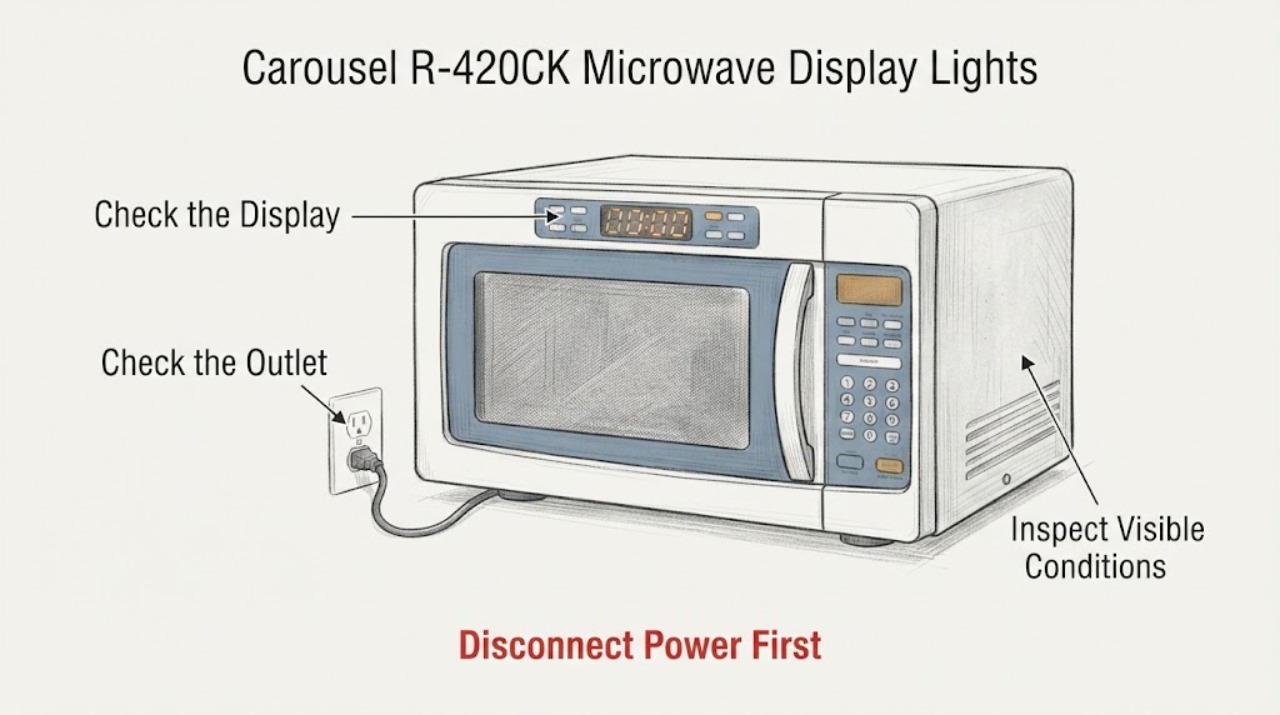
Work through in order
Diagnostic checks
Use only checks that match the exact appliance or system and its official guide.
-
Check 1
Compare the R-420CK display in the same room lighting: check whether every segment is present, whether the clock is consistently dim or flickers, and whether the keypad still beeps and responds. Do not press the panel harder or move the power cord while observing it.
Expected result: Only brightness is reduced while all segments and functions work, or segments/flicker and control response are also failing.
Next step: Continue only with the external power and cleaning checks. If the display flickers, loses segments or the keypad stops responding, stop using the microwave and arrange service.
Why this matters
Why: A brightness-only change is different from a power or control failure, but neither observation identifies a replaceable display part. Flicker or lost response raises the service priority.
-
Check 2
Inspect the plug, cord and wall outlet from outside the appliance for looseness, scorch marks, moisture or heat. Confirm the microwave is on a properly grounded outlet and not sharing a power strip or extension cord.
Expected result: The cord/outlet is damaged, loose, hot or discolored, or the external power path looks sound.
Next step: If any damage, heat or moisture is present, unplug only if safe and have a qualified electrician or authorized service center inspect it. If the supply is sound, continue to one controlled reset.
Why this matters
Why: A supply or connection problem can affect a display and is an electrical safety issue; a sound external supply does not prove the display electronics are healthy.
-
Check 3
With no cooking cycle running and no safety hazard, unplug the microwave for 30 seconds, then reconnect it directly to the sound grounded outlet. Observe the display after the clock is restored; do not repeat the reset or open the cabinet if the dimness returns.
Expected result: The display returns to its prior brightness, changes only briefly, or remains dim after the reset.
Next step: If the dimness remains or returns, stop troubleshooting at the front panel and use the model/manual support route. Do not try a service-menu combination from another Sharp model.
Why this matters
Why: Sharp presents this as a general microwave reset, not a display repair. A temporary change is not evidence of a specific board, capacitor or lamp failure.
-
Check 4
Clean the exterior keypad and display area with a soft cloth that is only lightly damp, then dry it. Keep liquid out of seams, vents and the control panel, and do not use abrasive cleaners or tools.
Expected result: The panel had grease, residue or moisture on its surface, or it was already clean and the display remains dim.
Next step: Use the panel only if it remains dry and responsive. If dimness persists, request service instead of removing the panel or spraying cleaner into it.
Why this matters
Why: Surface residue can make a display harder to read, but a clean surface with progressive dimness points to an unresolved display/electronics issue rather than a cleaning problem.
-
Check 5
After the external checks, record whether the R-420CK still cooks, whether the clock loses time, whether key response changes, and whether there is any flicker, smell, smoke, arcing, unusual noise or door/seal damage. Do not run repeated cooking tests to chase a display change.
Expected result: Cooking and controls are normal with only a dim display, or any electrical, microwave-safety or door symptom is present.
Next step: For display-only dimness, contact an authorized Sharp service route with the model and history. For smoke, burning smell, arcing, damaged door/seal or hot cord, stop immediately, unplug when safe and request urgent qualified service.
Why this matters
Why: A stable but dim display still lacks a verified user adjustment in the opened R-420CK material. Safety symptoms make continued operation inappropriate.
Use your observations
Decision map
Find the observation that best matches what you see, then follow the next safe action.
-
PATH 01Next step
What you see
The display is uniformly dim but all segments, key beeps and cooking controls still work after one safe reset.
Do this next
Keep the cabinet closed and arrange an authorized Sharp service assessment; do not order or install a guessed display board.
Why this path and its safety boundary
Why it matters: The symptom is isolated to display visibility, but the opened Sharp material does not verify a user brightness setting or identify the failed internal component for R-420CK.
-
PATH 02Next step
What you see
The display flickers, loses segments, resets the clock, or the keypad intermittently stops responding.
Do this next
Stop repeated operation and use qualified Sharp service. Do not open the microwave or attempt internal measurements.
Why this path and its safety boundary
Why it matters: The issue is broader than simple viewing contrast and may involve the control or power system; a safe external check cannot distinguish those causes.
-
PATH 03Next step
What you see
The cord or outlet is hot, damaged, wet or scorched, or the breaker trips when the microwave is used.
Do this next
Unplug only if safe, leave the circuit off as appropriate and have a qualified electrician or authorized service center inspect the supply and appliance.
Why this path and its safety boundary
Why it matters: This is an electrical safety condition rather than a display-adjustment problem.
-
PATH 04Next step
What you see
There is smoke, a burning smell, unusual noise, arcing, a damaged door, loose hinge or damaged seal.
Do this next
Stop cooking, disconnect power when safe, keep the door closed if there is an interior fire, and contact an authorized service center. Do not use the microwave again until inspected.
Why this path and its safety boundary
Why it matters: Sharp's safety guidance treats these as stop conditions because microwave and electrical hazards may be present.
-
PATH 05Next step
What you see
The display becomes readable after surface cleaning or a single 30-second reset and stays stable with no other symptom.
Do this next
Monitor without opening the cabinet. If dimness returns or any control/safety symptom appears, save the model and symptom history for service.
Why this path and its safety boundary
Why it matters: The immediate visibility problem changed, but the reset or cleaning does not establish the cause or guarantee that progressive dimness will not return.
Helpful context
Understand the symptom
Confirm that the display is actually losing brightness
Compare the clock and all visible segments in the same room lighting, with the door open and closed, and note whether the keys still beep and the oven still performs a normal user-level operation. A display that is hard to see only under bright light is different from a display that has missing segments, flickers or changes when the cord moves. The assigned R-420CK identity is preserved, but the opened public Sharp material does not provide an R-420CK display-brightness control sequence.
Use one safe power check, not repeated experiments
Sharp's general microwave FAQ says to unplug a countertop microwave for 30 seconds and reconnect it for a reset, then consult the manual or service for persistent issues. Use a sound grounded outlet and do not use an extension cord, power strip or damaged cord. A reset that temporarily changes the display does not identify a failed display part.
Keep the repair boundary outside the cabinet
Wipe the exterior control panel with a soft, barely damp cloth and dry it; do not spray cleaner directly into the keypad or insert anything around the panel or door. Sharp's microwave safety instructions state that dangerous voltage remains inside and that the owner should not attempt repairs. If the display remains dim after the visible checks while the oven otherwise works, request an authorized service assessment rather than replacing a guessed board or lamp.
When checks do not resolve it
Need a professional?
Arrange authorized Sharp service when the R-420CK display remains dim after one safe reset and an exterior cleaning, when segments or key response fail, or when the display problem is accompanied by clock loss, flicker or cooking changes. Provide the exact model label and whether the oven still cooks.
Safety scope: Never remove the microwave cabinet, discharge a capacitor, probe the display board, bypass door interlocks or attempt a high-voltage repair. Sharp's safety material states that dangerous voltage is inside and that owners should not repair the oven themselves. Unplug immediately for smoke, burning smell, unusual noise or arcing, and do not operate with a damaged door or seal.
Common questions
FAQ
Is there a brightness button for the Sharp R-420CK display?
The opened public Sharp material did not verify a user brightness control for R-420CK. Do not import a dimming sequence from a different Sharp microwave; use the exact model manual/support route or authorized service.
Can I reset the dim display?
Sharp's general FAQ says to unplug a countertop microwave for 30 seconds and reconnect it. Treat that as one safe observation only. If the display stays dim or the symptom returns, request service rather than repeating resets or opening the cabinet.
Can I replace the display board myself?
No. The dim display does not identify a board or other part, and Sharp warns that dangerous voltage is inside a microwave. Keep the cabinet closed and use an authorized service center.
What should I tell Sharp service?
Provide model R-420CK, how long the dimming has progressed, whether all segments and key beeps work, whether the clock resets, whether cooking remains normal, and any cord heat, flicker, smell, smoke, arcing or door damage.
Read the exact guide
Official sources
- Microwave FAQs | SHARP Microwave Frequently Asked QuestionsSharp Home Electronics Company of America · The opened Sharp FAQ includes countertop microwaves and says to unplug for 30 seconds for a reset, then consult the model manual for persistent issues. It does not claim a brightness setting or display-board diagnosis for R-420CK.
- SharpUSA SupportSharp Electronics Corporation · The opened Sharp support route is the manufacturer's support destination for model-specific manuals and service. The page loaded only a support shell in this run and did not expose an R-420CK display adjustment, so it is used as a service/lookup route rather than evidence of an internal repair.
- OVER THE RANGESharp Electronics Corporation · This opened Sharp official microwave manual is not the assigned R-420CK manual, so it is used only for general microwave safety wording: grounded power, no self-repair, dangerous internal voltage, and stop conditions such as smoke, burning smell, unusual noise, arcing or door/seal damage. No model-specific display procedure is transferred.
Community feedback
Share a repair observation
Share a plain-text repair observation. Accepted observations are published automatically; this page may take a moment to update.