
On this page
Start here
Quick answer
Start by separating a locked or damp control panel from a dead or unsafe drawer. Confirm the full rating-label model and suffix before ordering any panel, hinge, or control part; the opened Sharp manual covers the SMD3070AS family, while the official product page displays SMD3070ASY, so a suffix listing alone does not prove compatibility with SMD3070AS-YD. If the display is alive, hold STOP/CLEAR for the manual's Control Lock sequence once and wipe the panel dry with a soft cloth. If the display is blank, check only the accessible power cord, outlet, and breaker. Do not force the drawer, remove the cabinet, bypass a door interlock, or install a part from a cross-model listing. If the keypad remains unresponsive or the drawer hardware was disturbed, stop and use Sharp-authorized service.
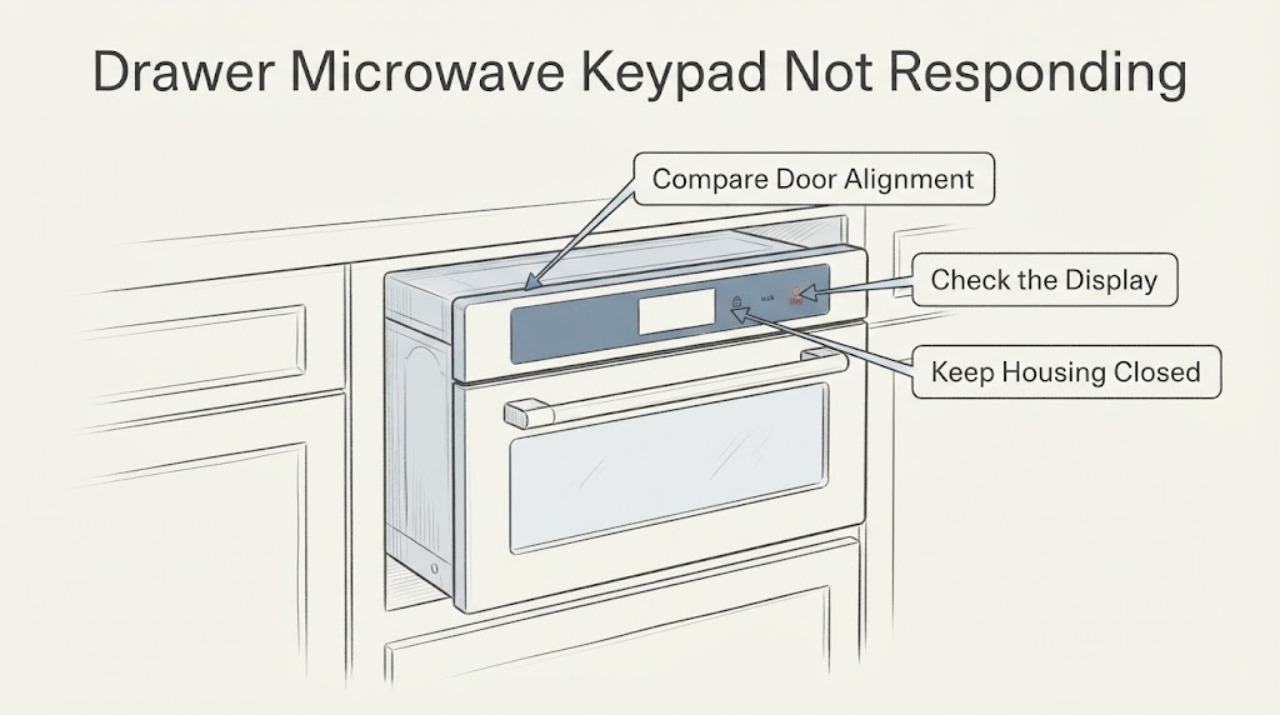
Work through in order
Diagnostic checks
Use only checks that match the exact appliance or system and its official guide.
-
Check 1
Read the complete rating label with the drawer open and record the model exactly, including every suffix character, serial number, and whether the display is blank, dim, showing LOCK ON, or showing normal time. Note whether the keypad stopped after cleaning, a power event, drawer alignment work, or a replacement-part attempt.
Expected result: The label matches SMD3070AS-YD, the display is alive but touch pads do nothing, the display is blank, LOCK ON is visible, or the drawer is bent, misaligned, loose, or rubbing.
Next step: Preserve the exact label and repair history. If the suffix differs from the part listing or the drawer is damaged or misaligned, stop ordering or adjusting parts and use the exact-model service path.
Stop if: Do not remove the control panel, drawer front, hinge, or cabinet to identify a part.
Why this matters
Why: The official Sharp product page opened for this family displays SMD3070ASY, while the official manual is for SMD3070AS. That establishes the family and controls but does not prove that a part or harness for another suffix fits SMD3070AS-YD. A blank display is a power branch; a live display with LOCK ON is a user-control branch; visible drawer damage is a service branch.
-
Check 2
If the display is alive and the panel is otherwise intact, hold the Sharp manual's STOP/CLEAR control-lock sequence once. Confirm whether LOCK OFF appears and whether the keypad responds afterward; do not repeatedly press random combinations or enter service settings.
Expected result: LOCK ON is displayed, LOCK OFF appears and the keypad responds, the display is normal but the keys remain dead, or the display does not respond at all.
Next step: Resume only normal user programming if the lock clears and the drawer closes safely. If the keypad remains dead, the display is blank, or the drawer mechanism was disturbed, stop and arrange service rather than replacing the touch panel by guesswork.
Stop if: Do not bridge keypad traces, connect an unverified replacement panel, or bypass a drawer or door interlock.
Why this matters
Why: Sharp lists Control Lock as the direct cause of touch controls not operating and documents a three-second STOP/CLEAR hold to unlock. If the display is blank or the control-lock sequence does not change the panel, the lock explanation is not established.
-
Check 3
With the microwave not cooking, wipe the exposed touch surface and drawer front with a soft cloth that is only slightly damp, then dry it completely. Keep liquid out of seams, vents, and controls; do not use abrasive or chemical cleaners. If cleaning was the trigger, allow the panel to dry before one normal response check.
Expected result: Grease or moisture is visible, the panel dries and responds, the panel remains unresponsive, or liquid has entered a seam or opening.
Next step: If the panel remains unresponsive after it is dry, leave the appliance off and request service. If liquid entered the control area or the panel is cracked or lifting, do not power-cycle repeatedly or continue using it.
Stop if: Do not spray cleaner directly, pry the panel, remove the membrane, or dry the inside with a heat gun or hair dryer.
Why this matters
Why: Sharp's manual permits gentle cleaning of the touch panel and drawer sealing surfaces but warns against harsh cleaners. A dry, clean panel may remove a surface obstruction; it cannot prove that a control board, ribbon, or touch membrane is sound.
-
Check 4
Operate the drawer only with the normal OPEN/CLOSE control and observe whether it travels smoothly, closes flush, and stops without grinding, binding, or a visible gap. Remove only loose crumbs from the accessible guide area with the unit out of use; do not push or pull the drawer by hand except for a genuine emergency.
Expected result: The drawer opens and closes normally, it binds or sits out of square, a guide or front is visibly damaged, or a previous parts repair changed the movement.
Next step: Keep using the drawer only for the service-free branch if it is undamaged and the keypad has recovered. For binding, misalignment, loose guides, a gap, or any disturbed hinge/control assembly, stop and request Sharp-authorized service.
Stop if: Do not force the drawer, adjust guides or hinges, remove the drawer front, or test a door switch.
Why this matters
Why: Sharp's manual says to use the OPEN/CLOSE control and warns against operating a damaged or misaligned drawer. Smooth movement does not validate a hidden switch or control connection, while binding or misalignment makes continued operation unsafe.
-
Check 5
If the display is completely blank, check the cord connection and the accessible dedicated outlet, and look at the home's breaker without repeatedly resetting it. If the outlet is dead or a breaker trips again, stop. Do not remove a fuse, open the built-in installation, or move the drawer assembly to reach wiring.
Expected result: The outlet is dead, the breaker is tripped, the display returns after a single safe external power correction, or the outlet and breaker are normal while the display stays blank.
Next step: Use an electrician for a failed receptacle or recurring breaker trip. If the supply is normal and the display remains blank, leave the microwave out of service and contact Sharp-authorized service.
Stop if: Stop for heat, smoke, burning odor, arcing, a damaged cord or plug, moisture near electrics, or any need to access internal wiring.
Why this matters
Why: Sharp lists an incompletely connected cord, power outage, home fuse/circuit breaker, and Demo Mode among causes of a drawer that does not operate. A normal supply with a blank display points to an appliance-level fault that cannot be diagnosed by part swapping.
Use your observations
Decision map
Find the observation that best matches what you see, then follow the next safe action.
-
PATH 01Next step
What you see
The display is alive, LOCK ON was shown, the STOP/CLEAR hold changes it to LOCK OFF, and the drawer remains aligned and undamaged.
Do this next
Use the normal controls once the lock clears. Stop and request service if the lock returns without being set or if the drawer movement is abnormal.
Why this path and its safety boundary
Why it matters: Control Lock is the documented user-level explanation for the nonresponsive touch controls; no part replacement is justified from this result.
-
PATH 02Next step
What you see
The display is blank, the outlet and breaker are normal, or the keypad remains dead after the panel is clean, dry, and unlocked.
Do this next
Leave the drawer microwave out of service and arrange Sharp-authorized diagnosis. Do not open the cabinet or order a cross-model control panel.
Why this path and its safety boundary
Why it matters: The fault is beyond a documented lock or surface obstruction. A display/control-board, harness, or power-input issue remains possible, but no specific part can be selected safely.
-
PATH 03Next step
What you see
The drawer is bent, misaligned, binding, has a visible gap, a damaged seal or guide, or a prior parts attempt changed the hinge/control assembly.
Do this next
Stop using the unit and provide the exact SMD3070AS-YD label, photos, and the parts or repair history to an authorized Sharp servicer. Do not force the drawer or continue fitting parts.
Why this path and its safety boundary
Why it matters: Sharp treats visible drawer damage or misalignment as a no-operation condition. The keypad symptom may be secondary to a drawer or safety-control problem that requires model-specific service.
-
PATH 04Next step
What you see
A breaker trips again, the cord or plug is hot or damaged, there is smoke, burning odor, arcing, liquid in the control area, or the microwave behaves unsafely with the drawer open.
Do this next
Stop using the microwave and isolate power only from a dry, safe external position. Use an electrician or authorized Sharp appliance service; use emergency procedures for an active fire.
Why this path and its safety boundary
Why it matters: This is an electrical, fire, liquid, or interlock-safety stop, not a keypad adjustment. Continued testing could worsen damage or expose the user to hazardous energy.
Helpful context
Understand the symptom
A keypad that does nothing can mean Control Lock, a blank display caused by power loss, moisture or residue on the touch surface, or a drawer/control fault. The safe first split is whether the display is alive and whether the drawer still opens and closes normally. It is not safe to infer a failed touch board or hinge from a parts-list match, especially when the full suffix is SMD3070AS-YD and the opened Sharp documents identify the broader SMD3070AS family or SMD3070ASY product listing.
Keep this a front-accessible troubleshooting job. Sharp's manual warns against operating a damaged or misaligned drawer, says not to remove the waveguide cover, and reserves internal repair for qualified service. Do not open the cabinet, reach the high-voltage section, bridge a door switch, or continue a repair because a third-party listing says a panel or hinge fits another suffix.
When checks do not resolve it
Need a professional?
Use Sharp-authorized service for a persistent unresponsive panel, blank display after external checks, damaged or misaligned drawer, or any repair that would involve the control assembly, drawer mechanism, interlock, or high-voltage section.
Have this ready
- Provide the full rating-label model and suffix, serial number, display state, whether LOCK ON appeared, outlet and breaker result, panel-cleaning result, drawer movement, all parts or adjustments already attempted, and photos of any gap, misalignment, or damage. Do not send an assumed compatible part number.
Common questions
FAQ
Why would the Sharp SMD3070AS-YD touch controls stop responding?
Sharp's SMD3070AS-family manual lists Control Lock as the documented cause of nonresponsive touch controls. If the display is blank, the lock sequence does not work, the panel is wet or damaged, or the drawer was disturbed, the cause is not established and the unit should go to service rather than a guessed panel replacement.
How do I unlock a Sharp SMD3070AS-YD drawer microwave?
When the display is alive, Sharp's family manual says to touch and hold STOP/CLEAR for three seconds; LOCK OFF should appear. Use that documented sequence once. Do not use it to override a damaged or misaligned drawer, and do not enter hidden service settings.
Can I order a control panel or hinge listed for SMD3070AS, SMD3070ASY, or SMD3070AS-YD?
Not from the model text alone. The opened official manual covers SMD3070AS and the official product page displays SMD3070ASY, but neither proves that a third-party part, connector, or hinge is compatible with the full SMD3070AS-YD suffix. Have Sharp or an authorized servicer verify the exact part using the rating label and serial information.
Is it safe to remove the Sharp drawer microwave control panel to find the problem?
No. Do not remove the cabinet or control assembly, force the drawer, bypass an interlock, or work in the high-voltage section. A persistent dead keypad, blank display, or damaged drawer needs Sharp-authorized service.
Read the exact guide
Official sources
- Sharp SMD3070ASY 30 in. Microwave Drawer OvenSharp · Opened official Sharp USA product page whose title and product heading display SMD3070ASY and describe the SMD3070AS 30-inch Microwave Drawer. It confirms the family/product context but does not prove a part or suffix match for SMD3070AS-YD.
- SHARP® OPERATION MANUAL MODELS SMD2470AS, SMD2470AH, SMD3070ASSharp · Opened official Sharp USA operation manual for the SMD3070AS family. It supports the documented family-level user controls and safety rules; verify the complete SMD3070AS-YD suffix before applying any part or model-specific internal claim.
Community feedback
Share a repair observation
Share a plain-text repair observation. Accepted observations are published automatically; this page may take a moment to update.