
On this page
Start here
Quick answer
A Samsung robot vacuum that does not complete a cleaning cycle may be recharging as designed, unable to reach its dock, trapped by an obstacle, unable to see a dark or cluttered area, or stopped by debris or a model-specific error. First check the SmartThings history or status and note whether the vacuum returned to the dock, shows a low-battery or red-error indication, or stopped in one location. Clear the route and the dock area, clean the accessible brush, wheels, and sensor windows with the model-approved method, and confirm the dock has power, is level, and has the required clearance. If it docks during Auto Clean, allow it to recharge and resume; Max Clean may not resume after charging. If the same cycle still stops, an error returns, charging remains unreliable, or the robot or station is leaking or overheating, stop repeated tests and request Samsung service.
Before you begin
Safety first
- Stop the robot or station for a leak, smoke, abnormal heat, damaged cable, or a battery or electrical warning that persists. Disconnect the station only from a safe dry location and do not open the battery, housing, or charging electronics.
Work through in order
Diagnostic checks
Use only checks that match the exact appliance or system and its official guide.
-
Check 1
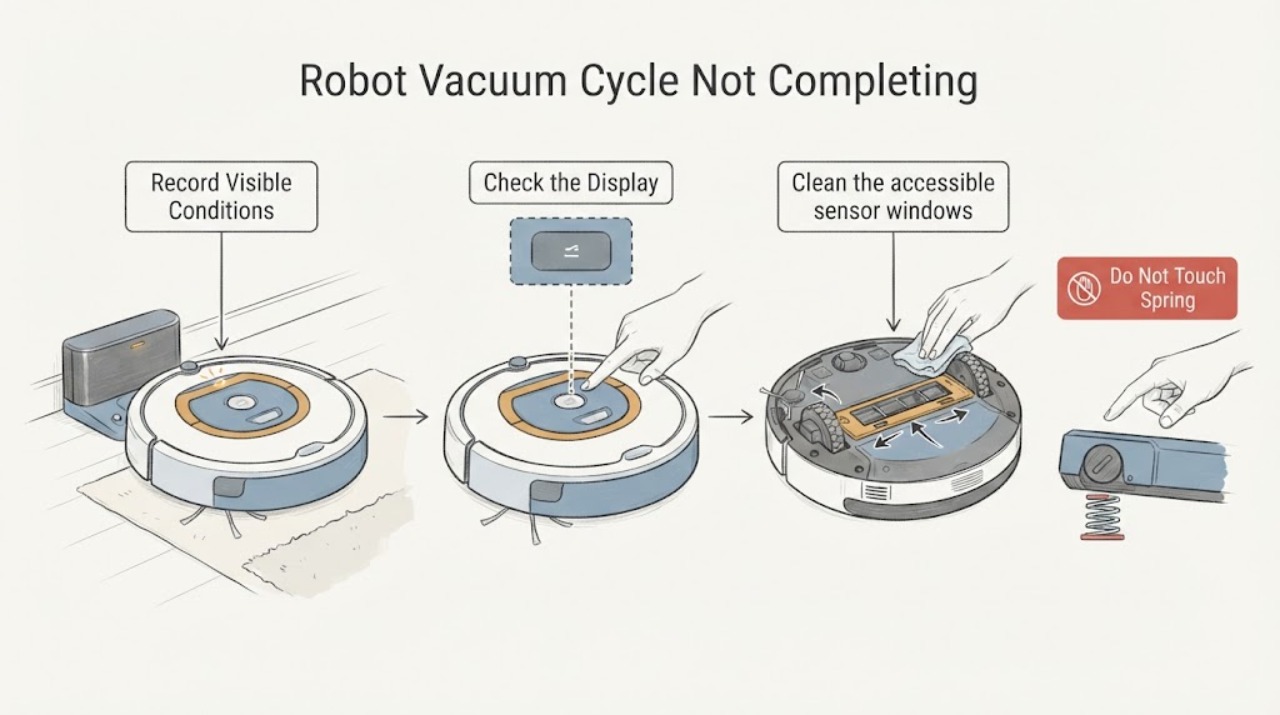
Check the robot and SmartThings status without moving the vacuum first. Record whether the cycle is marked complete, paused, returning to charge, stopped by an error, or missing from the recent cleaning history. Note the cleaning mode, last location, battery indication, and any voice or LED message.
Expected result: The robot is returning because of low battery, the history says the cycle completed, it is paused or asleep, a red error is shown, or it stopped without a status explanation.
Next step: Follow the matching branch below and keep the exact model available. Do not infer a failed motor or battery from an incomplete-looking map alone.
Why this matters
Why: A low-battery return or a completed accessible-area report can be normal cycle behavior. A red error, repeated stop at one location, or no matching status points toward an obstacle, debris, sensor, charging, map, or model-specific fault.
-
Check 2
Inspect the cleaning route and the robot's stopping area from a safe, dry position. Remove cords, small objects, low-clearance obstructions, and anything caught around the main brush, side brush, wheels, or mop attachments. If the model reports that it is stuck, place it in Sleep mode or use the model's documented stop control before clearing debris.
Expected result: The robot is trapped, a brush or wheel cannot move freely, a mop or dustbin is not seated, the route is clear, or the same location is repeatedly missed.
Next step: Clear only accessible debris and reseat only the model-documented removable part. Run one supervised retest after the robot is clear; do not force a wheel, brush, cover, or mop board.
Why this matters
Why: A trapped robot or blocked drive part can stop a cycle before the map is complete. A clear route shifts attention to lighting, dark surfaces, sensor windows, dock access, battery, or software and map state.
-
Check 3
Clean the accessible sensor windows and signal areas with the method in the exact model guide. For Jet Bot Combo guidance, this includes the LiDAR, 3D, obstacle, carpet-detect, cliff, and signal-transmitter windows; use a soft cloth and do not use a wet cloth on electrical contacts unless the model specifically permits it.
Expected result: A sensor window has dust or debris, a dark floor or reflective surface is repeatedly avoided, the robot reports a cliff or obstacle sensor issue, or the sensor areas are clean.
Next step: Improve lighting and remove the specific visual or physical obstruction where safe, then perform one supervised run. Do not tape over, bypass, or disassemble a safety sensor.
Why this matters
Why: Dust, dark flooring, reflections, and room obstacles can make the robot treat an accessible route as blocked or risky. Clean sensors support a navigation or mapping check; a recurring sensor message after cleaning needs model-specific service.
-
Check 4
Check the docking station and charging path. Confirm the outlet supplies power, the station is on a flat level surface, the charging pins and contacts are clean and dry, and the station has clear access on both sides and in front. If the robot is fully depleted or cannot dock, place it so the charging terminals align and observe whether charging begins.
Expected result: The station is unpowered, tilted, blocked, dirty at the contacts, or the robot charges with aligned contacts; the robot leaves and returns repeatedly; or it will not charge.
Next step: Correct only the accessible station position or contact cleanliness described by Samsung, then allow one charge attempt. Keep the robot out of service and request support if charging still fails or the station is damaged.
Why this matters
Why: A low battery can end the current movement, and a station that cannot be reached or cannot maintain contact prevents a recharge and resume. Repeated docking attempts or no charging leave a dock, contact, battery, or control issue possible.
-
Check 5
Compare the selected mode and map behavior with the exact model instructions. In Auto Clean, observe whether the robot resumes after charging; in a mode that does not resume after recharge, use the documented mode or start command. Check SmartThings for a downtime schedule, no-go zone, cleaning history, or a map that was lost after the robot was lifted or manually moved.
Expected result: The mode is Auto Clean and the robot resumes, the mode is Max Clean or another non-resuming behavior, a downtime or no-go setting ends the run, or the map was cleared or lost after moving the robot.
Next step: Use the exact model's documented mode or SmartThings setting and run one supervised cycle from the intended starting area. Do not repeatedly delete maps or lift the robot while it is navigating.
Why this matters
Why: A mode, schedule, exclusion zone, or interrupted map can make a normal stop look like a failed cycle. If the robot stops in the same place despite the correct mode and map, a physical obstacle, sensor, drive, or control problem is more likely.
-
Check 6
If the robot or station reports an error, record the exact voice message, LED state, and what was moving when it stopped before resetting. Use the matching model guide for one permitted reset or accessible clearing step, then observe whether the same message returns.
Expected result: The message identifies a brush, wheel, bumper, cliff sensor, dustbin, clean-station tank, LiDAR, battery, or main-system condition; the message clears once; or the same error returns.
Next step: Stop after the model-documented step and one supervised retest. Keep the unit or station off when there is a leak, damaged cable, abnormal heat, smoke, or a recurring electrical or battery-related message, and arrange qualified service.
Why this matters
Why: The message narrows the next safe check but does not identify a replacement part. Samsung routes recurring sensor, battery, main-system, leak, or unresolved error conditions to support.
Use your observations
Decision map
Find the observation that best matches what you see, then follow the next safe action.
-
PATH 01Next step
What you see
The robot returns to the dock because the battery is low, then shows charging or resumes in Auto Clean after charging.
Do this next
Allow the documented recharge and resume behavior to finish. If the selected mode does not resume after charging, use Auto Clean or the exact model's documented restart behavior.
Why this path and its safety boundary
Why it matters: This is expected recharge-and-resume behavior rather than proof that the cleaning cycle failed. A docked robot may also be reporting that it finished all accessible areas.
-
PATH 02Next step
What you see
The robot stops in one area, reports that it is difficult to move, or has a brush, wheel, mop, or dustbin warning.
Do this next
Put the robot in the model-documented Sleep or stopped state, clear accessible debris, reseat the documented removable part, and run one supervised retest. Keep it out of service if the same warning returns.
Why this path and its safety boundary
Why it matters: A local obstruction, tangled debris, or an unseated removable part is more likely than a whole-home mapping problem.
-
PATH 03Next step
What you see
The robot repeatedly leaves a dark, reflective, cluttered, or low-clearance area unfinished, or the map shows a route that is blocked by furniture or a no-go zone.
Do this next
Improve lighting where safe, remove the physical obstruction, check the map and no-go zones, and request a documented remap or one supervised run. Avoid lifting the robot during that run.
Why this path and its safety boundary
Why it matters: Navigation sensors may be treating the area as risky, or SmartThings settings may intentionally exclude it. This pattern does not establish a failed drive motor.
-
PATH 04Next step
What you see
The robot returns to the dock but the station has no power, the contacts do not connect, the station moves, or the robot repeatedly docks and leaves without charging.
Do this next
Verify the outlet, level the station, clear its approach, clean and dry the charging contacts, and align the terminals for one charge attempt. Request service if it still will not charge or the station is damaged.
Why this path and its safety boundary
Why it matters: The incomplete cycle is more consistent with a charging path or dock-position problem. The robot cannot resume reliably without a confirmed charge.
-
PATH 05Next step
What you see
The mode, map, route, dock, sensors, and accessible moving parts are correct, but the cycle stops again after one supervised retest or a model-specific error returns.
Do this next
Stop repeated resets and arrange qualified Samsung appliance service with the exact model, mode, history, error message, stopping location, charging behavior, and checks already completed.
Why this path and its safety boundary
Why it matters: An internal battery, drive, sensor, control, software, or charging fault remains possible. The symptom does not identify a particular replacement part.
-
PATH 06Next step
What you see
There is a leak from the robot or Clean Station, smoke, abnormal heat, a damaged cable, or a battery or electrical warning that does not clear with the model's documented step.
Do this next
Stop the cleaning cycle, disconnect the station only from a safe dry location, keep clear of damaged or wet electrical equipment, and arrange qualified service. Do not open the battery, station, or robot housing.
Why this path and its safety boundary
Why it matters: This is an immediate safety and service boundary, not a navigation troubleshooting branch.
Helpful context
Understand the symptom
Not every return to the dock means the cleaning job failed. Samsung says a Jet Bot can return when its battery is low, and Auto Clean can resume after charging. A robot that docks and stays there may have finished all accessible areas, while Max Clean behaves differently after a recharge. The useful distinction is whether the robot reports charging, resumes, shows an error, or stops in the same place before returning.
Model names and controls vary across Samsung Jet Bot, Jet Bot+, Jet Bot AI+, and Bespoke Jet Bot Combo products. Use the exact model manual for reset, cleaning, map, and mode instructions. The checks below stay at accessible surfaces and the docking station; do not open the robot or station to reach sealed electrical, battery, drive, or charging parts.
Only after diagnosis
Potential parts
- robot vacuum charging dock
Consider a dock replacement only if the outlet, position, clear approach, clean contacts, and one aligned charge attempt are correct and Samsung or a qualified technician identifies the dock as defective.
Confirm the exact robot model and the manufacturer's fit information before ordering; a cycle stopping early does not establish dock compatibility. - robot vacuum brush or wheel assembly
Consider this only when the exact model instructions or a qualified technician connect a recurring brush or wheel error to a damaged assembly after accessible debris has been cleared.
Confirm the exact model and approved part fit before ordering; do not infer a brush or wheel replacement from incomplete coverage alone.
When checks do not resolve it
Need a professional?
Arrange qualified Samsung service when one supervised run still stops after the route, sensors, dock, charge contacts, mode, and accessible debris checks; when the same error returns after the model-documented step; or when charging remains unreliable.
Safety scope: Stop the robot or station for a leak, smoke, abnormal heat, damaged cable, or a battery or electrical warning that persists. Disconnect the station only from a safe dry location and do not open the battery, housing, or charging electronics.
Have this ready
- Provide the exact model, robot and station type, cleaning mode, SmartThings history, last stopping location, battery and charging behavior, exact voice or LED message, map or no-go-zone observations, and the safe checks already completed.
Common questions
FAQ
Why does my Samsung robot vacuum return to the charger before cleaning is complete?
Samsung says a Jet Bot can return when the battery is low. In Auto Clean it can resume after charging, while Max Clean behaves differently. A robot that docks and remains may also have finished all accessible areas, so check the mode, SmartThings history, battery state, and whether it resumes after charging.
What should I check when the robot stops in the same place every time?
Look for cords, small objects, low clearance, a dark or reflective floor, tangled brush or wheel debris, and a no-go zone or map boundary. Clean the documented sensor windows and accessible moving parts, improve lighting where safe, then perform one supervised run without lifting the robot.
How can I tell whether an incomplete cycle is really a charging problem?
Check whether the dock has power, is level and reachable, and has clean dry charging contacts. If the robot repeatedly docks and leaves, the station moves, or charging never begins when the terminals align, the charging path needs further diagnosis. Stop using it and request service if one clean, aligned charge attempt fails.
Can I reset the Samsung robot vacuum repeatedly until it finishes?
Use only the reset or clearing step documented for the exact model, and make one supervised retest. Repeated resets can erase navigation context or hide a recurring sensor, battery, drive, or control fault. Record the exact message and contact Samsung when it returns.
Read the exact guide
Official sources
- Jet Bot will not chargeSamsung · Samsung Jet Bot charging troubleshooting, dock power, contacts, placement, and service
- Bespoke Jet Bot Combo voice says there is a problemSamsung · Samsung Bespoke Jet Bot Combo voice and LED errors, accessible obstruction checks, sensors, tanks, and service
- How to clean your Bespoke Jet Bot Combo and Clean StationSamsung · Samsung Bespoke Jet Bot Combo and Clean Station accessible cleaning, sensors, brush, roller, wheel, and safe cleaning state
- Jet Bot robot vacuum mapping and pattern cleaning FAQsSamsung · Samsung Jet Bot robot vacuum navigation, mapping, incomplete coverage, and recharge behavior
- Docking station positioning for Samsung Jet BotSamsung · Samsung Jet Bot docking, charging station placement, approach clearance, and charging contacts
- Monitor and manage your Jet Bot in the SmartThings appSamsung · Samsung Jet Bot SmartThings monitoring, cleaning history, modes, schedules, maps, and device status
Community feedback
Share a repair observation
Share a plain-text repair observation. Accepted observations are published automatically; this page may take a moment to update.