
On this page
Start here
Quick answer
First separate a Samsung robot vacuum that has no power from one that powers on but will not start, move, or follow a command. Turn off the power switch on the underside, wait at least five seconds, and start the vacuum from its own Start/Stop button. If it remains unresponsive, use a known-working outlet, clean and align the charging contacts, and leave it on a level dock long enough to show charging. If it powers on but stops or refuses to move, put it into its model's sleep or safe state and clear the brush, wheels, sensor windows, and dustbin area. Check SmartThings for a no-go zone or reported obstacle when your model supports it. Persistent failure after these checks needs Samsung service.
Before you begin
Safety first
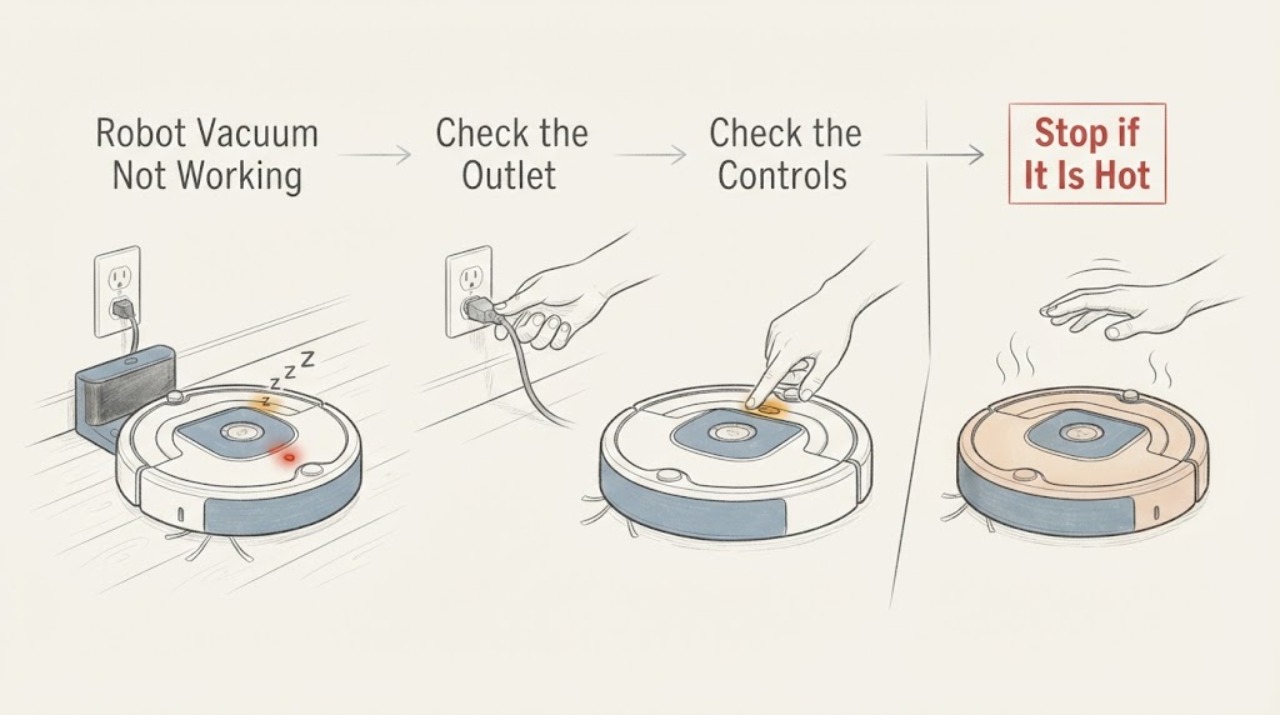
- Stop user troubleshooting if the robot, dock, charger, or clean station is wet, unusually hot, smells burnt, has damaged wiring, or continues to show a battery, charging, or system fault after the model-specific checks.
Work through in order
Diagnostic checks
Use only checks that match the exact appliance or system and its official guide.
-
Check 1
Check the vacuum itself before using the app or remote: turn off the power switch on the underside, wait at least five seconds, turn it back on, and press the Start/Stop button on the robot. Do not rely on the remote for this first test.
Expected result: The robot shows an LED or sound and responds to its own Start/Stop button, or it remains completely unresponsive.
Next step: If it responds, continue with the movement and command checks. If it remains dark and unresponsive, perform the charging check before requesting service.
Why this matters
Why: A response after the power cycle points toward a temporary state or command issue. No response keeps the power, battery, charging path, or internal electronics in question.
-
Check 2
Test the docking station from a known-working outlet, unplug it, and wipe the charging pins on both the dock and the robot with a dry cloth. Make sure the dock is level and stable, then place the robot so its contacts align and touch. Use the model's charging indication to confirm that it is actually charging.
Expected result: The charging indication appears and remains present, the robot repeatedly connects and disconnects, or no charging indication appears after the contacts and outlet have been checked.
Next step: Allow a normal charge and retry Start/Stop. If the robot still will not charge or power on, stop testing and request Samsung service; do not substitute an unverified adapter.
Why this matters
Why: A stable charging indication makes a depleted battery the more likely reason it would not start. Repeated dock cycling points to misalignment, dirty contacts, or an unstable dock. No indication after a known-good outlet and dry aligned contacts suggests a charger, battery, or hardware fault.
-
Check 3
If the robot powers on but will not move or stops shortly after starting, place it in the model's sleep or safe state and inspect the main brush, side brush, wheels, bumper area, and underside sensor windows. Remove visible hair or debris with the method in the model guide, then confirm the dustbin is inserted and latched.
Expected result: A brush or wheel is difficult to turn, the bumper or sensor window is obstructed, the dustbin is missing or loose, or all accessible parts are clear.
Next step: Reassemble only parts that the model guide says are user-removable and retry locally. If a fault message returns or the robot still stops, save the message and arrange service.
Why this matters
Why: A trapped brush or wheel, blocked bumper or sensor, or missing dustbin can cause a protective stop or prevent a cleaning cycle. If the accessible parts are clear and the symptom persists, the motor, sensor, or control system needs deeper diagnosis.
-
Check 4
When the robot works from its own button but not from SmartThings, open the Jet Bot device in the app and review its reported status, cleaning history, schedule, cleaning mode, no-go zones, and any obstacle or map setting available for your model.
Expected result: The app reports an obstacle, no-go zone, paused schedule, unavailable device, or a normal ready state while the local button still starts cleaning.
Next step: Correct only the reported app setting and retry from the robot, then the app. If SmartThings cannot connect or the robot ignores both command paths, use the exact model support guide and request service if the problem remains.
Why this matters
Why: An app status, map boundary, schedule, or connection problem can block an app command even when the robot's drive system works locally. A normal app state with no response to either local or app commands points back to the robot or charging path.
-
Check 5
Use a reset only when the exact Samsung model guide identifies a reset procedure for the symptom. Record the current LED or voice message first, and avoid a factory reset until you understand that it can require re-registering the vacuum and rebuilding its app setup.
Expected result: A model-specific simple reset restores operation, or the same system, battery, sensor, or charging message returns after reset.
Next step: Keep the robot and dock powered down if the repeated fault involves charging, heat, liquid, or abnormal noise, and arrange Samsung service. Provide the model code, LED or voice message, and the checks already completed.
Why this matters
Why: A successful simple reset supports a temporary control state. A repeating system, battery, sensor, or charging message after reset is evidence that the problem is beyond routine user checks.
Use your observations
Decision map
Find the observation that best matches what you see, then follow the next safe action.
-
PATH 01Next step
What you see
The robot remains dark after the underside power cycle and shows no charging indication on a known-working outlet with clean, aligned contacts.
Do this next
Stop repeated start attempts and request Samsung service. Do not open the battery compartment or use an unapproved charger.
Why this path and its safety boundary
Why it matters: The charging path, battery, or internal power electronics are more likely than a SmartThings command or floor obstruction.
-
PATH 02Next step
What you see
The robot charges but repeatedly leaves and returns to the dock, or powers on and stops with a brush, wheel, bumper, sensor, or dustbin message.
Do this next
Clean and level the dock, then place the robot in its safe or sleep state and clear only the accessible part named by the model guide. Escalate if the message returns.
Why this path and its safety boundary
Why it matters: Dock contact or leveling can explain repeated docking, while a stuck moving part, obstructed sensor, or missing dustbin better explains a protective stop after startup.
-
PATH 03Next step
What you see
The robot starts from its own button but SmartThings reports a no-go zone, obstacle, paused schedule, or unavailable device.
Do this next
Review the reported status and map or schedule setting, then retry locally and through the app. Use model-specific support if the app cannot reconnect.
Why this path and its safety boundary
Why it matters: The drive system can operate, so the immediate blocker is more likely an app command, map rule, schedule, or connection state.
-
PATH 04Next step
What you see
A reset does not clear a repeated battery, main-system, sensor, charging, or other fault message, or the dock, charger, or robot is wet or unusually hot.
Do this next
Leave the affected equipment disconnected or powered off, keep it away from water and combustible materials, and arrange Samsung service. Supply the exact model and the recorded message.
Why this path and its safety boundary
Why it matters: The remaining symptom needs service-level electrical, battery, sensor, or control diagnosis and should not be treated as a routine obstruction.
Helpful context
Understand the symptom
Start by identifying what not working means
No lights or response points first to the power and charging path. A robot that lights up but stays at the dock has a different next check from one that starts and then stops. A robot that moves when started locally but ignores a scheduled or app command may be following a SmartThings setting or map rule rather than having a failed motor. Record the LED color, any spoken message, and the point at which the cycle stops before changing more than one thing at a time.
Model differences matter
Samsung sells several robot vacuum families, including Jet Bot and Jet Bot Combo models. Button names, reset locations, sensors, mopping hardware, and clean-station features vary. Use the exact model manual for any step that does not match your vacuum, and treat the Combo voice messages as model-specific guidance rather than a universal error list.
Keep liquids away from the robot and dock
The dock and charger are electrical equipment. Do not test a wet robot, wet charging contacts, or a wet dock. Disconnect the dock from the outlet, let accessible surfaces dry, and arrange service if liquid entered the robot, dock, charger, or clean station. Do not open the battery or electrical housing to investigate a no-power condition.
Only after diagnosis
Potential parts
- model-specific charging dock or power adapter
Consider a replacement only after a known-working outlet, dry charging contacts, stable dock, and correct alignment have been checked and the model documentation identifies the dock or adapter as the failed part.
Match the exact robot model and electrical specifications in Samsung documentation before ordering; do not assume another Jet Bot dock or adapter fits. - model-specific brush or wheel assembly
Consider this only when the model guide identifies a damaged or seized user-replaceable brush or wheel after hair and debris have been removed.
Confirm the exact model and whether Samsung permits user replacement before ordering or opening the assembly.
When checks do not resolve it
Need a professional?
Arrange Samsung service when the robot remains unresponsive after a verified charging check, repeatedly stops after accessible obstructions are cleared, ignores both local and app commands, or repeats a fault message after reset.
Safety scope: Stop user troubleshooting if the robot, dock, charger, or clean station is wet, unusually hot, smells burnt, has damaged wiring, or continues to show a battery, charging, or system fault after the model-specific checks.
Have this ready
- Provide the exact model code, LED color or spoken message, whether the robot charges, whether its own button works, the dock and outlet checks completed, and any SmartThings status shown.
Common questions
FAQ
Why does my Samsung robot vacuum have lights but not start cleaning?
Check whether it is actually charging, then inspect the brush, wheels, bumper and sensor windows, and confirm the dustbin is inserted. If the robot starts from its own button but not SmartThings, review the app status, schedule, and no-go zones.
Can I use the remote to test a Samsung Jet Bot that will not turn on?
Samsung's no-power guide says to press Start/Stop on the vacuum itself after the power cycle. Test the remote only after the robot responds locally, because a remote problem can otherwise hide a power or charging problem.
Should I factory-reset my Samsung robot vacuum?
Use a reset only when the exact model guide calls for it. A factory reset can require removing and re-registering the vacuum in SmartThings, so record the fault and try the model's simple reset guidance first.
When is a Samsung robot vacuum unsafe to keep testing?
Stop if the robot, dock, charger, or clean station is wet, unusually hot, smells burnt, or has damaged wiring. Disconnect the dock safely, leave the affected equipment off, and arrange service rather than opening the battery or electrical housing.
Read the exact guide
Official sources
- Use your Samsung Jet Bot Vacuum?s functions with SmartThingsSamsung · Samsung Jet Bot SmartThings status, cleaning reports, schedules, maps, no-go zones, and device settings
- Reset your Bespoke Jet Bot ComboSamsung · Samsung Bespoke Jet Bot Combo simple and factory reset procedures and SmartThings re-registration
- How to clean your Bespoke Jet Bot Combo and Clean StationSamsung · Samsung Bespoke Jet Bot Combo safe-state cleaning, sensor windows, dustbin, brush, roller, wheels, and clean station maintenance
- Bespoke Jet Bot Combo voice says there is a problemSamsung · Samsung Bespoke Jet Bot Combo voice messages for movement, brush, wheel, bumper, LiDAR, obstacle and cliff sensors, dustbin, system, and battery faults
- Jet Bot will not chargeSamsung · Samsung Jet Bot charging contacts, docking station power, dock level, alignment, and charging failure
- Jet Bot will not turn onSamsung · Samsung Jet Bot power cycling, local Start/Stop control, charging, and service escalation
Community feedback
Share a repair observation
Share a plain-text repair observation. Accepted observations are published automatically; this page may take a moment to update.