
On this page
Start here
Quick answer
A Samsung robot vacuum error display should be matched to the message or LED pattern before resetting. Put the robot in its documented safe mode, clear accessible debris from the brush, wheels, sensors, bin, or tanks, and contact service if the same error returns or points to the main system, battery, or sensor.
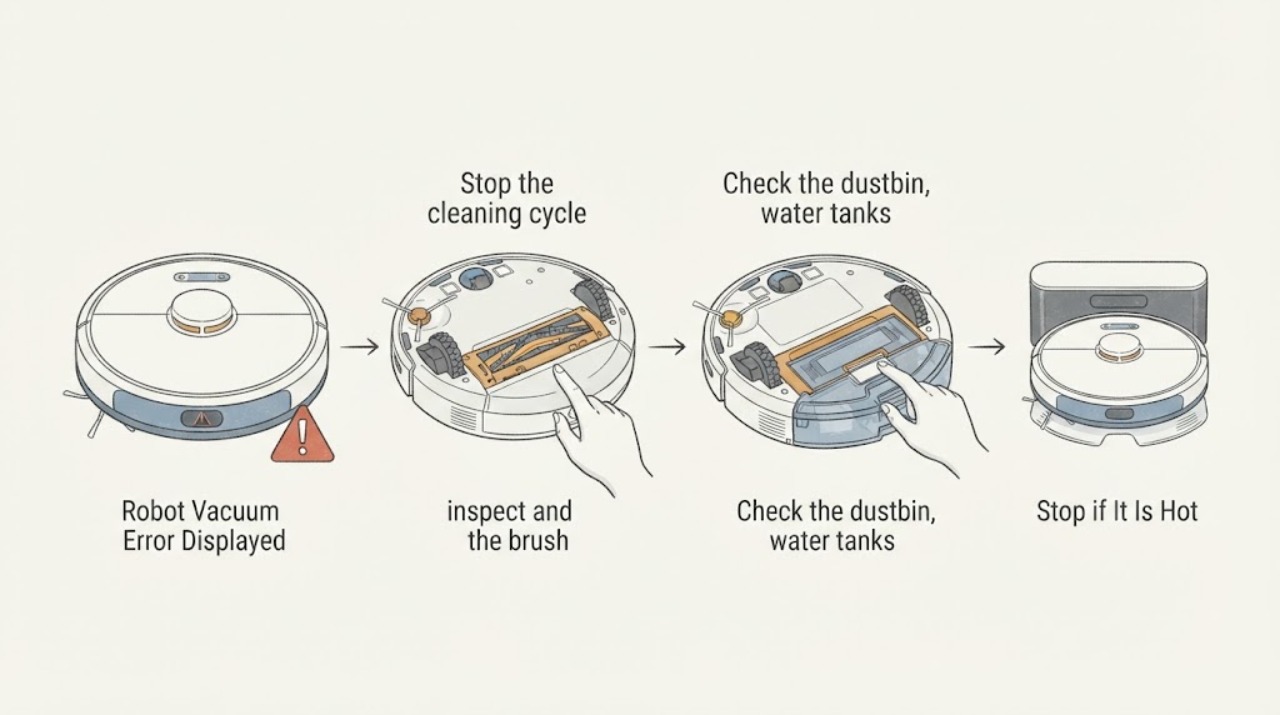
Work through in order
Diagnostic checks
Use only checks that match the exact appliance or system and its official guide.
-
Check 1
Stop the cleaning cycle and identify whether the robot is stuck, returning early, showing a red error, or making noise at the brush, wheel, or dock.
Expected result: The symptom follows a low battery, an obstruction, an error message, or a particular moving part.
Next step: Use Sleep mode or power controls described for the model before handling removable parts.
Stop if: Stop and arrange qualified service for smoke, burning odor, sparks, damaged wiring, water near electrics, or repeated protective-device trips.
Why this matters
Why: Battery, obstruction, and location patterns determine the next safe user check; repeated system errors need service.
-
Check 2
With the robot stopped, inspect and clean the brush, roller, side brush, driving wheels, and sensor windows using the Samsung cleaning guidance.
Expected result: Hair or debris is present, or the removable parts and sensor windows are clear.
Next step: Reassemble parts fully and do not run with covers, bins, or brushes missing.
Stop if: Stop and arrange qualified service for smoke, burning odor, sparks, damaged wiring, water near electrics, or repeated protective-device trips.
Why this matters
Why: Debris can stop a cycle, add noise, or trigger obstruction and sensor messages; clear parts with persistent symptoms need service.
-
Check 3
Check the dustbin, water tanks or mop station where fitted, and confirm the dock is powered, level, and reachable.
Expected result: A bin or tank is missing/full, the dock is unstable or unpowered, or all are normal.
Next step: Correct only the documented container or dock condition; arrange service if the dock or contacts are damaged.
Stop if: Stop and arrange qualified service for smoke, burning odor, sparks, damaged wiring, water near electrics, or repeated protective-device trips.
Why this matters
Why: Missing containers and docking faults can end a cycle early or prevent recharge and continuation.
-
Check 4
Use SmartThings to read the cleaning report, current mode, no-go zones, and any repeated error before trying another cycle.
Expected result: The report shows low battery, a navigation boundary, an obstruction, or a repeated system error.
Next step: Stop repeated retries and request Samsung service for persistent main-system, battery, or drive errors.
Stop if: Stop and arrange qualified service for smoke, burning odor, sparks, damaged wiring, water near electrics, or repeated protective-device trips.
Why this matters
Why: App history can distinguish a normal return-to-dock or mode choice from a recurring hardware or sensor issue.
Use your observations
Decision map
Find the observation that best matches what you see, then follow the next safe action.
-
PATH 01Next step
What you see
The robot returns to the dock because the battery is low, or it resumes when charge and Auto mode are restored.
Do this next
Verify the dock and mode, then monitor one supervised cycle.
Why this path and its safety boundary
Why it matters: This is consistent with normal battery management and cleaning-mode behavior.
-
PATH 02Next step
What you see
A brush, wheel, sensor, bin, or tank message clears after the documented clean and reseat.
Do this next
Keep the parts clean and correctly installed; escalate if the message returns.
Why this path and its safety boundary
Why it matters: The issue was likely an accessible obstruction or container condition.
-
PATH 03Next step
What you see
Noise, incomplete cycles, or red/system errors persist after cleaning and a verified dock.
Do this next
Stop use and arrange qualified Samsung service; do not open the robot or station.
Why this path and its safety boundary
Why it matters: A drive, battery, sensor, or control fault is more likely than routine debris.
Helpful context
Understand the symptom
What the symptom can mean
This samsung robot-vacuum symptom can come from an accessible condition, a control state, or a component that requires qualified service.
Use the result to choose the next step
Record what you observed and stop when the safety or service boundary below applies.
When checks do not resolve it
Need a professional?
Arrange qualified appliance service when the symptom persists after the documented user-accessible checks, a protective device trips again, or the diagnosis would require opening panels, accessing wiring, refrigerant circuits, sealed mechanisms, or motor and control components.
Common questions
FAQ
Can I keep using the robot-vacuum while this symptom continues?
Use it only when the accessible checks show normal operation and no safety warning; stop for persistent faults, heat, smoke, water near electrics, sparks, or repeated protective-device trips.
When should I stop troubleshooting?
Stop when the symptom repeats after the documented user checks, when a panel or sealed system would need to be opened, or when any electrical, fire, water, or mechanical hazard appears.
Read the exact guide
Official sources
- Bespoke Jet Bot Combo voice says there is a problemSamsung · Samsung Jet Bot robot vacuum error, obstruction, sensor, and service checks
- How to clean your Bespoke Jet Bot Combo and Clean StationSamsung · Samsung Jet Bot robot vacuum brush, filter, wheel, and station cleaning
- Monitor and manage your Jet Bot in the SmartThings appSamsung · Samsung Jet Bot SmartThings cleaning modes, reports, and return-to-station controls
- Jet Bot will not chargeSamsung · Samsung Jet Bot docking, charging-pin, power, and service checks
Community feedback
Share a repair observation
Share a plain-text repair observation. Accepted observations are published automatically; this page may take a moment to update.