
On this page
Start here
Quick answer
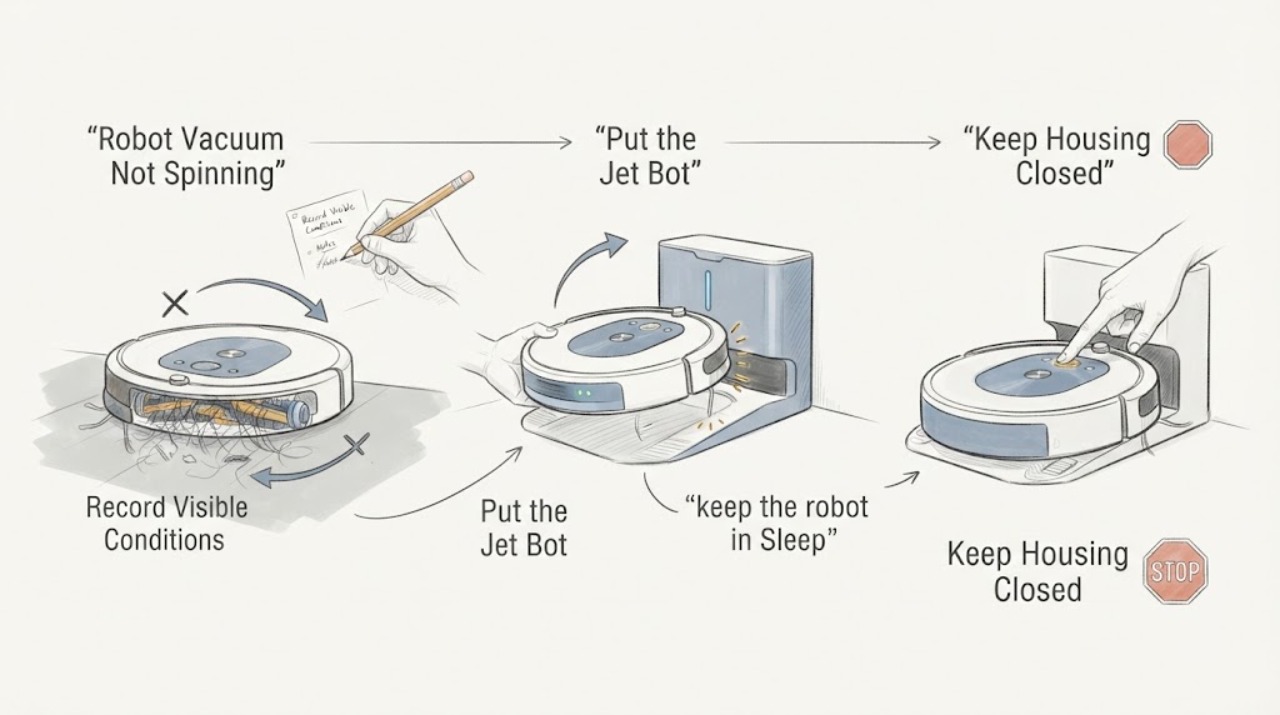
When a Samsung robot vacuum is not spinning, first identify whether the stopped part is the main brush, the side or spin brush, a drive wheel, or the whole robot. Put the Jet Bot in Sleep mode or turn it off, then remove hair and debris from the affected part and reinstall the cover or brush so it is fully seated. Clean the sensor windows with a soft dry cloth and check the wheels if the robot also cannot move. If the whole robot does not start, check the powered, level docking station and clean charging contacts. A brush or wheel that still does not operate after the model's cleaning and restart steps, or a recurring fault message, needs Samsung service rather than a guessed replacement part.
Work through in order
Diagnostic checks
Use only checks that match the exact appliance or system and its official guide.
-
Check 1
Stop the cleaning run and identify exactly what is stationary: the main roller brush, the side or spin brush, one drive wheel, or the entire robot. If the model has a voice guide or SmartThings status, record the message and whether the robot can still travel.
Expected result: The robot travels but one brush is still, the robot reports a left or right wheel or brush obstruction, the robot cannot move, or the robot has no response at all.
Next step: Follow the matching brush, wheel, sensor, or charging check below; do not order a part based only on the phrase not spinning.
Stop if: Do not reach under a running robot or force a brush, wheel, cover, or bumper.
Why this matters
Why: A moving robot with a stationary brush points to a brush obstruction or seating issue. A named wheel or obstacle message directs attention to that area. No response requires a power and charging check before judging a brush motor.
-
Check 2
Put the Jet Bot in Sleep mode or turn it off before cleaning the main brush. Release the brush-cover lock using the model's instructions, remove the cover and brush, clear hair, thread, dust, and other debris, then refit the brush in its grooves and lock the cover securely.
Expected result: The roller was wrapped or obstructed and is correctly seated after cleaning, or it is clean and correctly fitted but remains stationary during a short supervised test.
Next step: Run a short supervised cleaning test on a clear floor. If the main brush still does not spin, continue with the side-brush and system distinction and prepare the model details for Samsung support.
Stop if: Do not pull tangled material against the motor, bypass a cover lock, or open the robot body.
Why this matters
Why: Debris can prevent the brush from turning, while an incompletely fitted brush or cover can prevent normal operation. A clean, correctly seated roller that still does not spin points beyond an accessible blockage.
-
Check 3
If the side or spin brush is the stopped part, keep the robot in Sleep mode or powered off and follow the model guide to remove the brush or expose it. Clear hair, thread, and debris from the brush and its attachment, then reinstall it securely; use only the tool and removal method specified for that model.
Expected result: The side brush was tangled and turns after it is cleaned and refitted, or it is clean and properly attached but still does not turn.
Next step: Perform one short supervised test. If the side brush remains still or is visibly damaged, stop using the robot and request Samsung service or model-specific parts guidance.
Stop if: Do not force the brush axle, use cleaning liquid on the sensor or motor area, or run the robot with a loose cover.
Why this matters
Why: Samsung identifies foreign material in the spin brush as a cause of the side-brush warning. If cleaning does not restore operation, the attachment, drive, or control condition is unproven and needs model-specific diagnosis.
-
Check 4
If the robot cannot move or reports a wheel or sensor problem, power it off and place it on a soft cloth. Remove accessible debris from the named driving wheel, then wipe the sensor windows with a soft, dry cloth and return the robot upright.
Expected result: A wheel or sensor window was blocked and the robot moves normally afterward, or the wheels are clear but the robot still cannot move or still reports the same fault.
Next step: Test once on a clear, level floor. If the robot still cannot move, repeatedly reports a wheel or sensor fault, or makes unusual noise, request Samsung service.
Stop if: Do not disassemble a wheel or sensor housing or use liquid on sensor windows.
Why this matters
Why: A trapped object can stop a driving wheel, and dirty obstacle or cliff-sensor windows can change how the Jet Bot moves. Clear wheels and sensors do not prove a wheel motor or sensor assembly is healthy.
-
Check 5
If the entire robot is inactive rather than only a brush, turn off the power switch on the bottom, unplug the docking station, and wipe the charging contacts on the station and Jet Bot with a dry cloth. Reconnect the station to a known-working outlet on a level surface, turn on the Jet Bot, place it with the contacts aligned, and observe whether it charges or starts.
Expected result: The Jet Bot powers on or charges after the contacts and dock are corrected, or it still has no response, will not stay on the dock, or shows a recurring system or battery message.
Next step: Leave the robot off and request Samsung service if it still will not charge or start. Include the model, observed indicator, exact voice or app message, and which brush or wheel was stationary.
Stop if: Do not test internal battery wiring, bypass the charging contacts, or continue operating with damaged cables or a wet device.
Why this matters
Why: A dead dock, dirty contacts, poor alignment, or an uneven station can prevent the robot from starting, which can look like a spinning failure. Persistent no-start behavior after this check points to a battery, system, or charging fault.
Use your observations
Decision map
Find the observation that best matches what you see, then follow the next safe action.
-
PATH 01Next step
What you see
The Samsung robot vacuum still travels, but the main roller does not turn and hair or thread is wrapped around it or its cover.
Do this next
Power off or use Sleep mode, clean and reseat the main brush and cover using the exact model instructions, then perform one short supervised test.
Why this path and its safety boundary
Why it matters: The evidence favors a roller obstruction or an incorrectly seated brush assembly over a whole-robot power failure.
-
PATH 02Next step
What you see
The robot reports that something is stuck in the side brush, or the side brush is the only stationary part after the main brush is clear.
Do this next
Clean and refit the side brush with the model-specified method. Stop and seek service if it remains still or is damaged.
Why this path and its safety boundary
Why it matters: A side-brush obstruction or attachment issue is more likely than a drive-wheel problem.
-
PATH 03Next step
What you see
The robot cannot move and identifies a left or right wheel, bumper, obstacle sensor, or cliff sensor, while the brushes are not the only affected parts.
Do this next
Use Sleep mode, clear accessible debris, wipe sensor windows dry, and test once on a clear floor. Request service for a recurring message.
Why this path and its safety boundary
Why it matters: The reported location makes a wheel, sensor window, bumper, or trapped obstacle more likely than an isolated brush motor fault.
-
PATH 04Next step
What you see
No part moves because the Jet Bot will not power on or charge, or a brush remains still after cleaning and correct reassembly.
Do this next
Stop using the robot and contact Samsung Support with the exact model, status light or message, affected part, cleaning steps completed, and whether the dock supplied power.
Why this path and its safety boundary
Why it matters: The symptom has moved beyond an accessible obstruction; charging, battery, motor, sensor, or control faults remain possible without proving any one component.
Helpful context
Understand the symptom
Separate the spinning symptom
A Jet Bot can appear to be not spinning for different reasons. If it travels while the roller or side brush stays still, start with that brush. If it reports a left or right wheel problem or cannot move, inspect the named wheel and nearby debris. If no part moves and the robot will not start, the battery, dock, or a system fault becomes the first distinction. Samsung's Combo guidance uses its voice message and SmartThings status to identify whether a brush, wheel, sensor, or obstacle needs attention.
Use the model's assembly instructions
Jet Bot families use different brush covers, rollers, side brushes, and cleaning stations. The Samsung maintenance guides show the general sequence, but say to follow the exact manual when a step does not match the device. Keep removed parts dry and lock every cover or brush back into place before testing.
Only after diagnosis
Potential parts
- Samsung Jet Bot main brush
Consider this only when the model guide and inspection show a damaged or worn main brush after hair and debris are removed; a stationary brush alone does not prove the brush needs replacement.
Confirm the exact Jet Bot model and Samsung fit information before ordering. - Samsung Jet Bot side or spin brush
Consider this only when the side brush is visibly damaged or Samsung diagnosis identifies it as the failed part after cleaning and correct attachment.
Confirm the exact Jet Bot model and brush type before ordering.
When checks do not resolve it
Need a professional?
Request Samsung service when the robot will not power on or charge after the dock and contact checks, a brush or wheel remains stationary after the exact cleaning and reassembly steps, a fault message returns, the robot makes unusual noise or vibration, a part is damaged, or diagnosis would require opening the robot or testing internal wiring, battery, motor, sensor, or control components.
Common questions
FAQ
Why is my Samsung robot vacuum moving but its brush is not spinning?
The main brush or side brush may be blocked by hair or debris, or may not be seated correctly under its cover. Put the robot in Sleep mode or turn it off, clean the affected brush, refit it using the exact model instructions, and test once.
What should I check if the Samsung robot vacuum cannot move at all?
Check the voice or app message for a named wheel, bumper, obstacle sensor, or cliff sensor. With the robot stopped, clear accessible debris from the affected wheel and wipe sensor windows with a soft dry cloth. If it still cannot move, request service.
Could a charging problem make a Samsung robot vacuum seem like it is not spinning?
Yes. If the whole robot is inactive, a powered or level dock, dirty charging contacts, or poor alignment can prevent it from starting. Clean the contacts with a dry cloth and observe charging; persistent no-start behavior needs Samsung support.
Should I replace the brush when it stops spinning?
Not from the symptom alone. Remove the obstruction and confirm that the brush and cover are correctly fitted first. Consider a part only if the exact model guide or Samsung diagnosis identifies visible damage or a failed component.
Read the exact guide
Official sources
- How to clean the Jet Bot brushSamsung Support Saudi Arabia · Manufacturer brush-cleaning steps for Samsung Jet Bot models covered by the guide
- How to clean and maintain your Samsung Jet BotSamsung UK Support · Manufacturer maintenance guidance for Samsung Jet Bot robot vacuums
- Bespoke Jet Bot Combo voice says there is a problemSamsung Support · Manufacturer fault-message mapping for Samsung Bespoke Jet Bot Combo; use the exact model guide when controls differ
- Jet Bot will not chargeSamsung Support · Manufacturer charging and no-start troubleshooting for Samsung Jet Bot robot vacuums
Community feedback
Share a repair observation
Share a plain-text repair observation. Accepted observations are published automatically; this page may take a moment to update.