
Samsung appliance guidance
Samsung Robot Vacuum Repair Guides
Troubleshooting and repair guidance for published Samsung Robot Vacuum problems, symptoms, and maintenance questions.
Published Samsung Robot Vacuum guides
Choose the guide whose symptom or condition most closely matches what you are seeing.
-
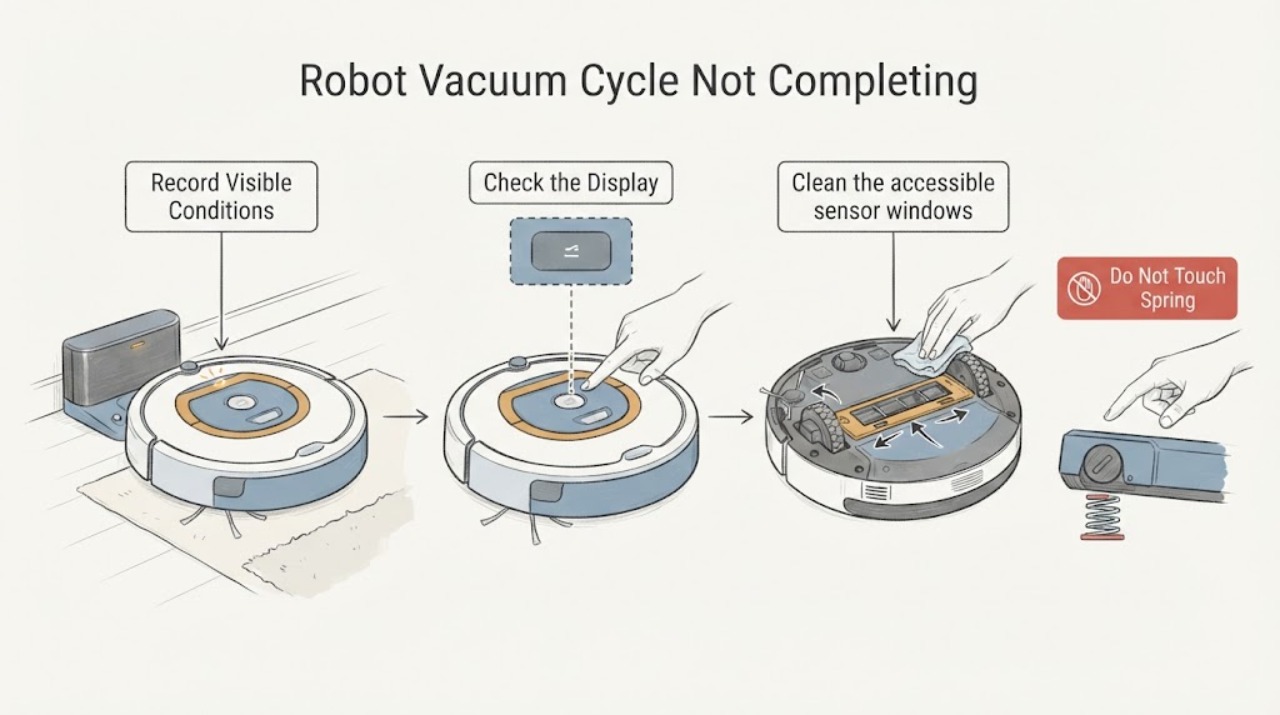
Samsung Robot Vacuum Cycle Not Completing: Check Charging, Obstacles, and Sensors
A Samsung robot vacuum that does not complete a cleaning cycle may be recharging as designed, unable to reach its dock, trapped by an obstacle, unable to see a dark or cluttered area, or stopped by debris or a model-specific error. First check the SmartThings history or status and note whether the vacuum returned to the dock, shows a low-battery or red-error indication, or stopped in one location.
-
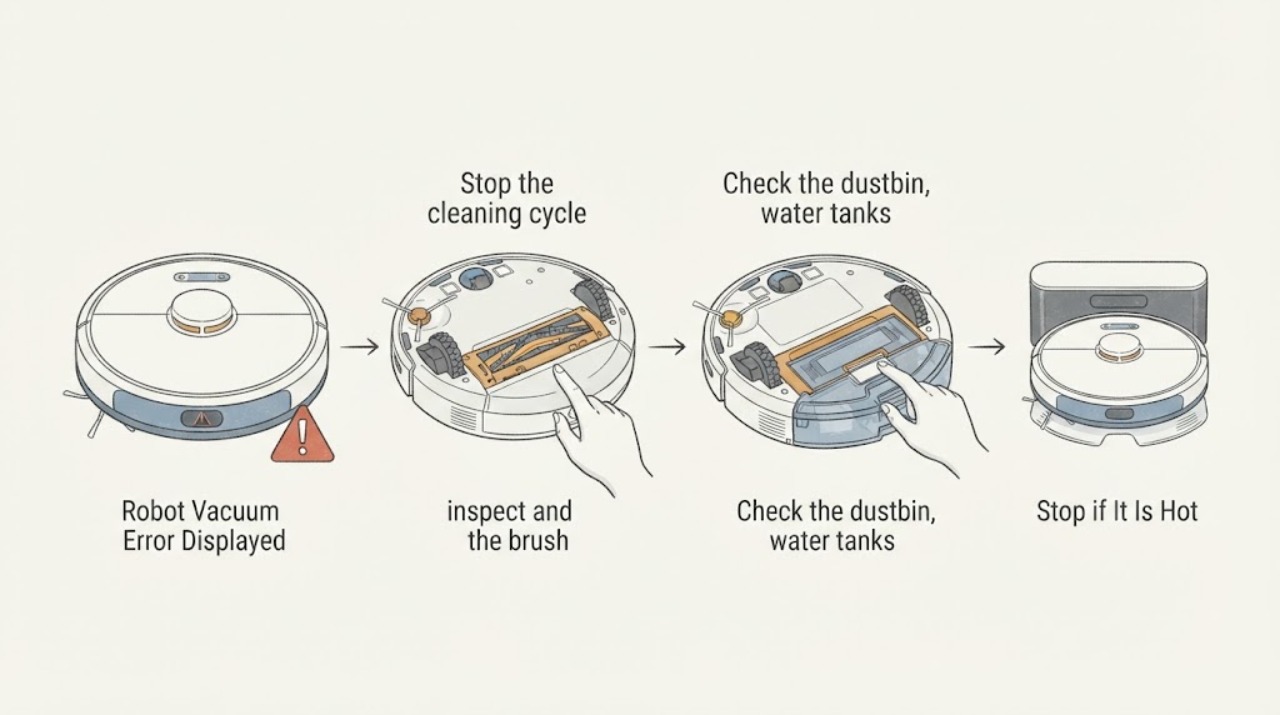
Samsung Robot Vacuum Error Displayed
A Samsung robot vacuum error display should be matched to the message or LED pattern before resetting. Put the robot in its documented safe mode, clear accessible debris from the brush, wheels, sensors, bin, or tanks, and contact service if the same error returns or points to the main system, battery, or sensor.
-
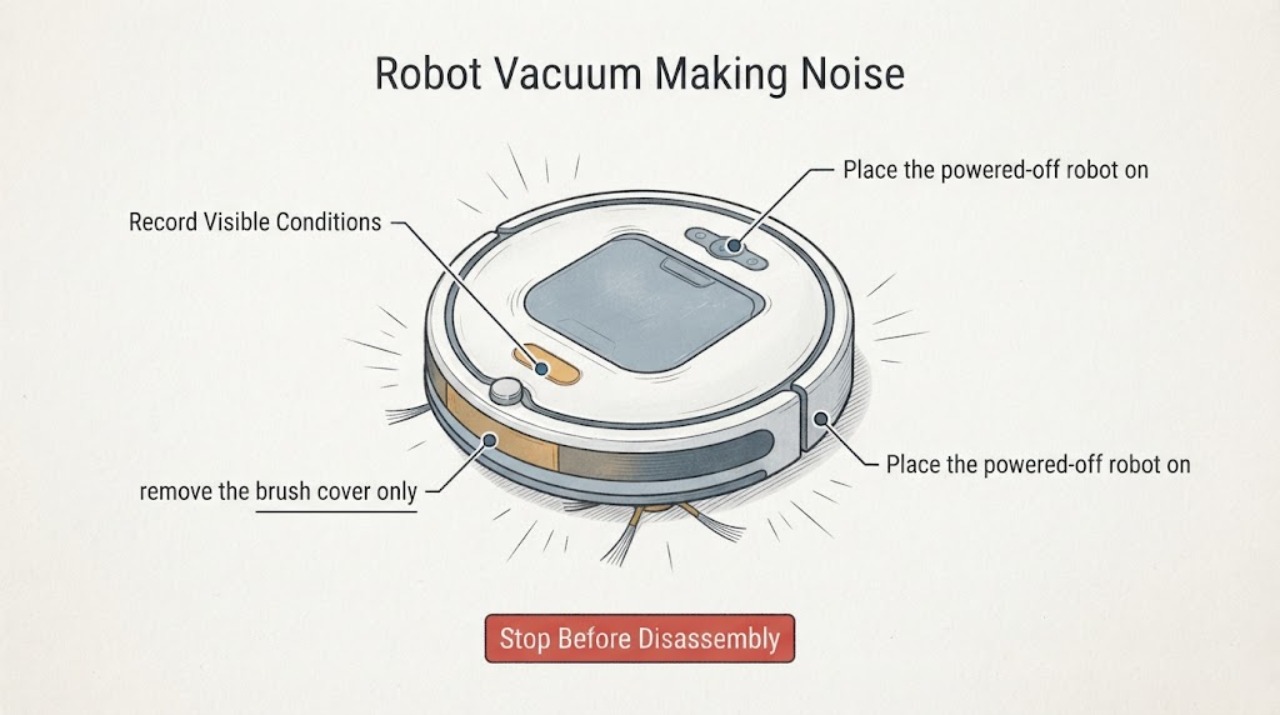
Samsung Robot Vacuum Making Noise: Check the Brush, Wheels, and Cover
A Samsung robot vacuum making noise should be stopped and checked with power off for hair or debris in the main brush, side brush, and wheels, a loose brush cover, a packed dustbin or filter, and a sensor or mop attachment that is rubbing. Reassemble only the parts your model's guide identifies and make one supervised test.
-
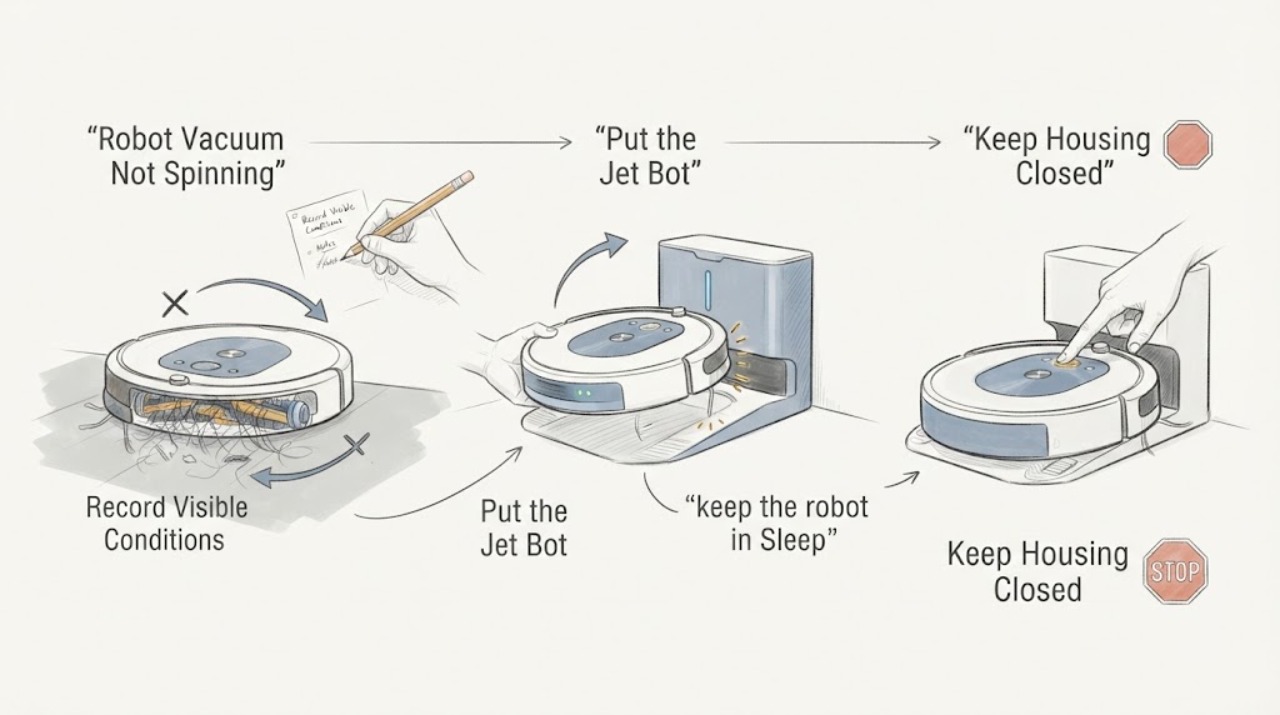
Samsung Robot Vacuum Not Spinning
When a Samsung robot vacuum is not spinning, first identify whether the stopped part is the main brush, the side or spin brush, a drive wheel, or the whole robot. Put the Jet Bot in Sleep mode or turn it off, then remove hair and debris from the affected part and reinstall the cover or brush so it is fully seated.
-
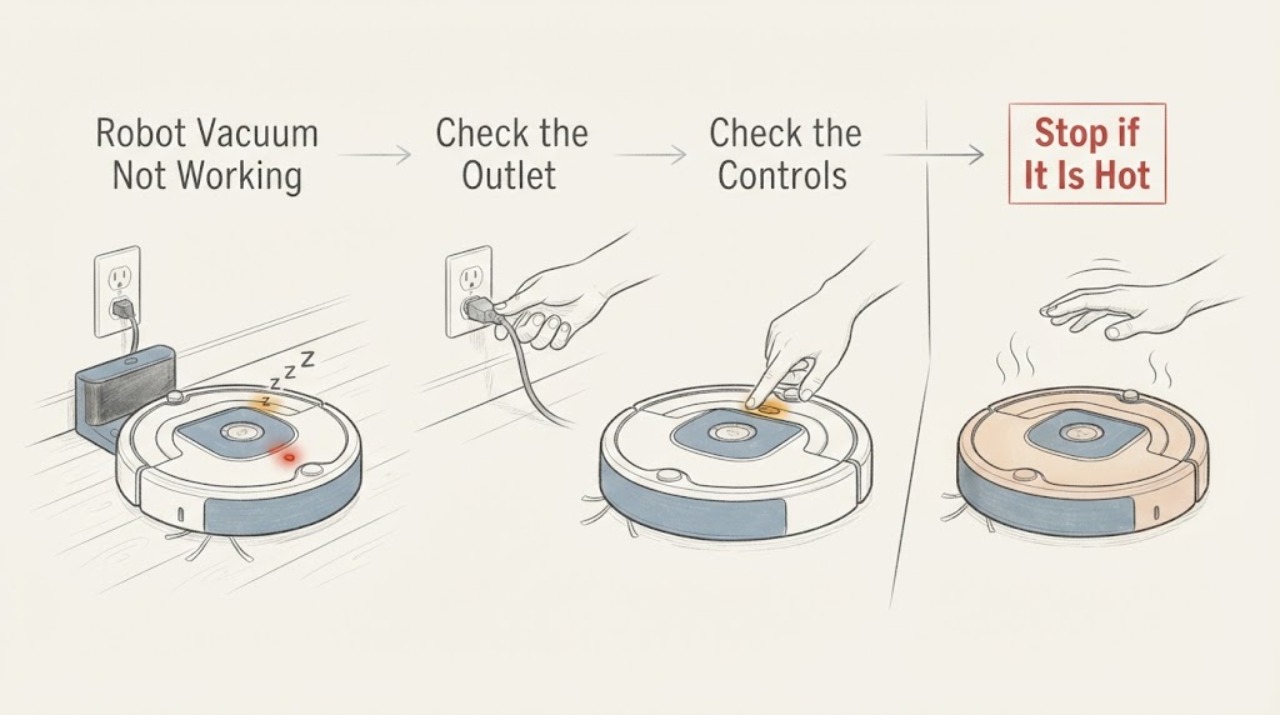
Samsung Robot Vacuum Not Working
First separate a Samsung robot vacuum that has no power from one that powers on but will not start, move, or follow a command. Turn off the power switch on the underside, wait at least five seconds, and start the vacuum from its own Start/Stop button.
-
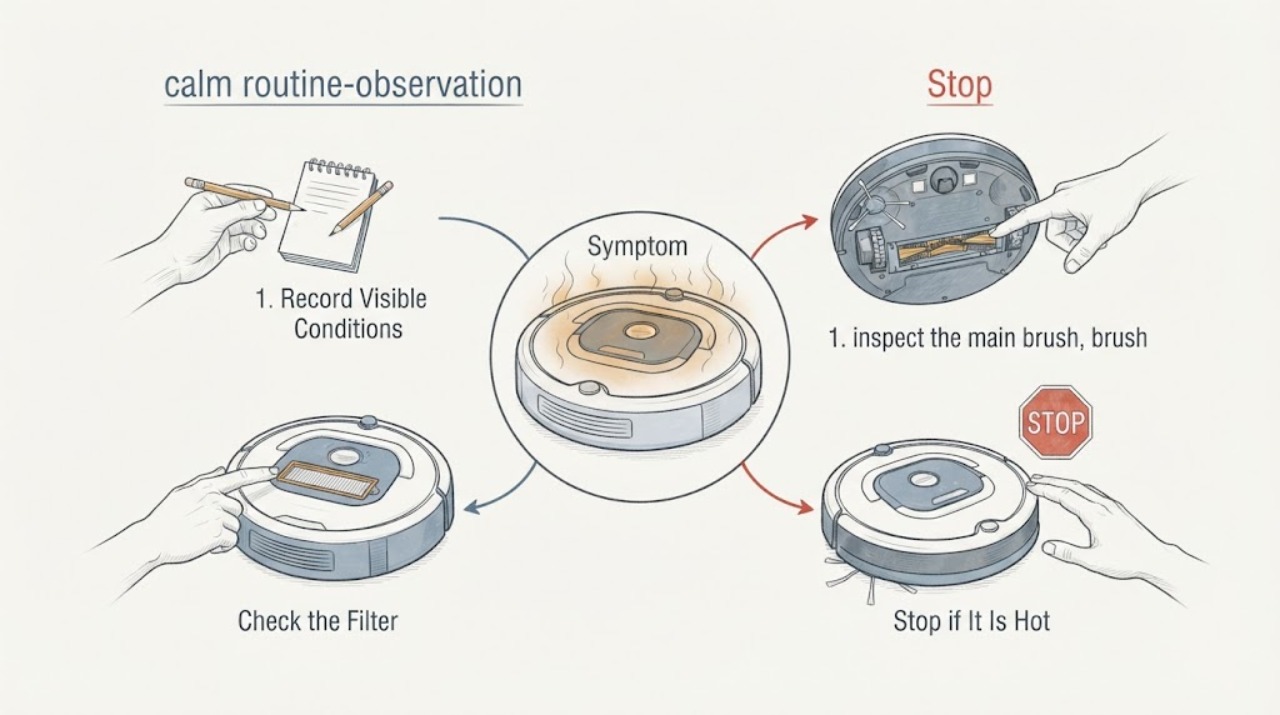
Samsung Robot Vacuum Overheating: Safe Checks Before Service
If a Samsung robot vacuum becomes unusually hot, stops during cleaning, or reports an overheating or motor problem, stop the cleaning task and let the robot cool naturally before inspecting it. Empty the dustbin, clean the fine-dust filter only as the exact model manual permits, remove hair and debris from the main brush, side brush, wheels, and accessible air paths, and check that the charging pins and station are clean and dry.