
On this page
Start here
Quick answer
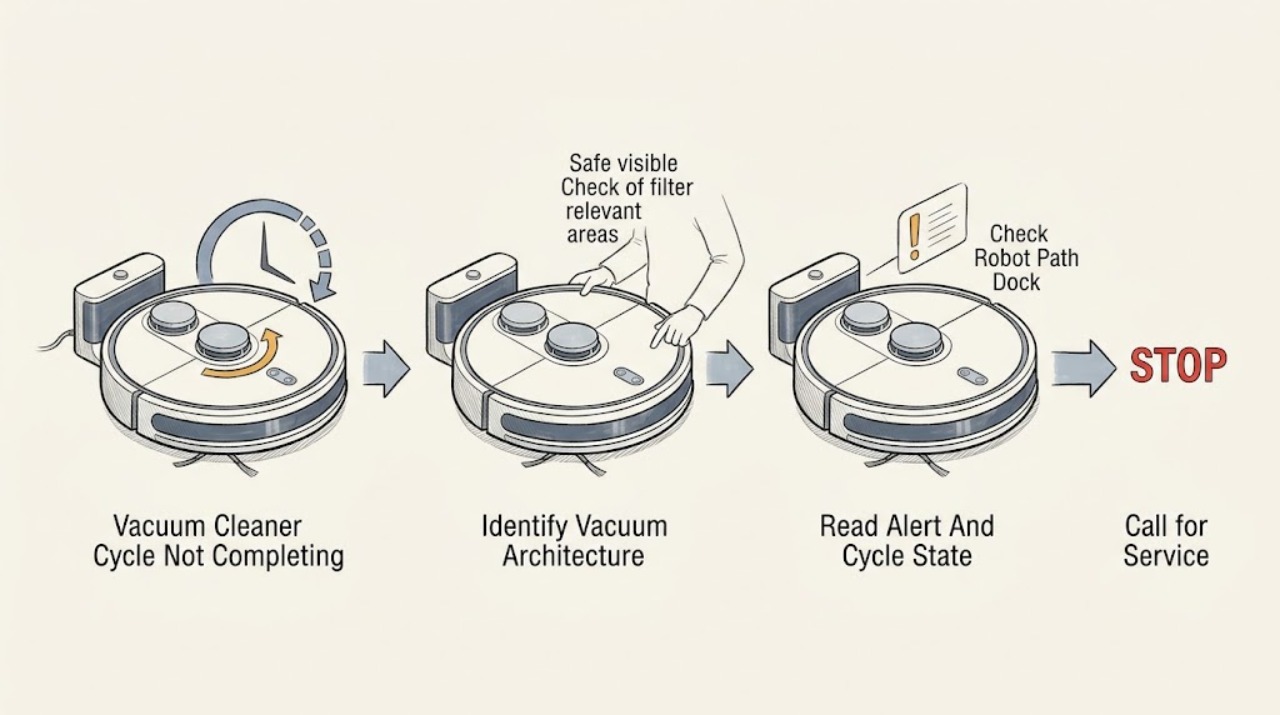
First decide what cycle means on your Dyson. An autonomous robot may pause while navigating, return to the dock to recharge, stop because of an obstacle, wheel or brush obstruction, low light, dirty sensors, low battery, a software issue, or a temperature protection event. A cordless, upright, or canister vacuum that cuts out during one cleaning session more often needs a safe check for a full bin, blocked airway, brush obstruction, filter condition, charge or power, and thermal protection. Check the exact model's screen or app alert, clear only accessible debris with the machine off and disconnected from charging or power, and refit every part correctly. Let an overheated machine cool as the manual directs; wash a filter only as the model guide permits and do not reinstall it wet. Do not bypass a safety cut-out, open the battery or motor, make a live electrical test, or keep restarting a hot or damaged machine. If a robot still cannot navigate or dock, a handheld still cuts out after clear airflow and a dry correctly fitted filter, or any machine shows smoke, burning odor, liquid, battery damage, or repeated fault alerts, stop and arrange qualified Dyson service.
Before you begin
Safety first
- The user may read the model alert, pause or resume with documented controls, clear loose obstacles, clean accessible sensors dry, inspect user-removable bin, filter, airway, tool, brush, wheel, and dock areas with power disconnected, and apply the exact model's documented update or cool-down process. Battery, motor, charger, dock electronics, internal sensors, wiring, control, and live testing are for qualified personnel.
Work through in order
Diagnostic checks
Use only checks that match the exact appliance or system and its official guide.
-
Check 1
Record the exact Dyson model and decide whether this is a robot clean, a cordless or handheld run, or a corded upright or canister session. Note whether the machine pauses, shuts off, pulses, returns to a dock, displays an alert, or simply stops while suction remains available.
Expected result: The machine is an autonomous robot with an app, dock, map, or screen; a battery-powered vacuum that cuts out during use; or a corded machine that stops with a cord, switch, or motor symptom.
Next step: Follow the robot branch for app or screen, path, dock, lighting, and sensor clues. Follow the handheld branch for bin, filter, airway, brush, charge, and cool-down clues. For a corded model, use the exact manual for switch, cord, and thermal guidance and stop for electrical damage.
Stop if: Do not keep powering a machine when the model is unknown and there is smoke, liquid, burning odor, a damaged cord or battery, abnormal heat, or repeated protection operation.
Why this matters
Why: Robot navigation, dock, sensor, and software causes require a different branch from handheld airflow, battery, filter, and thermal causes. A corded machine cannot be diagnosed from battery advice.
-
Check 2
Before moving or resetting anything, record the robot's screen or app alert, timer state, battery indication, location, and whether it is paused, navigating, cleaning, or trying to dock. For a non-robot, record any blockage, filter, battery, or temperature indicator and whether the motor stopped after pulsing or strong suction.
Expected result: A robot timer is still counting, the robot shows a navigation, low-battery, dock, wheel, brush, sensor, or software alert, or a handheld shows a blockage or filter alert or cuts out after pulsing.
Next step: Follow only the alert and model guide that matches the exact machine. If the robot is still cleaning without an alert, allow it to finish unless a hazard is present; if a handheld has cut out, switch it off, disconnect it, and let it cool before inspection.
Stop if: Do not clear an alert by bypassing a sensor, holding a switch down, or repeatedly restarting a hot machine.
Why this matters
Why: A counting robot may be navigating normally, while a specific alert narrows the next safe check. Pulsing followed by a handheld cut-out is consistent with blockage or thermal protection on applicable models, not proof of a failed motor.
-
Check 3
For a Dyson robot only, pause it using the documented control and check from outside that it is not boxed in, its path to the dock is open, the dock is powered and positioned as the model requires, and the room is adequately lit. Wipe the camera lens and accessible navigation, drop, and optical-flow sensors with a soft, dry, lint-free cloth; do not use liquid.
Expected result: The robot is trapped under or between objects, the dock path or dock contacts are obstructed, the dock has no power indication, lighting is poor, sensors are dirty, or all accessible navigation conditions are normal.
Next step: Remove only loose obstacles, restore the documented dock position or power, clean the sensors, and resume from the same or nearby already-cleaned location if the model instructs that. If the robot still cannot navigate or dock, save the alert and arrange service.
Stop if: Do not open the robot or dock, touch internal contacts, use liquid on sensors, or continue if the battery or dock is hot, swollen, leaking, or damaged.
Why this matters
Why: Obstacles, a failed return to dock, low light, or dirty sensors can prevent a robot from completing or resuming a clean. Normal external conditions make a model-specific software, battery, sensor, or motor fault more likely.
-
Check 4
For a non-robot vacuum, switch it off and disconnect it from the charger or outlet before inspection. Empty the bin at the model's fill mark, inspect the accessible wand, hose, inlet, tool, cleaner head, and brush bar for debris or wrapped hair, and remove and wash the filter only if the exact manual permits. Refit every part securely and wait until a washed filter is completely dry.
Expected result: The bin is full, an airway or tool is blocked, the brush bar is jammed, the filter is dirty or incorrectly fitted, or these accessible conditions are normal.
Next step: Clear only the accessible obstruction, clean and fully dry the permitted filter, secure the bin and cleaner head, then perform one brief supervised run. If it cuts out again, stop and arrange service rather than opening the motor body.
Stop if: Do not operate while checking blockages, put fingers near a moving brush bar, use a wet filter, wash non-washable electrical parts, or insert tools into an airway.
Why this matters
Why: A full bin, blocked airway, brush obstruction, or filter condition can reduce airflow and trigger pulsing or thermal protection on applicable Dyson models. A clear, correctly refitted machine that still cuts out needs a different diagnosis.
-
Check 5
Check the model's charge or power indication without opening the battery or charger. For a robot, confirm that it can sit correctly on the powered dock and that the battery indication changes as the manual describes. For a cordless or corded vacuum that cut out, leave it disconnected and allow the exact manual's thermal cool-down period before one restart, provided there is no damage, odor, leak, or abnormal heat.
Expected result: The robot cannot make a charging connection, the dock has no power indication, the handheld has a low-battery or charger alert, the cord or plug is damaged, or the machine remains hot or cuts out again after cooling.
Next step: Correct only a visible dock placement, loose plug, or documented charging contact condition. If charging remains abnormal or the machine cuts out after the safe cool-down and airflow check, stop use and arrange qualified diagnosis.
Stop if: Do not disassemble a battery or charger, short contacts, charge a swollen or leaking battery, use a damaged cord, or keep restarting a hot machine.
Why this matters
Why: A failed return or charging connection can end a robot cycle, while a low battery or thermal protection can end a handheld run. A damaged supply, persistent heat, or repeated cut-out is not a routine battery reset.
-
Check 6
For a robot with a software, map, app, or navigation alert, record the alert and check the exact model's MyDyson software status. Apply an update only through the model's documented process while the robot is powered and on its dock; use the documented pause, resume, dock reset, or power-cycle instruction only after recording the symptom. For a non-robot, use only its exact manual's reset procedure.
Expected result: The robot has a documented software or map fault, an update is available, the update or reset completes and the cycle resumes, or the same alert returns.
Next step: Allow an update to finish without interruption, then run one supervised clean from the documented starting condition. If the alert recurs, the robot cannot dock, or a non-robot still stops, preserve the code and arrange qualified service.
Stop if: Do not interrupt an update, remove a battery, factory-reset before recording evidence, or apply robot procedures to a non-robot vacuum.
Why this matters
Why: Dyson identifies software, mapping, navigation, and sensor conditions as possible reasons a robot cannot complete a clean, and provides model-specific update and dock procedures. A recurring alert after the documented process needs service or model-specific support.
Use your observations
Decision map
Find the observation that best matches what you see, then follow the next safe action.
-
PATH 01Next step
What you see
The Dyson is a robot, the timer is still counting or the screen shows cleaning or navigation, and there is no hazard or fault alert.
Do this next
Leave it to continue while keeping the area safely accessible. If it remains stopped with an alert or does not complete, record the alert and move to the path, dock, lighting, and sensor checks.
Why this path and its safety boundary
Why it matters: Dyson explains that a robot may pause briefly to determine its position, switch off vacuuming while navigating or returning to the dock, or cross an area it has already cleaned. This does not by itself prove that the cycle failed.
-
PATH 02Next step
What you see
The robot ended or paused without completing, shows low battery or a dock/navigation issue, or is repeatedly lost or stuck in one area.
Do this next
Clear the route, restore adequate light, clean accessible sensors dry, check dock power and position, and use the model's documented resume or repositioning step. If the same area or dock failure recurs, restrict that area in the app only if the model supports it and arrange service if the robot still cannot complete.
Why this path and its safety boundary
Why it matters: An obstructed route, changed room layout, dirty sensors, poor lighting, dock placement, or starting away from the dock is more likely than a vacuum-motor fault. Dyson also describes low battery after a failed return as a way a robot can end a clean without an alert.
-
PATH 03Safety boundary
What you see
The robot reports a stuck wheel or brush, cannot move, or reports a motor or internal-temperature protection condition.
Do this next
Power the robot down or pause as the exact manual directs, place it safely if the manual permits, and clear only visible hair or debris from accessible wheels, brush area, or sensors. Let it cool when instructed. If the obstruction is internal or the alert returns, arrange service.
Why this path and its safety boundary
Why it matters: Dyson describes an obstruction around a wheel, brush bar, edge mechanism, or airway as a reason the robot pauses to protect its motor. A temperature alert is a protection state, not permission to keep restarting it.
Safety stop: Do not reach moving parts while powered, remove covers not identified as user-removable, or continue after a hot, damaged, or burning-smelling condition.
-
PATH 04Next step
What you see
A cordless, handheld, upright, or canister vacuum pulses or shuts off during use, especially after suction drops or a blockage or filter alert appears.
Do this next
Disconnect power or charging, let the machine cool as the exact manual directs, empty the bin, clear permitted accessible blockages, inspect the cleaner head, and clean and fully dry a permitted filter. Run one brief check only after secure refit; arrange service if it cuts out again.
Why this path and its safety boundary
Why it matters: A full bin, blocked airway or tool, wrapped brush, dirty or wet filter, or thermal protection is more likely on applicable Dyson models. The symptom does not identify a battery, motor, or control failure.
-
PATH 05Safety boundary
What you see
The robot still cannot complete or dock after path, light, sensor, dock, and documented software checks, or a non-robot still stops after the bin, airway, brush, filter, charge, and cool-down checks.
Do this next
Stop repeated cycling, keep the machine disconnected or docked safely, and arrange qualified Dyson service with the model, alert, timing, cleaning mode, and checks already completed.
Why this path and its safety boundary
Why it matters: A battery, charger or dock contact, wheel or brush motor, fan or main motor, sensor, control, or software fault becomes more plausible. Safe external checks cannot select the failed part.
Safety stop: Do not open the battery, motor, dock, charger, control, or sealed housing; do not perform an energized electrical test or bypass a safety system.
Helpful context
Understand the symptom
Start by identifying the kind of cycle
For a Dyson robot, a cycle is an autonomous clean that may include navigation, pauses, a trip to the dock, and a return to cleaning. A short halt while the timer continues can be navigation rather than a failed cycle. For a cordless, upright, or canister machine, the same phrase usually means that suction stops or the motor cuts out before you finish. Read the model name and alert first; these architectures have different safe checks.
Robot cycles: distinguish a pause, a dock problem, and a fault
A robot that is still cleaning or whose timer is still counting may be navigating or crossing an already cleaned area. If it pauses, follow the model's on-screen or app instruction before moving it. For a failed return, check from outside that the path is open, the dock is powered and accessible, lighting is adequate, and the camera and sensors are clean with a soft, dry cloth. A robot started away from its dock may not be able to recharge and resume in the same way as one started from the dock.
Handheld and floor vacuums: airflow and thermal protection come first
Dyson describes blockages, a full bin, dirty or incorrectly fitted filters, and brush or tool obstructions as reasons a cordless machine may pulse or cut out. Many Dyson vacuums also stop to protect the motor when they overheat. Turn the machine off, disconnect it from charging or mains power, let it cool as the exact manual directs, and check only the user-serviceable bin, filter, airway, tool, and cleaner head. A filter must be completely dry before refitting.
Use only the model's documented reset or update
Use only the exact model's documented resume, dock, power-cycle, or software-update instruction. Dyson's robot support describes returning the robot to its dock to reset a fault and recommends current software for navigation and reliability; its update instructions warn not to interrupt an update. Do not factory-reset a robot before recording the alert and map symptoms, and do not remove a battery or interrupt an update to force completion.
Safety boundary
Stop conditions
- Stop immediately for smoke, sparks, burning or electrical odor, liquid in or around the machine, abnormal heat, a damaged cord or plug, a swollen or leaking battery, or repeated protection operation.
- Disconnect a handheld or corded vacuum before clearing a blockage, brush, bin, filter, or tool; do not operate while hands or tools are near moving parts.
- Do not reinstall a washed filter until it is completely dry, and do not wash or immerse the motor body, charger, dock electronics, battery, or other non-washable parts.
- Do not disassemble the battery, motor, charger, dock, control, or sealed housing, bypass a safety cut-out or sensor, interrupt a robot software update, or perform live electrical testing.
- Arrange qualified service when a robot cannot complete or dock after documented external checks, a non-robot repeatedly cuts out after clear airflow and cool-down, or any internal motor, battery, charger, sensor, or control fault is suspected.
Only after diagnosis
Potential parts
- vacuum filter
Consider this only if qualified diagnosis confirms that the exact model's filter is damaged or no longer serviceable after the documented cleaning and complete-drying procedure.
Confirm the complete Dyson model and manufacturer's fit information; a cycle stopping does not by itself establish filter failure. - battery pack
Consider this only after qualified diagnosis confirms abnormal battery capacity, charging, or protection behavior rather than blockage, wet filter, dock, or charger conditions.
Verify the exact model and authorized fit information; do not open, rebuild, short, heat, or substitute a battery from the symptom alone. - cleaner head or brush bar assembly
Consider this only when the accessible brush and airway are clear and qualified diagnosis confirms a failed motorized head or brush assembly on the exact model.
Confirm the machine family, connector, head design, and complete model before ordering; robot and non-robot assemblies are not interchangeable by appearance.
When checks do not resolve it
Need a professional?
Arrange qualified Dyson or appliance service when a robot repeatedly fails to complete or return to its dock after the exact model's path, lighting, sensor, dock, and software checks, or when a cordless, upright, or canister vacuum repeatedly cuts out after its documented bin, airway, brush, filter, charge, and cool-down checks. Stop immediately for smoke, burning odor, liquid, abnormal heat, cord or battery damage, or repeated safety protection. Internal motor, battery, charger, dock, sensor, control, and energized electrical work are professional tasks.
Safety scope: The user may read the model alert, pause or resume with documented controls, clear loose obstacles, clean accessible sensors dry, inspect user-removable bin, filter, airway, tool, brush, wheel, and dock areas with power disconnected, and apply the exact model's documented update or cool-down process. Battery, motor, charger, dock electronics, internal sensors, wiring, control, and live testing are for qualified personnel.
Common questions
FAQ
Why does my Dyson robot stop before completing a cleaning cycle?
Check whether it is paused or still navigating, then read the app or screen alert. Dyson robot guidance points to obstacles, a blocked route to the dock, low light, dirty sensors, low battery after a failed return, wheel or brush obstruction, temperature protection, and software conditions. Clear only loose obstacles, clean accessible sensors dry, check the dock and lighting, and follow the exact model's resume step.
Is it normal for a Dyson robot to stop vacuuming during a cycle?
Sometimes. Dyson explains that a robot can switch off its vacuum motor and brush bar while navigating, returning to the dock, or crossing an area it has already cleaned. If the timer continues and no alert appears, allow it to continue. A lasting stop, repeated pause, low-battery condition, or navigation alert needs the model-specific checks.
Why does my Dyson cordless vacuum keep cutting out before I finish cleaning?
Turn it off and disconnect it before checking the accessible bin, airway, cleaner head, brush, and filter. Dyson identifies blockages, a full bin, filter condition, and cyclone or tool issues as possible causes on applicable cordless models; a built-in thermal cut-out can also stop an overheated machine. Let it cool as the exact manual directs, refit only completely dry parts, and arrange service if it cuts out again.
Should I reset or update my Dyson robot when a cycle will not complete?
First record the alert, location, battery state, and whether the robot was trying to dock. Then use only the exact model's documented dock, resume, power-cycle, or software-update procedure. Dyson's robot update guidance warns not to interrupt an update, and a factory reset can remove personal settings or mapping data. If the same failure returns after the documented process, arrange service.
When should I stop troubleshooting a Dyson vacuum that will not complete a cycle?
Stop for smoke, burning odor, liquid, abnormal heat, a damaged cord, a swollen or leaking battery, or repeated safety protection. Also stop when a robot still cannot navigate or dock after its external checks, or a non-robot still cuts out after a clear bin, airway, brush, completely dry filter, charge, and cool-down check. Internal battery, motor, charger, dock, wiring, sensor, and control work requires qualified service.
Read the exact guide
Official sources
- Support | Dyson V15 Detect™ vacuumDyson · Model-specific example for Dyson V15 Detect cordless vacuums; blockage, bin, filter, cleaner-head, alerts, and battery procedures vary by model.
- Dyson 360 Vis Nav robot vacuum software downloadDyson · Limited to the Dyson 360 Vis Nav robot software workflow; other robots may use different update and reset procedures.
- Support | Troubleshooting | DysonDyson · Applies to the Dyson robot support journey represented by the page; exact robot model and alert determine the available controls and procedure.
- BLOCKAGES – AUTOMATIC CUT-OUTDyson · Model-specific SV12 manual used for automatic cut-out, disconnected inspection, blockage, filter, battery, and safety examples; other Dyson families may differ.
Community feedback
Share a repair observation
Share a plain-text repair observation. Accepted observations are published automatically; this page may take a moment to update.