
On this page
Start here
Quick answer
If a GE range or wall oven does not respond to touch, first determine whether the display is dead or dim, or whether the display is visible but ignores input. Confirm the oven has power, wake the display if the model supports it, check that the clock is set and that Control Lock/LOC is not active, then clean and dry the control surface with the oven off and cool. If the exact model allows it, reset the electronic control at the appliance breaker for the interval in its manual; GE also documents a one-minute control reset for ranges and wall ovens. If touch remains unresponsive, the panel is damaged, or the breaker trips again, leave the oven off and arrange service rather than opening the control panel or ordering a control part by symptom alone.
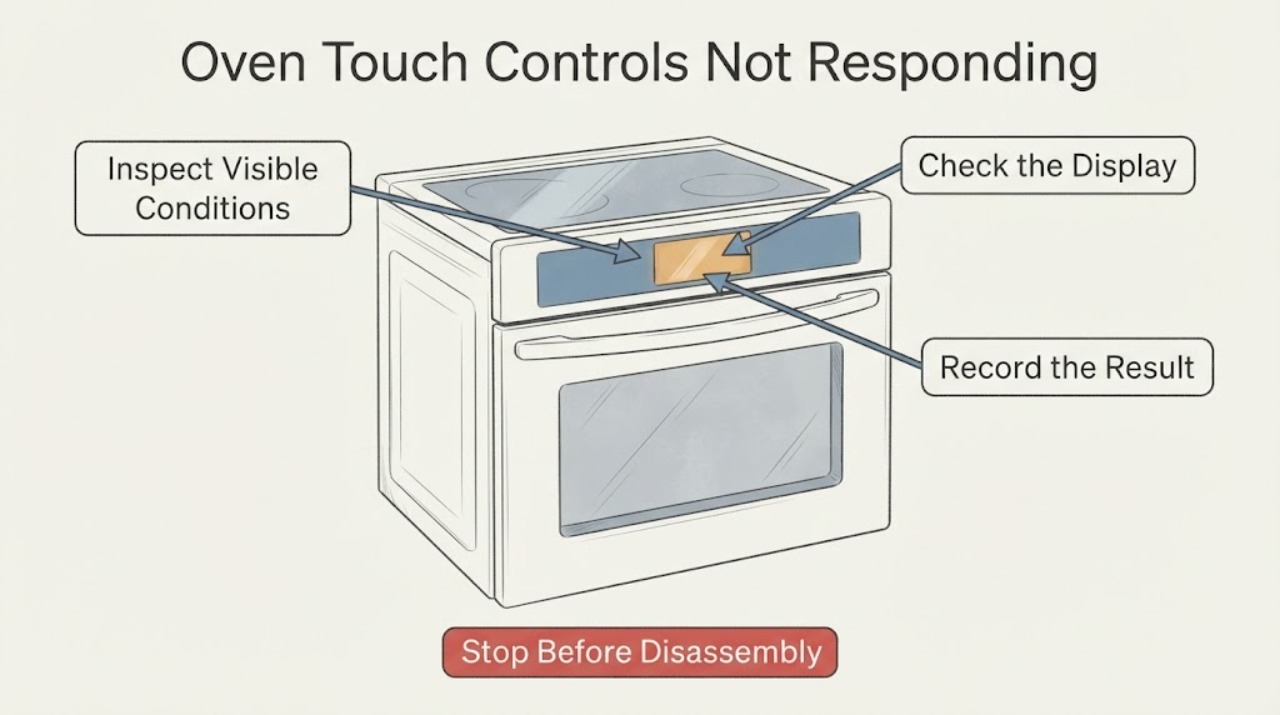
Work through in order
Diagnostic checks
Use only checks that match the exact appliance or system and its official guide.
-
Check 1
Observe the display, clock, interior light, and any response sound without starting a cooking cycle.
Expected result: The display is blank or only partly visible, the display is lit but taps produce no response, or the oven shows a literal message such as LOC or ERR.
Next step: Use the matching branch below. Record the exact displayed text and the full model number before using any model-specific control sequence.
Why this matters
Why: A blank or fading display points to a power/display path; a visible display with no touch response points to the control-input path; LOC or another message may be a model-specific state rather than a failed touchscreen.
-
Check 2
Confirm the oven has power, then wake the display and verify the clock is set using only the controls shown for the exact model.
Expected result: The interior light or display comes on, the display wakes after a permitted touch, the clock is unset, or the controls remain locked or unresponsive.
Next step: Set the clock or clear the lock only with the exact model manual's instructions. If the display cannot be woken or the manual does not match the panel, continue to the power-reset and service checks rather than guessing a key combination.
Why this matters
Why: GE notes that some oven functions will not work until the clock is set, that some displays can be turned off, and that Child Lockout exists on some models; these features vary by model.
-
Check 3
With the oven off and cool, wipe the control panel with a clean damp cloth and mild dishwashing liquid, then rinse with a clean damp cloth and dry it; do not use abrasives.
Expected result: Grease, cleaner residue, moisture, or a film is visible on the control surface, or the surface is clean and dry but still ignores input.
Next step: If the control responds after drying, use the oven normally while following the exact manual. If it remains unresponsive, do not pry off the panel or spray liquid into seams; proceed to a safe electronic-control reset or service.
Why this matters
Why: Surface contamination or moisture can interfere with touch input, while a clean, dry panel that remains unresponsive needs a different check; this does not identify an internal failed part.
-
Check 4
If it is safe to operate the correct appliance breaker, switch the range or wall oven breaker off for the interval specified by the exact manual; GE's general oven guidance describes waiting one minute before restoring power.
Expected result: The display and touch controls return after power is restored, or the original symptom remains or returns immediately.
Next step: If the controls recover, set the clock and test only the normal model-supported operation. If they do not recover, or the breaker trips again, leave the oven off and schedule service; do not repeat resets indefinitely.
Why this matters
Why: A successful reset indicates the electronic control recovered from a temporary state; a failed or recurring reset does not identify whether the panel, wiring, or control is at fault.
-
Check 5
If the display shows LOC, ERR, a fault code, or a door-lock message, record it exactly and consult the matching GE owner manual rather than treating it as a generic touch failure.
Expected result: The code clears with the model-specific procedure, or it remains, repeats, or appears with a locked door, burning odor, sparks, or a tripped breaker.
Next step: Stop using the oven and arrange GE/Bodewell or qualified appliance service for a persistent code or any hazard. Do not bypass a lock, open the control housing, or replace a keypanel/control based only on the symptom.
Why this matters
Why: GE documents that codes and lock states vary across range and wall oven models; repeated codes or unsafe electrical symptoms require trained diagnosis.
Use your observations
Decision map
Find the observation that best matches what you see, then follow the next safe action.
-
PATH 01Next step
What you see
The display is blank, fading, or missing segments, and the interior light or other oven function is also unavailable.
Do this next
Check the correct household breaker or fuse without opening the oven. If a safe reset does not restore a normal display, leave the oven off and arrange service.
Why this path and its safety boundary
Why it matters: The primary issue may be appliance power or the display/control supply rather than touch sensitivity.
-
PATH 02Next step
What you see
The display is visible and responds to some controls, but the clock is unset or LOC/Child Lockout is shown.
Do this next
Use the exact GE model manual to set the clock or unlock the controls; do not apply a combination from another GE model.
Why this path and its safety boundary
Why it matters: The oven may be in a model-specific setup or lock state that prevents normal input or cooking functions.
-
PATH 03Next step
What you see
The display is lit but does not respond after the surface is clean and dry, and a safe breaker reset does not help.
Do this next
Keep the oven out of service and provide the model number, displayed state, and reset result to GE or a qualified appliance technician.
Why this path and its safety boundary
Why it matters: The problem remains in the control-input or electronic-control path, but the symptom does not identify a replaceable part.
-
PATH 04Next step
What you see
The breaker trips again, the panel is cracked, or there is a burning odor, smoke, sparking, damaged wiring, or an unsafe locked-door condition.
Do this next
Leave the oven off and do not restore power or open the panel. Arrange qualified service, and use emergency help for an active fire or immediate electrical danger.
Why this path and its safety boundary
Why it matters: This is an electrical or equipment-safety stop condition, not a routine touch-screen setting issue.
Helpful context
Understand the symptom
Start by identifying what is actually unresponsive
A blank or fading display is a power or display symptom; a lit display that ignores taps is a control-input symptom. GE says some range and wall oven functions will not work until the clock is set, and some models can have the display turned off or Child Lockout enabled. Without the model number, do not assume one fixed button combination applies to every GE oven.
Keep the check external
The useful owner checks are limited to the visible display, settings documented for the exact model, a clean and dry control surface, and a safe power reset. A touch symptom alone does not prove that the keypanel, electronic control, or touch-screen assembly has failed, so do not remove the control panel or perform live electrical tests.
When checks do not resolve it
Need a professional?
Arrange GE/Bodewell or qualified appliance service when the display remains unresponsive after the model-supported external checks and a safe power reset, when a fault code repeats, or when the breaker trips, the panel is damaged, or an electrical odor/smoke is present. Give the technician the full model number, whether the display is blank or lit, any exact message, and what happened after the reset. Do not order a keypanel, touchscreen, or control board from this symptom alone.
Common questions
FAQ
Why does my GE oven have a display but not respond to touch?
GE's general guidance supports checking the clock, display settings, and Child Lockout where those features exist, then cleaning and drying the control surface and performing one model-supported electronic-control reset. The symptom alone does not identify a failed touch panel or control board.
Can I use the same unlock buttons on every GE oven?
No. GE says lockout behavior and control instructions vary by model. Record the full model number and use its owner manual for the exact unlock or clock-setting sequence.
What if a breaker reset does not fix the touch controls?
Leave the oven off and arrange service if the controls remain unresponsive or the symptom returns. Do not open the control housing or buy an internal part based only on the touch symptom.
Read the exact guide
Official sources
- Range & Wall Oven - Display Dimming or Not Displaying ProperlyGE Appliances · GE range and wall oven display dimming, partial characters, 30-second control reset, and service recommendation
- Range & Wall Oven - Oven Will Not Come OnGE Appliances · GE range and wall oven power checks, electronic-control reset, model-specific latch/Sabbath guidance, and service boundary
- Range & Wall Oven - Cleaning Control PanelGE Appliances · GE range and wall oven control-panel cleaning, mild damp cloth, drying, no abrasives, and LCD touch-panel lock during cleaning
- Frequently Asked Questions About GE Ranges and Wall OvensGE Appliances · GE ranges and wall ovens: LCD touchscreen wake/clock setting, model-dependent controls, and electrical safety guidance
- Electric Range & Wall Oven - Oven Has Power But Does Not WorkGE Appliances · GE electric ranges and wall ovens with power but non-working oven controls; clock, Child Lockout, and display checks
- Range & Wall Oven - Oven Error, Fault or Function CodesGE Appliances · GE range and wall oven electronic-control fault/lock messages, model-specific code limitations, reset and professional-service boundary
Community feedback
Share a repair observation
Share a plain-text repair observation. Accepted observations are published automatically; this page may take a moment to update.