
On this page
Start here
Quick answer
The JennAir JJW3830DS is a Wi-Fi-enabled double wall oven, but the oven can connect only when the home network, JennAir account, appliance registration, and on-screen connection mode all complete. Check that the router has a live internet connection and a 2.4 GHz WPA2 network, connect the phone to that network, open the JennAir app, and add the oven using the SAID or QR/MAC information shown on the appliance. On the oven, use the displayed Remote Enable or Wi-Fi setup control and confirm that the screen asks you to use the JennAir app. If the app still cannot complete registration after a single power cycle and the correct setup mode, stop repeating resets and contact JennAir Connected Appliances; do not remove the oven or open its control panels to fix a cloud connection.
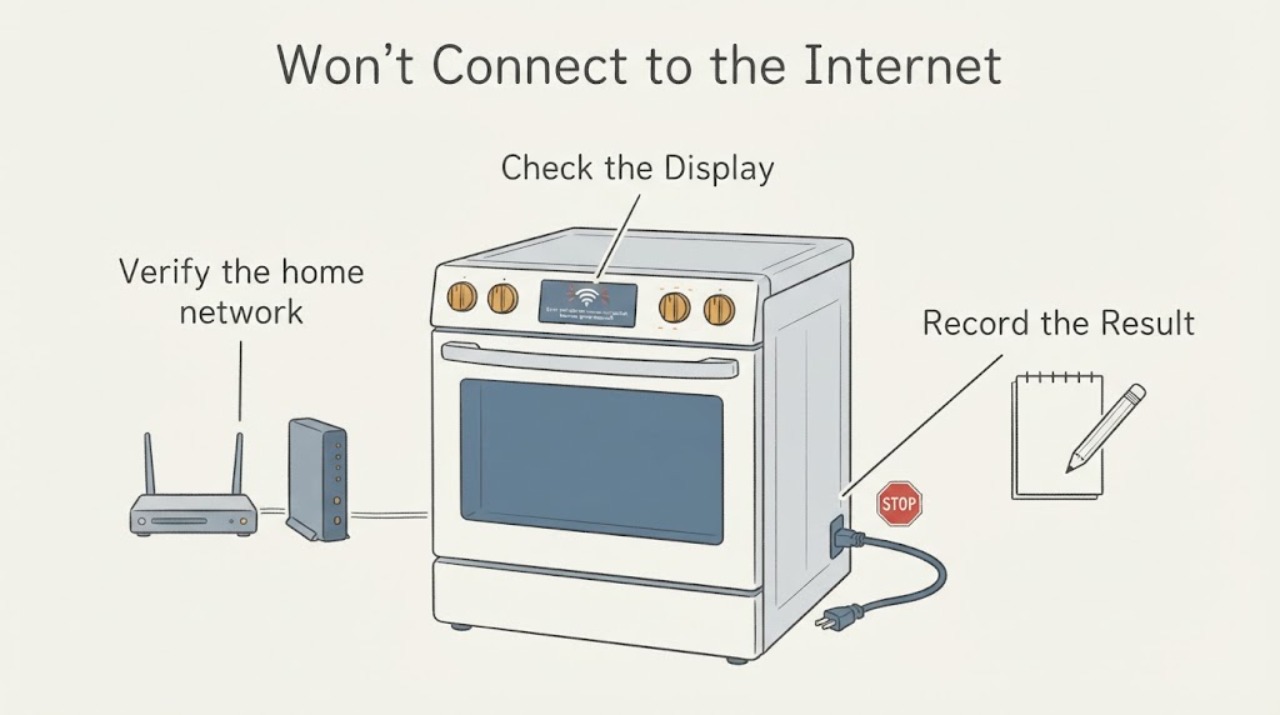
Work through in order
Diagnostic checks
Use only checks that match the exact appliance or system and its official guide.
-
Check 1
Check the model label and the oven display without removing trim or panels. Confirm the label says JJW3830DS, make sure the oven has power, and leave cooking controls available for local use while troubleshooting the app connection.
Expected result: The label matches JJW3830DS and the display is on, or the label/display is different, blank, or shows a general appliance fault.
Next step: If the model or display does not match, stop and retrieve the exact JennAir literature or arrange appliance service. If it matches and is powered, continue with network and app checks.
Why this matters
Why: A matching, powered oven is within the assigned smart-oven scope; a different model or a blank/faulted display means the connection instructions may not apply or the appliance has a separate power/control problem.
-
Check 2
Verify the home network from the phone that will run the JennAir app: use a live 2.4 GHz Wi-Fi network with WPA2 security, confirm the router has internet access, and connect the phone to that same network before starting setup.
Expected result: The phone is on a 2.4 GHz WPA2 network with internet access, or it is on 5 GHz only, a guest/isolation network, a network without internet, or an unverified security mode.
Next step: Move the phone and setup to the router's supported 2.4 GHz WPA2 network, or ask the router administrator to provide that network. Do not infer an oven hardware failure while the required network path is unverified.
Why this matters
Why: JennAir's connectivity guide requires a live 2.4 GHz WPA2 router and internet connection. JennAir's current connection page says 5 GHz will not work for this setup and lists IPv4 as the minimum network support.
-
Check 3
Open or install the JennAir app, sign in or create the required account, select the oven category, and add the appliance using the QR code or the SAID and MAC information shown on the appliance or its display.
Expected result: The app finds the oven and reaches the registration step, or it cannot identify the appliance, rejects the SAID/MAC, or stops before registration.
Next step: Re-enter the exact SAID/MAC without changing characters and use the model shown by the app. If the app still rejects the identity, stop repeated attempts and contact JennAir Connected Appliances with the model and SAID; do not expose internal electronics to find a different identifier.
Why this matters
Why: The account and appliance identity are separate gates from radio connectivity. JennAir says the app associates the appliance with the user's account and uses the SAID/MAC or QR information to add it; failure at this step can be an identity or account setup issue rather than a failed oven control.
-
Check 4
Put the oven into the connection mode shown for a smart kitchen appliance: with the oven powered on, use the on-screen Remote Enable or Wi-Fi setup control and verify that the display says to use the JennAir app. Follow the app's prompts rather than holding an unlabeled or model-different button.
Expected result: The display enters Wi-Fi setup and the app proceeds, or the oven remains in a countdown/wrong mode, does not show the setup prompt, or the controls do not respond.
Next step: Exit the wrong mode and repeat the on-screen setup once. If the correct prompt never appears while local controls work, record the display state and arrange JennAir service/support rather than opening the control panel.
Why this matters
Why: JennAir says the appliance must be in the correct mode and display the app setup message; its troubleshooting page warns that a countdown display indicates the wrong mode. A failure to enter that mode is not proof of a failed Wi-Fi module.
-
Check 5
If the network, account, identity and connection mode are correct but registration is stuck, turn the appliance off and back on once as JennAir describes, then return to the app and complete the connection flow. Do not repeatedly cycle the hard-wired oven or interrupt an active cooking cycle.
Expected result: The app completes registration after the single power cycle, or the oven remains unable to connect to the server while local oven functions continue to work.
Next step: If it remains offline, stop resetting and contact JennAir Service & Support/Connected Appliances with the exact model, app/account state, network band/security, SAID/MAC, and the screen message. Keep using local controls only if the oven otherwise operates normally.
Why this matters
Why: A successful reconnect indicates a transient setup state; persistent server or registration failure after the supported external steps remains a JennAir connected-service issue and does not identify an internal component.
Use your observations
Decision map
Find the observation that best matches what you see, then follow the next safe action.
-
PATH 01Next step
What you see
JJW3830DS is powered, the phone is on a live 2.4 GHz WPA2 network, and the app accepts the SAID/MAC or QR identity.
Do this next
Use the on-screen Remote Enable/Wi-Fi setup control, verify the app setup prompt, and finish registration in the JennAir app.
Why this path and its safety boundary
Why it matters: The basic appliance, network, account and identity prerequisites are present; the remaining gate is the oven's correct setup mode and app handoff.
-
PATH 02Next step
What you see
The phone is using only 5 GHz, an unverified security mode, a guest network, or a router without a live internet connection.
Do this next
Use the router's supported 2.4 GHz WPA2 network with internet access and retry setup from the JennAir app.
Why this path and its safety boundary
Why it matters: The home network does not meet JennAir's stated connectivity prerequisites, so an oven server error cannot be used to diagnose the appliance.
-
PATH 03Next step
What you see
The oven never shows the JennAir app setup prompt, remains in a countdown/wrong mode, or the app cannot identify the exact appliance after the SAID/MAC or QR is entered.
Do this next
Stop repeating setup, save the exact display message and identifier, and contact JennAir Connected Appliances or service with JJW3830DS details.
Why this path and its safety boundary
Why it matters: The setup mode or appliance identity is unresolved; the symptom does not prove a failed Wi-Fi module or control board.
-
PATH 04Next step
What you see
The app and oven complete the setup flow but the server/remote-preheat feature still fails while local oven controls work.
Do this next
Use local cooking controls as appropriate, stop remote-preheat attempts, and ask JennAir support to review the account, service status and appliance provisioning. Arrange appliance service if local controls also fail.
Why this path and its safety boundary
Why it matters: The persistent fault is in the connected-service path or an unverified appliance connection state; public guidance does not establish a replaceable internal part from this symptom.
Helpful context
Understand the symptom
Keep the connectivity problem separate from oven cooking operation
The opened JennAir page describes JJW3830DS as a 30-inch Pro-Style double wall oven with Wi-Fi, app and remote access. A failed server or registration attempt affects connected features such as remote preheating; it does not by itself prove a failed bake element, control board, or Wi-Fi module. Keep normal local oven controls and the connection setup as separate checks, and do not open the hard-wired oven or replace a control based only on the connection message.
Use the exact model and the app's appliance identity
Confirm that the rating label reads JJW3830DS before using this procedure. The JennAir installation document lists JJW3830DS among the approved models, and JennAir's connection guide says the app uses the appliance's SAID information. Do not substitute a JJW3830DB, JJW3830DP, or another oven's connection controls when the screen or model label differs.
When checks do not resolve it
Need a professional?
Contact JennAir Connected Appliances or service when the correct 2.4 GHz WPA2 network, account, exact appliance identity, connection mode and one supported power cycle do not restore registration; call an appliance technician if local oven controls or the display also fail. Do not open or remove the built-in oven to troubleshoot Wi-Fi.
Common questions
FAQ
Does a server connection failure mean the JJW3830DS oven cannot bake?
No. JennAir documents Wi-Fi and remote access as connected features. A server or registration failure does not by itself prove a cooking-system failure; check local controls separately and use them only if the oven otherwise operates normally.
Can I connect the JennAir oven to a 5 GHz network?
JennAir's current connection guidance says the setup requires a 2.4 GHz network and that 5 GHz will not work for this connection flow. Use a supported 2.4 GHz WPA2 network with live internet access.
What information should I have before contacting JennAir about the connection?
Have the exact JJW3830DS model, the on-screen message, the JennAir account state, the network band/security, and the appliance's SAID/MAC or QR result. JennAir uses the appliance identity and account during registration and directs unresolved connection problems to Connected Appliances support.
Read the exact guide
Official sources
- Internet Connectivity GuideJennAir · The opened JennAir connectivity guide states that connectivity requires Wi-Fi and account creation, and specifies a 2.4 GHz WPA2 router with live internet and a 10-character SAID. It provides setup prerequisites rather than a model-specific hardware diagnosis.
- Connect An ApplianceJennAir · The opened JennAir connection page provides current generic smart-appliance steps: 2.4 GHz/WPA2/IPv4 requirements, app account and appliance identity, Remote Enable/setup prompt, one power cycle, and support escalation. It does not identify an internal JJW3830DS component failure.
- Flush Installation InstructionsJennAir · The official JennAir installation document lists JJW3830DS among the 30-inch stainless-steel models covered. It is used for model identity and built-in electrical safety boundary, not for Wi-Fi diagnosis.
- Using Alexa with Your AppliancesJennAir Product Help · The opened JennAir Product Help connected-appliance page confirms that a connected appliance must be registered and provides the connected-appliance support path. It is used for escalation, not as evidence of a failed oven module.
- Pro-Style® 30" Double Wall Oven with V2™ Vertical Dual-Fan Convection SystemJennAir · The official JennAir product page identifies JJW3830DS as a Pro-Style double wall oven and lists Wi-Fi, app, remote access and smart-appliance support. It does not diagnose a connection failure or identify an internal part.
Community feedback
Share a repair observation
Share a plain-text repair observation. Accepted observations are published automatically; this page may take a moment to update.