
On this page
Start here
Quick answer
A Roomba that will not start may be too low to run, not recognized by its dock, or stopped by a brush, bin, wheel, or charging error. Check the dock and charging contacts first, note any app or light message, and perform the model-appropriate reboot only once. If it still will not start after a full charge, arrange iRobot support.
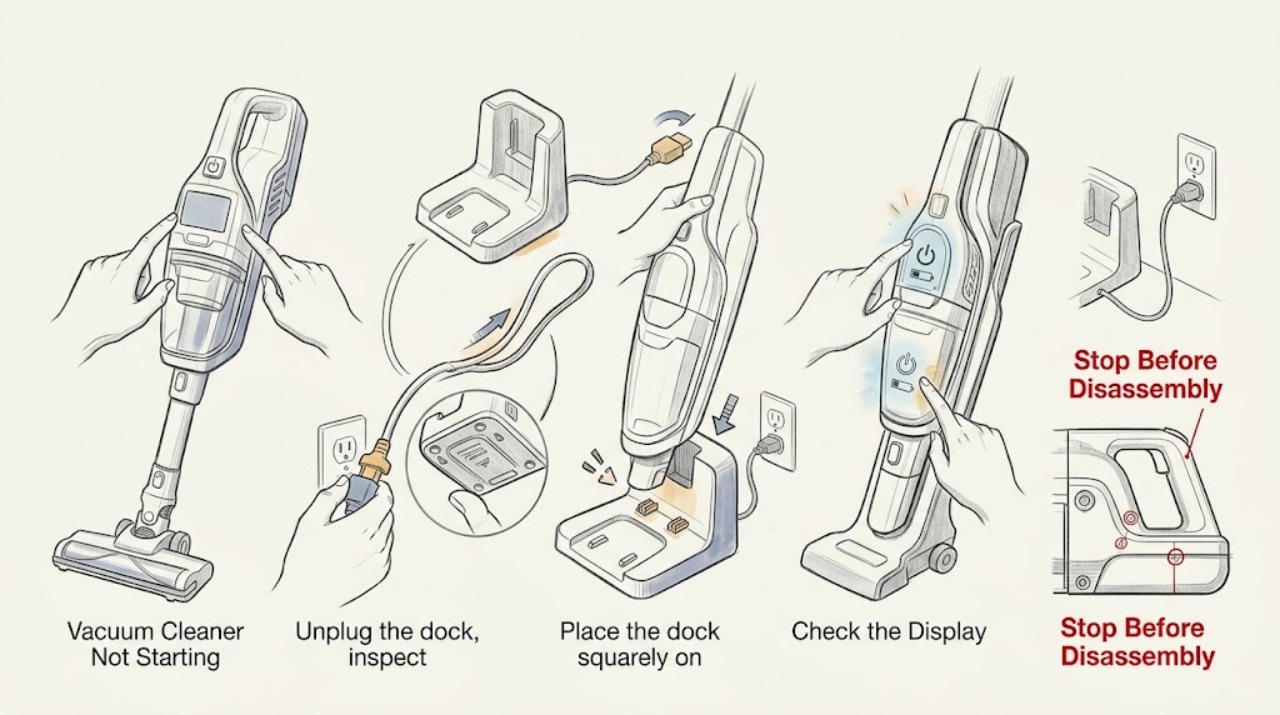
Work through in order
Diagnostic checks
Use only checks that match the exact appliance or system and its official guide.
-
Check 1
Place the Roomba squarely on its dock and check for a dock light, charging tone, or charging indication on the robot or in the app.
Expected result: The dock recognizes the robot, or there is no light, tone, or charging response.
Next step: If there is no response, continue with the plug and contact check before attempting a start.
Why this matters
Why: Recognition indicates a charging path is present; no response makes the outlet, cord, dock alignment, contacts, or battery path more likely.
-
Check 2
Unplug the dock, inspect the robot and dock charging contacts for loose debris or discoloration, and wipe them with a lightly damp cloth before reconnecting the dock.
Expected result: The contacts are dirty and the robot charges afterward, or contacts are green, copper-colored, stuck, or damaged.
Next step: Retest only after the dock is reconnected; arrange service for damaged contacts.
Why this matters
Why: Surface debris can interrupt current; damaged contacts are a hardware fault and should not be forced back into shape.
-
Check 3
Leave the robot on the dock until its indicator shows sufficient charge, then read the app or spoken message before pressing Clean.
Expected result: The indicator is still low, or a charging error names the battery, temperature, or current path.
Next step: Follow the named error guidance and use only the model's specified battery; do not bypass a charging fault.
Why this matters
Why: A low battery can block a cleaning job; a named charging error narrows the issue to the battery, dock, contacts, or operating temperature.
-
Check 4
With the robot off the dock, perform the reboot sequence for its model, then place it back on the dock and try one short start.
Expected result: The robot boots and starts, or it remains dark or repeats the same message.
Next step: Stop repeated attempts and contact iRobot with the model, light pattern, and error text if the start still fails.
Why this matters
Why: A successful reboot supports a temporary software or state fault; a repeat points to an unresolved power, battery, motor, or sensor issue.
Use your observations
Decision map
Find the observation that best matches what you see, then follow the next safe action.
-
PATH 01Next step
What you see
The robot shows a low-charge indication but the dock recognizes it
Do this next
Leave it charging and retry only after the indicator shows adequate charge.
Why this path and its safety boundary
Why it matters: The start is being blocked by battery state rather than a missing command.
-
PATH 02Next step
What you see
The dock has power but does not recognize the robot after clean alignment
Do this next
Do not force the robot onto the dock; request iRobot service and report the missing recognition.
Why this path and its safety boundary
Why it matters: The dock contacts, robot contacts, battery connection, or dock electronics are more suspect than the Clean button.
-
PATH 03Next step
What you see
The Roomba lights up, then stops with the same brush, bin, wheel, or charging message
Do this next
Follow the named maintenance check once; seek service when the message persists.
Why this path and its safety boundary
Why it matters: The command is reaching the robot, but a detected safety or maintenance condition is preventing the job.
Helpful context
Understand the symptom
Classify the failed start
A red charging indication is different from a robot that lights up and immediately stops. Record whether the dock recognizes the robot and whether the app names a specific error before selecting a remedy.
When checks do not resolve it
Need a professional?
Contact iRobot when the robot remains dark after charging checks and a model-appropriate reboot, contacts are damaged, liquid damage is visible, or an error repeats.
Common questions
FAQ
Why does my Roomba light up but not start cleaning?
The light means the robot has some power, but a full bin, stuck brush, wheel condition, or another displayed error can still block a job. Read the app or spoken message first.
Can a reboot fix a Roomba that will not start?
A model-specific reboot can clear a temporary state or error, but it does not repair damaged contacts, a failing battery, or a persistent motor fault. Retry once and escalate if the message returns.
Read the exact guide
Official sources
- Charging Error Chart: All Roomba® and Braava® ModelsiRobot Support · Roomba and Braava charging
- Why does my Roomba® or Braava® not turn on or charge properly?iRobot Support · Roomba robot vacuum
- RebootiRobot Support · Roomba robot vacuum
- The Roomba s Series Error Messages ChartiRobot Support · Roomba robot vacuum error diagnosis
Community feedback
Share a repair observation
Share a plain-text repair observation. Accepted observations are published automatically; this page may take a moment to update.