
On this page
Start here
Quick answer
Record the exact Roomba error number, voice message, light-ring pattern, or app notification before trying a fix. iRobot's error chart maps different messages to a stuck wheel, extractor, bumper, cliff sensor, bin detection, docking, or discharged battery, and the exact chart varies by series. Perform only the indicated accessible check, then contact iRobot if the message returns or the robot has liquid or physical damage.
Before you begin
Safety first
- Keep all checks external and follow the series-specific iRobot instructions; leave battery, dock, and internal repairs to qualified support.
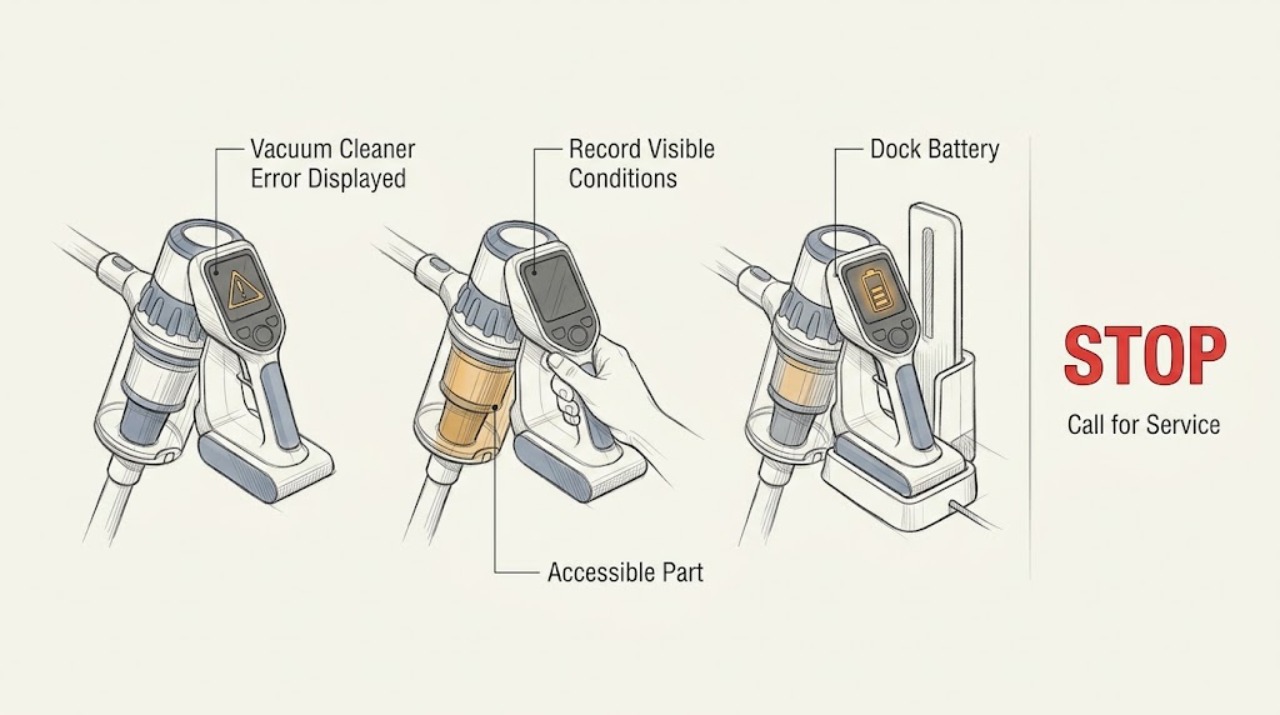
Work through in order
Diagnostic checks
Use only checks that match the exact appliance or system and its official guide.
-
Check 1
Press CLEAN only as needed to repeat the message and record the number, spoken wording, light-ring behavior, and any app notification.
Expected result: The message identifies a wheel, extractor, bumper, cliff sensor, bin, dock, or battery issue, or the code cannot be identified.
Next step: Use the matching series support page and do not guess from a generic red light.
Why this matters
Why: iRobot says the error message and app notification identify the troubleshooting family; an unknown code cannot safely be mapped to a specific part.
-
Check 2
Stop the robot and inspect only the part named by the message: clear visible hair from a wheel or extractor, tap a bumper, wipe accessible cliff sensors, or reseat a bin.
Expected result: The named area is visibly blocked or mis-seated, or it is clear and correctly installed.
Next step: Clean or reseat only as the matching iRobot instructions direct, then run a brief test.
Why this matters
Why: The 800-series chart links these messages to the corresponding accessible part; a clear part with a repeat message needs model-specific support.
-
Check 3
If the message concerns charging or return to base, inspect the dock location and wipe accessible charging contacts with the approved lightly dampened material, then let them dry.
Expected result: The robot charges and the message clears, or charging and docking still fail.
Next step: Retry once after the contacts are dry and correctly aligned; do not substitute a battery or open the dock.
Why this matters
Why: iRobot says charging requires the robot, battery, and dock to work together; dirty contacts or a depleted battery can produce charging errors.
-
Check 4
Run one short supervised test after the documented check and note whether the same code returns immediately, only in one location, or not at all.
Expected result: The error clears, returns in the same place, or returns regardless of location.
Next step: Save the code and test details for iRobot Customer Care; stop if there is liquid, heat, odor, or damage.
Why this matters
Why: A location-specific repeat can indicate a floor, bumper, cliff-sensor, or navigation condition; a location-independent repeat needs support diagnosis.
Use your observations
Decision map
Find the observation that best matches what you see, then follow the next safe action.
-
PATH 01Next step
What you see
The message names a wheel, extractor, bumper, cliff sensor, or bin and the visible issue clears after the indicated check.
Do this next
Reinstall the part correctly and monitor; use the exact series instructions if it returns.
Why this path and its safety boundary
Why it matters: The displayed error was consistent with an accessible obstruction or installation issue.
-
PATH 02Next step
What you see
The message concerns battery, charging, or return to base and charging remains unreliable after dry contact cleaning.
Do this next
Keep the robot off the dock if it becomes hot or wet and contact iRobot support; do not keep retrying a failing charge.
Why this path and its safety boundary
Why it matters: A battery, dock, contact, or charging-system fault remains possible.
-
PATH 03Next step
What you see
The same code returns after its documented accessible check or the code cannot be identified for the robot's series.
Do this next
Stop the robot, record its series and exact message, and arrange iRobot service.
Why this path and its safety boundary
Why it matters: The series-specific sensor, control, or mechanical fault needs support rather than a guessed part.
Helpful context
Understand the symptom
The number is the diagnosis entry point
A generic error label is not enough to choose a part. Record the wording and series, then use the matching iRobot support instructions.
When checks do not resolve it
Need a professional?
Provide the Roomba series, exact error wording or number, light and app behavior, location of the stop, and the check already performed.
Safety scope: Keep all checks external and follow the series-specific iRobot instructions; leave battery, dock, and internal repairs to qualified support.
Common questions
FAQ
Should I buy a part when a Roomba displays an error?
Not from the error label alone. Record the exact code and series, perform the named accessible check, and request support if it returns before choosing a replacement.
What does a Roomba charging error mean?
It can involve the battery, robot, dock, contacts, or temperature. iRobot's charging chart maps the exact code to a check; persistent or unsafe charging needs support.
Read the exact guide
Official sources
- The Roomba 800 series error messages chart.iRobot · Roomba 800 series; other series require their matching iRobot support chart
- Charging Error Chart: All Roomba® and Braava® ModelsiRobot · Listed Roomba and Braava series; verify the exact model's app and guide
- Main Brush Care: All Roomba® ModelsiRobot · All Roomba models with model-specific brush shapes
Community feedback
Share a repair observation
Share a plain-text repair observation. Accepted observations are published automatically; this page may take a moment to update.