
On this page
Start here
Quick answer
“Not working” is too broad to diagnose until you note whether the Roomba is dark, refuses to leave the dock, drives without cleaning, or stops with an error. Read the app or spoken message, check only accessible bin, brush, wheel, and dock conditions, then reboot once. Persistent or damaged conditions require iRobot support.
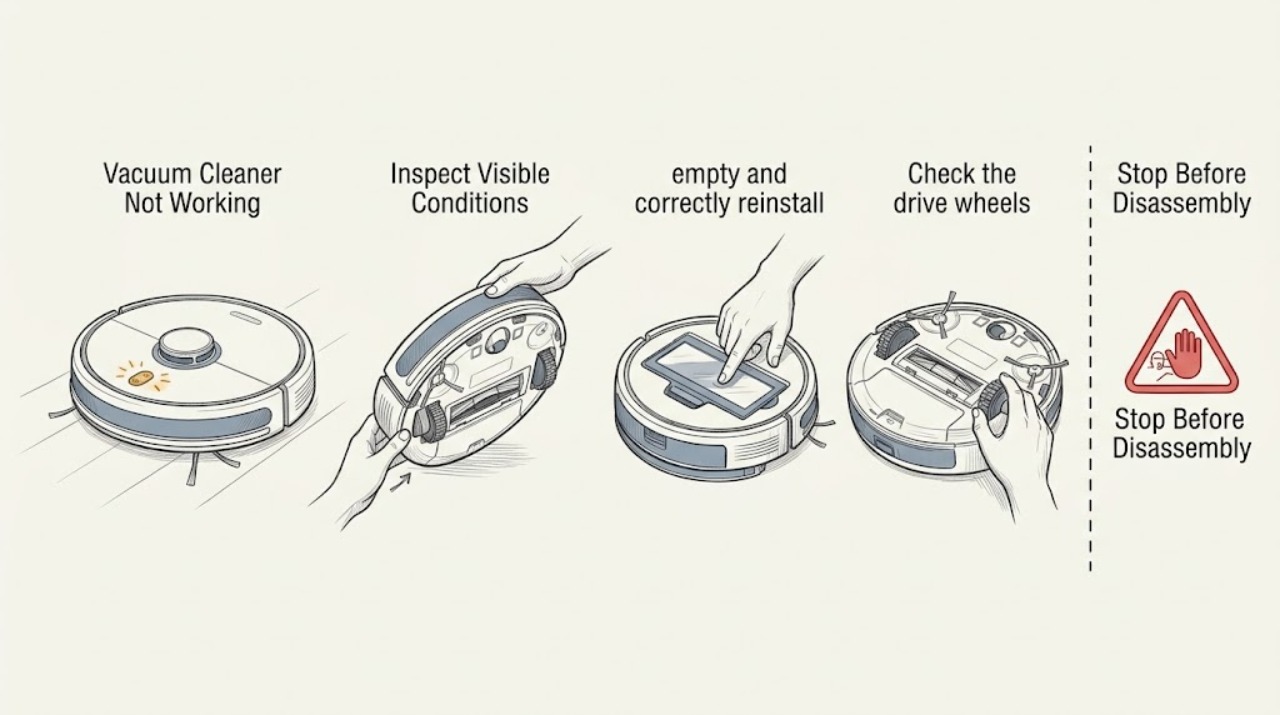
Work through in order
Diagnostic checks
Use only checks that match the exact appliance or system and its official guide.
-
Check 1
Observe one start attempt and record whether the robot is dark, lights up but stays on the dock, drives without collecting debris, or announces an error.
Expected result: The robot's behavior falls into one of those distinct patterns.
Next step: Use the matching check below and keep the exact message for support if it returns.
Why this matters
Why: Darkness points to power; dock refusal to charging or navigation; movement without pickup to the brush or bin; an announced error provides the most specific path.
-
Check 2
If the robot has power, empty and correctly reinstall the bin, then inspect the reachable main brushes, side brush, and caster for hair or packed debris with the robot off.
Expected result: The bin or brush path is blocked, or all accessible parts are clear.
Next step: Clear loose debris and run one short test; do not open the electronics.
Why this matters
Why: A blocked bin or brush can stop a cleaning job; clear parts with no visible obstruction shift suspicion to a sensor, motor, or control fault.
-
Check 3
Check the drive wheels and caster for a trapped object or an uneven wheel, and move the robot to a flat, uncluttered test area.
Expected result: The robot is stuck, a wheel hangs down, or it moves normally on the clear floor.
Next step: Clear only reachable obstruction and retry once on the flat area.
Why this matters
Why: A wheel or surface condition can make the robot report a navigation error; normal movement makes brush, bin, or software causes more likely.
-
Check 4
Check dock recognition and charging contacts, then use the model-specific reboot procedure if the robot remains unresponsive.
Expected result: Charging returns and the reboot clears the behavior, or the same failure persists.
Next step: Stop repeated tests and contact iRobot with the model and exact behavior.
Why this matters
Why: A recovered charge or reboot supports a temporary power state; repeated failure points to the dock, battery, motor, sensor, or control assembly.
Use your observations
Decision map
Find the observation that best matches what you see, then follow the next safe action.
-
PATH 01Next step
What you see
The Roomba is dark and the dock does not show recognition
Do this next
Perform one dock and contact check, then request service if recognition does not return.
Why this path and its safety boundary
Why it matters: The fault is more likely in the outlet, dock, contacts, battery, or power path than in navigation or cleaning settings.
-
PATH 02Next step
What you see
The Roomba drives but leaves debris behind while no brush obstruction is visible
Do this next
Stop using it if the brush error repeats and arrange iRobot support.
Why this path and its safety boundary
Why it matters: The cleaning head, brush motor, or bin sensing path is more likely than a navigation problem.
-
PATH 03Next step
What you see
A reboot or cleaning check works briefly but the same error returns
Do this next
Save the error text and stop repeated runs until iRobot has assessed it.
Why this path and its safety boundary
Why it matters: The temporary recovery did not remove the underlying hardware or sensor fault.
Helpful context
Understand the symptom
Start with the behavior, not a part
A Roomba can have power but still be prevented from cleaning by a full bin, stuck brush, wheel condition, or charging fault. The first visible behavior determines which low-risk check is relevant.
When checks do not resolve it
Need a professional?
Arrange iRobot support when the same error returns after one safe maintenance check and reboot, when the dock or contacts are damaged, or when liquid damage is suspected.
Common questions
FAQ
What should I check when a Roomba is not working at all?
Classify the behavior first: dark, docked, moving without pickup, or reporting an error. That classification prevents replacing a brush when the actual problem is charging or a wheel condition.
When is a Roomba problem no longer a cleaning task?
If clean accessible parts, dock contacts, and one model-specific reboot do not clear the same fault, the remaining issue may involve a motor, sensor, battery, or control assembly and needs service.
Read the exact guide
Official sources
- Charging Error 4 and 5: All Roomba® and Braava® ModelsiRobot Support · Roomba and Braava charging
- Why does my Roomba® or Braava® not turn on or charge properly?iRobot Support · Roomba robot vacuum
- RebootiRobot Support · Roomba robot vacuum
- The Roomba s Series Error Messages ChartiRobot Support · Roomba robot vacuum error diagnosis
Community feedback
Share a repair observation
Share a plain-text repair observation. Accepted observations are published automatically; this page may take a moment to update.