
On this page
Start here
Quick answer
First separate a display that is merely asleep from a panel that is locked, in a model-specific mode, showing an error, or persistently blank or erratic. Samsung says a wall-oven display can go blank after inactivity and wake when you interact with it. Check the appliance power connection from outside, note the exact message, and use the matching owner manual for the model before trying a control sequence. If it is safe and the oven is not heating unexpectedly, has no smoke, burning odor, sparks or damaged wiring, Samsung documents a single circuit-breaker reset; if the display remains wrong or the symptom returns, request service. Do not open the control panel, probe live wiring, bypass a lock or borrow another model’s key sequence.
Work through in order
Diagnostic checks
Use only checks that match the exact appliance or system and its official guide.
-
Check 1
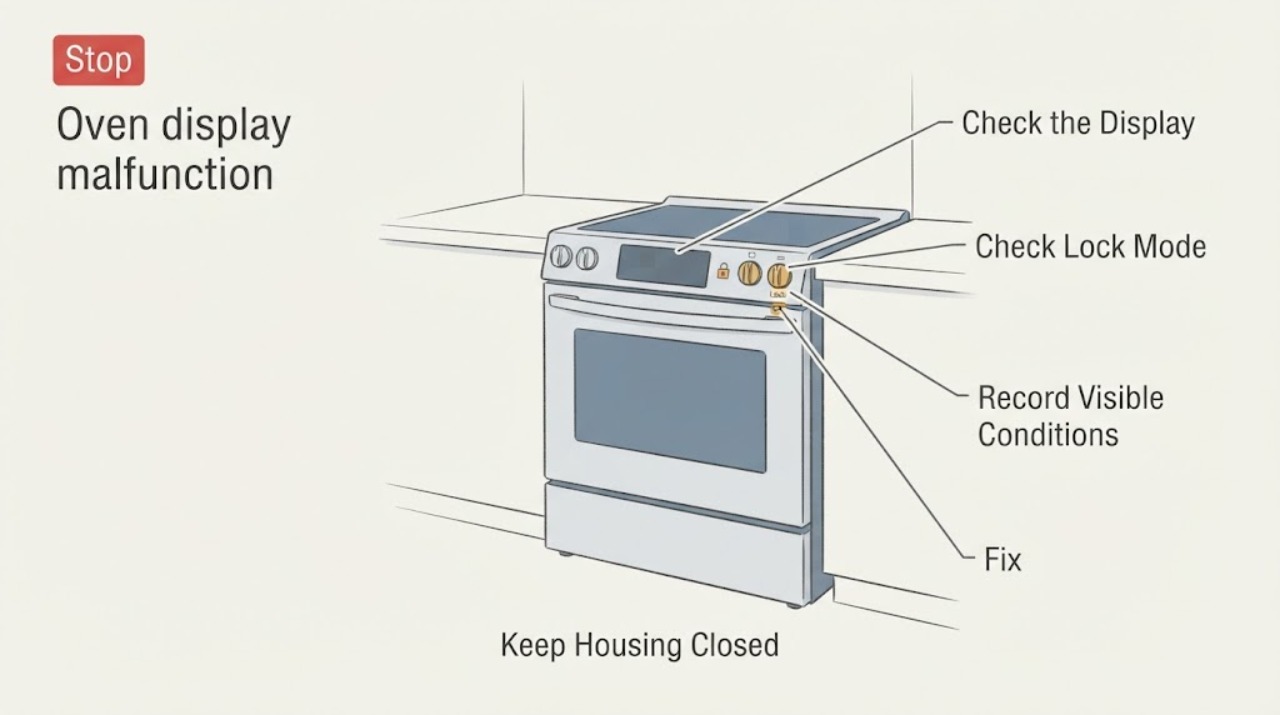
Without repeatedly pressing the panel, record whether the display is blank only after inactivity, blinking or incomplete, locked, partially responsive, changing without input, or showing an exact message or code.
Expected result: The panel has a recognizable inactive state, lock/mode indicator, code, partial response, spontaneous response or no response at all.
Next step: Use the matching Samsung manual for a documented state or code; keep the oven off and arrange service for spontaneous activation or a persistent dead panel.
Why this matters
Why: These observations lead to different model-specific paths and do not by themselves prove a failed display, keypad or board.
-
Check 2
If the display is blank after the oven has been idle, interact with it once using the normal control described by the matching manual; do not repeatedly tap or press random combinations.
Expected result: The display wakes and shows normal controls, or it stays blank or returns to blank immediately.
Next step: If it wakes normally, monitor it. If it does not, continue with the external power check and model identification.
Why this matters
Why: A wall-oven display may blank after inactivity, while a display that will not wake needs power and model-specific troubleshooting.
-
Check 3
Look for a padlock icon, “Loc,” “Hot,” Self Clean, Twin Cooking, Temperature Probe or another active feature that can restrict controls; consult the exact owner manual rather than trying an unverified unlock sequence.
Expected result: The manual confirms a current lock/feature state and its documented exit restores input, or no applicable state is documented.
Next step: Follow only the matching manual’s documented exit. If the panel remains unresponsive or the state cannot be confirmed, use the service branch.
Why this matters
Why: Samsung says control availability and lock behavior vary by model and by operating state; an unavailable key is not automatically a failed panel.
-
Check 4
From outside the appliance, verify that the oven is connected to its intended power supply and that the household breaker has not tripped; do not open the junction box or control area.
Expected result: Power is absent or the display has never worked since installation, or power appears present but the display remains incorrect.
Next step: For an installation or wiring issue, use the installation manual or a qualified installer. If external power is present and the display remains wrong, continue to the single safe reset and service boundary.
Why this matters
Why: Samsung says an improper power connection can prevent correct display operation and identifies bAd LinE as a power-connection condition.
-
Check 5
Only if the oven is off, cool enough to handle and free of smoke, burning odor, sparks, unexpected heating or visible electrical damage, turn its circuit breaker off once for the interval specified by the applicable Samsung guidance or manual, then restore it.
Expected result: The display returns to full, stable operation, or it remains blank, partial, erratic or becomes abnormal again.
Next step: Use the oven only while its normal controls remain stable and the manual permits it. If the symptom returns or any hazard appears, keep it off and request service.
Why this matters
Why: A reset may clear a temporary display or information-code state, but it does not identify or repair an internal component.
-
Check 6
Record the complete model code and every display message, then use Samsung Range Support to retrieve the matching manual or request service; do not select a replacement display or control board from the symptom alone.
Expected result: A complete model and manual are available, or the model is missing and the fault persists after the applicable external checks.
Next step: Follow only model-matched instructions. Arrange qualified appliance service for a persistent blank, partial or erratic display, or for internal electrical diagnosis.
Why this matters
Why: Samsung organizes manuals, troubleshooting and repair by model code; without that identity, exact control sequences and code meanings remain unresolved.
Use your observations
Decision map
Find the observation that best matches what you see, then follow the next safe action.
-
PATH 01Next step
What you see
The display wakes after one normal interaction following inactivity and all controls behave normally.
Do this next
Use the oven normally while it remains stable and keep the matching manual available.
Why this path and its safety boundary
Why it matters: The observed blank state is consistent with Samsung’s documented wall-oven inactivity behavior, not proof of a failed display.
-
PATH 02Next step
What you see
A lock icon, “Loc,” “Hot” indication or model-documented operating feature explains why a button is unavailable.
Do this next
Follow only the exact model manual’s documented exit or wait-until-cool instruction.
Why this path and its safety boundary
Why it matters: The panel is responding to a model-specific safety or function state; a missing button response is not sufficient to diagnose hardware.
-
PATH 03Next step
What you see
The display shows tESt/tE5t or bAd LinE exactly as Samsung describes.
Do this next
Use the exact model manual or a qualified installer for the applicable correction; do not borrow a sequence from another model.
Why this path and its safety boundary
Why it matters: tESt/tE5t indicates Demo mode, while bAd LinE indicates a power-connection condition; these meanings are conditional to Samsung range/oven guidance.
-
PATH 04Next step
What you see
The display remains blank, incomplete, blinking or unresponsive after the applicable external power check and one safe documented reset.
Do this next
Keep the oven off and request qualified Samsung appliance service rather than opening the panel or ordering an unverified part.
Why this path and its safety boundary
Why it matters: The no-model evidence cannot distinguish the display, keypad, control, connection or software cause.
-
PATH 05Next step
What you see
The oven heats without a normal command, changes settings by itself, smells burned, sparks, shocks the user or shows damaged wiring.
Do this next
Stop using the oven, isolate power only when safe, and use qualified appliance or electrical service; do not restore power for a test.
Why this path and its safety boundary
Why it matters: This is an electrical or heating safety boundary, not a routine display-setting issue.
Helpful context
Understand the symptom
Classify the display symptom before pressing more keys
Watch the panel without repeated tapping and record whether it is blank only after inactivity, blinking or incomplete, showing a lock or mode, displaying an exact code, accepting some keys, or changing without input. Display state and control response are different clues; “display malfunction” does not by itself identify a failed screen, keypad or control board.
Wake a display that may be in its normal inactive state
Samsung notes that wall-oven displays go blank after a period without interaction. Touch the display once or use the normal user control described by the matching manual. If the display returns normally, record that it was an inactivity behavior rather than treating it as proof of a failed display.
Check lock, heat and feature availability
A Samsung panel may not accept a button because the current function makes it unavailable, the panel is still hot, or Control Lock is active. Samsung identifies Self Clean, Twin Cooking, Temperature Probe and the lock indicator or “Loc” as model-dependent states. Use the exact manual for the model; do not hold an unverified key combination.
Treat visible codes as model-scoped evidence
Record the exact capitalization and punctuation of any message. Samsung’s guide defines tESt/tE5t as Demo mode, where the oven and cooktop will not heat, and bAd LinE as an improperly connected power connection; its other entries are also conditional. A code that is absent from the guide needs the model manual or service, not a code meaning borrowed from another Samsung appliance.
Use one documented power reset only when safe
If the oven is off, not heating unexpectedly, and free of smoke, burning odor, sparks and visible electrical damage, follow Samsung’s external power guidance: turn the circuit breaker off for the time specified by the applicable Samsung page or matching manual, then restore it once. The display page specifies 60 seconds; the error-code page specifies 30 seconds for a returned error. Do not repeatedly cycle power or remove the control-panel cover.
Stop at the service boundary
If the display remains blank, partial, erratic or unresponsive after the matching model checks, or the oven heats or changes settings without a normal command, keep it off and request qualified service. Smoke, a burning smell, sparks, shock or damaged wiring is a safety stop; do not restore power to reproduce the symptom or diagnose the internal board yourself.
When checks do not resolve it
Need a professional?
Request qualified Samsung appliance service when the display stays blank, partial, blinking or erratic after the matching model checks, when an information code returns, or when internal panel, wiring or control diagnosis is needed. Do not choose a display or board replacement from the symptom alone.
Common questions
FAQ
Could a blank Samsung oven display be normal?
On Samsung wall ovens, the display can go blank after inactivity and wake when you interact with it. If it will not wake, remains incomplete or the oven behaves abnormally, use the external power and model-specific service path.
Why does my Samsung oven panel not respond?
Samsung lists operating-state restrictions, heat, Control Lock and a dirty touch surface as possible reasons. Self Clean, Twin Cooking and Temperature Probe can also affect which controls are available; the exact behavior depends on the model.
What should I do if the display shows a Samsung oven code?
Record the exact code and check the matching Samsung manual. Samsung’s guide defines only listed messages, including tESt/tE5t for Demo mode and bAd LinE for an improper power connection; a code that returns after the documented step needs service.
Can I open the control panel to fix a Samsung oven display?
No. A display symptom does not identify the internal fault, and opening the control area or probing live wiring creates an electrical hazard. Keep the oven off and use qualified service for internal diagnosis.
Read the exact guide
Official sources
- Ranges | Samsung Support USSamsung · Official Samsung support hub; used for the model-identity boundary and matching manual/service lookup, not as proof of a universal control sequence.
- Self Clean or other buttons do not light up or respond, or panel is locked on Samsung ovenSamsung · Official Samsung US oven/range support; used conditionally because controls and lock procedures vary by model.
- Samsung range or wall oven error codesSamsung · Official Samsung US range/oven error guide; only listed codes and model conditions are used, with exact manual required for other codes.
- Samsung range or wall oven panel is blank, blinking, or incorrectSamsung · Official Samsung US troubleshooting page for generic range and wall-oven display symptoms; exact model instructions still control.
Community feedback
Share a repair observation
Share a plain-text repair observation. Accepted observations are published automatically; this page may take a moment to update.