
On this page
Start here
Quick answer
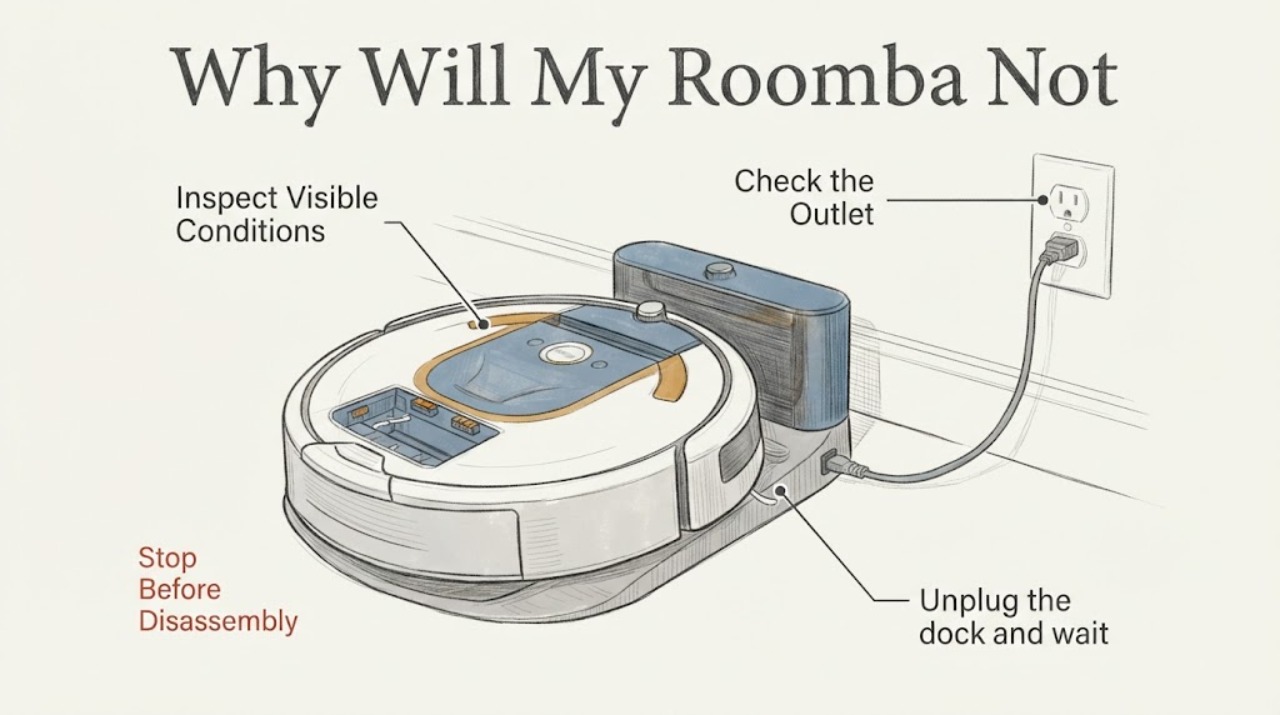
Start with the charging path rather than replacing the battery. Make sure the dock is plugged into a powered outlet, sits level and has the clearance specified for your Roomba, then place the robot so its metal contacts meet the dock contacts. iRobot says debris on either set of contacts is a common charging problem; with the dock unplugged, clean the contacts using only a lightly dampened melamine foam or lightly dampened cloth, never an abrasive material or sprayed liquid. Check for green or copper-colored contacts, stuck contact pins, a damaged cord or a dock that does not recognize the robot. If your model's official instructions call for it, a battery reinstall or sleep/ship-mode wake-up can clear a charging error, but do not infer battery failure from no light alone because some docks have no indicator. If charging still fails, the battery is aftermarket or damaged, or the robot remains unresponsive, stop repeated testing and contact iRobot with the exact model and serial number.
Work through in order
Diagnostic checks
Use only checks that match the exact appliance or system and its official guide.
-
Check 1
Confirm the dock cord is firmly inserted at both ends, verify the outlet safely, and place the dock level and flush against a wall with the clearance specified for the exact Roomba dock. Check the app/manual for whether your model has a dock light.
Expected result: The outlet or cord is unpowered, the dock is tilted or crowded, the dock indicator behaves normally, or the model has no dock indicator.
Next step: Restore only an obvious loose connection or move the dock to a documented position, then reseat the robot. If the outlet and dock path are normal, continue to the contact check rather than replacing the battery.
Why this matters
Why: A charging failure can originate at the outlet, line cord, dock position or model-specific indicator. A missing light alone is not proof of a failed dock because iRobot lists models without dock lights.
-
Check 2
Unplug the dock and wait 60 seconds. Remove the robot, turn it over on a flat surface, and clean the robot and dock contacts with only a lightly dampened melamine foam or lightly dampened cloth. Do not spray liquid or use abrasive material.
Expected result: Debris or residue comes off, the contacts look clean, or a contact is green/copper-colored or stuck down.
Next step: Let the cleaned surfaces be free of visible moisture, reseat the robot and test once. For damaged or stuck contacts, stop repeated docking attempts and arrange the appropriate robot or dock service.
Why this matters
Why: Debris can interrupt current; green/copper discoloration or a stuck contact indicates damage that cleaning may not cure. iRobot does not authorize replacing or reshaping a damaged contact in this procedure.
-
Check 3
Place the Roomba on the dock in the model-specific orientation and observe the charging sound, light ring, dock light or app status. For a Roomba 200/2000 placed manually, leave the documented small gap instead of pushing the bumper hard against the dock.
Expected result: The robot reports charging, the dock recognizes it briefly then stops, no charging indication appears, or the robot cannot remain aligned.
Next step: Follow the exact model placement illustration once. If recognition still fails, record the model and indicator behavior and request iRobot support rather than forcing the robot into the dock.
Why this matters
Why: Correct physical contact should produce the model's charging indication. Failure to recognize the robot after power and contact checks can involve alignment, dock contacts, the cord, battery or robot electronics; it does not identify one cause.
-
Check 4
Read the app or robot's charging message and identify the full model. Perform a sleep/ship-mode or battery reinstall only if iRobot documents that step for that series, and use an authentic compatible iRobot battery; do not open or electrically test the battery pack.
Expected result: A charging error clears, the robot remains dark or unresponsive, the battery percentage never increases, or the same error returns after the documented step.
Next step: Stop repeated resets and contact iRobot Customer Care with the robot, serial number, model, error text and dock behavior. Keep the robot out of use if the battery is swollen, hot, leaking or physically damaged.
Why this matters
Why: iRobot documents model-specific battery wake/reinstall procedures and notes that aftermarket batteries can cause unknown charging errors. A persistent error after the correct step can involve the battery, dock, cord or robot and needs diagnosis.
Use your observations
Decision map
Find the observation that best matches what you see, then follow the next safe action.
-
PATH 01Next step
What you see
The outlet is unpowered, the cord is loose or damaged, or the dock is not placed as the model requires.
Do this next
Correct only the obvious safe connection or documented dock placement, then test once. Replace a damaged cord or dock only through the proper model-specific service route.
Why this path and its safety boundary
Why it matters: The robot may not be receiving charging current or may not be able to maintain contact; the battery is not yet implicated.
-
PATH 02Next step
What you see
Residue is visible on either charging-contact surface and the contacts are not discolored or stuck.
Do this next
Unplug the dock, clean only with the two materials iRobot permits, reseat the robot and watch for the model's charging indication.
Why this path and its safety boundary
Why it matters: Debris can prevent current from reaching the robot even when the dock has power.
-
PATH 03Next step
What you see
A charging contact is green or copper-colored, stuck down, visibly damaged, or the robot/dock cannot maintain contact after cleaning.
Do this next
Stop repeated docking attempts and contact iRobot for the correct robot or dock service path using the exact model and serial number.
Why this path and its safety boundary
Why it matters: iRobot treats these contact conditions as damage that can prevent charging; the issue is not safely resolved by polishing, bending or bypassing the contact.
-
PATH 04Next step
What you see
Power, placement and contacts are normal but the battery percentage does not increase, the robot stays dark, a charging error returns, or the battery is hot, swollen or leaking.
Do this next
Stop use for a damaged or hot battery and request iRobot support with the model, serial number, error and observed charging indicators. Do not open the battery or substitute an unverified part.
Why this path and its safety boundary
Why it matters: A battery, robot or dock electronics issue remains possible, but the generic symptom does not establish which part has failed.
Helpful context
Understand the symptom
Check the dock and outlet before the robot
Put the dock on a level, uncluttered surface against a wall and keep the clearances required by the exact Roomba dock. Confirm the cord is firmly seated at the dock and outlet, then verify the outlet with another device only if it is safe to do so. iRobot notes that dock lights differ by model, so compare the result with the model instructions instead of treating a dark dock as proof of failure.
Clean both charging-contact surfaces safely
Unplug the dock and wait 60 seconds before cleaning. Remove the Roomba, place it upside down on a flat surface, and wipe the robot and dock contacts only with a lightly dampened melamine foam or lightly dampened cloth. Do not use an abrasive pad, spray cleaner or water on sensor openings. The contacts should be clean and able to meet; green or copper-colored contacts, or contacts stuck down, are damage indicators rather than a cleaning invitation.
Confirm the robot is actually seated on the dock
Place the robot in the direction shown by the exact model guide and watch for the expected charging sound, light or app status. Do not push it farther into the dock than the model allows; iRobot specifically notes that some Roomba 200/2000 placements need a small gap to maintain contact. Lift and reseat the robot once after the contacts are clean, then allow the model's normal charging indication time.
Use only the battery step that matches the model
If the app or robot reports a charging error, use the exact model's instructions. iRobot documents a battery removal and reinstallation step for persistent no-light/no-charge cases, and a 30-second power-button sleep/ship-mode procedure for specified newer series that die immediately off the dock. iRobot also warns that aftermarket batteries can cause unknown charging errors. Do not open the battery pack, bridge contacts or substitute a battery based only on the Roomba name.
When checks do not resolve it
Need a professional?
Contact iRobot Customer Care when the outlet, dock placement, contacts and model-specific battery step do not restore charging; when contacts are discolored, stuck or damaged; when the dock cannot recognize the robot; or when the battery is hot, swollen, leaking or physically damaged. Provide the full Roomba model, serial number, dock type, charging error or app message, light/sound behavior and the checks already performed. Do not open the battery, bridge charging contacts, spray the dock or replace a battery or dock from the symptom alone.
Common questions
FAQ
Why does my Roomba have power but not charge?
iRobot lists the dock, cord, robot, battery and charging contacts as possible causes. Start with dock power and placement, clean both contact surfaces using the permitted materials, and confirm the robot is seated in the exact model orientation before considering a battery or service issue.
What should I use to clean Roomba charging contacts?
iRobot permits a lightly dampened melamine foam or a lightly dampened cloth, after unplugging the dock and waiting 60 seconds. Do not use abrasive material, spray cleaner or water on sensor openings.
Does a dark dock light mean the dock is broken?
Not necessarily. iRobot lists Roomba models whose docks do not have lights and notes that some docks illuminate briefly before conserving energy. Use the exact model instructions and the robot's charging sound, light or app status to judge recognition.
Should I replace the Roomba battery?
Not from the charging symptom alone. Follow the exact model's documented battery wake or reinstall step, use an authentic compatible iRobot battery, and contact iRobot if the error returns or the robot remains unresponsive. Never open, heat or electrically test the battery pack.
Read the exact guide
Official sources
- Where to Place the DockiRobot Home Support · Official iRobot dock-placement guidance used for level/open placement, clearance, model-specific docking gaps and charging recognition. It does not establish a fault in any particular dock.
- Charging Error 4 and 5: All Roomba® and Braava® ModelsiRobot Home Support · Official iRobot support article covering all Roomba and Braava models for charging errors 4 and 5. It supports general charging-path checks and service boundaries but does not diagnose an unspecified model's failed component.
- Why does my Roomba® or Braava® not turn on or charge properly?iRobot Home Support · Official iRobot troubleshooting article used for the general charge path and model-specific branches. It explicitly lists model exceptions and does not authorize a universal battery or dock replacement.
- How to Clean the Charging Contacts: All Roomba® and Braava® ModelsiRobot Home Support · Official iRobot contact-cleaning procedure for all Roomba/Braava models, with an explicit exception for Essential 2. Used only for the unplugged cleaning method and damaged-contact boundary.
- Charging Error 1: All Roomba® and Braava® ModelsiRobot Home Support · Official iRobot all-model charging-error page used only for the battery-detection branch and warning against treating an unspecified charging failure as a compatible battery diagnosis.
Community feedback
Share a repair observation
Share a plain-text repair observation. Accepted observations are published automatically; this page may take a moment to update.