
On this page
Start here
Quick answer
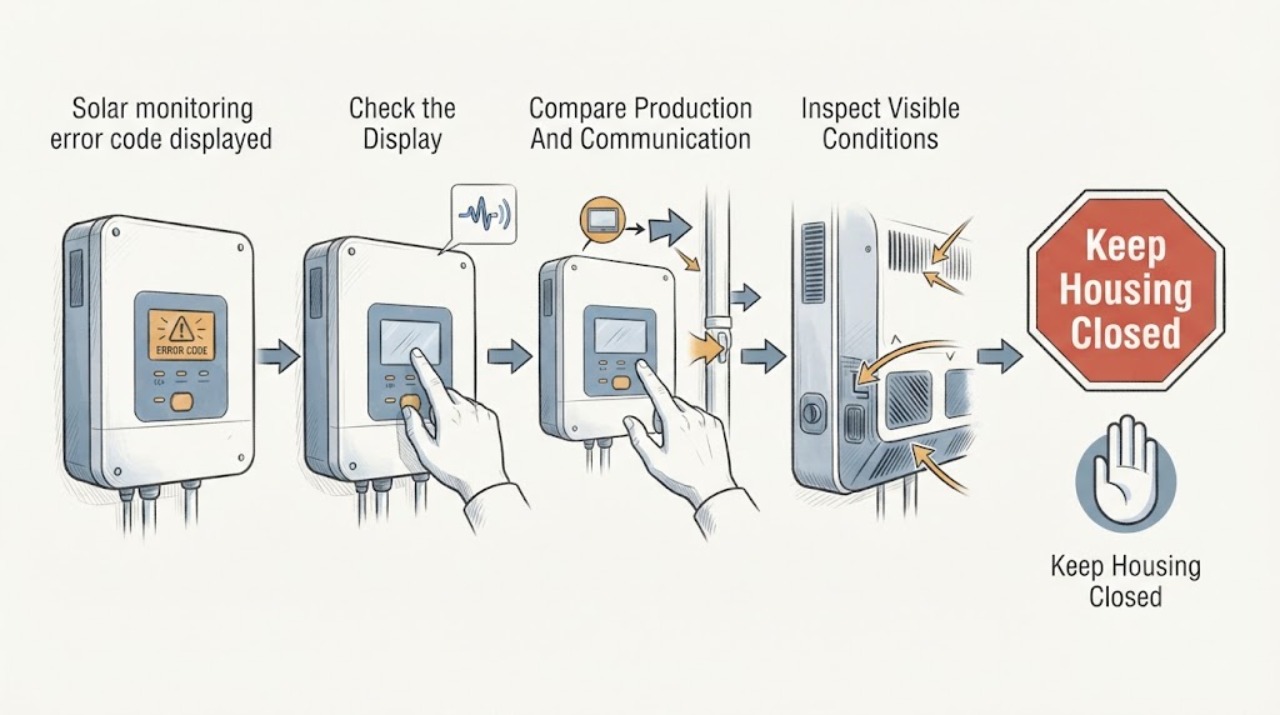
Do not guess what a solar monitoring error code means: the same-looking alert can represent a communication problem, a production problem, or a safety-related inverter fault depending on the manufacturer and exact code. Capture the code exactly as displayed, the app or device where it appeared, its timestamp, current production/last-update information, and any visible warning indicator from a safe ground-level position. Do not open equipment, disconnect circuits, test live DC, climb to panels, or attempt a restart. Contact the installer or a qualified solar service professional promptly, and treat smoke, burning odor, water intrusion, damaged equipment, loose modules, or a persistent red fault indication as an urgent stop condition.
Work through in order
Diagnostic checks
Use only checks that match the exact appliance or system and its official guide.
-
Check 1
Record the error exactly as shown, preserving capitalization, punctuation, digits, leading zeros, and any companion status text; save a screenshot of the monitoring app or a photo of the visible display without opening or touching equipment.
Expected result: Note whether the message appears in the app, on the inverter display, on a gateway, or in an email notification, and record the local date/time and the last-update time shown with it.
Next step: Use the code, device label/model information visible from a safe location, and the screenshot when contacting the installer or qualified solar service provider.
Stop if: Stop immediately if reaching the display would require a ladder, entering a restricted area, removing a cover, or approaching damaged equipment.
Why this matters
Why: A precise code plus its source and timestamp gives the installer a manufacturer-specific starting point. A paraphrase such as “solar error” is not enough to identify a safe next step.
-
Check 2
In the monitoring app or portal, compare the error with the displayed last-update time, current or recent production graph, and any separate communication or connection status; do not change inverter settings or disconnects.
Expected result: Classify the visible pattern as current production with a communication alert, missing/stale monitoring data, reduced production with a device alert, or no meaningful data at all.
Next step: Send the screenshot and the production/last-update comparison to the installer, and state whether the household has also noticed a power or utility issue.
Stop if: Do not try to restore communication by handling electrical equipment, changing disconnect positions, or repeating a restart when the code persists.
Why this matters
Why: A monitoring connection problem does not automatically prove that the array stopped producing, and a production problem does not automatically prove that the internet connection failed. The pattern determines which records the provider should review.
-
Check 3
From a safe ground-level position, observe only the indicator lights or display that are already visible without removing any enclosure, and record their colors, steady or flashing state, and any visible status label.
Expected result: Note whether a warning indicator is absent, present, or changing, and whether the visible status says communicating, producing, idle, or fault; do not infer a code meaning from color alone.
Next step: Include the indicator observation with the exact code and equipment model/serial information available from records, not by opening or reaching behind the equipment.
Stop if: Stop and keep away if there is smoke, a burning smell, arcing sound, heat damage, exposed conductors, water intrusion, or a loose or damaged enclosure.
Why this matters
Why: Visible indicators can add context, but their interpretation is manufacturer- and model-specific. A red or persistent fault state should be passed to a qualified provider rather than treated as a user-reset instruction.
-
Check 4
Review the household timeline for a recent utility outage, severe weather, internet/router change, installer visit, firmware notification, battery event, or visible site damage, without performing an electrical test or climbing to the array.
Expected result: Record whether the code began after one of those events, whether it appears only at night or during poor weather, and whether it remains after normal daylight and weather conditions return; do not assume those events are the cause.
Next step: Give the provider the event timeline and ask whether they need remote diagnostics, an on-site inspection, or the system's commissioning and monitoring records.
Stop if: Stop investigating and request urgent professional help if the event involved impact, fire, flooding, loose panels, exposed wiring, or a repeated safety-related alert.
Why this matters
Why: Context helps distinguish an intermittent monitoring or environmental report from a persistent system fault, but only the equipment maker or service professional can map the exact code to a corrective procedure.
-
Check 5
Document whether the alert is isolated to one site/device view or appears across the whole monitoring account, and note whether it clears and returns or remains continuously; do not dismiss a persistent error by deleting notifications.
Expected result: Compare the affected device or site with other views available in the same account, if the account already provides them, and preserve the alert history rather than changing configuration.
Next step: Ask the installer to correlate the alert history with inverter, gateway, meter, and utility records; include the scope and recurrence pattern in the service request.
Stop if: Stop using the system as normal and keep people away from visibly damaged equipment until a qualified professional confirms it is safe.
Why this matters
Why: A single-device alert and an account-wide data outage can require different support paths. Persistence or repeated return increases the priority of an installer review even when production appears normal.
Use your observations
Decision map
Find the observation that best matches what you see, then follow the next safe action.
-
PATH 01Next step
What you see
The exact code, source, timestamp, and equipment identity are available.
Do this next
Send that evidence to the installer or manufacturer-authorized service channel and ask for code-specific guidance; do not translate it using a generic code list.
-
PATH 02Next step
What you see
Production history appears normal but the monitoring data is stale or communication status is abnormal.
Do this next
Request a monitoring-communication review and provide the last-update time, network-change history, and visible status; do not assume the inverter itself is defective.
-
PATH 03Next step
What you see
Production is reduced or absent when production would normally be expected, or the exact fault persists or returns.
Do this next
Treat the request as a high-priority solar service issue and contact the installer or qualified provider with screenshots and the timeline; do not reset or disassemble equipment.
-
PATH 04Next step
What you see
There is smoke, burning odor, arcing sound, water intrusion, impact damage, exposed wiring, loose modules, or a hot/damaged enclosure.
Do this next
Keep people away, do not touch or operate the equipment, and seek urgent assistance from the installer, qualified electrician, or emergency service appropriate to the immediate hazard.
Helpful context
Understand the symptom
Why the exact code matters
A monitoring alert is not a universal diagnosis. The Department of Energy recommends checking operational indicators and error messages as part of photovoltaic operation and maintenance, while also treating failed systems as needing inspection and testing by qualified personnel. Manufacturer guidance can separate production from communication: for example, a monitoring page may show a communication state even when the system's production status is a separate question. Use this page to gather safe evidence for the right provider, not to translate an unidentified code.
Keep the check at the observation layer
Stay on the ground and use the monitoring app, the visible display, or indicators that can be read without removing covers. Never bypass a warning by changing disconnect positions or handling inverter, battery, wiring, or panel equipment. The installer or manufacturer-qualified technician can use the exact code and equipment record to choose the appropriate diagnostic procedure.
When checks do not resolve it
Need a professional?
Contact the installer or a qualified solar service professional for any exact code that persists, returns, coincides with reduced production, or cannot be identified from the system's manufacturer documentation. Treat smoke, burning odor, arcing, water intrusion, impact damage, exposed conductors, loose modules, or a persistent safety fault as urgent and keep clear.
Have this ready
- Provide the exact code and companion text, screenshot/photo, app or device location, timestamp and recurrence, last-update and production status, visible indicator state, system brand/model if known, and recent outage, weather, network, battery, or service events.
Common questions
FAQ
Does a solar monitoring error code always mean the panels stopped producing?
No. A monitoring or communication alert can coexist with production data, while a production fault can also generate an alert. Compare the exact message with the last-update and production information, then ask the installer to interpret the code for the specific equipment.
How do I identify an unknown solar error code safely?
Capture the exact code, companion text, source screen, timestamp, and visible status without opening equipment or changing switches. Give those details and the system brand/model to the installer or qualified service provider.
Can I reset the inverter to clear the monitoring error?
Do not perform a reset or operate disconnects based on an unidentified code. Some faults are safety-related, and the correct procedure depends on the manufacturer and system design; let qualified personnel decide whether any reset is appropriate.
What should I do if the app is not updating but the system looks normal?
Record the last-update time, production history, and communication status, then request a monitoring-communication review. Do not assume the array is offline or change electrical equipment because the app is stale.
When is a solar monitoring error an urgent safety issue?
Keep clear and seek urgent help for smoke, burning odor, arcing, water intrusion, impact damage, exposed conductors, loose modules, a damaged enclosure, or a persistent safety-related fault. Do not touch the system or climb to inspect it.
Read the exact guide
Official sources
- App Does Not Display Production DataSolarEdge · This page supports recording last-update and communication status and contacting the installer when monitoring data remains unavailable; the steps and labels are SolarEdge-specific examples, not universal code meanings.
- PV Production and System IssuesSolarEdge · This manufacturer example shows that an error code does not universally prove a production problem and that communication and production can be separate; its LED/display meanings apply only to compatible SolarEdge equipment.
- Life Cycle of Photovoltaic Systems: Operate and Maintain an Existing Photovoltaic SystemU.S. Department of Energy · The guidance supports checking operational indicators and error messages, preserving performance records, and using qualified inspection/testing and recovery after a PV failure; it is not a manufacturer-specific code dictionary.
Community feedback
Share a repair observation
Share a plain-text repair observation. Accepted observations are published automatically; this page may take a moment to update.