
On this page
Start here
Quick answer
An offline monitoring message does not by itself prove that the panels stopped generating. It can mean the app account, home internet path, gateway, inverter communication, or cloud data is unavailable. From the app and safe, accessible equipment views, record the exact offline message, last update time, gateway or inverter indicator state, and whether your home internet is working. Do not open an inverter, remove a panel, access a service panel, perform live electrical testing, or repeatedly reset equipment. If generation status cannot be separated from monitoring status, or the offline state persists, send the observations to the installer or qualified solar service provider for diagnosis.
Work through in order
Diagnostic checks
Use only checks that match the exact appliance or system and its official guide.
-
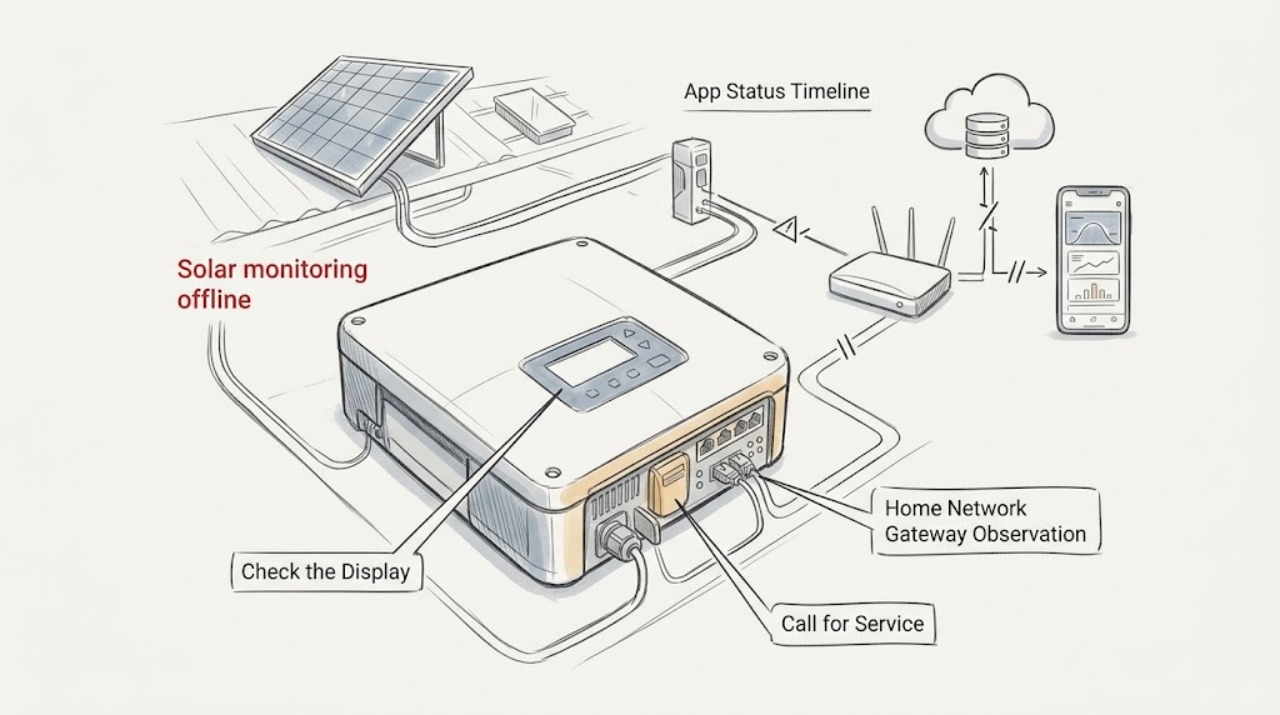
Read the app status and last-update timeline
Open the authorized solar monitoring app or portal and record the site name, exact offline or connection message, last successful update, and whether historical production remains visible; do not repeatedly sign out, reset, or change account settings as a test.
Expected result: Note whether only live data is stale, all history is missing, the site is absent from the account, or the app reports a gateway, inverter, or cloud connection issue.
Next step: Save a screenshot without exposing credentials and share the message and last-update time with the installer or monitoring provider. If the site is missing entirely, verify the authorized account identity through the provider's normal support route.
Stop if: Stop if the app requests unknown credentials, shows a security warning, or you are tempted to repeatedly reset or change account settings; use the provider's secure support process.
Why this matters
Why: A stale live view with older history can point toward a current communication path problem, while a missing site or account-specific message may need account or installer support. Tesla states that its app provides current and historical monitoring and that the sign-in email must match the activation account; these are provider-specific clues, not a universal diagnosis.
-
Observe the home network and gateway path
From the normal user interface, check whether other household devices can reach the internet and whether the solar gateway or inverter is listed as connected in the router or monitoring app; observe only existing status indicators and do not open, unplug, or rewire equipment.
Expected result: Record whether the home internet is working normally, whether the gateway or inverter appears connected, and whether the app reports weak signal, lost network, or no gateway communication.
Next step: Give the provider the network symptom and equipment status. If the provider's official instructions identify a supported network-setting check for your exact model, follow only that written guidance; otherwise leave the equipment unchanged and request service.
Stop if: Stop if the check would require opening a router, gateway, inverter, panel, or enclosure, changing wiring, testing energized conductors, or performing repeated resets.
Why this matters
Why: Tesla explains that a solar inverter may use Wi-Fi or Ethernet and that a gateway can connect the home network to a third-party inverter. If other devices are also offline, the home network may be the shared symptom; if only solar monitoring is offline, the gateway or inverter communication path may need provider diagnosis.
-
Record safe, already-visible equipment indicators
From a safe standing position, observe any display or indicator that is already visible on the inverter or gateway without removing a cover, approaching a roof-mounted device, or touching the equipment.
Expected result: Record whether the indicator is normal, dark, showing a connection warning, showing a fault message, or unavailable to view, along with the time and any exact displayed wording.
Next step: Photograph the visible message from a safe distance and send it with the app timeline to a qualified solar service provider. Do not interpret a dark or fault indicator as permission to access the panel or inverter internals.
Stop if: Stop if the equipment is wet, hot, damaged, sparking, making unusual noise, giving an electrical odor, or only visible by climbing or entering a restricted area; keep clear and seek qualified help.
Why this matters
Why: An online-looking indicator with an offline app can suggest a monitoring-path issue, while a visible fault or unpowered-looking state can require installer diagnosis. It still does not establish whether the array is generating, because the monitoring connection and power-conversion status are separate observations.
-
Separate the monitoring event from generation context
Write down when monitoring went offline and compare it with ordinary context such as nighttime, heavy cloud cover, a utility outage, a recent home Wi-Fi change, system commissioning, or a recent weather event; use only existing app history and household observations.
Expected result: Note whether the monitoring outage is continuous or intermittent, whether it began after a network change, whether old production history still exists, and whether the system had ever shown normal data after installation or permission to operate.
Next step: Send the timeline, screenshots, and visible indicators to the installer or qualified solar technician and ask them to confirm whether monitoring alone is down or generation is also affected.
Stop if: Do not access the roof, service panel, inverter interior, or any live electrical part to confirm production; stop if weather, equipment damage, or an electrical hazard is present.
Why this matters
Why: Night or weather can change expected production, but they do not explain every offline message. A network-timed event can point toward communications, while a persistent zero or fault indication may require generation-side service. Tesla notes that real-time monitoring follows system activation and that the gateway or inverter carries production information to the app; neither observation replaces a professional electrical or generation assessment.
Use your observations
Decision map
Find the observation that best matches what you see, then follow the next safe action.
-
PATH 01Next step
What you see
Other household devices also cannot reach the internet.
Do this next
Treat the home network as a possible shared cause and use the internet provider's normal support route. Do not change solar wiring or open the gateway to compensate.
-
PATH 02Next step
What you see
The app is stale or offline but no safe indicator confirms whether the array is producing.
Do this next
Do not infer generation status from the app alone. Give the installer the timeline, app message, and visible indicator observations for a qualified monitoring and production assessment.
-
PATH 03Next step
What you see
A safe, already-visible inverter or gateway indicator shows a fault, damage, heat, odor, sparking, or an unpowered-looking state.
Do this next
Keep clear, do not reset or open anything, and request qualified solar service. Use emergency help for an immediate fire or electrical danger.
-
PATH 04Next step
What you see
The monitoring app cannot find the site or rejects the authorized account while the physical system has no observed hazard.
Do this next
Use the provider's secure account or installer support process to verify the activation account and site association; do not create a duplicate site or change credentials repeatedly.
-
PATH 05Next step
What you see
The system was recently installed, transferred, or awaiting utility permission to operate.
Do this next
Confirm activation and permission-to-operate status with the installer or utility-facing provider before diagnosing an outage. Do not turn on breakers or disconnects unless the exact official owner instructions and qualified support authorize that action.
Helpful context
Understand the symptom
Monitoring is not the same as generation
Solar production data travels from the inverter or gateway through a local connection to the monitoring service. Tesla describes a solar gateway as capturing system information for app monitoring and says an internet or gateway connection can affect whether production is visible. A stale app can therefore coexist with generation, while a real inverter fault can also stop production. The app status alone cannot distinguish those conditions.
Use observation-only checks
Stay with the app, ordinary home-network status, and indicators that are already visible without opening equipment. Do not remove covers, enter a panel, touch conductors, test energized circuits, climb onto the roof, or perform repeated resets. If any equipment is hot, wet, damaged, sparking, or giving an electrical odor, keep clear and request qualified help.
Record context before calling
Note whether the app is missing all history or only recent data, when it last updated, whether the home internet changed, and whether the system recently received permission to operate or was affected by a utility event. A short timeline helps the installer decide whether the problem is account-side, network-side, communication-side, or generation-side without unsafe testing.
Only after diagnosis
Potential parts
- Energy monitor
Only consider a separate monitor after a qualified installer confirms that the existing inverter and monitoring architecture need one and that it will not interfere with the approved data path.
Compatibility depends on inverter, gateway, communications protocol, utility configuration, and installer support; do not connect a monitor to live solar wiring or use it to replace professional diagnosis. - Wi-Fi range extender
Only consider a network coverage aid if the provider confirms that weak home Wi-Fi is the cause and the gateway supports the proposed network arrangement; first document the symptom without changing equipment.
A range extender cannot repair an inverter fault, cloud outage, account problem, or unsafe electrical condition. Confirm the provider's supported network design before purchase or setup.
When checks do not resolve it
Need a professional?
Request service when the offline state persists, a visible equipment fault appears, the app and safe indicators disagree, the site is missing from the account, or the system has never shown expected monitoring after activation. Use urgent help for smoke, fire, sparking, exposed conductors, a strong electrical odor, or other immediate hazards.
Common questions
FAQ
Does an offline solar app mean the panels stopped producing?
Not necessarily. Monitoring can fail at the app, home-network, gateway, or inverter-communication layer while generation status remains uncertain. Use the app timeline and safe visible indicators, then ask a qualified provider to distinguish monitoring from production.
Can I reset the inverter or open its cover to check it?
No. Do not open, disassemble, access a service panel, test energized parts, or repeatedly reset solar equipment. Record only indicators already visible from a safe location and request qualified service.
What if my home Wi-Fi changed recently?
Record the timing and whether other household devices still have internet, then give that information to the installer or monitoring provider. Follow network-setting instructions only when they are official for the exact system; do not rewire or repeatedly reconfigure the gateway.
What should I send to the solar technician?
Send the exact app message, last update time, screenshots without credentials, home-network status, safe visible indicator state, and a timeline of installation, activation, Wi-Fi, utility, or weather events.
Read the exact guide
Official sources
- How Solar Panels WorkTesla Support · General component context showing that a gateway carries system information to monitoring; not a live diagnosis or universal architecture.
- Turning On Your SystemTesla Support · Context for recently installed systems and permission-to-operate status; no activation or electrical switching is instructed here.
- Monitoring Your SystemTesla Support · Manufacturer-specific example of the app, inverter or gateway, and home-network relationship; other solar systems may differ.
Community feedback
Share a repair observation
Share a plain-text repair observation. Accepted observations are published automatically; this page may take a moment to update.