
On this page
Start here
Quick answer
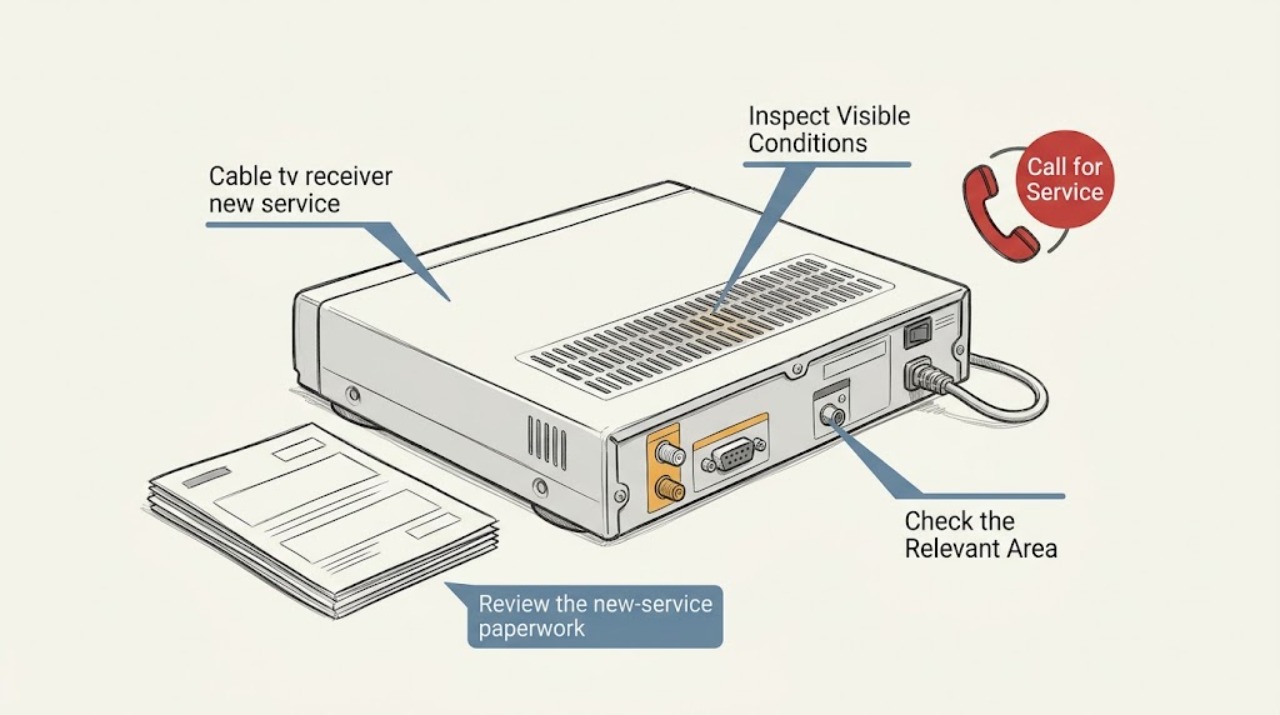
A cable TV receiver that says new service is needed usually has power and a TV connection but does not have an active service authorization for the receiver, address, or provider. Check the exact on-screen wording, the receiver's visible status light, the TV input, and the accessible cable and HDMI connections without opening equipment or changing wall wiring. Then confirm whether a new TV service order and a provider-approved receiver are actually associated with the address. If there is no active order, the next step is to choose and activate new service with the provider; if the receiver is used, incompatible, or still asks for service after activation, request provider provisioning or an approved installation. This guide is for new service setup, not billing, outage, cancellation, or existing-account troubleshooting.
Work through in order
Diagnostic checks
Use only checks that match the exact appliance or system and its official guide.
-
Check 1
Look at the receiver's front display or status light and read the exact message shown on the TV. Note whether it says new service, activation, authorization, no signal, or something else; do not press a factory-reset control or open the unit.
Expected result: The receiver shows an activation or new-service prompt, or it shows a different message such as no signal, a blank screen, or an error that does not mention service.
Next step: Continue with the input, visible connection, order, and equipment-identity checks only when the message is consistent with new service. If the message is different, stop this buyer path and use the provider's matching support route.
Stop if: Stop if the receiver is hot, smells burned, has a damaged power lead, or shows a warning that requires electrical service.
Why this matters
Why: A service or activation prompt points toward an unprovisioned service path. A different message changes the next step: first document the exact state for the provider rather than assuming a new subscription will solve it.
-
Check 2
Using the TV remote, identify the selected input and compare it with the HDMI label used by the receiver. From a safe, accessible position, look for a visible HDMI cable and any visible service cable connection that is loose, kinked, or obviously damaged; do not remove wall plates or alter in-wall wiring.
Expected result: The TV is on another input, the receiver picture appears on the correct input, or an accessible cable end is visibly loose or damaged.
Next step: Select the correct input if needed and report any visible cable condition to the provider. Keep the cabling unchanged when it disappears into a wall or when correcting it would require tools or access equipment.
Stop if: Stop at the observation stage if the cable is damaged near a power source, the connection is inaccessible, or reaching it would require climbing or moving heavy equipment.
Why this matters
Why: A wrong input can hide a working receiver, while a visible damaged or disconnected lead can block the setup screen. If the receiver is on the correct input and its connections look intact but it still requests new service, the remaining issue is more likely authorization, availability, or equipment compatibility.
-
Check 3
Review the new-service paperwork or order summary and check whether it names TV service for this address, the receiver or equipment type, and an installation or activation step. Do not publish account numbers or other private identifiers.
Expected result: The order clearly includes TV service and the receiver, the order is pending installation or activation, or there is no TV service order associated with the address.
Next step: For a missing order, compare available new-service options and request activation or installation. For a pending or mismatched order, give the provider the non-sensitive receiver label and order status so it can confirm the correct next step.
Stop if: Stop if the paperwork is for another address, the equipment source is unknown, or the receiver appears to belong to a different service arrangement.
Why this matters
Why: A missing TV service order explains why a receiver can ask for new service even when it powers on. A pending order means the provider may still need to schedule or complete activation; a mismatch means the receiver may not be assigned to this service.
-
Check 4
Identify the receiver from its exterior label, supplied paperwork, or provider equipment list and compare that identity with the provider named for the new service. Do not assume a receiver from a previous provider or an unrelated household is transferable.
Expected result: The receiver is provider-supplied or explicitly approved for the requested service, or it is used, unlisted, rented from another source, or otherwise uncertain.
Next step: Ask the intended provider whether it will supply, lease, pair, or replace the receiver for the requested service. Do not buy a replacement before compatibility and service requirements are confirmed.
Stop if: Stop when the receiver identity cannot be read safely or when a provider requires equipment return, pairing, or professional installation.
Why this matters
Why: Provider approval and service authorization are separate from the TV's ability to display an HDMI picture. Set-top boxes and other customer-premises equipment may not interoperate when the video provider changes, so an unlisted receiver can legitimately remain at a new-service prompt.
-
Check 5
After the provider confirms that the address and receiver are eligible for new service, observe whether the receiver shows an activation progress screen, a successful service state, or the same new-service message. Do not repeatedly reset the unit or attempt to bypass an authorization screen.
Expected result: An activation or welcome state appears, or the receiver returns to the new-service prompt after the provider says activation should be complete.
Next step: Follow only the provider's on-screen activation instructions for the approved equipment. If the prompt persists, send the provider the exact message, receiver identity, selected input, visible connection result, and order status.
Stop if: Stop after one clear activation attempt fails or if the provider requests an installation visit; do not keep changing wiring or resetting the receiver.
Why this matters
Why: A welcome or progress state indicates that the service path is being established. A repeated prompt after provider confirmation suggests a provisioning, equipment, or installation issue that the provider must resolve.
Use your observations
Decision map
Find the observation that best matches what you see, then follow the next safe action.
-
PATH 01Safety boundary
What you see
The TV is on the wrong input or a visible cable end is obviously loose while the receiver has normal power.
Do this next
Select the input labeled for the receiver and report the visible connection issue through the provider's approved setup guidance. Keep any wall-side or inaccessible cable untouched.
Why this path and its safety boundary
Safety stop: Stop if the connection is damaged, inaccessible, or requires tools, climbing, or in-wall work.
-
PATH 02Safety boundary
What you see
The screen specifically asks for new service and there is no TV service order for the address.
Do this next
This is a new-service enrollment decision. Choose a provider and service option, then ask that provider to confirm availability, approved receiver requirements, and activation or installation steps.
Why this path and its safety boundary
Safety stop: Do not treat a new-service prompt as proof of an outage, billing issue, or receiver hardware failure.
-
PATH 03Safety boundary
What you see
A service order exists, but activation is pending or the receiver is not listed or approved.
Do this next
Contact the intended provider with the order status and the receiver's exterior identity and request provisioning, an approved receiver, or an installation appointment.
Why this path and its safety boundary
Safety stop: Do not use a receiver from another provider, bypass authorization, or modify coaxial or electrical wiring.
-
PATH 04Safety boundary
What you see
The provider confirms activation, but the same message remains or a safety warning appears.
Do this next
Stop setup and request provider technical or installation support. If there is heat, burning odor, damaged power equipment, or a related electrical hazard, disconnect nothing beyond what the provider's safety instructions allow and seek qualified help.
Why this path and its safety boundary
Safety stop: Do not continue repeated resets, open the receiver, or attempt live electrical or wall-cable work.
Helpful context
Understand the symptom
What the message usually means
A receiver is only one part of a TV service path. The television can display a menu while the receiver still lacks the provider's authorization, an associated service order, or a compatible account-to-device pairing. A new-service message therefore points first to service enrollment and equipment identity, not automatically to a failed television or a bad cable.
Keep the check observational
Record what the screen and status light show, confirm the selected input, and inspect only accessible cable ends for obvious looseness or damage. Do not open the receiver, remove a wall plate, rewire a coaxial run, climb to reach a connection, or use a receiver from another provider on the assumption that it will work.
Only after diagnosis
Potential parts
- HDMI cable
Only consider a replacement when the accessible HDMI lead is visibly damaged or the provider's setup documentation identifies a cable requirement; a new cable cannot authorize service.
Confirm the receiver and TV connector requirements before ordering, and do not route or replace a cable that enters a wall without qualified help. - streaming device
Only consider this if the intended provider explicitly supports a retail streaming device for the requested service instead of a provider-issued receiver.
Confirm provider, service, region, account, and app compatibility before purchase; a generic streaming device is not a substitute for cable authorization.
When checks do not resolve it
Need a professional?
Request new-service enrollment or an approved installation when there is no TV order, the receiver is unpaired or incompatible, the provider must activate service at the address, or the setup prompt persists after the order is confirmed.
Have this ready
- Provide the exact on-screen message, receiver exterior label, visible status-light behavior, selected TV input, visible cable condition, order state, and whether the receiver was supplied for the requested provider. Omit account numbers and other sensitive identifiers from any public note.
Common questions
FAQ
Why does a cable receiver say new service is needed when the TV turns on?
The TV can power on and display the receiver menu even when the provider has not authorized service for that receiver and address. Confirm the exact message, order status, and equipment identity before treating it as a hardware fault.
Can I use a receiver from another cable provider?
Do not assume it will work. Provider equipment can require different authorization or may not interoperate after a provider change. Ask the intended provider whether the receiver is approved or whether it will supply an approved device.
What should I do if I have no TV service order yet?
Treat the message as a new-service enrollment decision. Check availability through the intended provider, confirm the receiver and installation requirements, and request activation or installation. This page does not troubleshoot billing, outages, cancellations, or existing accounts.
Read the exact guide
Official sources
- Set up your Android TV and remoteGoogle Android TV Help · The device setup guide supports checking an external device's HDMI connection and selecting the matching TV input; it does not establish cable-provider authorization or compatibility.
- FCC 14-8: Consumer Premises Equipment discussionFederal Communications Commission · The FCC report distinguishes provider set-top boxes and other customer-premises equipment and notes that equipment may not work when consumers switch video providers; it supports confirming compatibility with the intended provider.
- How to install and manage your set-top boxFrontier · This provider guide shows that new service or an added set-top box can require an activation flow with an on-screen progress message and provider-specific equipment connections; it is an example, not a universal sequence for every provider.
Community feedback
Share a repair observation
Share a plain-text repair observation. Accepted observations are published automatically; this page may take a moment to update.