
On this page
Start here
Quick answer
For a new cable-TV provider at a different address, first confirm the exact building and unit, then compare the provider's address qualification with an independent FCC availability view. After that, identify whether the result is cable television, an Internet-and-TV bundle, or an app-based option, inventory the televisions and inputs you will use, and choose the installation path the provider marks as eligible. A nearby served address or a green map point is only a clue; the provider must confirm service for your exact location and installation conditions.
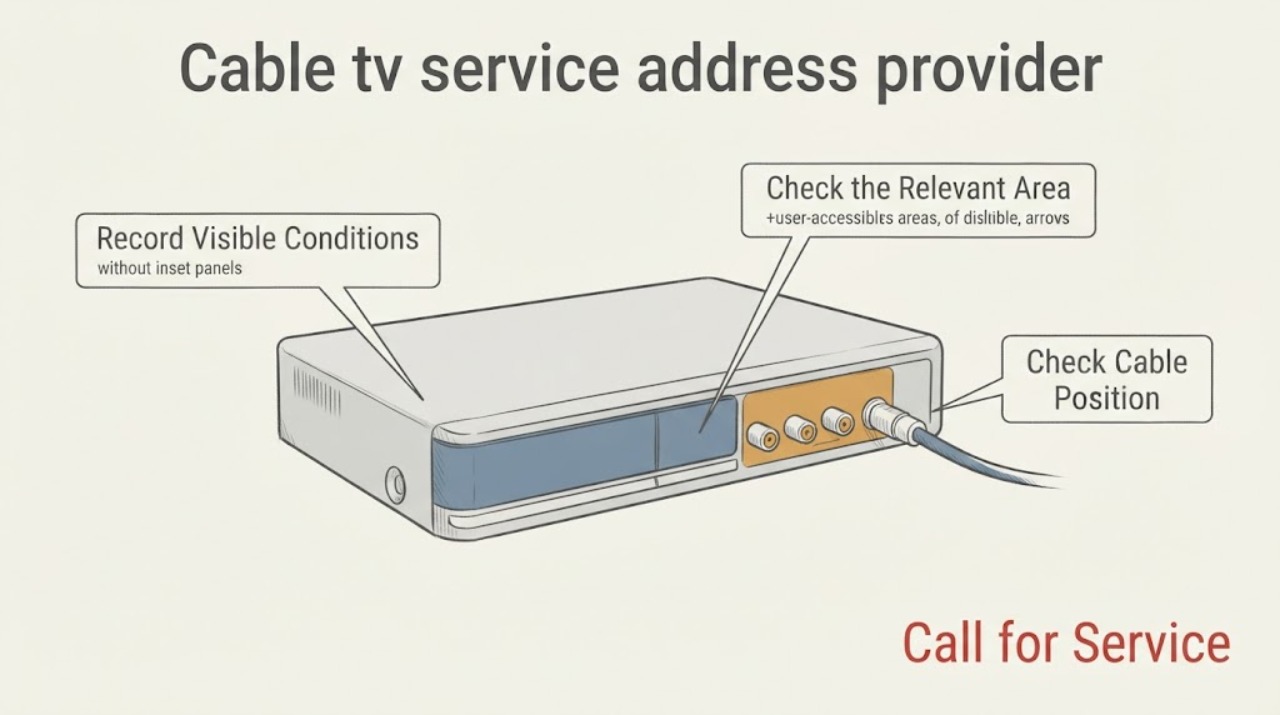
Work through in order
Diagnostic checks
Use only checks that match the exact appliance or system and its official guide.
-
Check 1
Write the service address exactly as it appears on the lease, closing paperwork, or official property record, including the street number, street suffix, building, apartment or suite, and any lot or unit identifier. Compare that record with the address the provider's new-customer availability form accepts.
Expected result: The provider accepts the complete address and shows the intended building or unit, or it offers several similar addresses, omits the unit, or cannot find the location.
Next step: Use the exact accepted result only when the building and unit are clear. If the form cannot distinguish the location, keep the address record and request address qualification for a new installation rather than selecting a nearby address.
Stop if: Stop the online setup if it would require choosing another household's address or if the submitted location is not the intended building; have the provider resolve the address first.
Why this matters
Why: An exact match is a usable starting point. A similar result or missing unit can attach service to the wrong structure, especially in a multi-unit property or new development.
-
Check 2
Cross-check the location in the FCC National Broadband Map using the same building location, and record whether the map identifies the structure and lists a fixed wired technology. Keep a screenshot or note of the map result without treating it as an order confirmation.
Expected result: The FCC view identifies the building and reports a wired availability entry, shows no matching structure, or disagrees with the provider's qualification result.
Next step: If both checks point to the same building, continue to compare the actual TV product and installation choices. If they conflict, give the provider the FCC location details and ask for a manual new-address qualification; do not infer service from a neighboring point.
Stop if: Stop before scheduling an installation when the map and provider refer to different structures or the provider has not confirmed the intended unit.
Why this matters
Why: The map is an independent availability reference for reported fixed broadband data. It can expose a structure or address mismatch, but it does not replace the provider's exact TV-service qualification or installation decision.
-
Check 3
Read the new-customer result and label the service it actually describes: linear cable television, a package that combines television with Internet, or an app-based television option. Note which rooms or screens the result says are supported and whether the service is tied to a particular equipment path.
Expected result: The result names the requested TV service, offers only a different product type, or leaves the TV component unclear while showing Internet availability.
Next step: Proceed only with a product description that matches the intended viewing needs. If the TV component is unclear, ask the provider to confirm the new-customer TV service and the equipment category before accepting an installation slot.
Stop if: Stop the switch plan if the displayed service is only an Internet product or an unconfirmed app option and the goal is a provider-supplied cable-TV service.
Why this matters
Why: Internet availability alone does not prove that the requested cable-TV product is offered at the address. A different product can change the required equipment and installation plan.
-
Check 4
Inventory each television you intend to use from the room, without moving it or changing wiring: record the available HDMI inputs, the TV's current input label, visible coax or network leads, and whether an existing streaming device or provider box occupies an input.
Expected result: A TV has an available compatible input and a clear location for the provider equipment, or an input is already occupied, inaccessible, or not identified.
Next step: Give the provider the room-by-room inventory and request equipment guidance for the actual TV inputs. Consider an HDMI cable or streaming device only when the confirmed service and TV input require it; verify compatibility before obtaining anything.
Stop if: Stop self-setup planning if a screen has no known compatible input, the device location would block ventilation or access, or the connection would require opening a wall or altering building wiring.
Why this matters
Why: The equipment choice depends on the television's available connection and the service type. An occupied or unknown input can make a self-setup plan incomplete even when the address is serviceable.
-
Check 5
Review the installation choices shown for the new address and record whether the provider marks self-setup, assisted setup, or professional installation as eligible. Also note safe access constraints such as entry instructions, parking or gate rules, landlord or condominium permission, and a preferred room for the equipment.
Expected result: The provider offers a self-setup path with instructions, requires a technician, or conditions installation on property access or permission.
Next step: Choose only the path the provider marks as eligible. Prepare access and written property permission where needed; leave concealed wiring, exterior work, construction, and connection verification to the provider's installation process.
Stop if: Stop and request a professional installation plan when access permission is missing, the provider requires a site visit, or the proposed setup involves structural, electrical, or concealed wiring work.
Why this matters
Why: The installation path is determined by the address, service, equipment, and existing connection conditions. A visible cable outlet does not establish that the building connection is ready or authorized.
Use your observations
Decision map
Find the observation that best matches what you see, then follow the next safe action.
-
PATH 01Next step
What you see
The provider accepts the exact building and unit and confirms the requested TV service.
Do this next
Continue with the equipment inventory and the installation option shown for that address.
-
PATH 02Next step
What you see
The provider finds a nearby address, cannot find the unit, or asks for more address information.
Do this next
Do not substitute another household's address. Provide the exact building and unit details and request new-address qualification or a site review.
-
PATH 03Next step
What you see
The FCC map and the provider qualification disagree.
Do this next
Treat the provider's exact-location decision and any required site survey as controlling for the order, while using the FCC location record to explain the discrepancy. Do not promise availability from the map alone.
-
PATH 04Next step
What you see
The address is accepted but only an Internet product or an unclear app-based TV option is shown.
Do this next
Pause the switch and confirm whether the requested cable-TV product is available, plus which equipment and screens it supports.
-
PATH 05Next step
What you see
The provider requires professional installation or property access permission.
Do this next
Arrange the permitted access and the provider's installation appointment; do not alter concealed wiring or building infrastructure yourself.
Helpful context
Understand the symptom
Keep the decision scoped to a new installation
This page is for checking a new customer's address, equipment, and installation plan when changing TV providers. It does not diagnose a service interruption or manage an existing account. The goal is to leave the provider with a precise address and a practical setup plan, without making assumptions from a neighbor's service or from a map alone.
Why an address result can be ambiguous
Multi-unit buildings, newly constructed homes, split parcels, and addresses that use a different unit format can be represented differently by a provider's qualification system and by a public map. The FCC describes its location fabric as records for structures, with an address and unit count, rather than a simple list of every apartment address. Treat a mismatch as an address-qualification question, not as proof that a line is or is not available.
What to have ready before installation
Keep the exact service address, unit or suite identifier, the rooms and televisions that matter, visible TV input information, and any property-access restrictions together. Do not drill, open walls, alter building wiring, or handle a utility connection as part of this check. If the provider says a site visit is required, let its technician determine the connection work.
Only after diagnosis
Potential parts
- HDMI-cable
Consider this only if the confirmed provider equipment and the intended television both use an HDMI connection and the existing lead is missing or unsuitable.
Confirm the equipment's connector requirements and the television input before obtaining a cable; do not assume a particular version or length is required. - streaming-device
Consider this only if the confirmed TV service is app-based and the provider lists the intended television or streaming device as supported.
Verify current provider support, app availability, television platform, and account setup requirements before choosing a device.
When checks do not resolve it
Need a professional?
Contact the provider's new-customer qualification or installation team when the exact address is missing, the building or unit is ambiguous, the FCC and provider results conflict, the requested TV product is unclear, or the provider requires a site survey or professional installation.
Common questions
FAQ
Does a nearby home having cable service prove my address can switch providers?
No. A nearby home can be a different building, unit record, parcel, or network route. Check the exact building and unit with the provider and use the FCC map only as an independent cross-check.
What if the provider's address form cannot find my new home?
Do not select a similar address. Keep the exact address and unit information and ask the provider for new-address qualification or additional location research. A new structure or multi-unit address may need separate verification.
Is Internet availability the same as cable-TV availability?
Not necessarily. The qualification result must identify the requested television product and its supported equipment. If it lists only Internet or leaves the TV component unclear, confirm the product before choosing an installation path.
How do I know whether self-setup is appropriate?
Use self-setup only when the provider marks it as eligible and the equipment and television inputs are understood. If the provider requires a technician, property permission, concealed wiring, or a site review, use the professional installation path.
Read the exact guide
Official sources
- About the Fabric: What a Broadband Serviceable Location Is and Is NotFederal Communications Commission · Explains why a building, address, and apartment or unit may not map one-to-one.
- Determine Xfinity service availability at your addressXfinity · Illustrates that a provider may need additional address research or property-access information before confirming a new installation.
- How to Use the FCC's National Broadband MapFederal Communications Commission · Use as an independent fixed-broadband location and technology cross-check, not as a cable-TV order confirmation.
- Fixed Broadband Availability Data OverviewFederal Communications Commission · Provides context for why a reported availability result and a provider's installation decision are related but not identical.
Community feedback
Share a repair observation
Share a plain-text repair observation. Accepted observations are published automatically; this page may take a moment to update.