
On this page
Start here
Quick answer
First confirm that the AEG dryer is a Wi‑Fi capable model and that you are using the AEG app for the correct country/region. AEG’s connected-appliance guidance applies to dryers and calls for a visible home network, a stable signal at the appliance, a password-protected 2.4 GHz network, and onboarding in both the app and the appliance. Use the complete model manual for the dryer’s pairing or Wi‑Fi-reset control; do not copy a button combination from another AEG model. If the network and app meet those conditions but the dryer still cannot onboard or repeatedly drops connection, contact AEG Consumer Care with the model, region and any app message.
Before you begin
Safety first
- Do not open the dryer, access the Wi‑Fi module, alter internal wiring, use another model’s pairing/reset sequence or factory-reset the appliance without the exact manual.
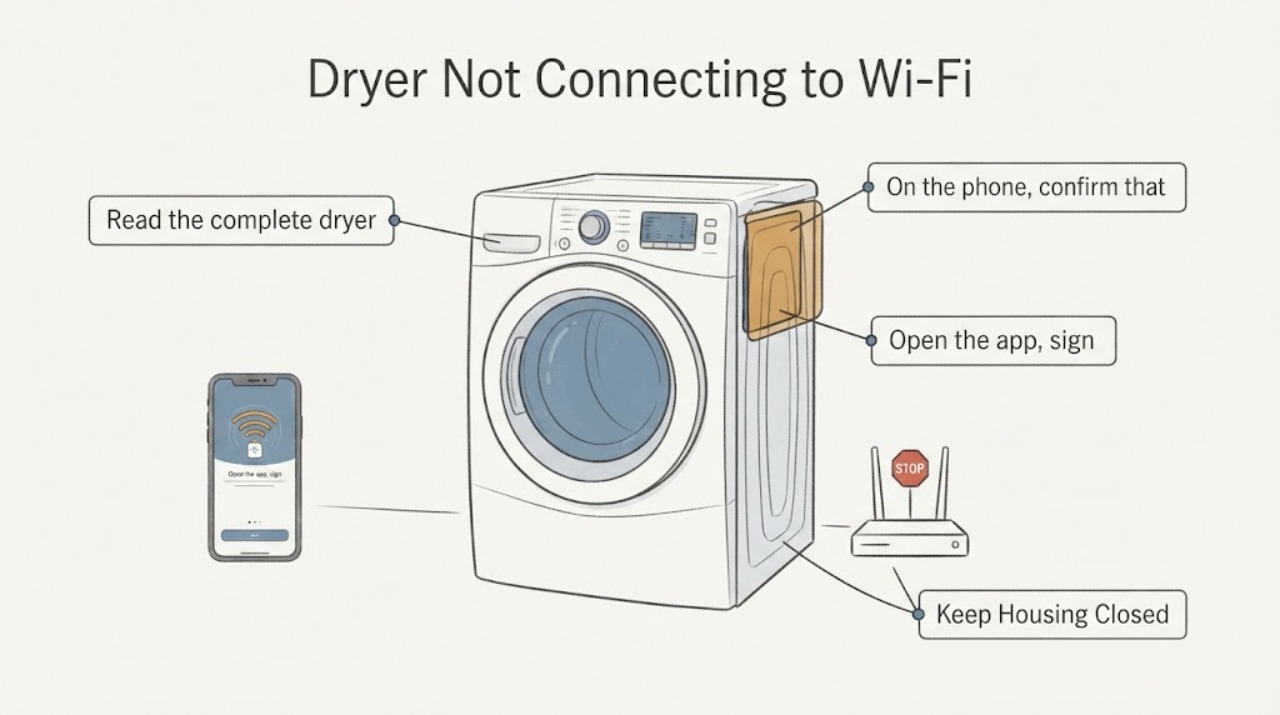
Work through in order
Diagnostic checks
Use only checks that match the exact appliance or system and its official guide.
-
Check 1
Read the complete AEG dryer model number and confirm in its technical specification or manual that the dryer has a built-in Wi‑Fi/connectivity feature; install the AEG app for the appliance’s supported region.
Expected result: The model is listed as connected/Wi‑Fi capable, the model has no connectivity feature, or the model/region cannot be confirmed.
Next step: For a connected model, continue with network checks and the exact manual. For a non-connected or unresolved model, stop changing settings and contact the seller/AEG support for model capability confirmation.
Why this matters
Why: AEG states that only Wi‑Fi-enabled appliances can be onboarded. A non-connected model is a capability mismatch, while an unknown model blocks safe pairing instructions.
-
Check 2
On the phone, confirm that the home Wi‑Fi has internet access and is visible; verify the router offers the AEG-supported 2.4 GHz band and a password-protected network, then stand near the dryer during setup.
Expected result: The phone cannot reach the network, only a 5 GHz-only network is available, the password/network is wrong, or the signal is weak at the dryer.
Next step: Restore the network or use the router’s supported 2.4 GHz/password-protected configuration before retrying; do not change the dryer’s internal settings to compensate for a network problem.
Why this matters
Why: AEG lists unavailable networks, unsupported 5 GHz-only configurations, incorrect credentials and weak/unstable signal as onboarding blockers.
-
Check 3
Open the AEG app, sign in, select Add/Select appliance and follow the on-screen onboarding instructions together with the exact dryer manual; verify that both the phone and dryer are being configured for the same home network.
Expected result: The app finds the dryer, the appliance never enters the model-specific setup state, onboarding stops with an app message, or the setup completes but the dryer is offline.
Next step: Record the exact app message and use only the matching manual’s pairing procedure. Do not guess a Remote Start or Wi‑Fi button combination from another AEG dryer.
Why this matters
Why: AEG requires coordinated app-and-appliance onboarding. A missing setup state or app message is not evidence of a failed Wi‑Fi board until the correct model process has been followed.
-
Check 4
If the dryer was previously connected or the router password/network changed, use the model manual’s Wi‑Fi-settings reset and repeat onboarding; do not factory-reset the whole dryer unless the manual explicitly says that is required.
Expected result: The dryer reconnects after the documented Wi‑Fi reset, the Wi‑Fi remains offline, or the exact reset procedure is unavailable for the model.
Next step: If the connection remains offline, continue to signal/app checks and contact AEG Consumer Care with the model and error text; do not open the appliance or replace a module.
Why this matters
Why: AEG identifies stored network credentials and changed passwords as causes of failed subsequent connections. A reset result does not identify a hardware fault, and an unknown reset sequence should not be improvised.
-
Check 5
For a dryer that connected and then drops offline, check the appliance’s Wi‑Fi indicator/signal display where the model provides one, update the AEG app, and note whether a microwave or router distance coincides with the drop.
Expected result: The Wi‑Fi signal is weak, the app is outdated, the router is far away/interfered with, or the network is stable but the dryer still disconnects.
Next step: Improve the network conditions or app version and retry once. If the dryer still drops connection, contact AEG Consumer Care with the model, region and timeline.
Why this matters
Why: AEG recommends checking signal strength, keeping the app updated and avoiding microwave interference; persistent failure after stable network conditions needs consumer support rather than internal diagnosis.
Use your observations
Decision map
Find the observation that best matches what you see, then follow the next safe action.
-
PATH 01Next step
What you see
The AEG dryer is not listed as Wi‑Fi capable or the exact model/region is unknown.
Do this next
Confirm the model’s connectivity specification with AEG or the seller; do not apply a pairing sequence from another dryer.
Why this path and its safety boundary
Why it matters: The issue may be a capability or product-scope mismatch rather than a network fault.
-
PATH 02Next step
What you see
The dryer is Wi‑Fi capable but the phone cannot see a stable password-protected 2.4 GHz network near the appliance.
Do this next
Restore internet/router visibility, supported 2.4 GHz settings and signal before repeating onboarding; do not reset the appliance yet.
Why this path and its safety boundary
Why it matters: The prerequisites for AEG onboarding are not met, so the app cannot reliably add the dryer.
-
PATH 03Next step
What you see
The network is suitable but the appliance never enters its model-specific setup state or the app reports an onboarding error.
Do this next
Use the complete model manual and record the app message. If setup still fails, contact AEG Consumer Care.
Why this path and its safety boundary
Why it matters: The app and appliance have not completed the required coordinated setup; the exact control sequence is model-dependent.
-
PATH 04Next step
What you see
The dryer was previously connected, the router/password changed, or the dryer repeatedly goes offline after a successful setup.
Do this next
Use the model manual’s Wi‑Fi-settings reset, improve signal/update the app and retry. Persistent failure goes to AEG support.
Why this path and its safety boundary
Why it matters: Stored credentials, weak signal, app version or interference are plausible supported network causes; none proves a failed internal Wi‑Fi module.
Helpful context
Understand the symptom
Confirm the dryer can connect
AEG says a connected appliance must be Wi‑Fi enabled and that the onboarding process must connect both the app and the appliance to the home network. Check the exact model’s technical specification or manual before treating failure to appear in the app as a fault. A non-connected dryer cannot be made compatible by changing router settings.
Use the network requirements AEG documents
For AEG connected appliances, the opened support pages specify a 2.4 GHz network rather than 5 GHz-only, an available internet connection, a visible and stable signal near the appliance and a password-protected network. AEG’s regional router page gives the European frequency/protocol range; confirm local support and the model manual before changing a router.
Pair or reset through the matching manual
The AEG app page gives the general flow—install the app, sign in, select the appliance and follow the instructions. If the dryer was connected before or the Wi‑Fi password changed, AEG says to reset the appliance Wi‑Fi settings and run onboarding again using the user manual. Do not use a hold-button sequence from another dryer.
When checks do not resolve it
Need a professional?
Contact AEG Consumer Care when a confirmed Wi‑Fi-capable dryer still cannot onboard after the supported network and model-manual steps, when the app reports a persistent connection error, or when the appliance repeatedly drops offline on a stable compatible network. Do not open the dryer or order a Wi‑Fi module from the symptom alone.
Safety scope: Do not open the dryer, access the Wi‑Fi module, alter internal wiring, use another model’s pairing/reset sequence or factory-reset the appliance without the exact manual.
Have this ready
- Provide the complete model and PNC/product number, installation country, AEG app version, phone platform, router band/security, exact app message, whether the dryer ever connected, Wi‑Fi indicator state and the time the connection drops.
Common questions
FAQ
Can every AEG dryer connect to Wi‑Fi?
No. AEG says to check whether the appliance is definitely Wi‑Fi enabled in the product technical specification. A dryer without the connectivity feature cannot be added by changing the router or app.
Does the AEG dryer need 2.4 GHz Wi‑Fi?
AEG’s opened connected-appliance guidance says 5 GHz is not supported, and its regional router page specifies 2.4 GHz 802.11b/g/n settings. Confirm the exact model and local region before changing router configuration.
Should I hold the Remote Start button to pair the dryer?
Do not assume that sequence across AEG models. AEG directs owners to the model user manual and the app onboarding flow. Use a button combination only when the exact dryer manual documents it.
What if the dryer used to connect but stopped after I changed the Wi‑Fi password?
AEG says to reset the appliance Wi‑Fi settings and run onboarding again through the user manual and app. Record the new network/password context and do not factory-reset the dryer unless the matching manual requires it.
What should I do if the dryer keeps going offline?
Check the model’s Wi‑Fi indicator/signal, update the AEG app, improve router proximity and avoid microwave interference during remote control. If the network is stable and the dryer still disconnects, contact AEG Consumer Care with the model and app message.
Read the exact guide
Official sources
- AEG FAQ Frequently Asked Questions - White GoodsAEG UK · Opened AEG UK official FAQ. It lists a smartphone/tablet with My AEG app, a 2.4 GHz b/g/n WPA/WPA2 internet router and a connectivity-enabled AEG appliance; it also directs connected laundry owners to technical/customer support.
- How to connect your AEG washing machine, tumble dryer or washer dryer to the appAEG Support · Opened AEG official page whose title explicitly includes tumble dryers. It supports installing the AEG app, signing in, selecting the appliance and following the app instructions, and links the owner to the product manual.
- Connected appliances - problems with onboarding and Wi-Fi connectionAEG Support · Opened AEG official support guidance that explicitly applies to dryers. It covers capability, router visibility/signal, app-and-appliance onboarding, 2.4 GHz, password/security, Wi-Fi reset via the exact user manual and Consumer Care escalation.
- Washing machine and tumble dryer WiFi helpAEG Support · Opened AEG official support page explicitly applying to connected tumble dryers. It supports checking phone/router operation, appliance Wi-Fi indicator/signal, Remote Start state and keeping the app updated.
- Connected appliances - What configuration has to be set on the router software?AEG Support · Opened AEG official router-configuration guidance that explicitly includes tumble dryers. It gives the European 2.412–2.472 GHz band, IEEE 802.11b/g/n and power limit; the article keeps the regional scope visible.
Community feedback
Share a repair observation
Share a plain-text repair observation. Accepted observations are published automatically; this page may take a moment to update.