
On this page
Start here
Quick answer
The GE GTD75GCPLDG is listed by GE as a Smart gas dryer with built-in WiFi powered by SmartHQ, so a lost connection should be handled as a SmartHQ re-pairing problem, not as a vent, heat or dryer-part fault. First confirm that the model label is exactly GTD75GCPLDG and that the dryer's WiFi icon or connection controls are present. On a normally powered, safe appliance, open the current SmartHQ app, select GE and the dryer category, then follow the app's on-screen connection flow: use the appliance's Bluetooth prompt when offered, or the Connected Appliance Info label/password when prompted, choose the home network and enter its current password. GE says the WiFi LED flashes during setup and remains solid when connected. If the app cannot locate the network or the connection fails, verify the password and phone/app state, move the router closer if needed, and use GE Connected Home Support; do not invent a button combination or assume an unlisted regional variant has the same controls.
Before you begin
Safety first
- Do not open the dryer, enter service mode, factory-reset undocumented controls, alter gas or electrical wiring, install an optional module not listed for the exact model, or replace a control board for a WiFi-only symptom.
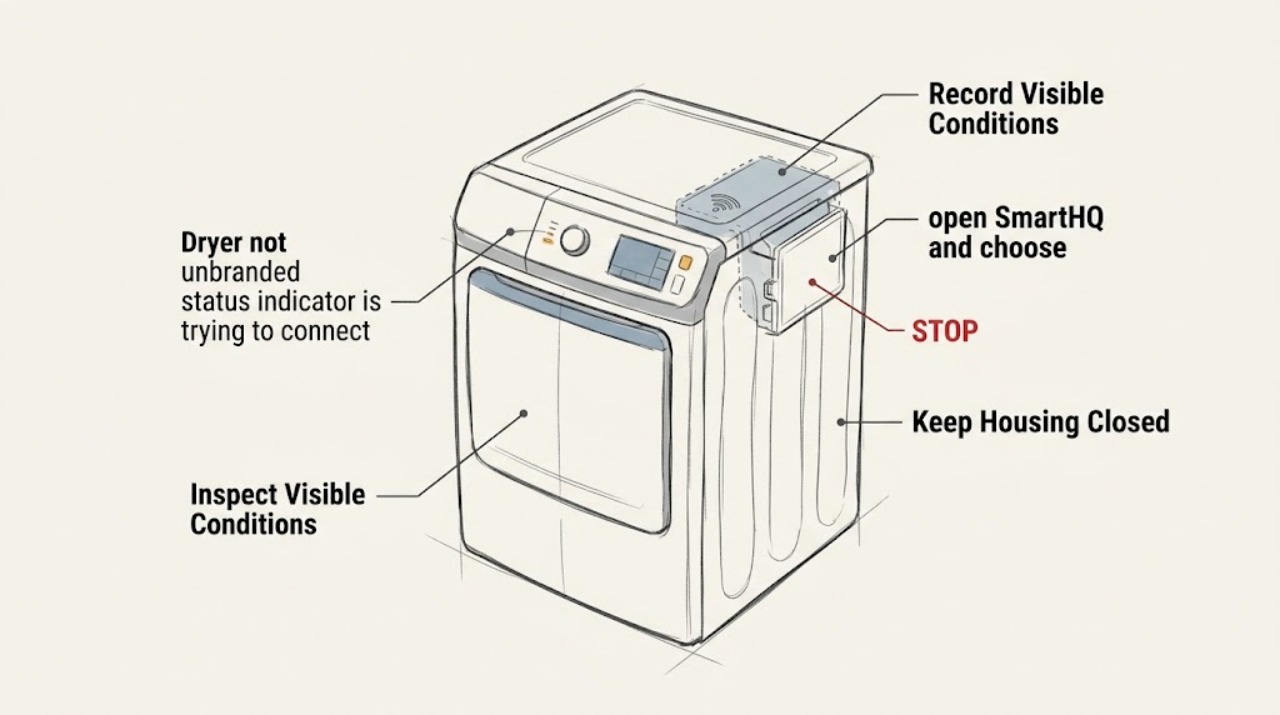
Work through in order
Diagnostic checks
Use only checks that match the exact appliance or system and its official guide.
-
Check 1
Read the rating label and record the full model as GTD75GCPLDG, the market, and the serial number. From the front, look for the WiFi icon or other built-in connection indicator and confirm the dryer otherwise powers on normally. Do not infer WiFi capability from a phone app entry for a similar model or suffix.
Expected result: The label is exactly GTD75GCPLDG and the panel has the expected WiFi indication; the suffix/market differs; or no WiFi feature is visible.
Next step: Continue with SmartHQ only when the exact model and built-in-WiFi identity match. If the label or panel does not match, use the local model support page or contact GE Connected Home Support instead of trying a borrowed button sequence.
Stop if: Do not open the dryer cabinet, alter wiring, or keep cycling a dryer that has a separate power, gas, heat or control hazard while troubleshooting WiFi.
Why this matters
Why: GE's product page lists GTD75GCPLDG as a Smart gas dryer with built-in WiFi, while GE's capability guide says a model must list Smart, Built-In WiFi or WiFi Connect to be connectable. A different suffix or market may have different support and controls.
-
Check 2
On the phone, update SmartHQ from the current app store version, sign in to the account that previously owned the dryer, and verify that the phone can join the intended home WiFi. Have the network name and password ready; do not reset the home router or delete the appliance record as a first step.
Expected result: SmartHQ is outdated, the account will not sign in, the phone cannot join the home network, the password changed, or the app and phone network are normal.
Next step: Update or sign in to SmartHQ, restore normal phone WiFi access, and keep the current network password available. If the app itself remains unusable, use GE Connected Home Support before changing dryer controls.
Stop if: Do not share the WiFi password publicly, install an untrusted app, or change appliance wiring for an app connection problem.
Why this matters
Why: GE says app connection problems can result from an outdated SmartHQ app or account issue, while its built-in setup requires the phone and home network path to be available. A phone that cannot connect normally cannot complete dryer pairing.
-
Check 3
With the dryer powered normally and no separate appliance hazard, open SmartHQ and choose the GE brand, dryer category and GTD75GCPLDG. Start the in-app setup and follow only the on-screen path: accept Bluetooth pairing if offered, or use the Connected Appliance Info label/password if the app asks for one; then select the home WiFi and enter its password.
Expected result: SmartHQ finds the dryer through Bluetooth, asks for the assigned appliance password, finds the home network, or cannot find the dryer or network.
Next step: Complete the exact app prompts when the dryer is found. If the appliance or network is not found, stop the setup attempt and move to the LED/password/router branch rather than trying undocumented controls.
Stop if: Do not factory-reset the dryer, enter service mode, or press random combinations to force pairing.
Why this matters
Why: GE documents two built-in setup paths—Bluetooth or an assigned password—and says setup is initiated on the appliance through the app. The model product page confirms that this dryer uses built-in SmartHQ WiFi, not a generic optional module workflow.
-
Check 4
Watch the built-in WiFi indicator during the app connection attempt and note whether it is flashing, remains solid, or never appears. Compare the SmartHQ message with the exact failure state; do not treat a dryer cycle or heating symptom as a WiFi diagnosis.
Expected result: The WiFi LED flashes during setup and becomes solid, stays solid while the app cannot locate the appliance, or flashes while the connection fails.
Next step: For a solid-but-unlisted appliance, close and reopen SmartHQ; for a flashing failed connection, re-enter the exact network name and password. If the same state persists, continue to router distance and support rather than changing dryer parts.
Stop if: Do not disable the WiFi module, open the control panel, or use a different model's LED interpretation.
Why this matters
Why: GE says a flashing WiFi LED during setup is expected, a solid LED can mean SmartHQ cannot locate the appliance, and a flashing LED during a failed connection can indicate an incorrect password or home network. The LED state is connection evidence, not a component fault code.
-
Check 5
If SmartHQ cannot locate the home network, check the router's normal coverage from the dryer's location and, without moving or servicing the gas dryer, try the app again with the router closer or an approved WiFi extender. Keep the network name/password exact and avoid hidden-network assumptions unless the app offers its documented manual entry.
Expected result: The home network is absent from the app, the router signal is weak at the dryer, the network appears but authentication fails, or the app completes setup and reports Connected.
Next step: Improve normal WiFi coverage or re-enter the correct network credentials. If the app still cannot connect after the documented setup path, contact GE Connected Home Support and provide the exact model, LED state and error message.
Stop if: Do not relocate gas connections, disconnect the dryer, or run a temporary cable or undocumented hardware modification for WiFi troubleshooting.
Why this matters
Why: GE identifies router distance or the need for a WiFi extender as a possible reason SmartHQ cannot locate the home network. A visible network with an authentication failure points back to the password or selected network rather than the dryer's heating or gas system.
Use your observations
Decision map
Find the observation that best matches what you see, then follow the next safe action.
-
PATH 01Next step
What you see
The label is GTD75GCPLDG, the GE product page's built-in-WiFi feature matches the panel, and SmartHQ can begin setup.
Do this next
Follow SmartHQ's on-screen flow and watch for the WiFi LED to change from flashing during setup to solid when connected.
Why this path and its safety boundary
Why it matters: The appliance is in the supported built-in SmartHQ path. The correct next decision is app pairing via Bluetooth or the assigned appliance password, not an optional Connect Module or generic dryer control sequence.
-
PATH 02Next step
What you see
The app cannot find the dryer, the LED stays solid, or the model/suffix/panel does not match the exact GTD75GCPLDG identity.
Do this next
Close and reopen SmartHQ, re-check the model label and account, and use the matching regional support path. Do not borrow a button combination from another GE dryer.
Why this path and its safety boundary
Why it matters: Either SmartHQ has not discovered the appliance or the control identity is not established. GE's LED guidance distinguishes appliance discovery from password failure, and a different suffix or market may not share the same setup behavior.
-
PATH 03Next step
What you see
The LED flashes during a failed connection, the home network is visible, and the app rejects the credentials.
Do this next
Re-enter the exact home network name and password in SmartHQ. If it still fails, update the app and contact Connected Home Support with the error text and LED state.
Why this path and its safety boundary
Why it matters: GE maps a flashing connection-failure LED to an incorrect password or home network. This is a network-authentication branch, not evidence of a dryer board or gas-system failure.
-
PATH 04Next step
What you see
The network is not visible from the dryer's location, router coverage is weak, or SmartHQ remains unusable after its update.
Do this next
Restore normal coverage or update/sign in to SmartHQ, then retry the documented setup once. If discovery still fails, use GE Connected Home Support; do not service the dryer for a network-only problem.
Why this path and its safety boundary
Why it matters: The connection path is limited by coverage or the phone/app account rather than the dryer's drying mechanics. GE specifically suggests moving the router closer or using a WiFi extender, and app issues may require an update or support.
Helpful context
Understand the symptom
This model is not a generic non-connected dryer: GE's exact product page lists built-in WiFi powered by SmartHQ. The first question is therefore whether the model identity, app account and network path still match, not whether a dryer component needs replacement. A connection loss after a router, password, phone or account change can require a fresh app setup even when the dryer itself still operates normally.
GE's public instructions intentionally route setup through SmartHQ rather than publishing one universal dryer button sequence. Use the current app flow and the appliance's visible WiFi/Connected Appliance Info path. If the exact model suffix, market, or control panel differs from this US model page, stop before guessing at a control gesture and use the matching local support page.
When checks do not resolve it
Need a professional?
Contact GE Connected Home Support for persistent SmartHQ discovery, password, LED or account failures. Use appliance or gas service only for an independent operating hazard or non-network dryer fault.
Safety scope: Do not open the dryer, enter service mode, factory-reset undocumented controls, alter gas or electrical wiring, install an optional module not listed for the exact model, or replace a control board for a WiFi-only symptom.
Have this ready
- Provide GTD75GCPLDG, serial number, US or other market, SmartHQ account state, phone/app version status, selected network, exact app message, whether Bluetooth or appliance-password setup appeared, and whether the WiFi LED was flashing, solid or absent.
Common questions
FAQ
Does the GE GTD75GCPLDG support WiFi?
Yes. GE's exact product page lists GTD75GCPLDG as a Smart gas dryer with built-in WiFi powered by SmartHQ. Confirm the rating-label suffix and local market before applying the setup path.
Do I need a GE Connect Module for this dryer?
The exact GE product page identifies this model as built-in WiFi, and GE distinguishes built-in from optional-module dryers. Follow the built-in SmartHQ flow; do not add a module unless GE's exact model support explicitly says it is required.
What does a flashing or solid WiFi LED mean?
GE says a flashing LED is expected while built-in setup is active; in a failed connection, flashing can indicate an incorrect password or home network. A solid LED can mean SmartHQ cannot locate the appliance. Use the app message and exact model context together.
Should I reset the dryer to reconnect it?
Do not use an undocumented factory reset or button combination. Reconnect through the current SmartHQ app using Bluetooth or the assigned appliance-password path GE documents; contact Connected Home Support if that flow fails.
Read the exact guide
Official sources
- Dryer - Built-In WiFi Set-Up TroubleshootingGE Appliances · GE SmartHQ built-in dryer WiFi communication, network discovery, password and LED failure guidance
- Smart Washers and Dryers - Set Up Built-in WiFiGE Appliances · GE SmartHQ built-in WiFi setup via app, Bluetooth or assigned password, home network and LED state
- Does My Appliance Have WiFi Capability?GE Appliances · GE rule for confirming Smart, Built-In WiFi or Optional WiFi on the exact model page
- Smart Appliance - SmartHQ App TroubleshootingGE Appliances · GE SmartHQ app update, account and support steps for WiFi connection failures
- User Manual & Care for GTD75GCPLDGGE Appliances · Exact model support page and owner-manual route for GTD75GCPLDG
- GE® ENERGY STAR® 7.4 cu. ft. Capacity Smart aluminized alloy drum Gas Dryer with HE Sensor Dry - GTD75GCPLDG - GE AppliancesGE Appliances · Exact model identity, Smart gas-dryer classification and built-in WiFi powered by SmartHQ
Community feedback
Share a repair observation
Share a plain-text repair observation. Accepted observations are published automatically; this page may take a moment to update.