
On this page
Start here
Quick answer
Changing the home Wi-Fi name makes the GE Profile PHB920SJ4SS range need a new SmartHQ pairing; it does not by itself indicate a failed Wi-Fi module. GE's exact-model parts listing identifies PHB920SJ4SS, while the GE consumer page identifies this family as a built-in Wi-Fi appliance powered by SmartHQ. Confirm the complete label, make sure the renamed network has a 2.4 GHz option, sign in to SmartHQ, choose Add Appliance and the range, then use the range's labeled Remote Enable or Wi-Fi control exactly as shown in the matching instructions until the Wi-Fi indicator flashes. Use the Connected Appliance Information label when SmartHQ asks for the appliance-network credentials, join the temporary GE appliance network if prompted, and select the renamed home network with its new password. A flashing indicator after setup points first to an SSID or password problem; a solid indicator with SmartHQ still unable to find the appliance points to app/cloud discovery. Do not open the control panel, replace a Wi-Fi board, or perform energized tests based only on a failed re-pair.
Before you begin
Safety first
- Keep this diagnosis external and model-specific. Do not open the control panel, remove covers, replace or bypass a Wi-Fi module, alter wiring, or perform energized electrical measurements. Stop using the range for smoke, sparking, a burning smell, a hot cord or outlet, or repeated breaker trips.
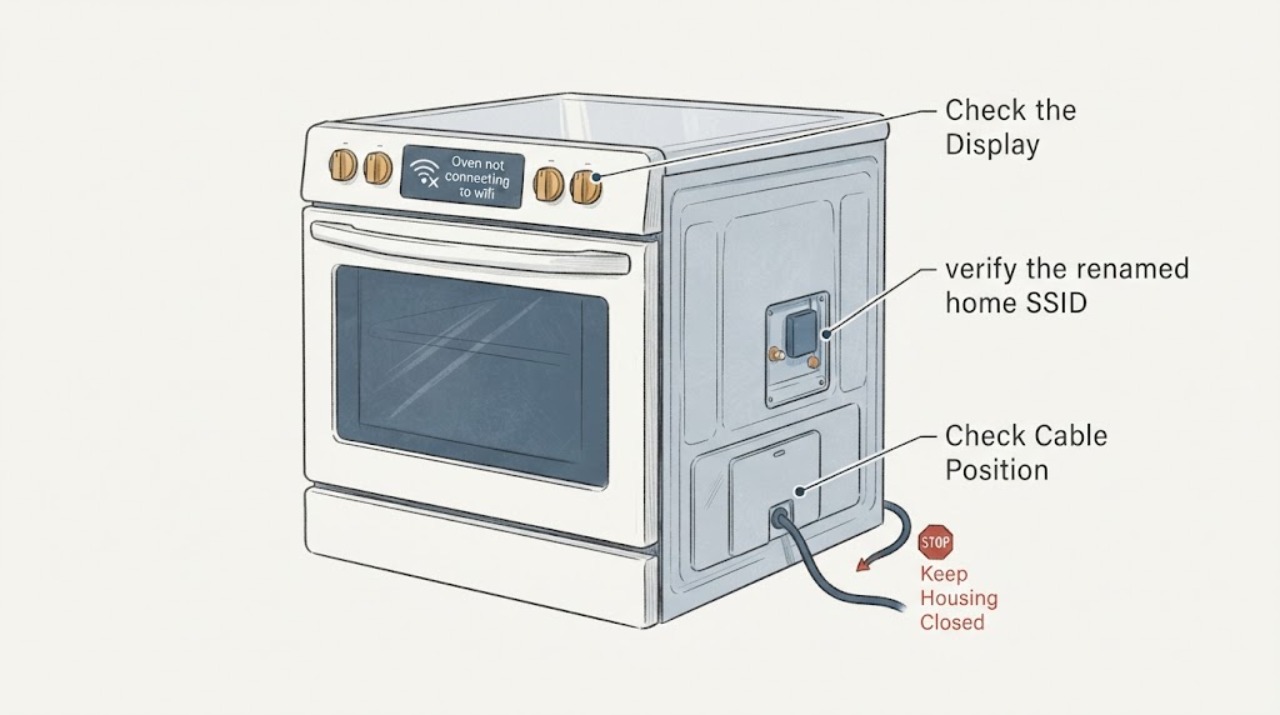
Work through in order
Diagnostic checks
Use only checks that match the exact appliance or system and its official guide.
-
Check 1
Read the rating label without moving or opening the range and confirm the complete model is PHB920SJ4SS. Note the visible control labels, whether the range was previously shown in SmartHQ, and whether the home network name or password changed.
Expected result: The label is PHB920SJ4SS and the controls match the documented GE smart-range family, or the suffix/control layout differs or cannot be confirmed.
Next step: If the label or controls do not match, stop the pairing attempt and obtain the exact GE manual or model-specific support guidance. Do not borrow a sequence from another GE range.
Stop if: Do not remove panels, pull the range out, or infer a Wi-Fi-board failure from an unconfirmed model.
Why this matters
Why: GE's exact parts listing identifies PHB920SJ4SS, while the consumer support pages use the PHB920SJSS family name. A different suffix or panel can have a different pairing procedure, so identity is part of the diagnosis.
-
Check 2
From a phone or computer, verify the renamed home SSID and password, and confirm that the phone can join the intended 2.4 GHz network at the range location. Check the router's security mode without changing it solely for this appliance.
Expected result: The 2.4 GHz SSID is visible and the phone joins it, the SSID is hidden or absent, or the network is WPA3-only, captive-portal, or WPA2-Enterprise.
Next step: Use an available compatible 2.4 GHz home network or the router's documented guest/IoT option only if it is not a captive portal and is appropriate for the home. If the SSID is hidden, plan to enter it through SmartHQ's Other option when offered; do not guess the credentials.
Stop if: Do not repeatedly change router security, disable protections broadly, or continue if the network cannot provide a supported 2.4 GHz connection.
Why this matters
Why: GE's published connected-appliance requirements support 2.4 GHz and WPA/WPA2 PSK, but not WPA3-only, captive-portal, or WPA2-Enterprise networks. A missing or incompatible network can prevent pairing before the appliance is involved.
-
Check 3
Open SmartHQ, sign in to the existing account, choose Add Appliance and the range category, and follow the PHB920SJ4SS-compatible on-screen prompts. Use the range's labeled Remote Enable or Wi-Fi control as the instructions show until the wireless indicator begins flashing.
Expected result: SmartHQ finds the range and the indicator flashes, the app cannot start pairing, or the indicator never enters the documented flashing state.
Next step: If pairing mode starts, continue with the appliance-network credentials and renamed home SSID. If it does not, close the attempt, recheck the exact model and SmartHQ account, and retrieve the matching manual; do not invent a long-press or reset combination.
Stop if: Do not pry buttons, open the control area, or treat failure to enter pairing mode as proof that the Wi-Fi module is defective.
Why this matters
Why: The flashing state is the handoff from the appliance to the network-pairing flow. If the app cannot start it or the indicator never changes, the exact model/panel instructions or a local control state need confirmation before deeper conclusions.
-
Check 4
When SmartHQ asks, read the Connected Appliance Information label inside the oven area and enter the appliance-network credentials exactly as printed. Join the temporary GE appliance network if prompted, then select the renamed home SSID and enter its new password.
Expected result: The temporary appliance network appears and the renamed home SSID is selectable, the home SSID is hidden or absent, or SmartHQ rejects the credentials.
Next step: For a hidden SSID, choose Other and enter the exact name and password if SmartHQ offers that route. For a rejected password, re-enter both names and passwords carefully and verify the phone can join the renamed 2.4 GHz network; do not substitute a router or appliance serial number.
Stop if: Do not factory-reset the router, repeatedly submit guessed passwords, or open the range to access a hidden Wi-Fi component.
Why this matters
Why: GE's range instructions use the label credentials for the appliance-to-phone handoff and then the home-network credentials. A rejected password or a missing SSID is a pairing/network-input result, not a component diagnosis.
-
Check 5
After one complete pairing attempt, observe the wireless indicator and SmartHQ status without starting a cooking cycle for diagnosis. Record whether the icon remains flashing, becomes solid, or the app reports success while the range is still not visible.
Expected result: The indicator keeps flashing, becomes solid but SmartHQ cannot locate the appliance, or the app reports the range connected and the indicator is solid.
Next step: For flashing, repeat only the credential/network checks. For solid but missing in the app, close and reopen SmartHQ and verify the signed-in account; if it persists, use GE connected-home support with the exact model. For a successful solid state, test only the intended app feature and monitor normally.
Stop if: Do not replace a board, bypass a control, or perform live electrical measurements to resolve an app-discovery state.
Why this matters
Why: GE associates a flashing icon with an incorrect home-network name or password and a solid icon with SmartHQ being unable to locate the appliance in the GE cloud. A solid icon plus an app success state is consistent with a completed connection.
-
Check 6
If Wi-Fi remains unavailable but the oven's ordinary local controls work, leave the appliance assembled and record the exact SSID/security setup, SmartHQ account result, indicator state, and any error text. If there is smoke, sparking, a hot cord or outlet, a burning smell, or a tripped breaker, stop using the range.
Expected result: Only remote connectivity is missing and local operation is normal, or an electrical symptom is present.
Next step: For a connectivity-only issue, use local controls if safe and provide the model, indicator state, network compatibility, and SmartHQ message to GE support. For an electrical warning sign, leave the range off and arrange qualified appliance/electrical service.
Stop if: Do not continue cooking with smoke, sparks, a hot cord or outlet, burning odor, or repeated breaker trips; do not open the control panel or test energized wiring.
Why this matters
Why: GE states that an interrupted Wi-Fi connection does not prevent normal appliance use, but electrical warning signs are a separate safety issue. Neither condition supports an unsupervised internal Wi-Fi repair.
Use your observations
Decision map
Find the observation that best matches what you see, then follow the next safe action.
-
PATH 01Next step
What you see
The complete label is PHB920SJ4SS, the network was renamed, and pairing mode starts but the icon keeps flashing.
Do this next
Recheck the exact renamed SSID and password, the appliance-label credentials, and the supported 2.4 GHz/WPA or WPA2 PSK network path once. If it still flashes, preserve the indicator state and use model-specific GE support.
Why this path and its safety boundary
Why it matters: The failure is most consistent with the new SSID/password handoff or an unsupported home-network configuration, not an identified Wi-Fi board failure.
-
PATH 02Next step
What you see
The indicator becomes solid, but SmartHQ says it cannot find the appliance or the range disappears from the account.
Do this next
Close and reopen SmartHQ, verify the intended account and phone network, and then use GE connected-home support if discovery remains unsuccessful. Do not open the range or replace a module for this app state.
Why this path and its safety boundary
Why it matters: GE describes this as an appliance-to-cloud/app discovery path. A solid icon does not by itself prove that the signed-in app has completed discovery.
-
PATH 03Next step
What you see
The renamed SSID is hidden or is not listed, or the router offers only a WPA3-only, captive-portal, or WPA2-Enterprise path.
Do this next
Use the SmartHQ Other option for an exact hidden SSID when available, or provide a compatible 2.4 GHz WPA/WPA2 PSK network according to the router documentation. Do not weaken the entire home network just to force a pairing.
Why this path and its safety boundary
Why it matters: The published GE connected-appliance requirements or the range setup flow cannot use that network as presented. This is a network-compatibility/visibility branch rather than a range hardware conclusion.
-
PATH 04Next step
What you see
The rating label or control panel is not PHB920SJ4SS-compatible, or the only available instructions describe a different GE platform or optional module.
Do this next
Stop and obtain the exact model manual or GE support confirmation. Do not buy or install a Connect Module and do not infer compatibility from the PHB920SJSS family page alone.
Why this path and its safety boundary
Why it matters: The research boundary has been reached: the exact appliance identity or Wi-Fi platform is unresolved. GE distinguishes built-in Wi-Fi from optional Connect Module products, so a module instruction cannot be transferred to this range from a different model.
-
PATH 05Next step
What you see
The range works from its local controls but Wi-Fi remains unavailable, with no smoke, heat, odor, sparking, or breaker symptom.
Do this next
Use the local controls if safe, document the failed pairing state, and request model-specific SmartHQ support. Escalate as an electrical appliance fault only if a physical electrical warning appears.
Why this path and its safety boundary
Why it matters: This is a connectivity-only problem until the network, account, and indicator evidence show otherwise. GE's connected-appliance guidance says disrupted Wi-Fi does not prevent ordinary appliance use.
-
PATH 06Next step
What you see
Smoke, sparking, a burning smell, a hot cord or outlet, or repeated breaker trips occurs during or after the connectivity complaint.
Do this next
Stop using the range, keep clear of hot or damaged electrical parts, and arrange qualified appliance or electrical service. Do not restore power repeatedly to see whether Wi-Fi returns.
Why this path and its safety boundary
Why it matters: Those are electrical safety symptoms, not a normal Wi-Fi pairing branch.
Helpful context
Understand the symptom
Why a renamed network changes the diagnosis
The PHB920SJ4SS is the exact model assigned here, but GE's consumer owner material groups the corresponding range family under PHB920SJSS. Confirm the rating label before using any button sequence. GE identifies the appliance as having built-in Wi-Fi powered by SmartHQ, so a changed network name or password breaks the stored home-network path and calls for external re-pairing. It does not, by itself, prove a failed communication card or require a replacement module.
Use the range pairing flow, not a generic LCD-appliance reset
GE's range-specific setup flow starts in SmartHQ, adds the range, enters pairing mode with the labeled Remote Enable or Wi-Fi control, uses the credentials printed on the Connected Appliance Information label, and then selects the home network. GE publishes a separate LCD-only reconnect path for some other appliances; this range does not gain a new button sequence from that generic page. If the exact label or control layout differs, stop and retrieve the matching manual before trying another sequence.
What the Wi-Fi indicator can and cannot tell you
GE's troubleshooting guidance treats a flashing wireless icon as a home-network name or password problem and a solid icon with the appliance missing from SmartHQ as an app-to-cloud discovery problem. A hidden home network can be entered through the Other option when offered. These observations separate re-pairing and account/app paths from an unproven hardware failure; they do not justify opening the control area.
When checks do not resolve it
Need a professional?
Arrange GE connected-home or qualified appliance service when PHB920SJ4SS identity is confirmed, the renamed compatible 2.4 GHz network and new credentials have been checked, the exact range pairing flow has been attempted once, and the indicator/app state still cannot complete. Escalate immediately for any electrical warning sign.
Safety scope: Keep this diagnosis external and model-specific. Do not open the control panel, remove covers, replace or bypass a Wi-Fi module, alter wiring, or perform energized electrical measurements. Stop using the range for smoke, sparking, a burning smell, a hot cord or outlet, or repeated breaker trips.
Have this ready
- Provide the complete rating-label model and serial information, the market, the renamed SSID and security type without sharing the password, whether the 2.4 GHz network is visible, the SmartHQ account result, the exact pairing step reached, the flashing or solid indicator state, and any displayed message.
Common questions
FAQ
Does changing the Wi-Fi name mean the PHB920SJ4SS needs a replacement Wi-Fi module?
No. GE identifies this family as a built-in Wi-Fi range powered by SmartHQ, and its range setup flow provides a new pairing path for selecting the home network. Re-pair with the renamed network first; do not purchase a module based only on the SSID change.
Does a solid Wi-Fi icon prove SmartHQ is working?
Not necessarily. GE's troubleshooting page says a solid wireless icon can mean the SmartHQ app cannot locate the appliance in the GE cloud. Close and reopen SmartHQ and verify the signed-in account before considering an appliance fault.
What if the renamed network does not appear in SmartHQ?
If the network is hidden, GE's range troubleshooting guidance says to choose Other and enter its name and password when that option is offered. Also confirm that a compatible 2.4 GHz network is available; GE's published technical requirements do not support WPA3-only, captive-portal, or WPA2-Enterprise connections.
Can I use a generic GE LCD-appliance reset for this range?
Do not assume so. GE publishes appliance-specific variations and a separate LCD-only reconnect path. Use the exact PHB920SJ4SS family instructions and the labeled Remote Enable or Wi-Fi control shown by SmartHQ or the matching manual.
Read the exact guide
Official sources
- GE PHB920SJSS Owner CenterGE Appliances · Supports the distinction between the exact PHB920SJ4SS label and the consumer/support family PHB920SJSS; it is not used to invent a button sequence for a different panel.
- How to Connect Your Smart Appliances - Ranges and Wall OvensGE Appliances · Official GE range setup guidance used for SmartHQ account setup, Add Appliance flow, Remote Enable/Wi-Fi pairing mode, appliance-label credentials, temporary GE network, and home-network selection.
- WiFi Connect - GE AppliancesGE Appliances · Used as a cross-check that GE directs owners to the exact product specifications and SmartHQ for built-in or optional Wi-Fi; the exact PHB920SJ4SS listing and family product page remain the identity sources.
- Built-In WiFi vs. Optional WiFiGE Appliances · Used only to prevent transferring optional Connect Module instructions to the built-in-Wi-Fi PHB920SJ4SS family; it does not identify a replacement part.
- Technical Requirements for GE Connected AppliancesGE Appliances / SmartHQ Pro · GE Appliances technical page used for the 2.4 GHz-only and supported-network-security boundary; it does not diagnose a particular range module.
- GE Profile 30" Smart Free-Standing Convection Range with Induction - PHB920SJSSGE Appliances · GE consumer product page for the family name used by GE support; it supports the built-in Wi-Fi/SmartHQ platform but does not replace the exact PHB920SJ4SS label check.
- WiFi Setup Troubleshooting for Built-In WiFi AppliancesGE Appliances · Official troubleshooting for the same GE built-in Wi-Fi range setup path; used for flashing versus solid indicator meaning, hidden SSID entry, phone network verification, and SmartHQ app discovery.
- Smart Appliance Software UpdatesGE Appliances · Used only for the boundary that interrupted Wi-Fi does not itself prevent appliance use and that connectivity problems should not prompt internal live testing.
- GE Appliance Parts - PHB920SJ4SSGE Appliances · Manufacturer parts listing for the exact assigned model; used to preserve the full PHB920SJ4SS identity before consulting the consumer PHB920SJSS family pages.
- SmartHQ - Connecting and Disconnecting Your Smart ApplianceGE Appliances · Used to avoid applying the page's LCD-only procedure generically to this range; the range-specific setup page governs the pairing controls.
Community feedback
Share a repair observation
Share a plain-text repair observation. Accepted observations are published automatically; this page may take a moment to update.