
On this page
Start here
Quick answer
When a KitchenAid cooktop touch panel does not respond, first turn all controls off and remove cookware or utensils from the control area. Let the surface cool, dry the panel and your hands, and clean away food or water film with the method in the model manual. Check whether Control Lock is active and use the documented unlock gesture; the button or hold time varies by model. If the display is dark, check the dedicated supply and breaker from a safe location. A single power reset may clear a temporary control state, but it will not repair a failed keypad, control module, wiring, or power circuit. Do not pour cleaner on the panel, use the cooktop with a cracked glass surface, bypass a lock, remove the control panel, or repeatedly reset a breaker. If controls remain unresponsive, flash persistently, behave on their own, or a burner will not turn off, stop using the cooktop and arrange qualified KitchenAid appliance or electrical service.
Before you begin
Safety first
- Homeowner-safe checks are removing objects, allowing the surface to cool, cleaning and drying the exterior keypad as directed, reading the display, using the documented lock gesture, checking a clearly identified breaker, and performing one model-approved reset. Glass removal, control-panel access, wiring, live testing, element diagnosis, and gas work belong to qualified professionals.
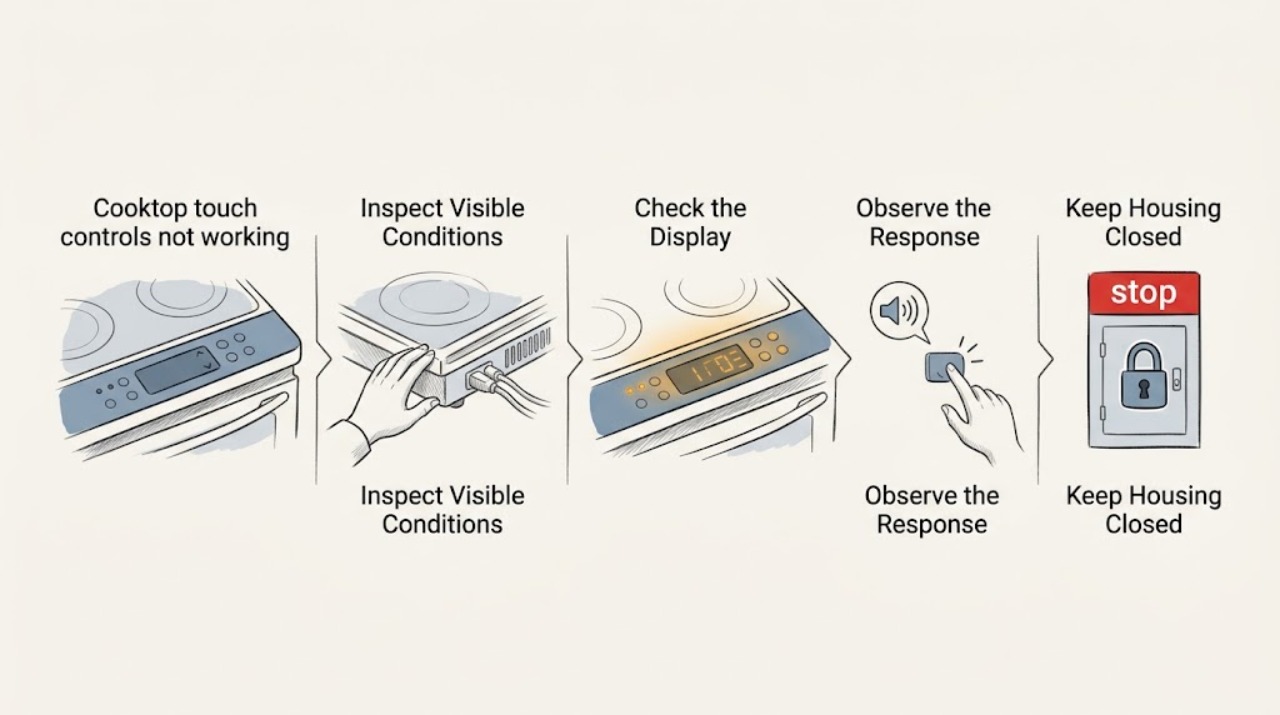
Work through in order
Diagnostic checks
Use only checks that match the exact appliance or system and its official guide.
-
Check 1
Turn all surface controls off, remove pans, utensils, towels, and objects from the control area, and observe the display from a safe position; do not touch a hot zone or use the panel to test a suspected fault repeatedly.
Expected result: The display is dark, a lock or error icon is lit, one key appears held, a hot-surface indicator remains on, or the panel is lit with no response.
Next step: Record the icon or message and model number. Continue only with the matching cool-surface, lock, and power checks; stop if any burner remains on unexpectedly.
Why this matters
Why: A dark display keeps power and breaker issues in consideration. A lock/error or permanently pressed-key indication can intentionally prevent normal operation. A hot-surface light may remain after use and does not by itself prove a control failure.
-
Check 2
With all controls off and the surface cool, wipe the touch-control area using the exact KitchenAid manual’s safe method and a soft, dry cloth afterward; do not spray cleaner onto the panel or use abrasive pads.
Expected result: Food, grease, water, or a utensil was over a key, the panel becomes responsive after drying, or it remains unresponsive when clean and dry.
Next step: Keep the panel dry and retry the normal control sequence once. If response does not return, leave the cooktop off and proceed to lock and power checks rather than adding more cleaner.
Why this matters
Why: Contamination or a held object can make touch keys appear failed. A dry, clean panel that remains dead makes Control Lock, power, keypad, control module, or wiring issues more likely.
-
Check 3
Check the model manual for Control Lock or keypad-lock status and use only its documented unlock gesture, such as the specified press-and-hold duration; do not guess at combinations or defeat the lock electronically.
Expected result: A lock indicator clears, no lock indicator is present, the lock will not clear, or controls respond only after an unexplained sequence.
Next step: Use the model-specific operation guide and try one normal setting. If the lock remains or returns without being selected, stop and arrange KitchenAid service.
Why this matters
Why: Control Lock intentionally prevents cooking-area commands on applicable models. A lock that will not clear may involve the keypad, control module, or a persistent panel fault; an undocumented sequence is not a safe repair.
-
Check 4
Place a dry finger directly over the intended touch key and follow the model’s normal ON/OFF and heat-setting sequence; do not slide a utensil across the panel or operate it with wet hands.
Expected result: One key responds, no keys respond, the panel beeps but does not select a zone, or a display flashes when a pan/object is nearby.
Next step: Use the exact manual to interpret the display and pan/control requirements. Do not press harder or use a metal object to activate a key; arrange service for a persistent or selective failure.
Why this matters
Why: Touch location and a clean, dry contact matter. A single failed key can indicate local keypad damage, while all keys failing points more toward lock, power, control, or moisture. A flashing display may indicate a setting, object, pan, or overheating condition depending on model.
-
Check 5
From a dry, safe location, verify the cooktop’s dedicated power supply and breaker/fuses; reset a clearly tripped breaker only once if safe, and do not remove covers or test live terminals.
Expected result: The display is dark, the breaker is tripped, the breaker trips again, or the cooktop has stable power but touch controls remain unresponsive.
Next step: Leave a repeatedly tripping circuit off and arrange qualified electrical service. If power is stable, continue only with one model-approved reset and then service if controls still fail.
Why this matters
Why: No display can result from a supply or protective-device problem. A repeat trip signals an electrical fault, not a reason to keep resetting. Stable display power shifts attention to lock, panel, control, or internal wiring.
-
Check 6
If the model manual permits an electronic reset, turn the cooktop off at its breaker for the specified interval, restore power, and monitor the panel; do not use repeated breaker cycling as an operating method.
Expected result: The controls recover, the same lock/error or flashing indicator returns, the display remains dark, or a burner turns on unexpectedly after power is restored.
Next step: Use the cooktop only if the manual and a normal control check confirm safe operation. Otherwise leave the breaker off and arrange qualified KitchenAid appliance/electrical service.
Why this matters
Why: Recovery suggests a transient control state, but recurring indications or unexpected burner behavior point toward a keypad, control module, sensor, wiring, or power fault. An unexpected energized burner is a safety issue.
-
Check 7
Document whether all zones or only one zone are affected, whether the panel accepts Power/Off, whether the lock indicator changes, and whether any element cycles normally; do not open the console to compare wiring or control signals.
Expected result: Only one zone fails, all touch controls fail, Power/Off works but heat selection does not, or a zone stays on or behaves unpredictably.
Next step: Stop using the cooktop for any persistent selective or unsafe behavior. Give the technician the model, display symbols, affected zones, power/reset result, and panel-cleaning result.
Why this matters
Why: A single-zone failure can involve that zone’s sensor or control path, while all-key failure suggests the shared panel, lock, control, or supply. A zone that stays on or behaves unpredictably is not a normal touch-control symptom.
Use your observations
Decision map
Find the observation that best matches what you see, then follow the next safe action.
-
PATH 01Next step
What you see
The display is lit, a lock icon or lock state is present, and the panel otherwise appears normal.
Do this next
Unlock only with the exact model procedure and retry once. If the lock will not clear or returns by itself, arrange service without bypassing it.
Why this path and its safety boundary
Why it matters: Control Lock is more likely than a failed touch module because the feature intentionally blocks surface commands.
-
PATH 02Next step
What you see
The panel becomes responsive after food, water, or an object is removed and the controls are cleaned and dried.
Do this next
Keep the keypad dry and follow the model’s cleaning and lock-out guidance. Stop if unresponsive behavior returns without contamination or if a key remains stuck.
Why this path and its safety boundary
Why it matters: Surface contamination or a held key was more likely than a failed control board.
-
PATH 03Next step
What you see
The display is dark or the breaker/GFCI does not hold, while an unrelated known-safe device also loses power on the same circuit.
Do this next
Leave a tripping circuit off and arrange qualified electrical service. Do not open the cooktop or repeatedly reset the protection.
Why this path and its safety boundary
Why it matters: A household supply, breaker, outlet, or wiring problem is more likely than a touch-panel-only fault.
-
PATH 04Next step
What you see
The panel stays lit and dry, Control Lock is cleared, power is stable, and Start/heat commands still fail on one or all zones after one reset.
Do this next
Leave the cooktop off and arrange KitchenAid appliance service. Do not remove the glass or console to test the module.
Why this path and its safety boundary
Why it matters: A keypad, touch-control module, control-board, sensor, or internal connection fault is more likely than a user setting.
-
PATH 05Next step
What you see
A burner will not turn off, a zone turns on unexpectedly, the panel or wiring is hot/damaged, liquid entered the controls, or the breaker trips repeatedly.
Do this next
If safe, isolate the cooktop at the breaker and keep clear. Arrange qualified appliance/electrical service; leave for smoke, fire, or immediate danger.
Why this path and its safety boundary
Why it matters: The touch symptom is accompanied by an electrical, thermal, or liquid-intrusion hazard and should not be tested further.
Helpful context
Understand the symptom
An unresponsive touch panel can be a lock or surface condition
A cooktop may intentionally ignore touch commands when Control Lock is active, when a utensil or spill is holding a key, or when moisture and residue prevent the panel from recognizing a touch. A dark display is a power question; a lit display with no response is more likely a lock, surface, control, or model-specific fault. Exact icons and hold times are not universal.
Clean and cool the panel before diagnosing electronics
Cooktop touch controls are sensitive to water, grease, food, and objects left over the keypad. Turn controls off and let the surface cool before cleaning. Use the model’s stated cleaner and a soft cloth, then dry the panel completely. Do not spray liquid directly at the controls or attempt to clean around an energized, cracked surface.
A reset is a test, not a repair
A one-minute breaker reset is listed by the manufacturer for some electronic-control faults. It cannot correct a damaged keypad, failed control module, loose connection, incorrect installation, or a burner that remains energized. If the same fault returns, stop cycling the breaker and arrange service.
Safety boundary
Stop conditions
- Do not bypass Control Lock or a door/control safety feature, open the console, remove the glass, or perform live electrical testing to restore touch operation. Use the exact manual and qualified service.
- Do not spray cleaner directly onto the keypad, clean a hot surface, press harder with metal objects, or keep operating a panel that is wet, cracked, damaged, or behaving unpredictably.
- Stop after one documented lock, surface, power, and model-approved reset check if the controls remain unresponsive, an error returns, a burner fails selectively, or a zone turns on unexpectedly.
- Leave the circuit off for repeated breaker trips, exposed wiring, liquid at electrical parts, burning odor, smoke, sparks, or a burner that will not turn off. For active smoke or fire, leave and use emergency assistance.
Only after diagnosis
Potential parts
- KitchenAid cooktop touch-control panel or keypad
Only consider this part after power, lock, surface moisture, settings, and model-approved reset checks are complete and service diagnosis identifies the user-interface keypad as the fault.
Key layout, glass interface, connectors, and control compatibility vary by model; confirm the exact appliance model and manufacturer fit information before ordering or installing. - KitchenAid cooktop electronic control module
Only consider a control module after a technician separates it from the keypad, power supply, lock state, wiring, sensors, and affected-zone components.
Control boards, firmware, connectors, and zone configurations are model-specific; do not substitute a board from a similar-looking cooktop or an error code alone.
When checks do not resolve it
Need a professional?
Safety scope: Homeowner-safe checks are removing objects, allowing the surface to cool, cleaning and drying the exterior keypad as directed, reading the display, using the documented lock gesture, checking a clearly identified breaker, and performing one model-approved reset. Glass removal, control-panel access, wiring, live testing, element diagnosis, and gas work belong to qualified professionals.
Common questions
FAQ
Why are my KitchenAid cooktop touch controls not working?
Control Lock, water or food on the panel, an object holding a key, incorrect control sequence, a dark power circuit, or a keypad/control fault can all look like a dead touch panel. Check the display and model manual, clean and dry the controls when cool, then verify power and lock status.
How do I unlock a KitchenAid cooktop touch panel?
The unlock gesture varies by model. Check the owner’s manual for the Control Lock key and required hold time; some KitchenAid-family manuals use a press-and-hold gesture. Do not guess at combinations or bypass the lock if it will not clear.
Can moisture make KitchenAid cooktop touch controls stop responding?
Yes. Food, water, grease, or an object over the keypad can hinder touch recognition or make a key appear permanently pressed. Turn controls off, let the surface cool, clean and dry the area according to the manual, and stop if the panel remains unreliable.
Should I reset the breaker when KitchenAid cooktop controls are unresponsive?
A single model-approved power reset may clear a temporary electronic state. Turn the circuit off only when safe, wait the manual’s interval, restore power, and monitor the panel. Repeated trips or a returning fault need qualified service rather than more resets.
When should I stop using a KitchenAid cooktop with failed touch controls?
Stop for a burner that will not turn off, a zone that turns on unexpectedly, persistent flashing, a wet or cracked panel, liquid intrusion, smoke, sparks, unusual heat, exposed wiring, or a repeated breaker trip. Isolate power if safe and arrange qualified appliance or electrical service.
Read the exact guide
Official sources
- Controls Not Responding - InductionWhirlpool Product Help · Whirlpool-family induction touch-control guidance; KitchenAid model-specific lock and cleaning instructions take priority.
- KitchenAid Electric Cooktop Owner’s ManualKitchenAid · Official KitchenAid manual for a specific cooktop family; use the current exact-model manual for any operation or service procedure.
- Not Powering On - Electric CooktopWhirlpool Product Help · Whirlpool-family electric cooktop guidance; KitchenAid model and electrical installation instructions control.
- F0E4 - Electric CooktopKitchenAid Product Help · Only applicable when the exact KitchenAid model displays this code; do not infer this code from an unresponsive panel.
- Cooktop Not Working - Electric CooktopKitchenAid Product Help · KitchenAid electric cooktop guidance; exact touch controls and operation differ by model.
- Indicator or Display Flashing - Electric and Induction CooktopKitchenAid Product Help · KitchenAid electric and induction guidance; exact indicators vary by model.
Community feedback
Share a repair observation
Share a plain-text repair observation. Accepted observations are published automatically; this page may take a moment to update.