
On this page
Start here
Quick answer
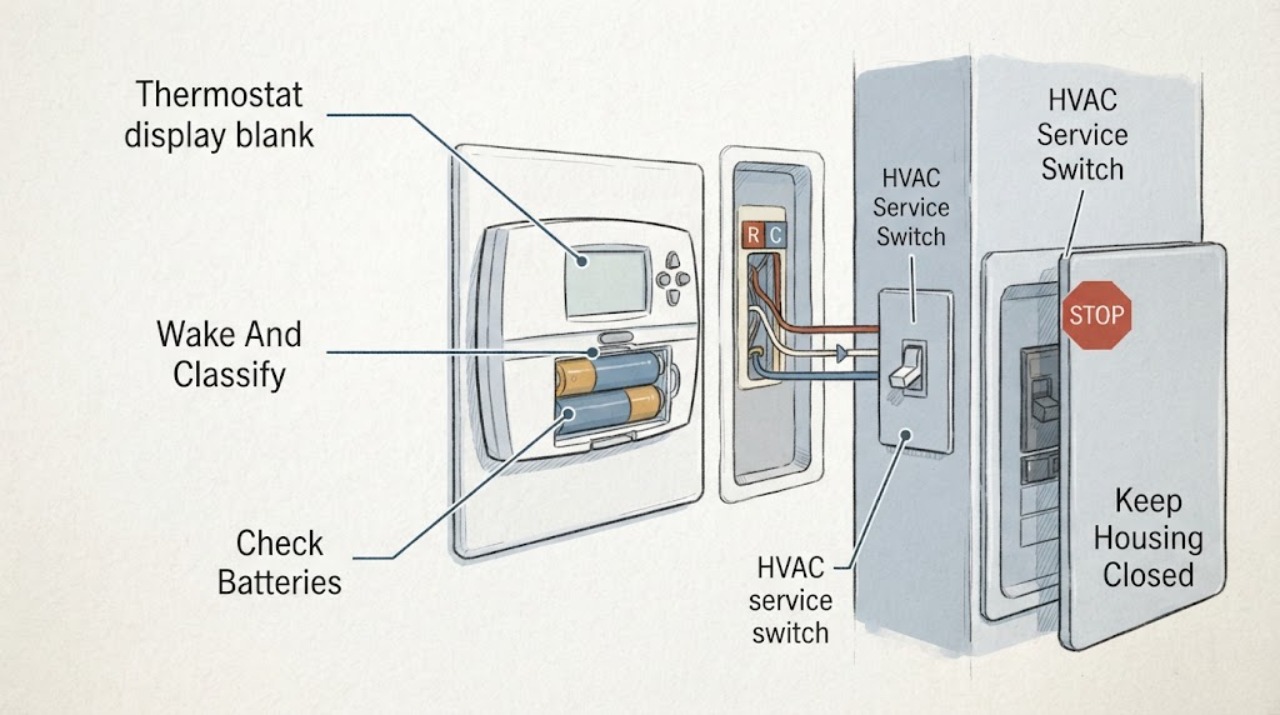
First determine whether the Honeywell thermostat screen is asleep or truly without power: approach it, tap it, and check the owner app only as a comparison. For a battery-powered model, install fresh batteries of the type and orientation shown in its manual. For a wired model, check the HVAC service switch and the correct breaker from a safe position, and make sure the furnace or air-handler cover is seated. Honeywell's blank-display guidance also distinguishes a thermostat that powers from batteries but not from the HVAC wiring; that pattern needs a technician. If the display remains blank, the breaker trips again, the HVAC cover or wiring is loose, the system has water or burning smell, or the thermostat was recently installed, stop and arrange qualified HVAC service. Do not remove the thermostat, move wires, measure live voltage, or bypass a safety switch as a generic fix.
Before you begin
Safety first
- This article covers waking the display, an owner-permitted battery check, safe visual inspection, and an obvious HVAC switch or breaker check only. Qualified service is required for terminal wiring, common-wire or transformer work, voltage tests, equipment controls, safety switches, and thermostat replacement.
Work through in order
Diagnostic checks
Use only checks that match the exact appliance or system and its official guide.
-
Check 1
Approach the Honeywell thermostat, tap the display once, and compare the wall screen with the owner app or another known status indication without removing the thermostat from its plate.
Expected result: Record whether the screen wakes, remains completely blank, shows a startup message, or the app shows the thermostat online, offline, or unavailable.
Next step: If the screen wakes, review owner display or sleep preferences. If it remains blank, identify whether the model uses batteries and check the HVAC switch and breaker from a safe position.
Stop if: Do not pry at the display, pull the thermostat away from the wall, or treat an app status as proof that the wall unit has safe power.
Why this matters
Why: A screen that wakes points toward sleep or display behavior. An app-connected thermostat with a dark screen differs from a thermostat and app that both lost power. A completely unresponsive screen makes the HVAC power path more likely.
-
Check 2
If the exact Honeywell model is battery-powered or its owner manual permits a battery check, install fresh batteries with the specified type and orientation; do not use batteries as a reason to disturb wiring.
Expected result: Record whether the display returns on batteries, remains blank, shows a low-battery message, or powers briefly and then dies.
Next step: If a wired model works only on batteries, leave the thermostat in place and check the HVAC breaker, service switch, and equipment cover; arrange service if HVAC power is present but wired power is absent.
Stop if: Do not insert batteries into a model that does not support them, short terminals, or remove the wall plate to inspect wires.
Why this matters
Why: A display restored by batteries supports an HVAC wiring or equipment-power issue on a common-wired model. A display that remains blank on correct batteries points toward battery fit, model-specific hardware, or another fault.
-
Check 3
From a safe position, check that the HVAC service switch is on, the relevant breaker is not tripped, and the furnace or air-handler cover is closed securely; do not open the equipment cabinet.
Expected result: Record whether the switch or breaker was off, whether it trips again, whether the equipment shows power signs, and whether the cover is mis-seated or damaged.
Next step: Restore an obviously off switch only when there is no odor, water, damage, or other hazard and the installation permits it. If the breaker trips again, the cover will not seat, or power remains absent, turn the system off and arrange qualified HVAC service.
Stop if: Do not repeatedly reset a breaker, bypass a door switch, open the equipment cabinet, or touch wiring and terminals.
Why this matters
Why: An off switch, tripped breaker, or open cover can interrupt thermostat power. A breaker that trips again or equipment that shows damage indicates an HVAC or electrical fault, not a screen setting.
-
Check 4
Inspect only the visible thermostat and HVAC surroundings for water, burning smell, damaged plastic, a loose wall plate, exposed wire, or an equipment error light; do not remove covers to reach a code label or control board.
Expected result: Classify the area as dry and intact, showing an installation concern, showing an electrical or water hazard, or unsafe to inspect further.
Next step: If any hazard or error indication is present, leave the system off and arrange qualified HVAC or electrical service. If intact, continue only with the documented model and power-path checks.
Stop if: Do not touch wet equipment, exposed conductors, burned parts, or a damaged wall plate; do not energize a visibly unsafe system.
Why this matters
Why: A dry intact installation supports limited external power checks. Water, burning smell, exposed wiring, damaged parts, or a flashing equipment indicator makes continued energizing unsafe and can explain a blank screen.
-
Check 5
After an obvious safe battery, switch, or breaker correction and a securely closed equipment cover, allow one normal restart and observe the display and HVAC response without repeated power cycling.
Expected result: Record whether the display returns, the system starts normally, the display remains blank, the breaker trips, or the HVAC shows an alert or abnormal behavior.
Next step: If the display returns and operation is normal, monitor it and keep the model and power arrangement recorded. If it stays blank or the fault returns, turn the HVAC system off as appropriate and arrange qualified diagnosis.
Stop if: Do not repeat resets, measure live voltage, rewire terminals, or replace the thermostat before the power path and equipment are tested.
Why this matters
Why: A restored display after a safe correction supports an interrupted power path. A recurring blank screen or repeated trip leaves wiring, transformer, equipment, or thermostat failure unresolved.
Use your observations
Decision map
Find the observation that best matches what you see, then follow the next safe action.
-
PATH 01Safety boundary
What you see
The display wakes when approached or tapped, or the app shows the thermostat online and controllable.
Do this next
Review owner display and sleep preferences and observe whether the screen behaves normally during a temperature change.
Why this path and its safety boundary
Why it matters: The screen may be asleep or dimmed rather than without power; a blank appearance alone does not prove a wiring fault.
Safety stop: Do not remove the thermostat or disturb wiring to change brightness or sleep behavior.
-
PATH 02Safety boundary
What you see
Fresh batteries restore a battery-capable thermostat, or a wired model powers on from batteries but not from the HVAC connection.
Do this next
Check the HVAC switch, breaker, and securely closed equipment cover from outside the cabinet; have a qualified professional verify the wired power path if the display still lacks normal HVAC power.
Why this path and its safety boundary
Why it matters: The thermostat hardware can display, while the HVAC power path, common-wire connection, transformer, or equipment switch remains suspect.
Safety stop: Do not move C, R, Rc, or other wires or remove the wall plate to prove the connection.
-
PATH 03Safety boundary
What you see
Correct batteries do not restore a battery-capable thermostat, or the model does not support a battery test.
Do this next
Keep the thermostat mounted, confirm the exact model manual, and arrange qualified HVAC diagnosis if the display remains blank.
Why this path and its safety boundary
Why it matters: Battery fit, thermostat hardware, model-specific power, or another fault remains possible; a generic wired procedure may be wrong.
Safety stop: Do not insert unapproved batteries, short terminals, or remove the thermostat to improvise a power source.
-
PATH 04Safety boundary
What you see
The HVAC switch or breaker was off, or the equipment cover was not seated, and one safe correction restores the display without another trip.
Do this next
Allow one normal restart and monitor the display and equipment; arrange service if the condition recurs.
Why this path and its safety boundary
Why it matters: An interrupted HVAC power or cover-safety path may have caused the blank display.
Safety stop: Do not repeatedly reset the breaker or energize equipment with water, damage, burning smell, or exposed wiring.
-
PATH 05Safety boundary
What you see
The breaker trips again, there is water, burning smell, exposed wiring, damaged equipment, a flashing error light, or the cover cannot close securely.
Do this next
Leave the HVAC system off and arrange qualified HVAC or electrical service.
Why this path and its safety boundary
Why it matters: An electrical, equipment, or installation fault is present; the blank display is a symptom of an unsafe or interrupted system.
Safety stop: Do not reset again, bypass a cover switch, touch wet or burned parts, or open the equipment cabinet.
-
PATH 06Safety boundary
What you see
The switch and breaker appear correct, the cover is closed, but the thermostat remains blank and the app is offline or unavailable.
Do this next
Stop at visual checks and arrange qualified HVAC diagnosis; provide the model, battery result, power arrangement, and breaker history.
Why this path and its safety boundary
Why it matters: A common-wire, transformer, wiring, wall-plate, thermostat, or equipment-power fault remains possible.
Safety stop: Do not remove the thermostat, measure live voltage, or substitute a wire or jumper as an experiment.
Helpful context
Understand the symptom
Separate a sleeping screen from lost power
Approach or tap the thermostat and compare its wall display with the app or another known status indication. A screen that wakes is a display or sleep setting issue, not necessarily a failed thermostat. A screen and app that are both unavailable point more strongly toward power, wiring, or thermostat hardware.
Use the model's power arrangement
Honeywell thermostats may use batteries or HVAC wiring, and wired models may behave differently when temporarily powered by batteries. The exact model manual controls the procedure. Check external power controls first; do not assume that R, Rc, C, or other terminal arrangements are interchangeable between models.
Do not turn a blank display into a wiring experiment
A blank screen can be caused by a tripped breaker, HVAC service switch, open equipment cover, missing common-wire power, loose connection, transformer or equipment fault, or failed thermostat. Honeywell warns that incorrect thermostat wiring or configuration may damage the system. When the safe external checks do not restore the display, a qualified professional should diagnose the complete power path.
Safety boundary
Stop conditions
- Do not remove the thermostat, move wires, measure live voltage, or add jumpers as a generic blank-screen fix.
- Do not repeatedly reset a breaker, bypass an HVAC cover switch, or energize equipment with water, burning smell, exposed wiring, or visible damage.
- Do not open the furnace or air-handler control compartment or touch terminals unless the exact procedure and qualified supervision make it appropriate.
- Stop for a breaker that trips again, a cover that will not close, a persistent blank screen, or an unknown recent wiring or installation change.
- Arrange qualified HVAC or electrical service when safe battery, switch, breaker, cover, and owner-control checks do not restore the display.
Only after diagnosis
Potential parts
- compatible Honeywell thermostat
Consider replacement only after qualified testing confirms the existing thermostat has failed or is incompatible with the installation; a blank screen alone does not prove this.
Confirm the Honeywell model, HVAC equipment, stages, sensors, power arrangement, and wiring documentation before ordering. - compatible thermostat battery
Consider this category only for a model that explicitly uses replaceable batteries and when correct fresh batteries do not remain reliable after proper installation.
Confirm the exact thermostat manual, battery type, orientation, and contact condition; do not use batteries to bypass a wired power fault. - compatible thermostat wall plate
Consider this category only when qualified inspection finds a physically damaged wall plate or terminal base that interrupts an otherwise correct installation.
Confirm the exact Honeywell model and wiring arrangement; replacement requires power isolation and correct terminal verification.
When checks do not resolve it
Need a professional?
Arrange qualified HVAC service when the Honeywell display remains blank after safe battery, switch, breaker, cover, and owner-control checks, or when a wired model works only on batteries. Call promptly for a repeated breaker trip, water, burning smell, exposed wiring, damaged equipment, a flashing error indicator, or a cover that will not close. Do not diagnose a live thermostat circuit by moving wires or measuring voltage unless qualified.
Safety scope: This article covers waking the display, an owner-permitted battery check, safe visual inspection, and an obvious HVAC switch or breaker check only. Qualified service is required for terminal wiring, common-wire or transformer work, voltage tests, equipment controls, safety switches, and thermostat replacement.
Common questions
FAQ
Why is my Honeywell thermostat display blank?
The cause may be depleted batteries, an interrupted HVAC power path, an open furnace cover, a common-wire or transformer issue, or thermostat hardware. Check only the model-appropriate batteries and safe external HVAC power controls before calling service.
Can I use batteries to test a wired Honeywell thermostat?
Only if the exact Honeywell model supports that test. If a common-wired thermostat displays on batteries but not from HVAC power, Honeywell directs attention to the HVAC switch, breaker, furnace cover or safety switch, and technician diagnosis.
Should I reset the breaker for a blank thermostat?
You may check the correct HVAC breaker from a safe position, but do not repeatedly reset it. If it trips again or there is water, burning smell, damage, or exposed wiring, leave the system off and call qualified HVAC or electrical service.
Should I pull the Honeywell thermostat off the wall to check wires?
Not as a generic blank-screen step. Wiring work requires power isolation and exact model instructions. Have a qualified professional verify the wall plate, terminals, C wire, transformer, and HVAC equipment.
When is a blank Honeywell display urgent?
Treat it as urgent when the breaker trips again, there is water, burning smell, exposed wiring, damaged equipment, a flashing error indicator, or a furnace cover that will not close. Turn the HVAC system off as appropriate and seek qualified service.
Read the exact guide
Official sources
- How do I fix a blank display on my TH1100DH/TH1110DH/TH1210DH thermostat?Honeywell Home · Honeywell Home guidance for the listed thermostat models; other Honeywell models can have different battery and wiring arrangements.
- Why is my Heating not Working?Honeywell Home · Honeywell Home forced-air heating troubleshooting guidance; equipment type and wiring differ by installation.
- Troubleshooting and SupportHoneywell Home · Honeywell Home X8S and X8Q thermostat manual support page; exact terminal and menu behavior varies by model.
Community feedback
Share a repair observation
Share a plain-text repair observation. Accepted observations are published automatically; this page may take a moment to update.