
HVAC guides
Thermostats Repair Guides
Thermostat guidance for blank screens, wiring, settings, and system communication.
Published thermostats guides
Choose the guide that best matches the equipment and symptom you are seeing.
-
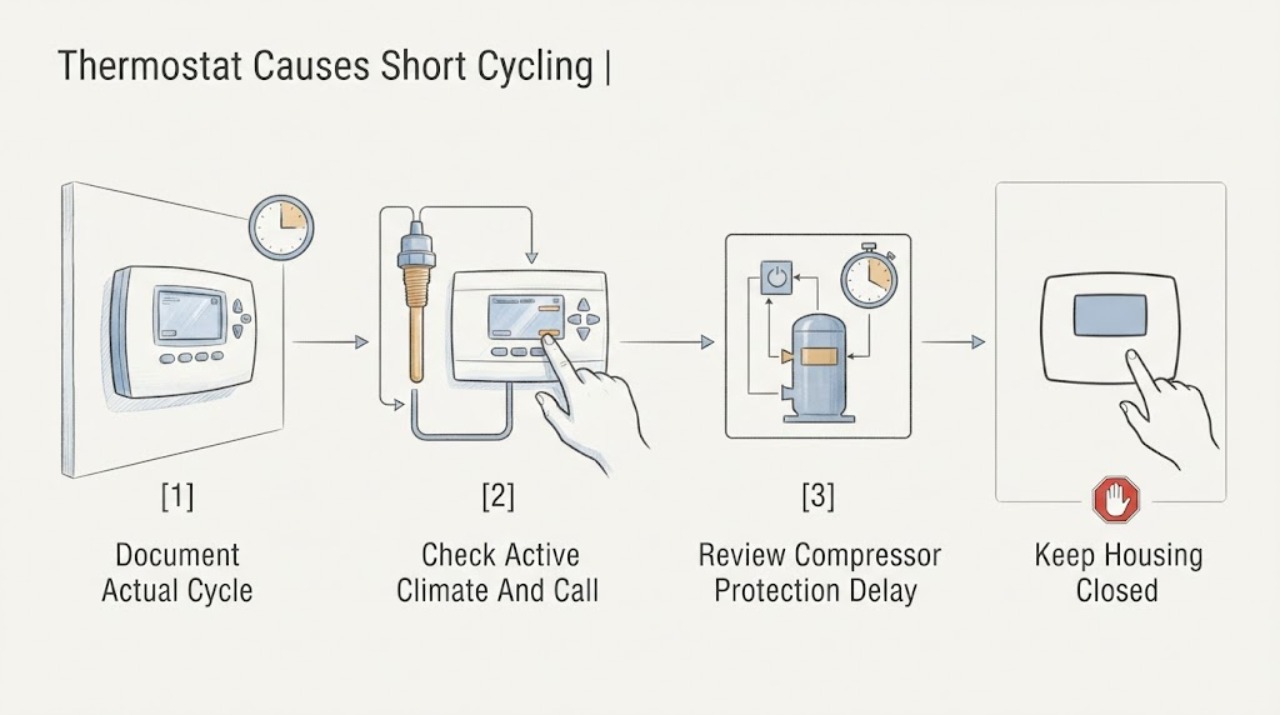
Ecobee Thermostat Causes Short Cycling: What to Check and What to Do Next
An ecobee thermostat can appear to cause short cycling when its temperature reading, sensor participation, schedule, hold, equipment configuration, or call for heating or cooling does not match the HVAC system. First confirm that the equipment is actually starting and stopping rapidly before satisfying the setpoint, and check the ecobee mode, active climate, sensor reading, schedule, and any compressor-protection delay.
-
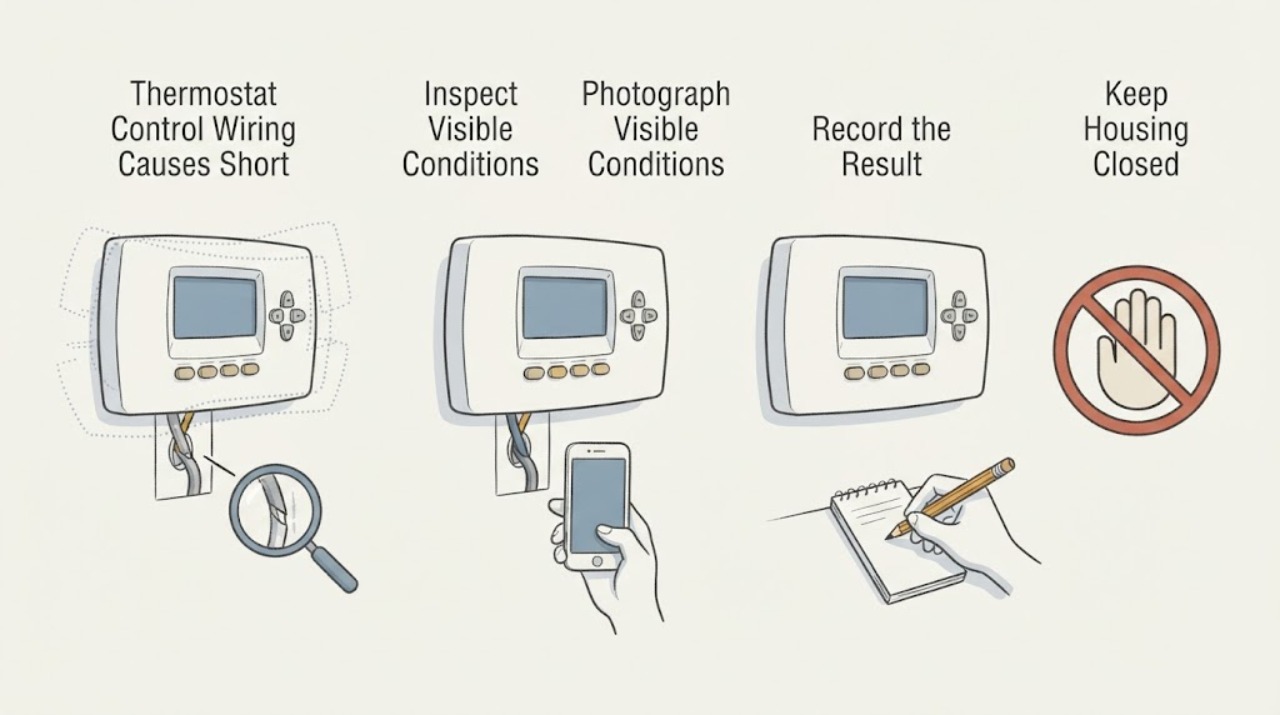
Ecobee Thermostat Control Wiring Causes Short Cycling: What to Check and What to Do Next
Loose, misidentified, or incorrectly configured ecobee control wiring can make an HVAC system respond to the wrong call or lose the call, but short cycling is not proof of a wiring fault. First record whether the ecobee still shows an active heat or cool call, then turn HVAC power off before making a visual check of the thermostat terminals and any recent installation work.
-
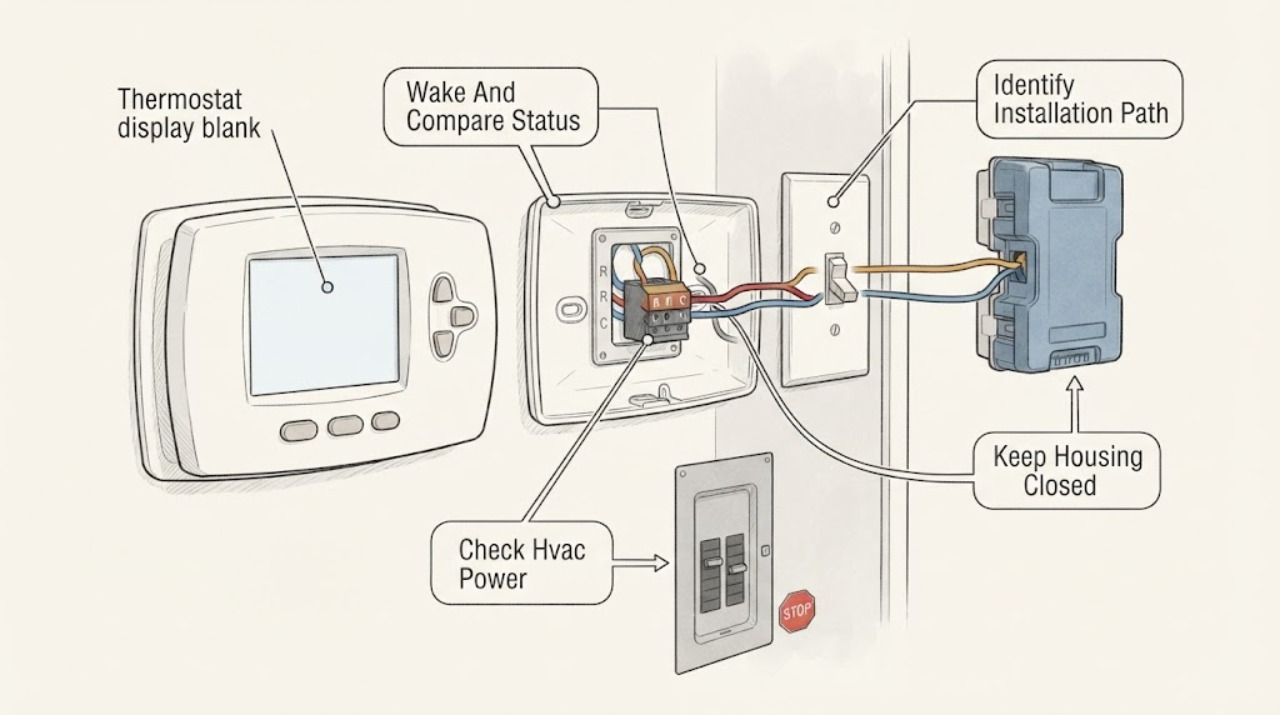
Ecobee thermostat display blank: What to Check and What to Do Next
First determine whether the ecobee screen is asleep or truly without power: approach it, tap the display, and check the ecobee app only as a status comparison. If it remains blank, check the HVAC service switch and the correct breaker from a safe position, and make sure the furnace or air-handler cover is seated.
-
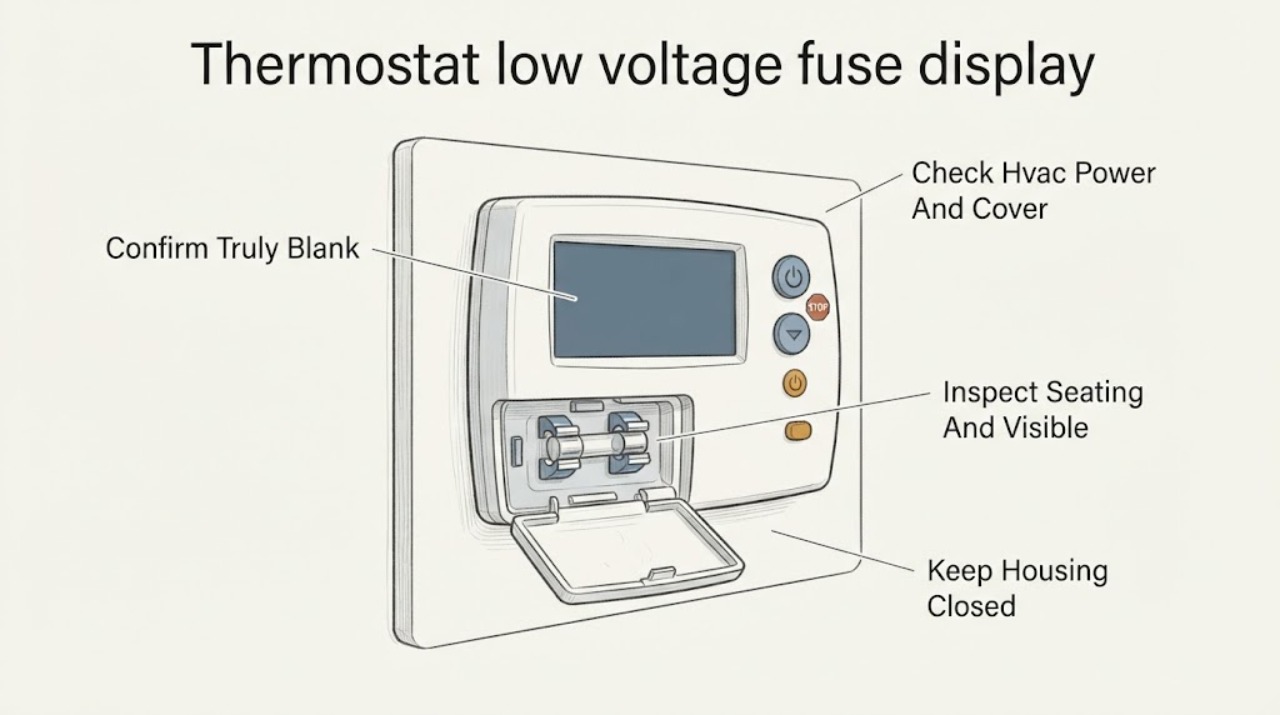
Ecobee thermostat low voltage fuse display blank: What to Check and What to Do Next
A completely blank ecobee display usually means the thermostat has lost its low-voltage power path, not that the screen alone has failed. First wake the display normally, then check the HVAC breaker, nearby system switch, and whether the furnace or air-handler cover is fully closed.
-
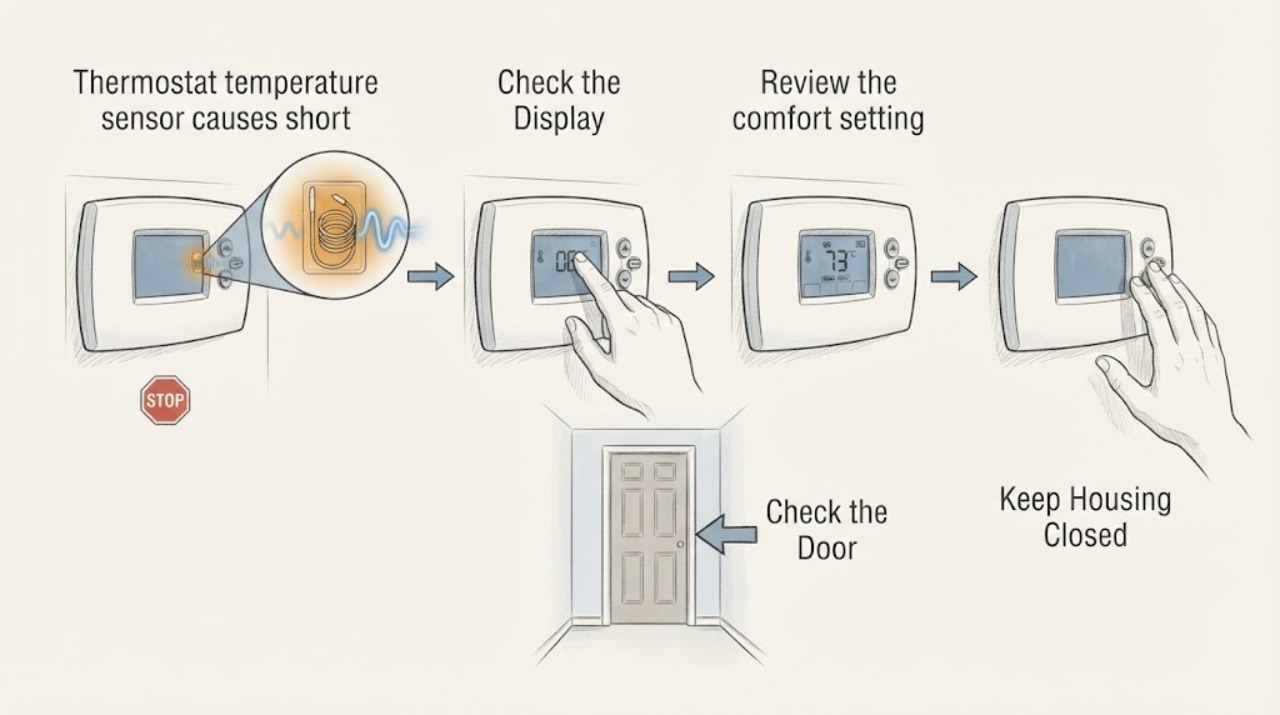
Ecobee thermostat temperature sensor causes short cycling: What to Check and What to Do Next
An ecobee temperature sensor can influence which room the thermostat uses for comfort, but a sensor reading alone does not prove it is causing short cycling. First record the ecobee displayed temperature, the active comfort setting or schedule, which sensors are participating, the heat or cool call, equipment start and stop times, and whether the HVAC system actually satisfies the setpoint.
-
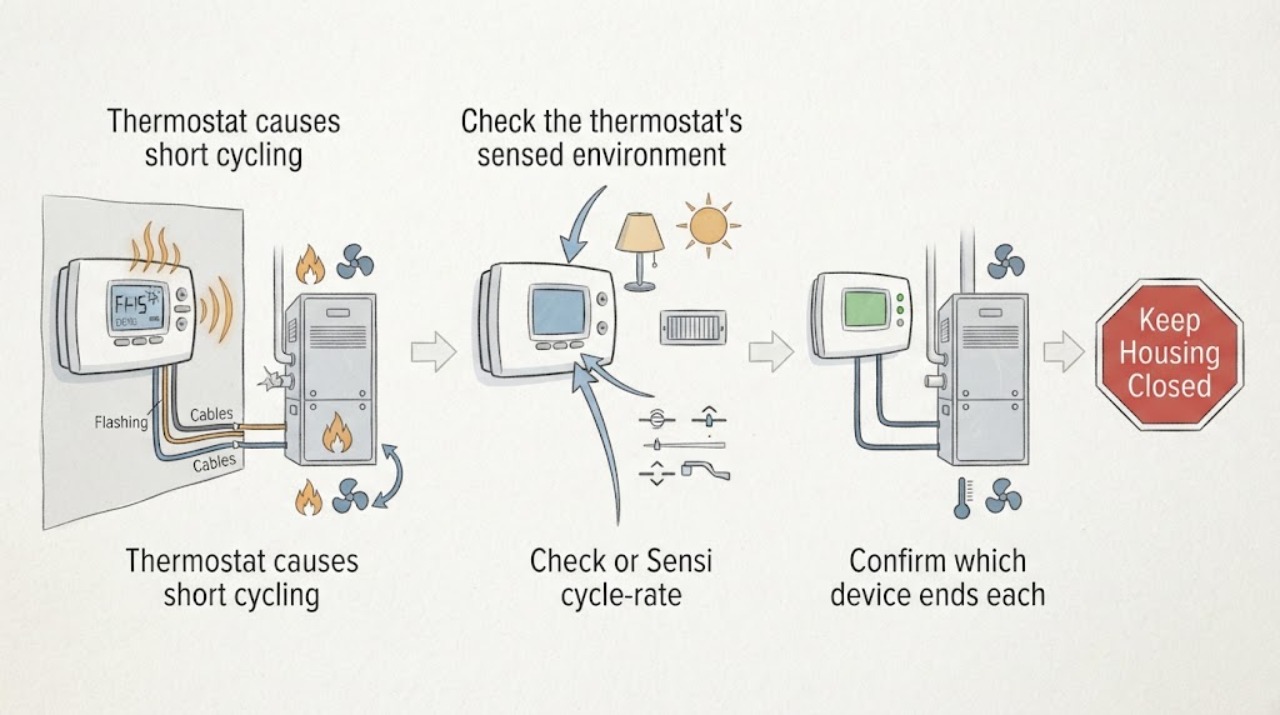
Emerson thermostat causes short cycling: What to Check and What to Do Next
An Emerson thermostat can appear to cause short cycling when its cycle-rate setting, system configuration, schedule, sensor location, or control signal starts and stops the HVAC equipment too often, but the thermostat is not the only possible cause. First confirm that the system is actually starting and stopping rapidly rather than running a normal fan or protection delay, then note whether the thermostat still shows a heat or cool call when the equipment stops.
-
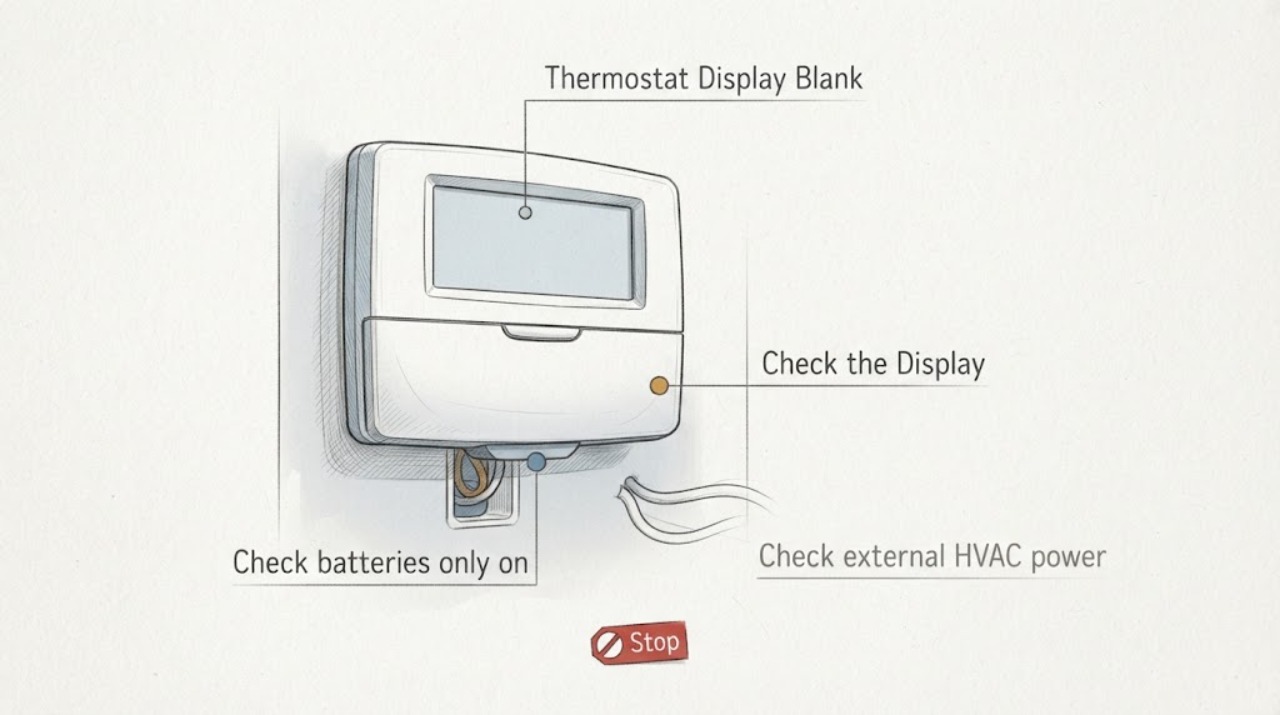
Emerson Thermostat Display Blank: What to Check and What to Do Next
Start by identifying the Emerson thermostat model. A battery-powered model may have dead or poorly seated batteries, while a touchscreen or other model may depend on HVAC power and a correctly connected C wire.
-
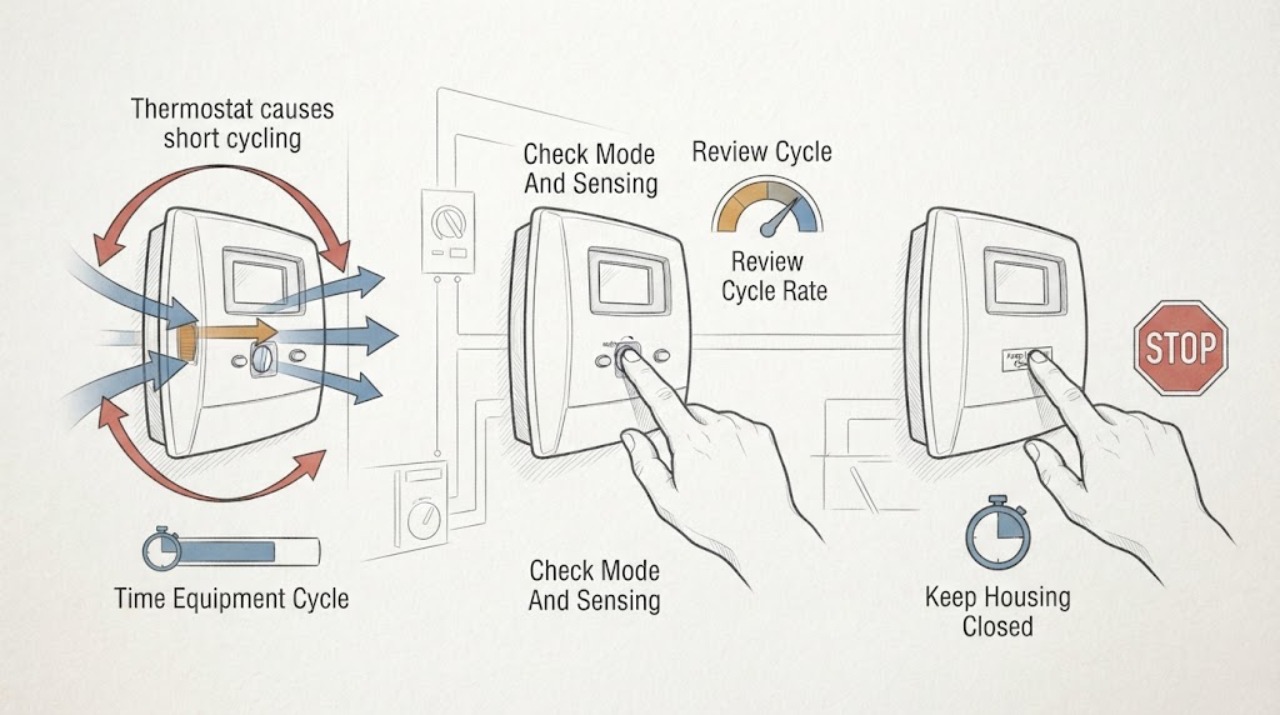
Honeywell thermostat causes short cycling: What to Check and What to Do Next
A Honeywell thermostat can influence cycling through its system configuration, cycle-rate setting, temperature sensing, wiring, or compressor-protection delay, but frequent short cycles are not proof that the thermostat is the cause. First time the actual equipment cycle and confirm whether the thermostat still shows a call for heat or cooling when the equipment stops.
-
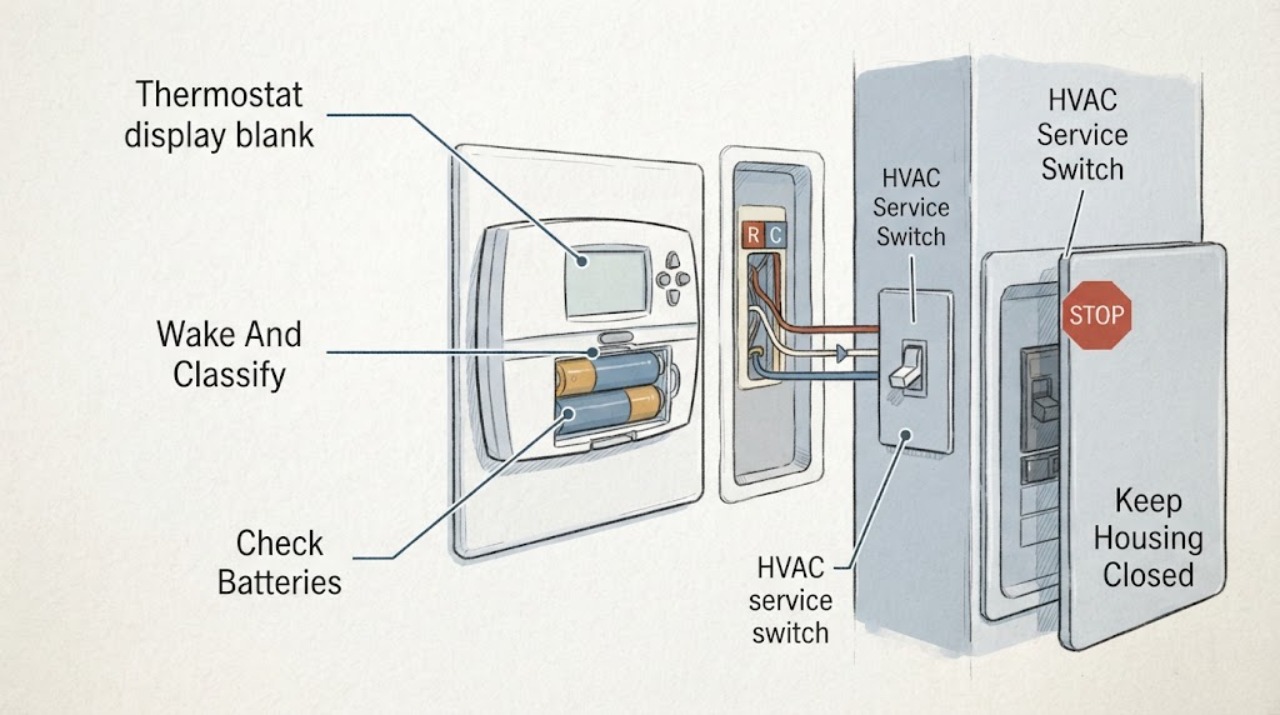
Honeywell thermostat display blank: What to Check and What to Do Next
First determine whether the Honeywell thermostat screen is asleep or truly without power: approach it, tap it, and check the owner app only as a comparison. For a battery-powered model, install fresh batteries of the type and orientation shown in its manual.
-
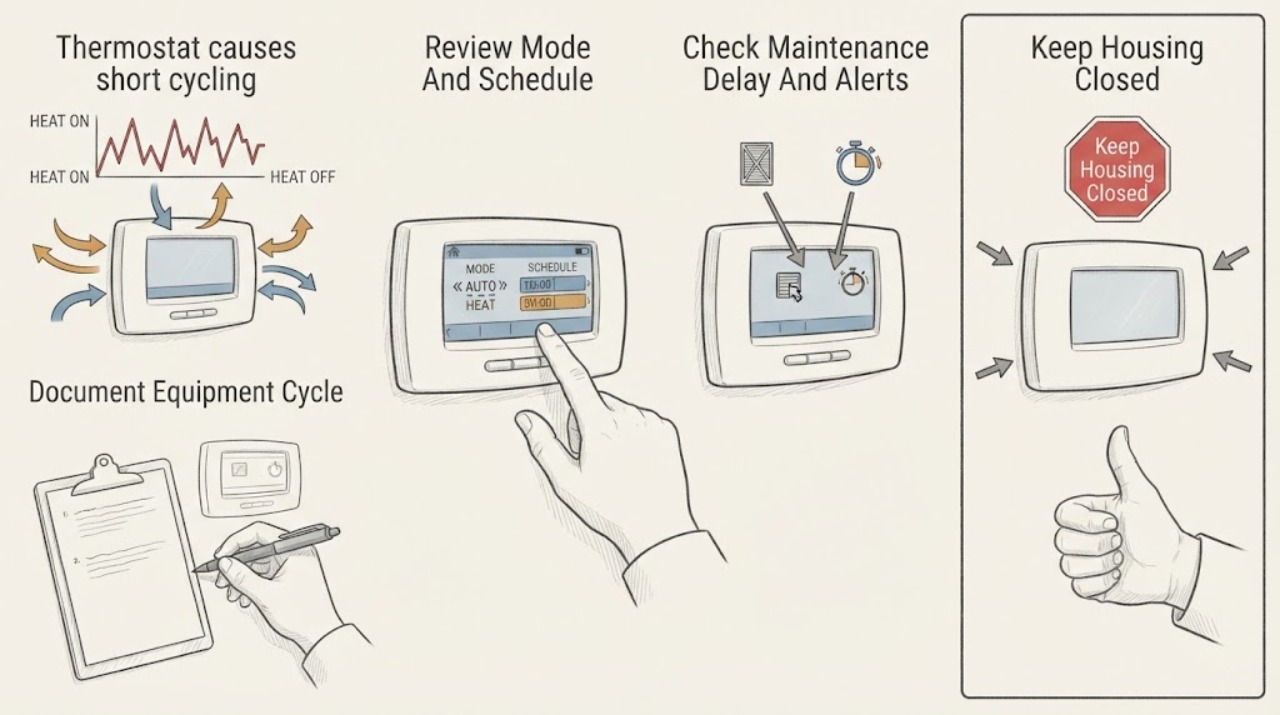
Nest thermostat causes short cycling: What to Check and What to Do Next
A Nest thermostat can appear to cause short cycling when the heating or cooling equipment starts and stops before it satisfies the target, but the thermostat is not automatically the failed part. Nest uses a maintenance band and delays to limit rapid cycling; a manually scheduled or independent fan run is a different symptom.
-
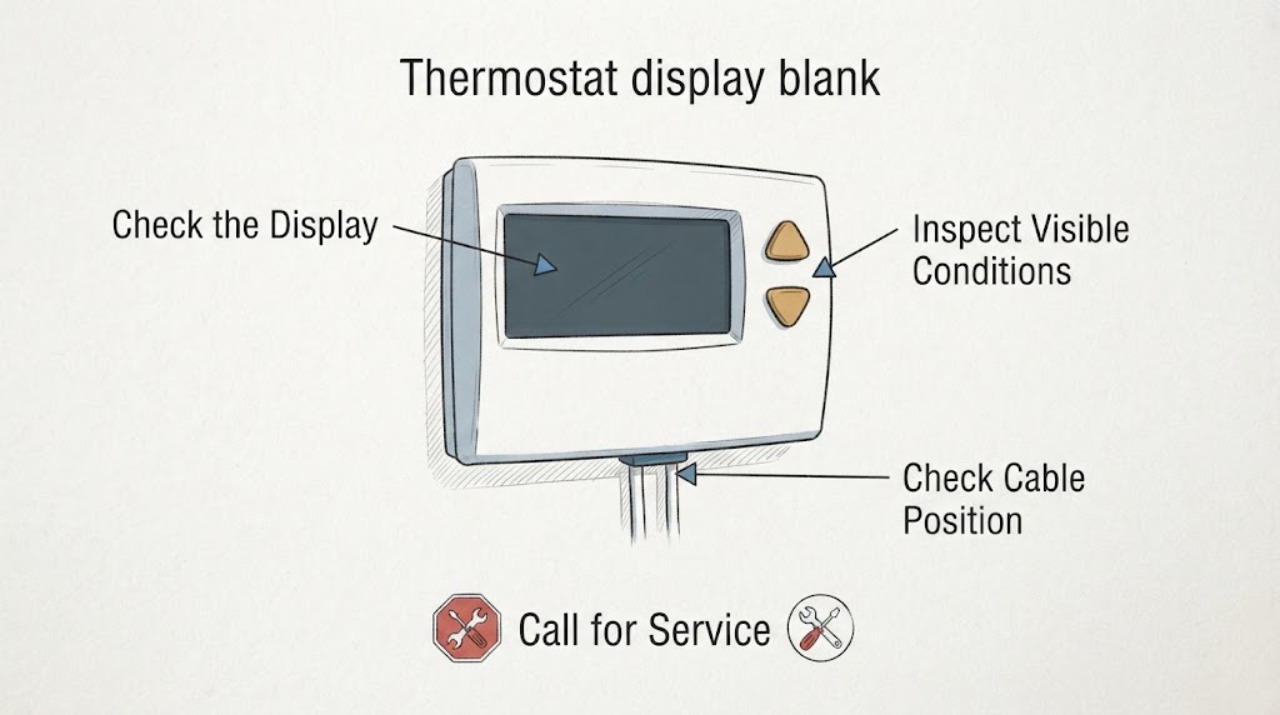
Nest thermostat display blank: What to Check and What to Do Next
A Nest display that is dark may simply be asleep, but a blank screen that stays unresponsive usually means the thermostat has lost power, its battery has drained, the display is not seated, or the system wiring or equipment is not supplying enough power. First wake it from the app or by approaching or tapping it, then note whether the display returns, shows a red or yellow charging light, shows a green startup light, or has no light at all.
-
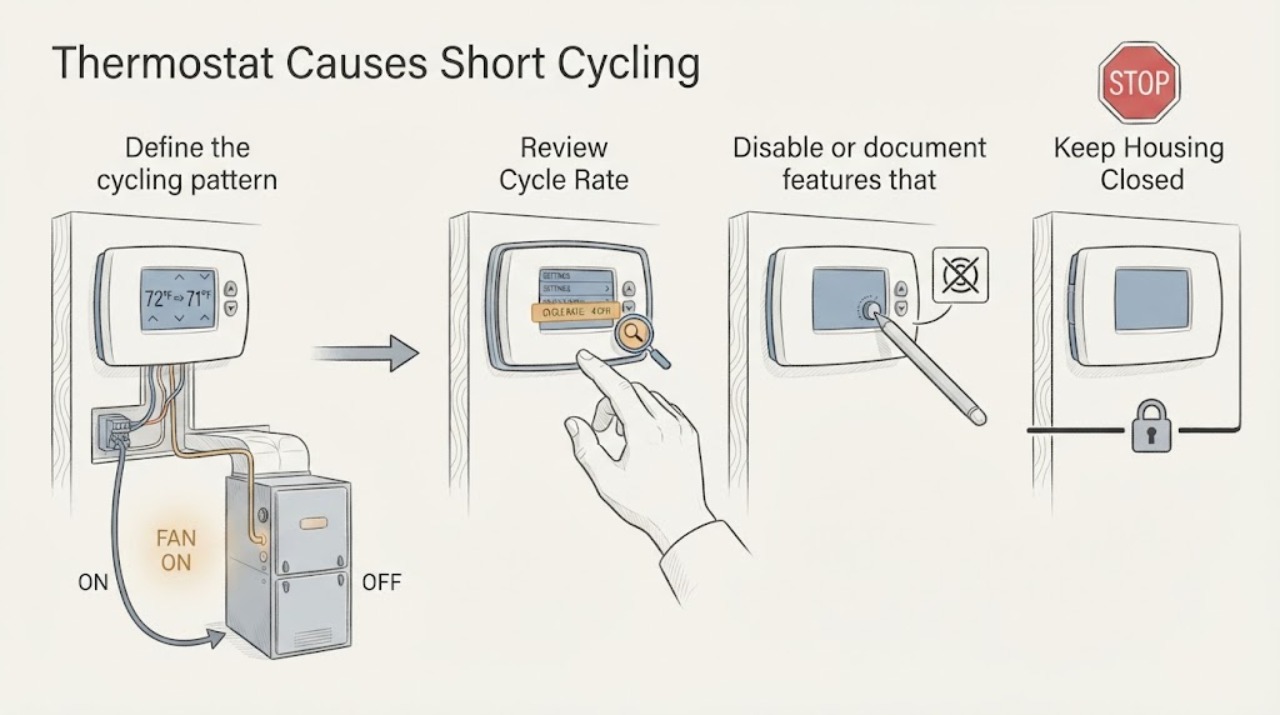
Sensi Thermostat Causes Short Cycling: What to Check and What to Do Next
First confirm what is cycling: the HVAC equipment may be starting and stopping, or the indoor fan may simply be set to run continuously. In the Sensi app, check Cycle Rate and the system's Fan, Circulating Fan, humidity-control, schedule, and setpoint settings; a faster cycle rate intentionally produces shorter on/off cycles.
-
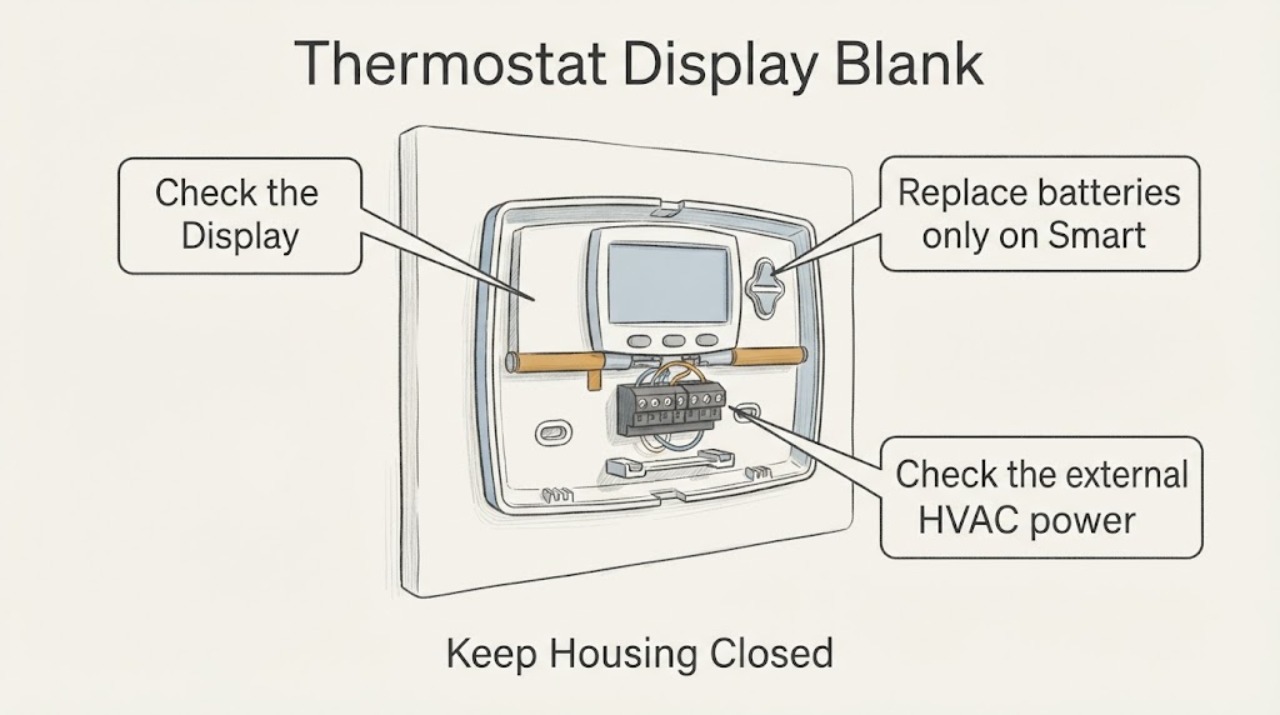
Sensi Thermostat Display Blank: What to Check and What to Do Next
Identify the Sensi model before troubleshooting. Sensi Smart and Sensi Lite models use batteries, while Sensi Touch and Touch 2 touchscreen models do not have battery backup and depend on HVAC power and a C wire.
-
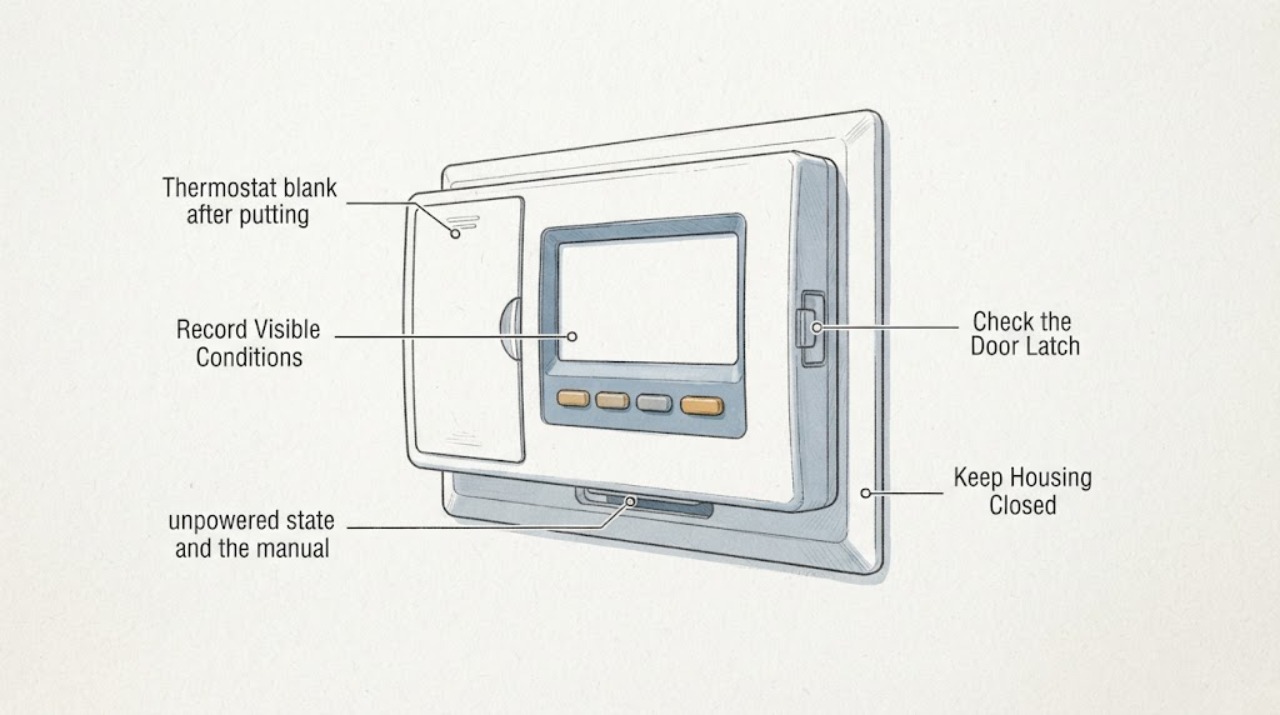
Thermostat blank after putting in new batteries: What to Check and What to Do Next
If a thermostat stays blank immediately after new batteries are installed, first stop and identify the exact model and whether it is battery-only, wired with battery backup, or a smart thermostat that also depends on HVAC power.
-
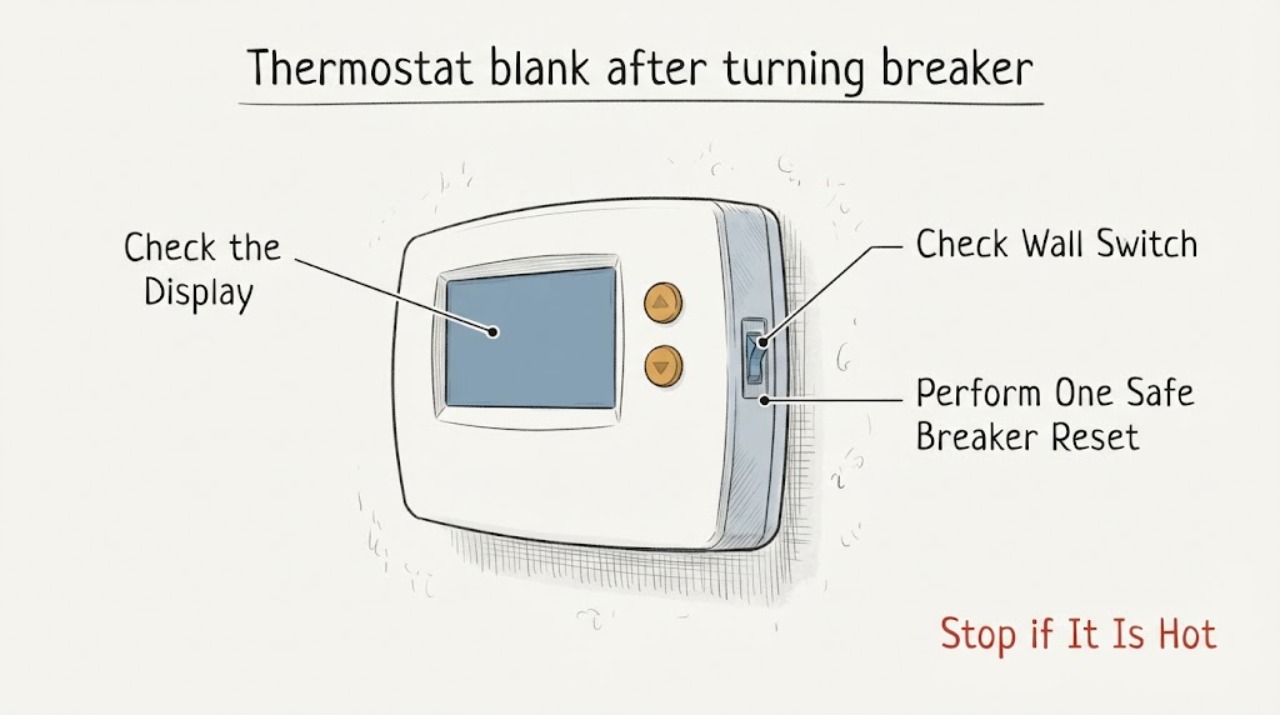
Thermostat blank after turning breaker back on: What to Check and What to Do Next
If the thermostat is blank after turning the HVAC breaker back on, first check whether the screen is merely asleep, then confirm the HVAC breaker is fully on and the nearby system switch or access panel is in its normal operating position. A single reset is reasonable only from a dry, safe location when there is no smoke, burning odor, water, heat, or visible damage; wait through the system's normal startup delay before judging the result.
-
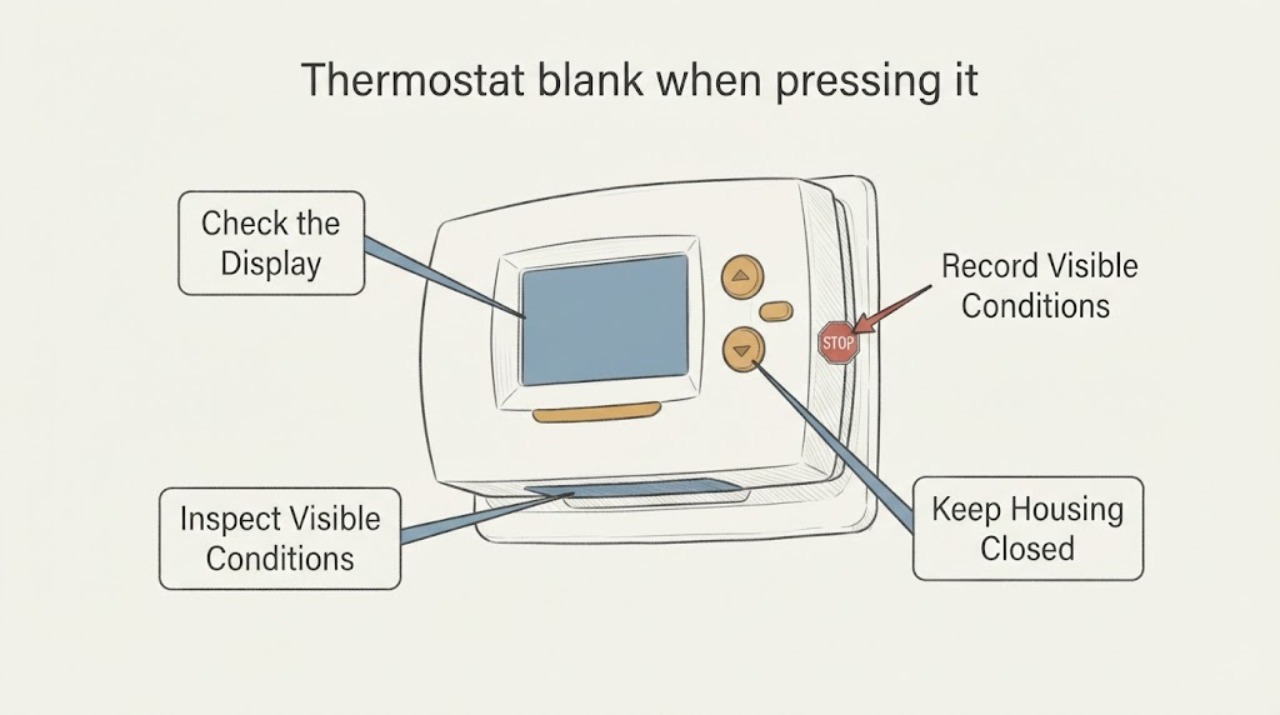
Thermostat blank when pressing it back: What to Check and What to Do Next
If a thermostat goes blank when you press the display back onto its base, the display may not be fully seated, the base pins or connector may not align, wires may be preventing a flush fit, or the thermostat may be losing its system or battery power as the connection changes.
-
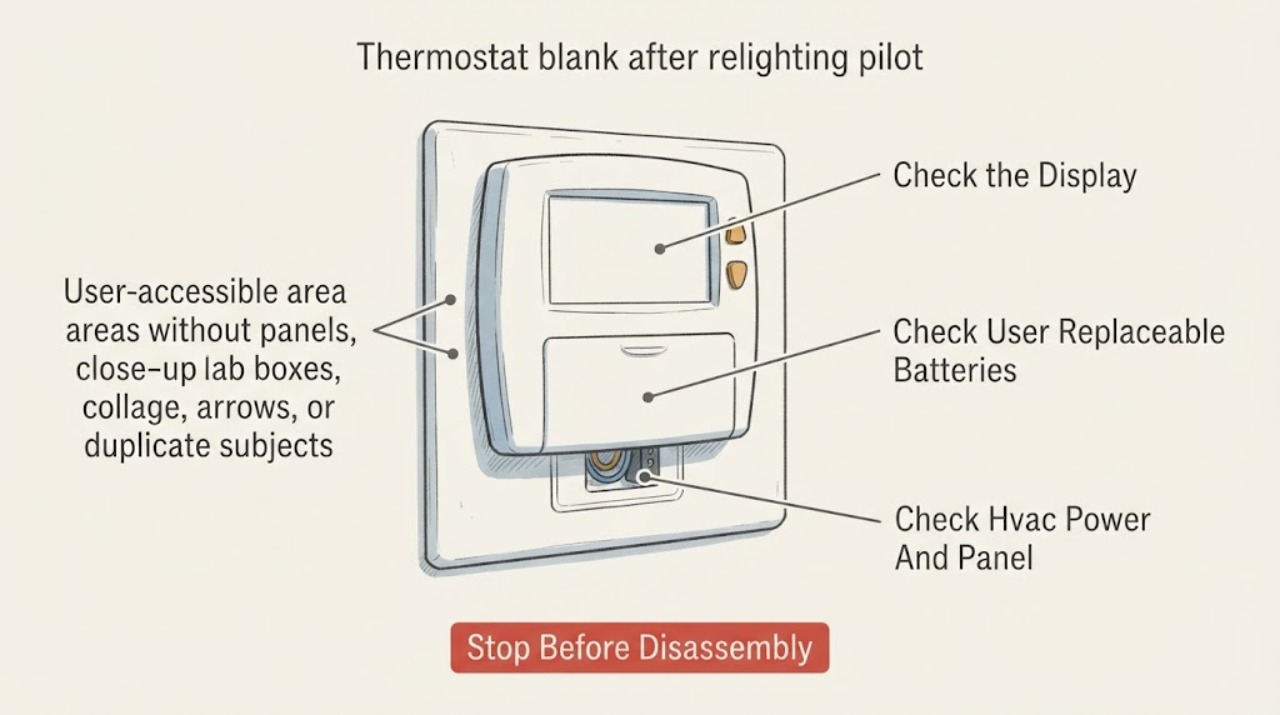
Thermostat blank after relighting pilot light: What to check next
Relighting a standing pilot does not by itself restore power to a blank thermostat. Treat the two symptoms separately: confirm whether the thermostat uses batteries, then look from a safe position for a tripped HVAC breaker, an off furnace service switch, or a furnace access panel that is not seated.
-
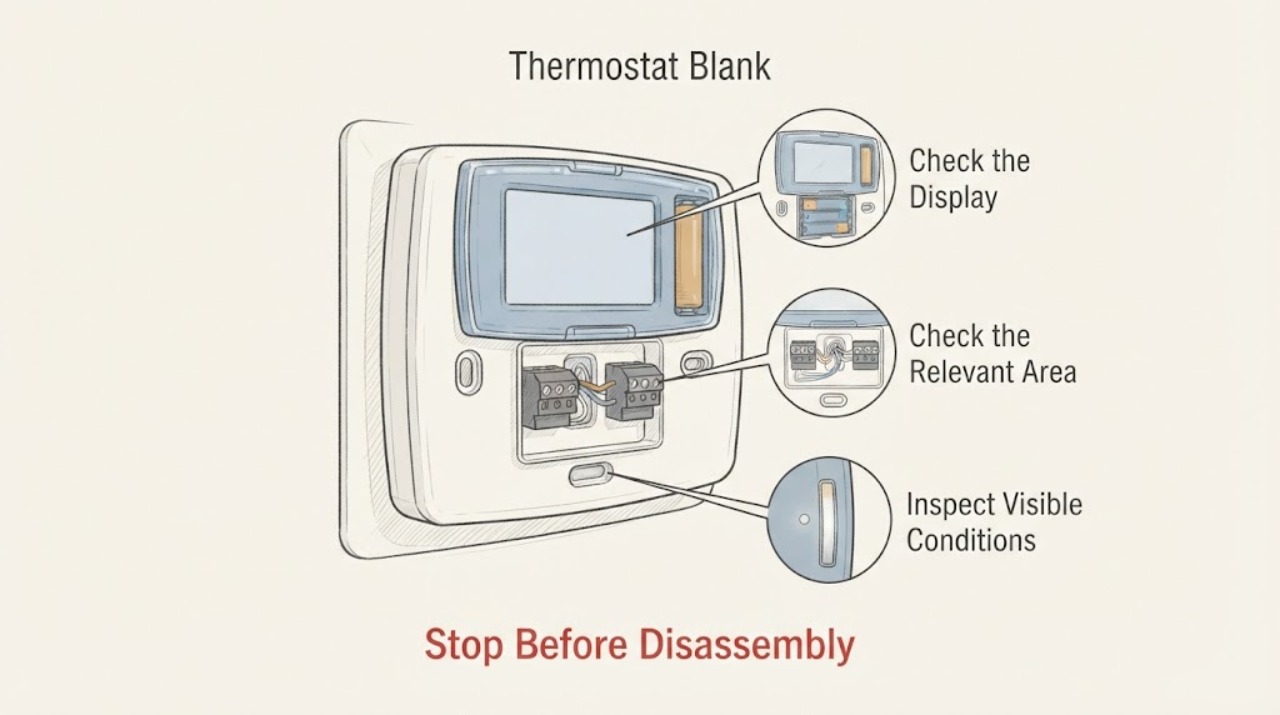
Thermostat Blank: Restore the Display Safely
A blank thermostat may be asleep, out of battery power, disconnected from its base, or not receiving power from the heating and cooling system. Wake the display first, then follow only the battery and model-specific steps in its manual; check the HVAC system switch or breaker from a safe position.
-
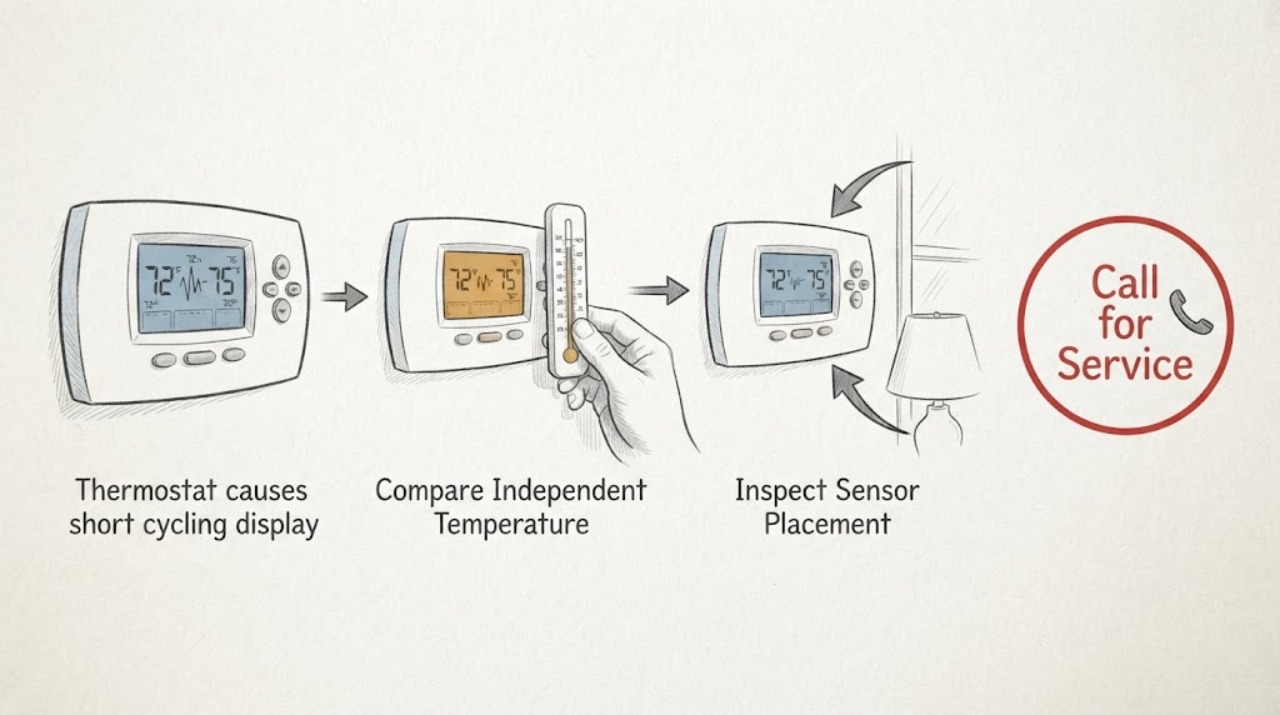
Thermostat causes short cycling display temperature jumps: What to Check and What to Do Next
A thermostat can contribute to short cycling when its sensor reads the room inaccurately, its placement is exposed to sun, a draft, a vent, or a nearby heat source, or its control or power is unstable. A jumping display does not prove the thermostat is bad: normal temperature swing, schedules, remote-sensor changes, a dirty filter, a frozen coil, refrigerant trouble, or another HVAC safety control can also make the system start and stop.
-
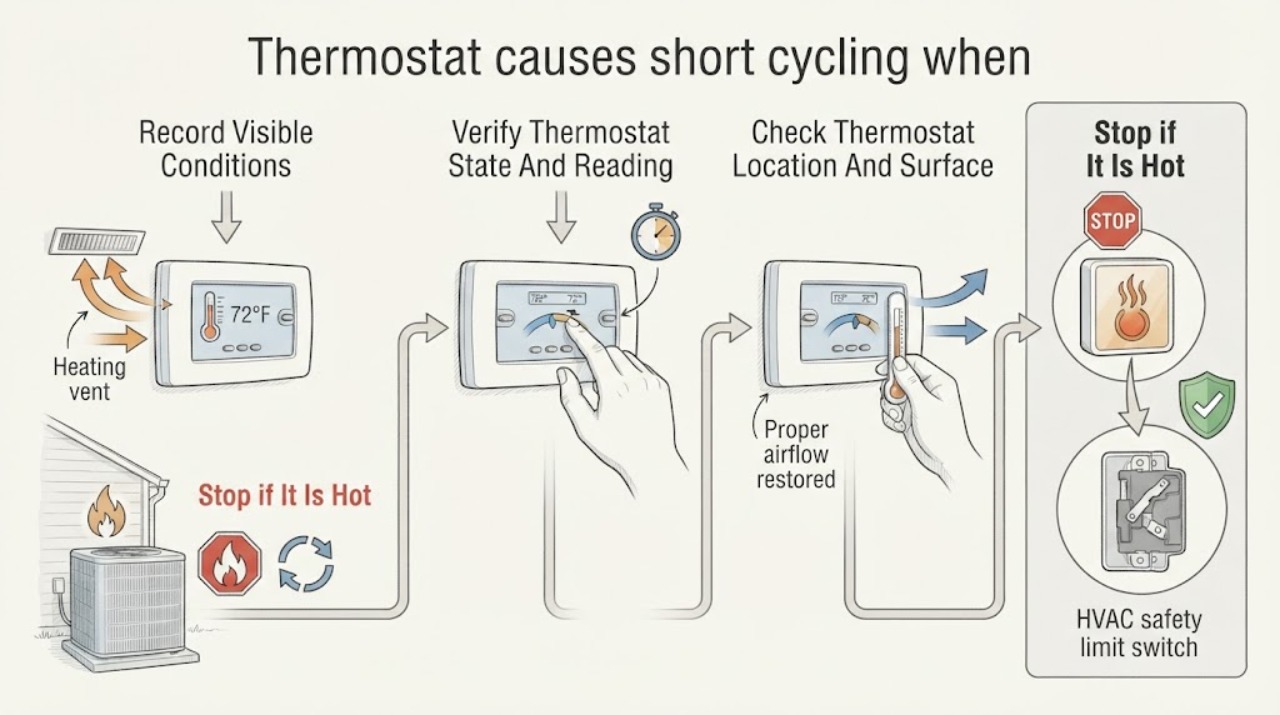
Thermostat causes short cycling when the setpoint is stable: What to Check and What to Do Next
A steady thermostat setpoint does not prove that the temperature reading or call signal is steady. Short cycling can come from a mispositioned or inaccurate sensor, low thermostat power, a control signal that drops out, a normal compressor-protection delay, restricted airflow, an HVAC safety shutdown, or equipment that reaches the set temperature too quickly.
-
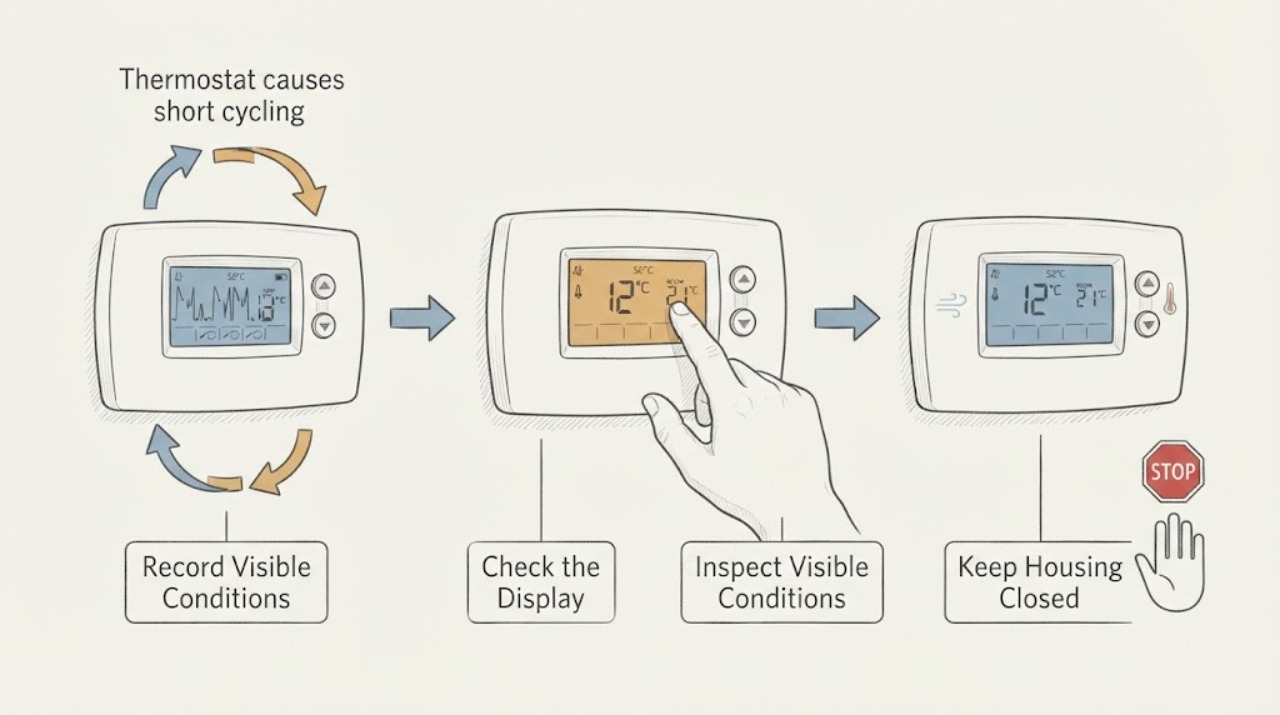
Thermostat causes short cycling: What to Check and What to Do Next
Short cycling is a system symptom, not proof that the thermostat itself is defective. From the normal thermostat display and safe room position, record the actual run/stop timeline, mode, setpoint, schedule, displayed room temperature, alerts, and whether the reading changes when the nearby environment changes.
-
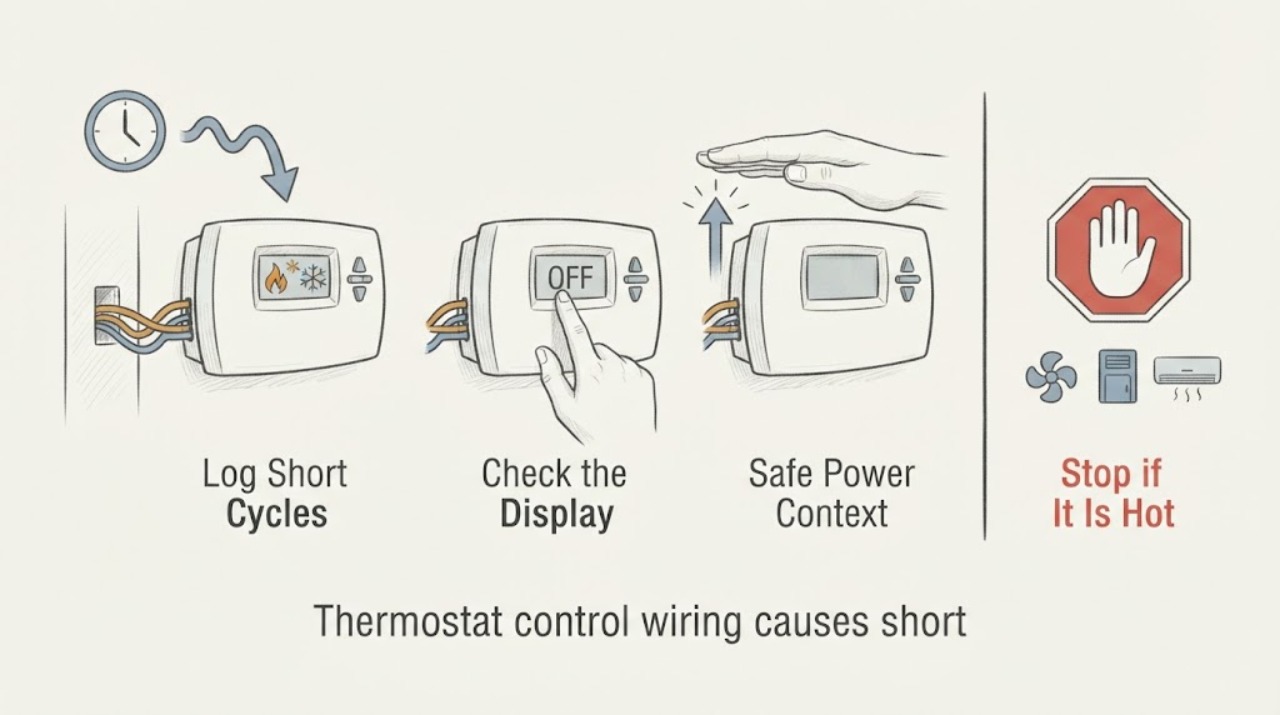
Thermostat control wiring causes short cycling: What to Check and What to Do Next
Do not assume thermostat control wiring is the cause of short cycling. First log whether the system starts and stops on its own schedule, whether the thermostat display or power changes, and whether the fan, heat, or cooling call ends with an airflow or equipment warning.
-
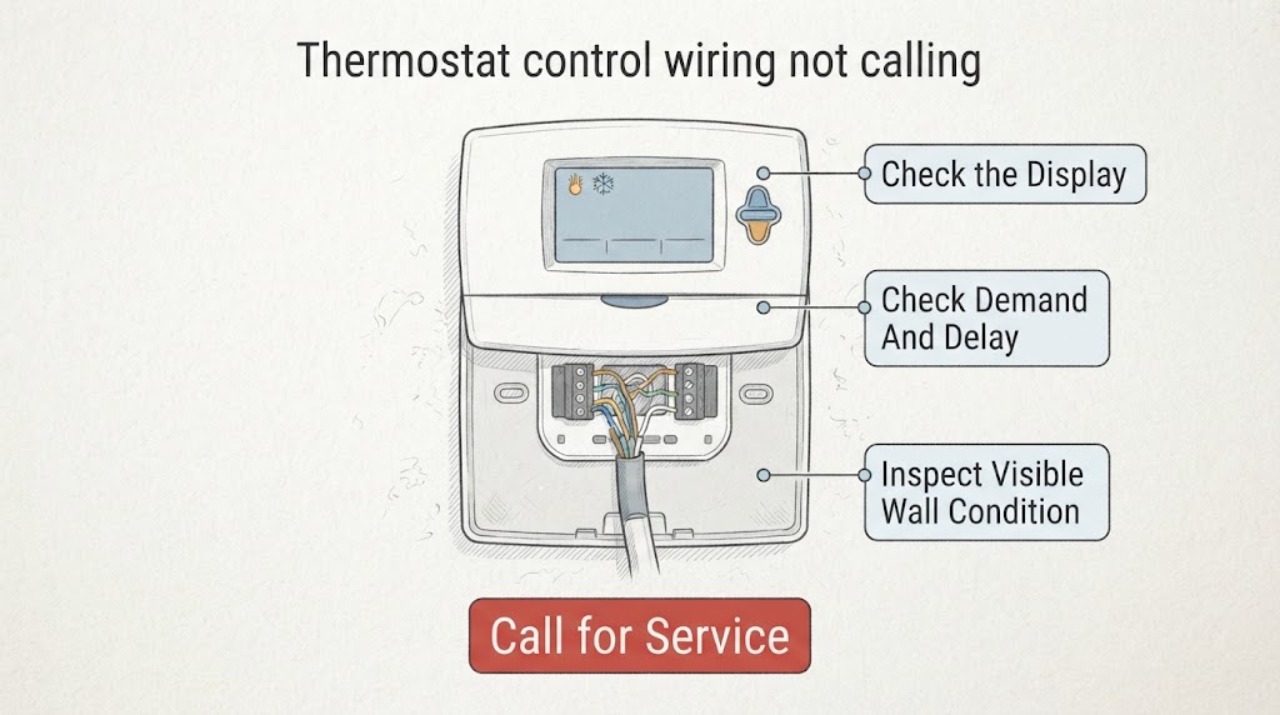
Thermostat control wiring not calling for heat or cooling: What to Check and What to Do Next
If a thermostat does not show a heat or cool call, first separate a demand problem from a wiring or equipment problem. Confirm that the display is powered and responsive, the correct system mode is selected, the setpoint actually demands heating or cooling, and the screen is not showing a temporary delay or lockout.
-
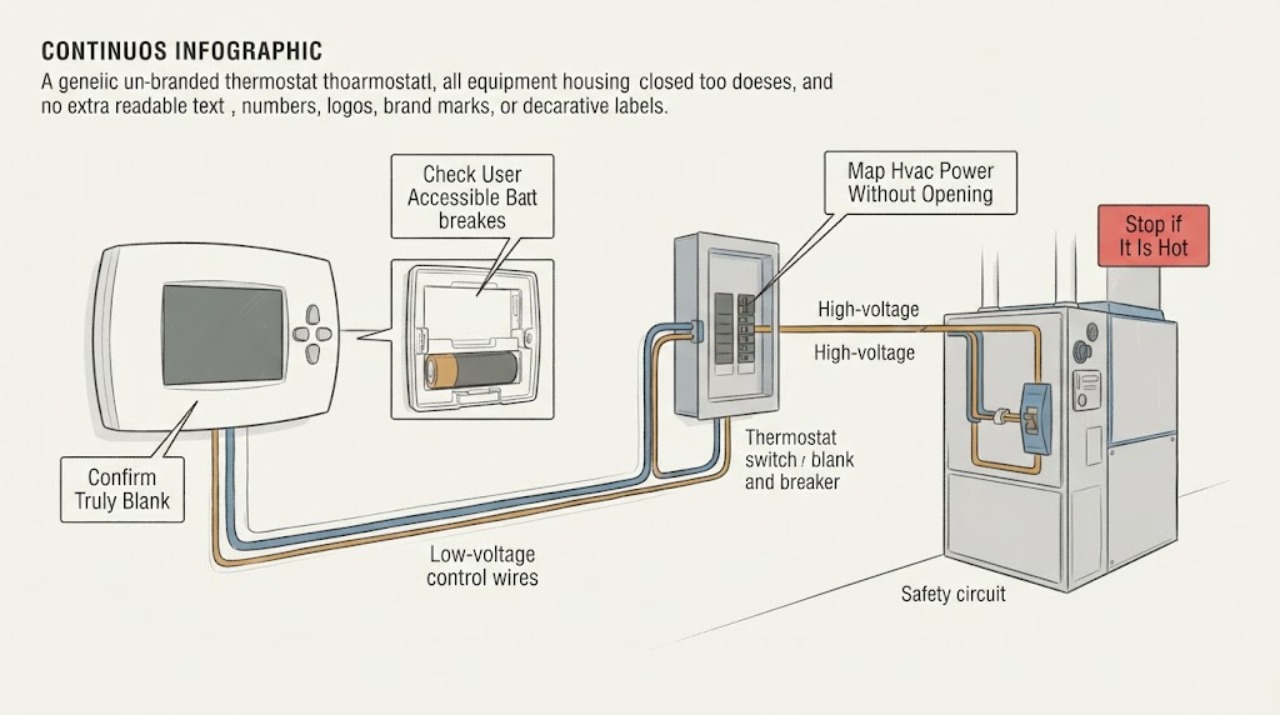
Thermostat display blank and breaker status is unknown: What to Check and What to Do Next
A thermostat display that is truly blank and does not respond usually means the thermostat is not receiving power, but a screen that only sleeps is different from a dead display. First tap or press the control once and check for a response; if the model uses replaceable batteries, use only its normal battery access and the exact battery instructions.
-
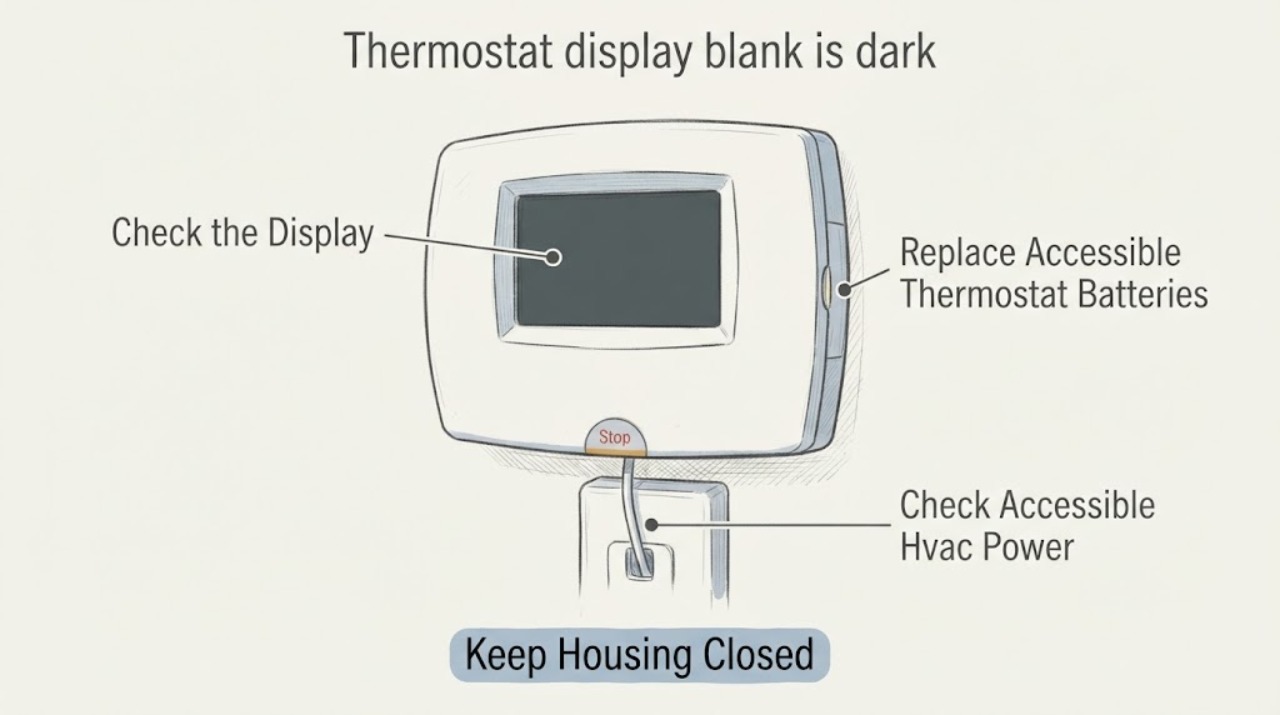
Thermostat display blank is dark: What to Check and What to Do Next
A dark thermostat display most often means depleted batteries, a tripped HVAC breaker or service switch, a loss of low-voltage power, or a thermostat or wiring fault. If the model uses accessible batteries, replace them with the type specified in its manual, then check the accessible HVAC breaker or service switch without opening covers.
-
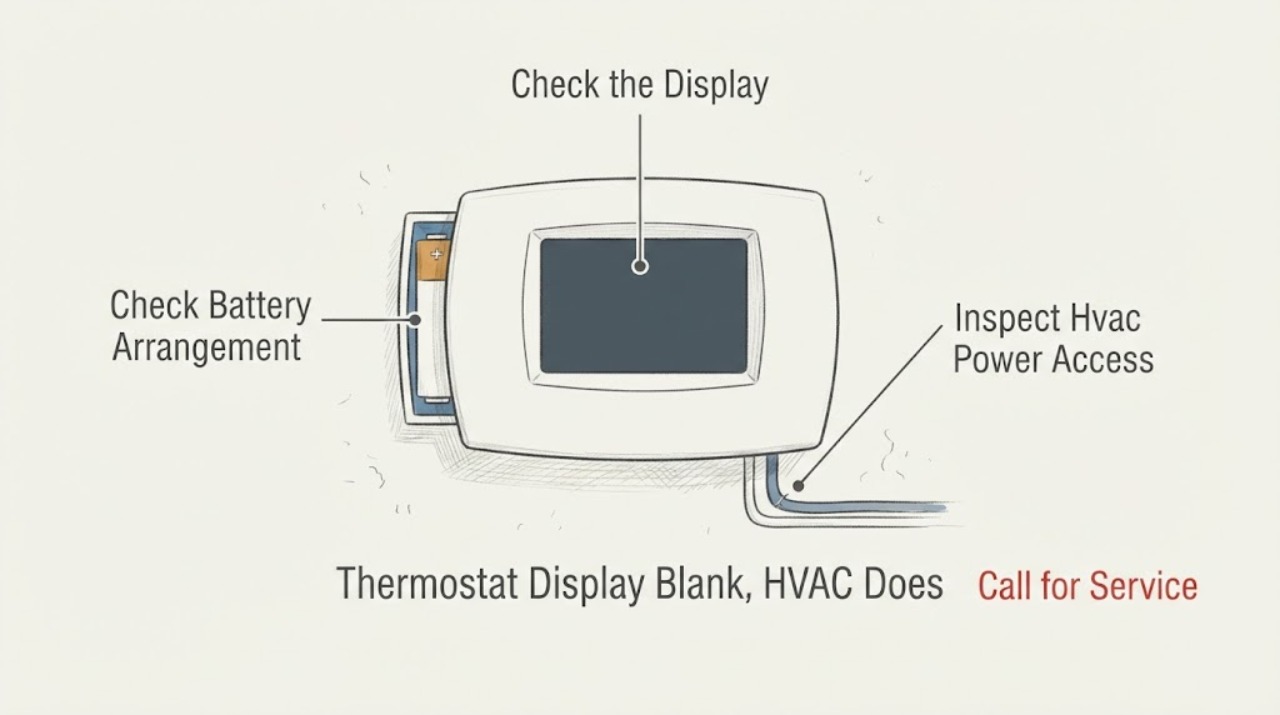
Thermostat Display Blank, HVAC Does Not Respond: What to Check and What to Do Next
A completely blank thermostat usually means the thermostat has lost power, commonly from exhausted batteries on a battery-powered model, a tripped HVAC breaker or equipment switch, a wiring or control-power problem, or a failed thermostat. First identify whether the thermostat uses batteries or equipment power, then check or replace batteries according to its manual and inspect the HVAC breaker and accessible equipment power switch without repeatedly resetting a trip.
-
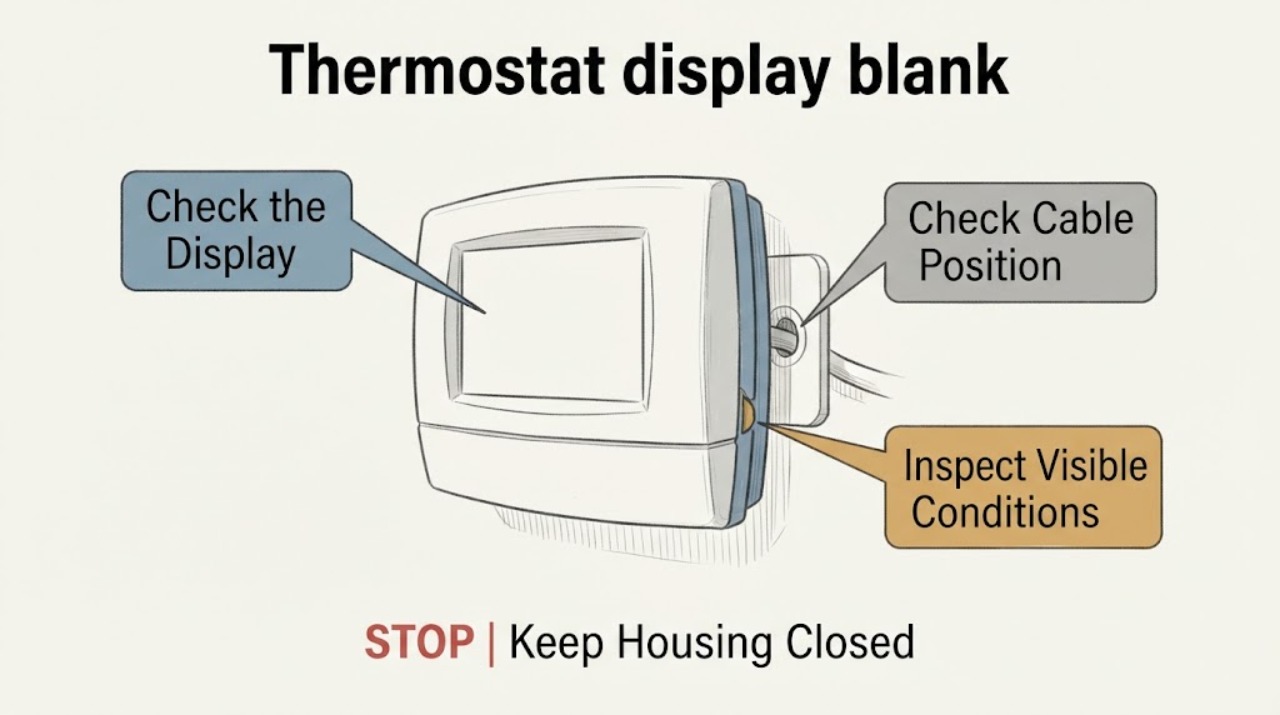
Thermostat display blank: What to Check and What to Do Next
A thermostat screen can be blank because the display is asleep, its user-replaceable batteries are depleted, the thermostat is not receiving system power, or the HVAC system has a fault. First try the normal wake control, then check only an accessible battery compartment and visible system or app status.
-
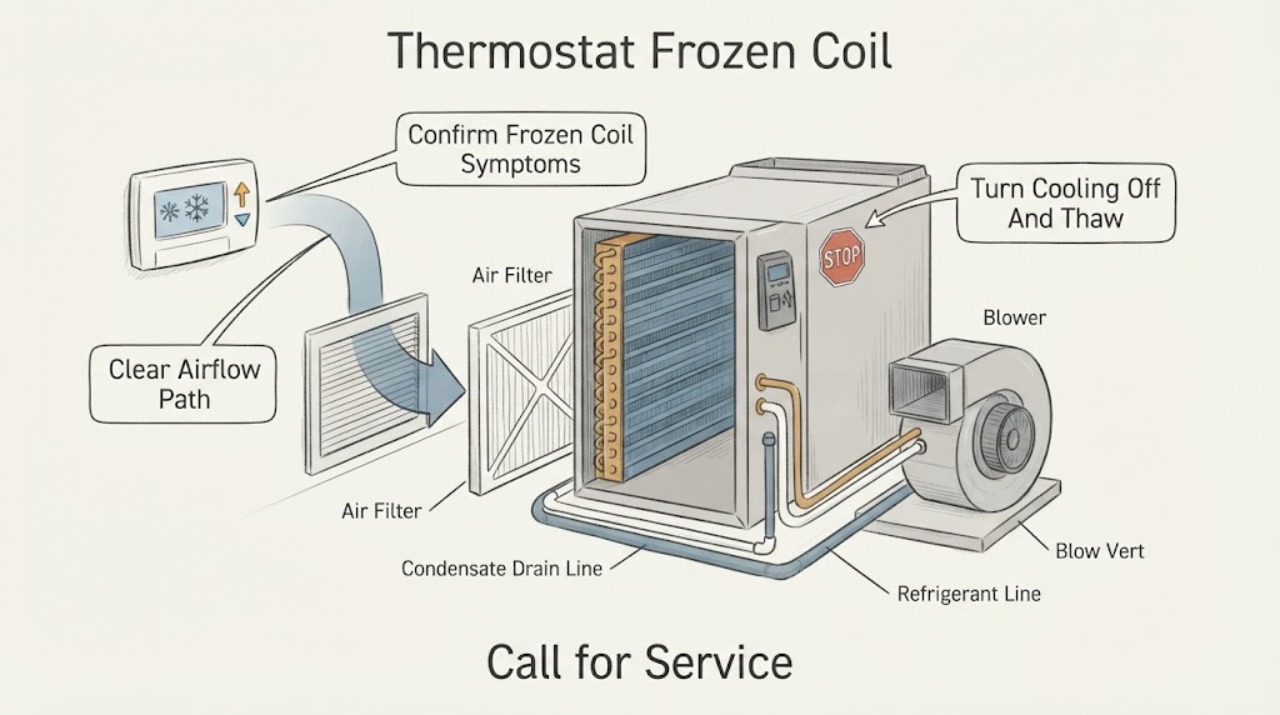
Thermostat Frozen Coil: Turn Cooling Off and Check Airflow Safely
A thermostat does not freeze; the part usually meant by “thermostat frozen coil” is the indoor air conditioner's evaporator coil or refrigerant line. If you see ice, turn the thermostat from COOL to OFF and let the ice thaw naturally.
-
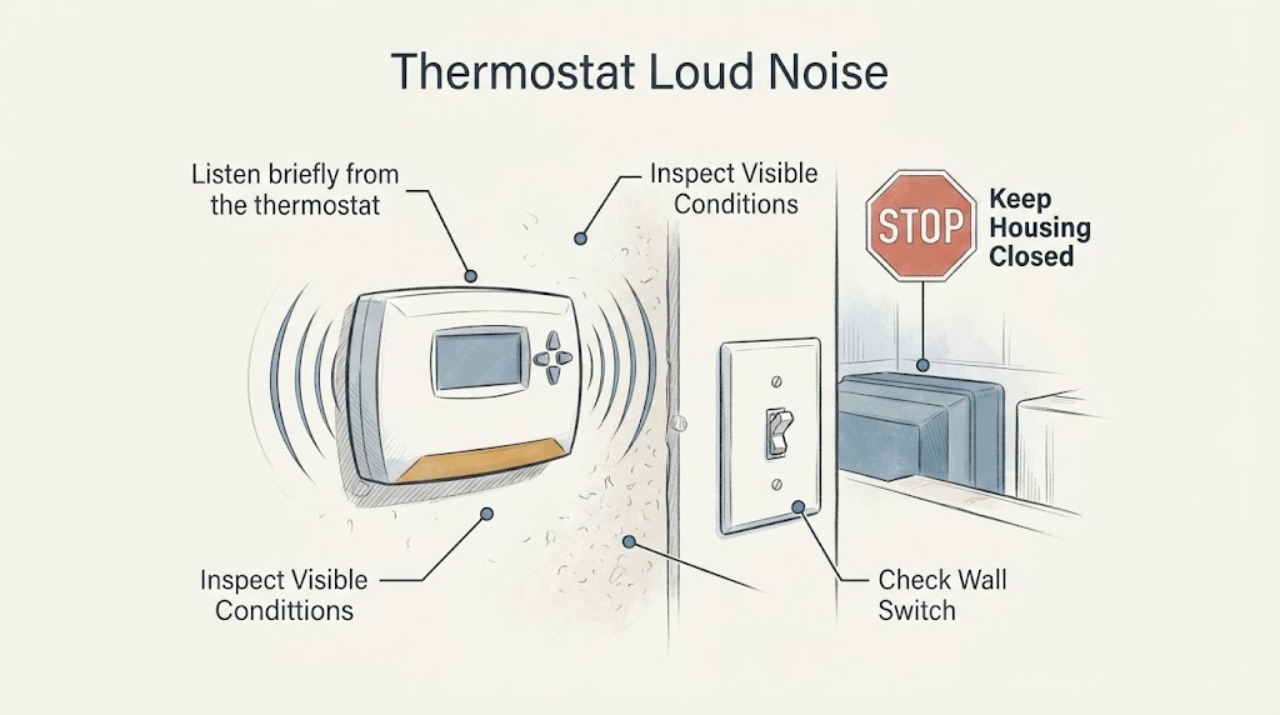
Thermostat Loud Noise: Locate the Source Before Checking HVAC Power or Wiring
A thermostat that seems loud may not be the source: a beep can come from a nearby smoke detector, doorbell, or security device, while clicking, chattering, or thumping can be caused by the heating or cooling system cycling rapidly. First identify the sound and whether it comes from the wall control or the equipment, then note what the thermostat display and HVAC system are doing at the same moment.
-
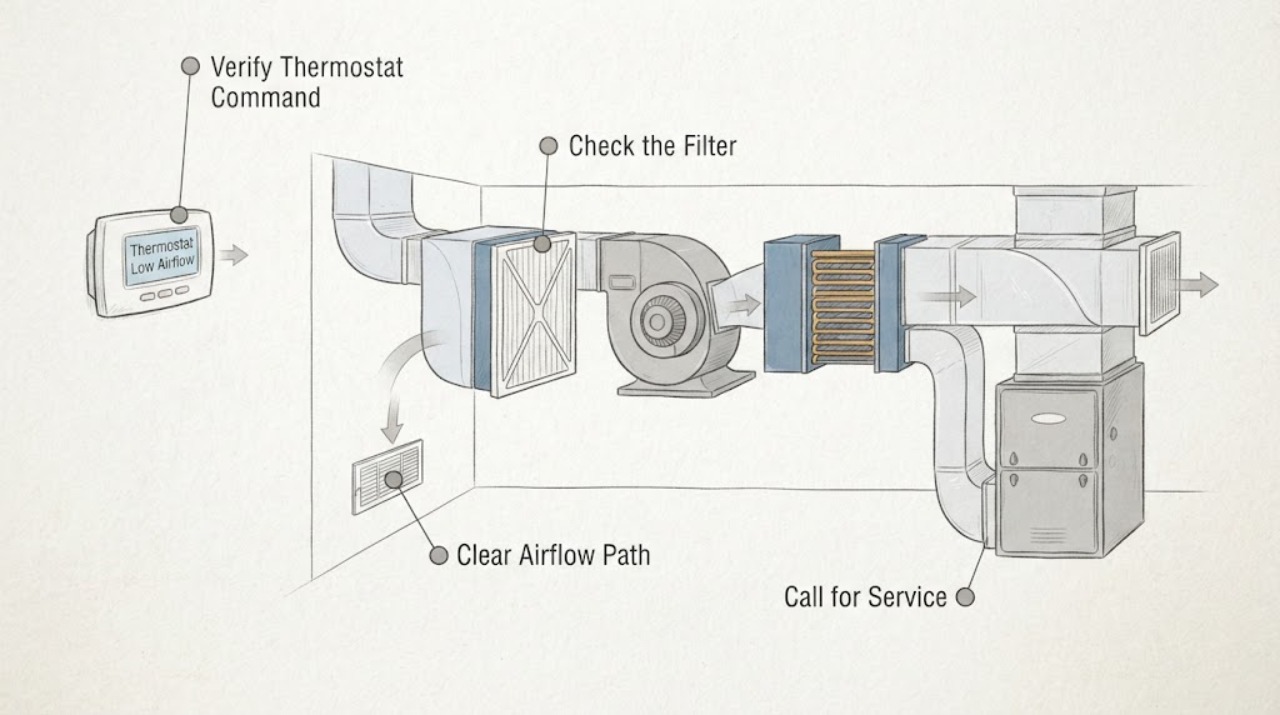
Thermostat Low Airflow: Check the Filter, Vents, and Blower Safely
A thermostat cannot create airflow by itself, so “thermostat low airflow” usually means the HVAC system responds to the thermostat but little air comes from the vents. First verify the thermostat mode, fan setting, schedule, and display.
-
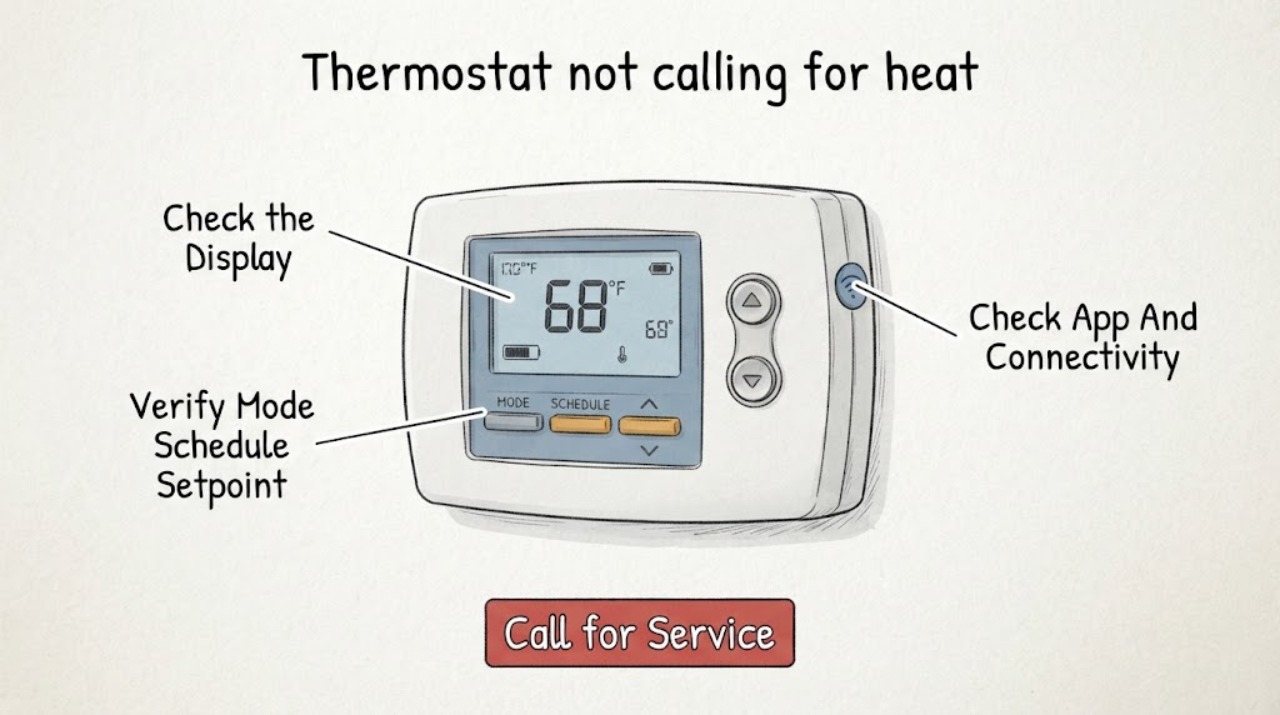
Thermostat not calling for heat or cooling: What to Check and What to Do Next
If a thermostat is not calling for heat or cooling, first check its display, mode, schedule or hold state, setpoint, app connection, and any visible HVAC status without opening the thermostat or touching wires. Select the intended Heat or Cool mode and make one ordinary setpoint adjustment within the thermostat's instructions; then observe whether a call or system status appears.
-
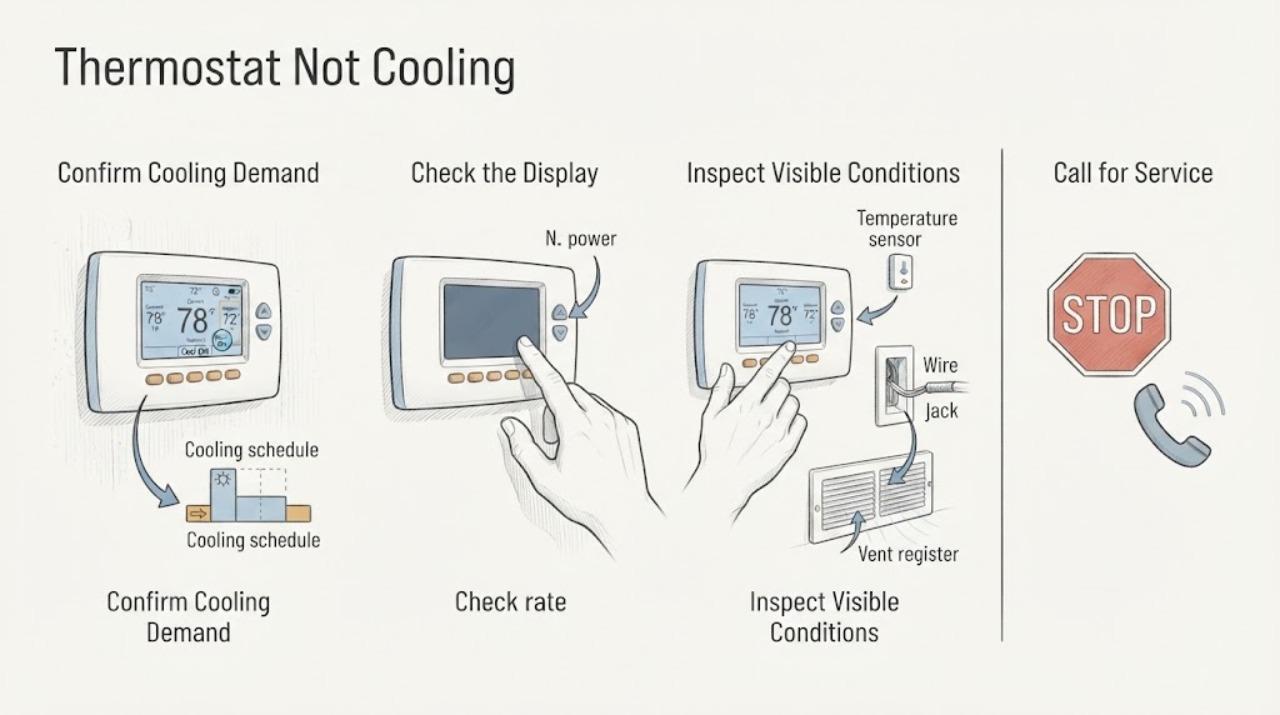
Thermostat Not Cooling: Safe Checks and Next Steps
If a thermostat is not cooling, first check that it is calling for Cool, the target temperature is below the room temperature, and the fan is on Auto. Then note whether the display is blank, shows a delay or error, or changes to a cooling state while the HVAC equipment does not start.
-
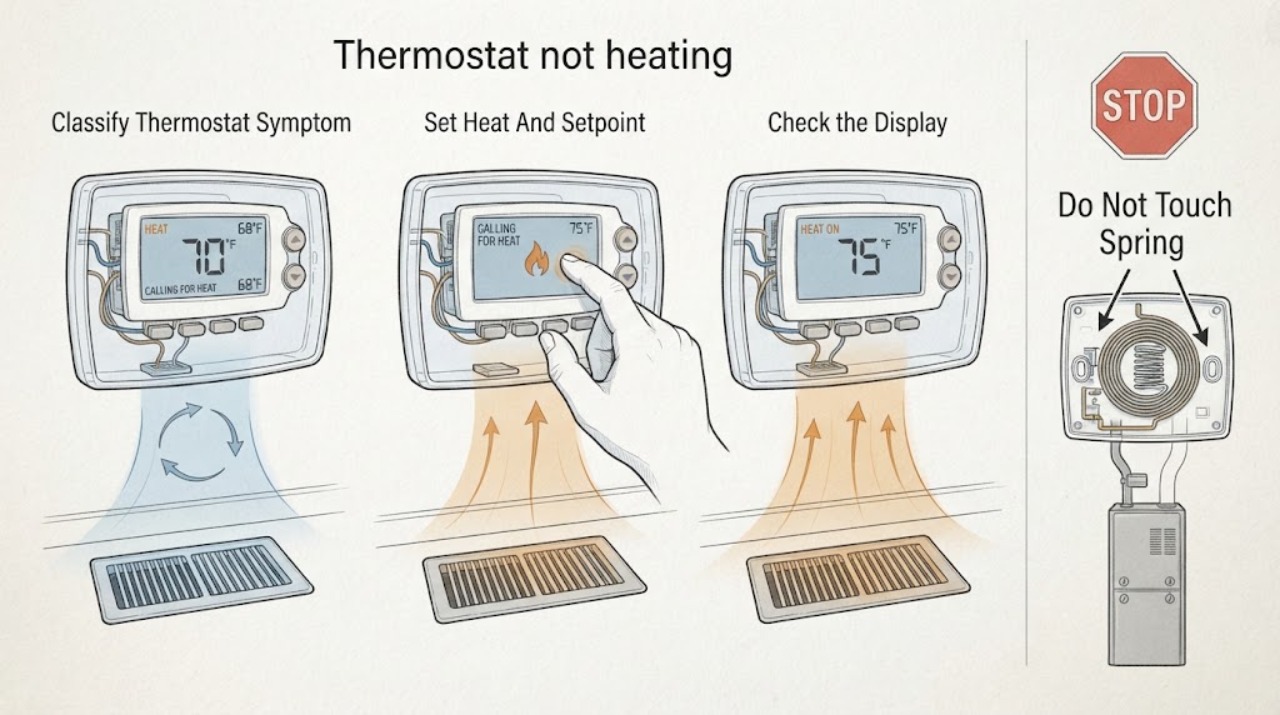
Thermostat not heating: safe checks before HVAC service
First separate a thermostat problem from a heating-equipment problem. Check that the display has power, the mode is Heat, and the set temperature is above the room reading; then allow the normal equipment delay shown by the thermostat or manual.
-
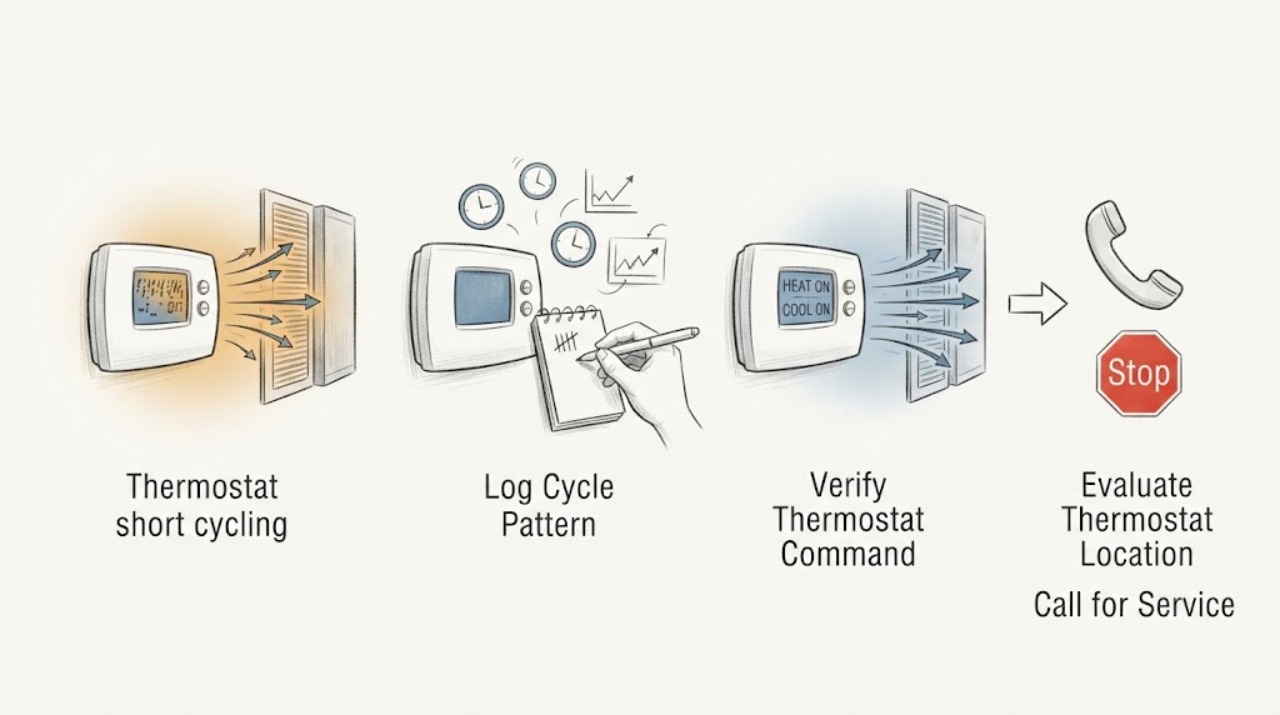
Thermostat short cycling: check the call, sensor location, and airflow before service
A thermostat that appears to short cycle is not automatically a failed thermostat. First record whether the system starts and stops before reaching the setpoint, then check the selected mode, schedule, batteries or display power, and whether the thermostat is in direct sun, a draft, or next to a heat source.
-
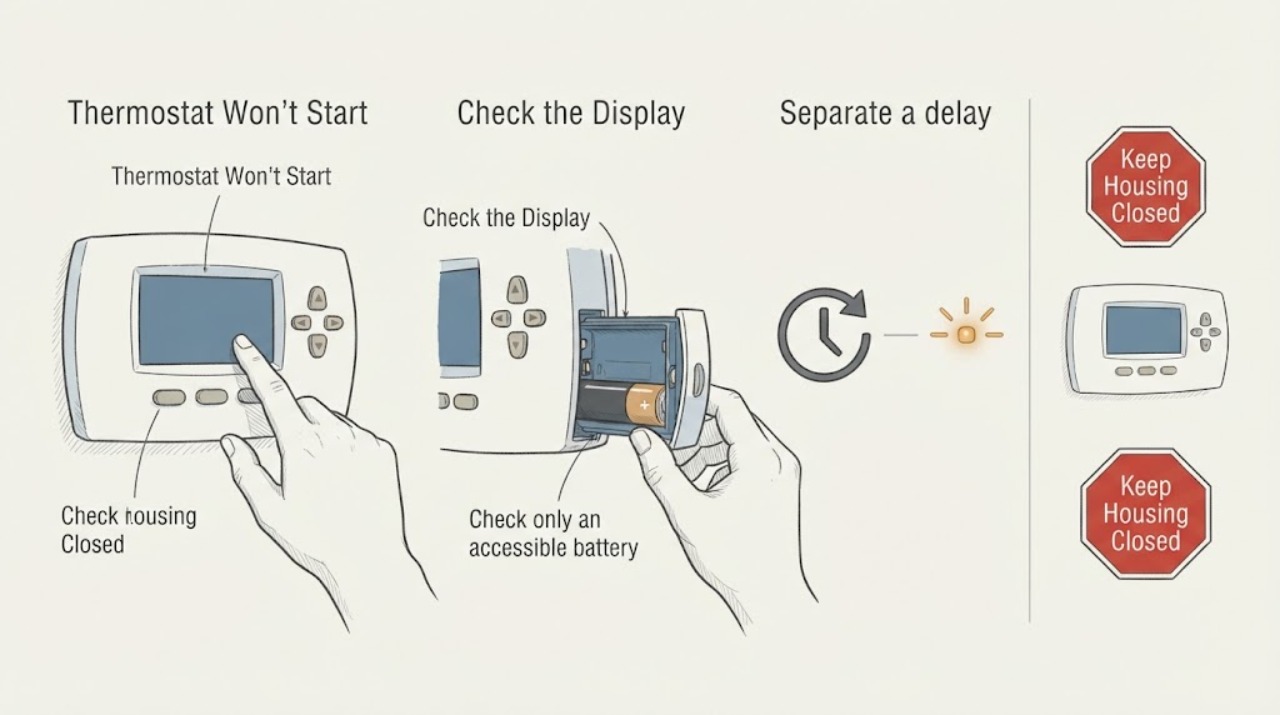
Thermostat Won't Start: Safe Checks and Next Steps
If a thermostat won't start, first distinguish a sleeping display from a dead or unpowered thermostat. Wake it with the normal screen, button, dial, or app control, then record whether the display is blank, dim, showing a low-battery notice, showing an error, or showing a delay.