
On this page
Start here
Quick answer
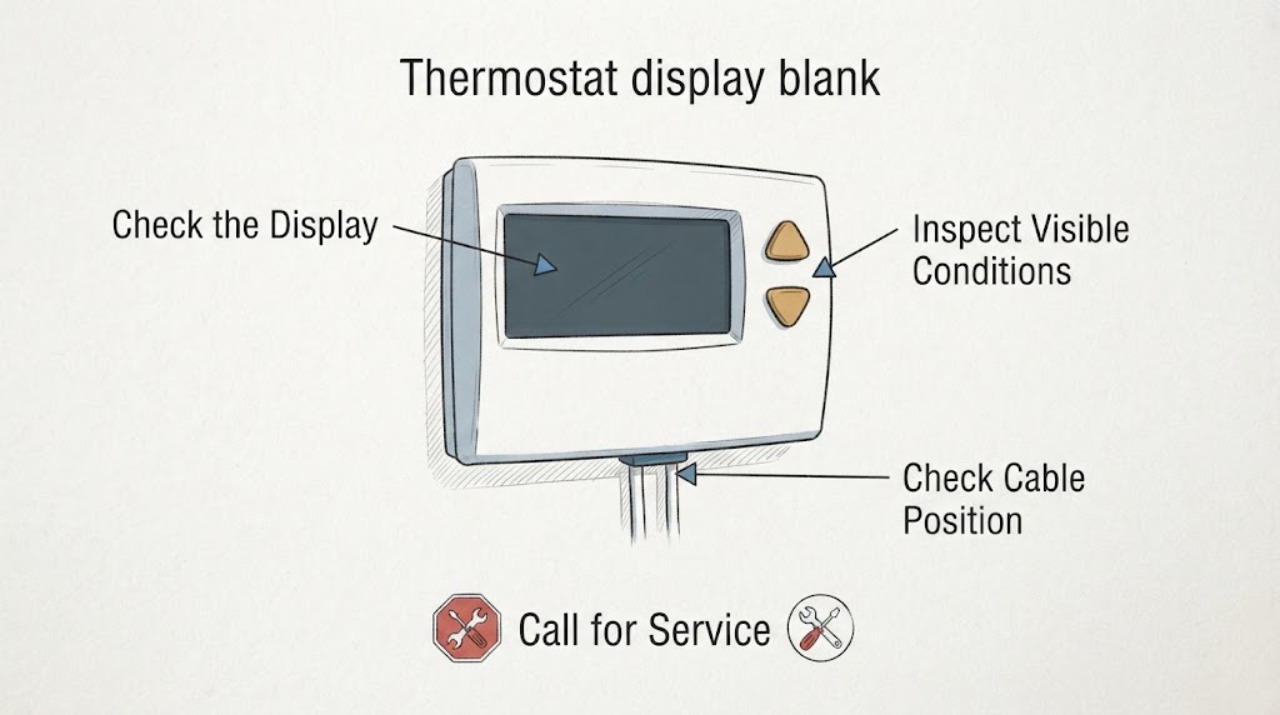
A Nest display that is dark may simply be asleep, but a blank screen that stays unresponsive usually means the thermostat has lost power, its battery has drained, the display is not seated, or the system wiring or equipment is not supplying enough power. First wake it from the app or by approaching or tapping it, then note whether the display returns, shows a red or yellow charging light, shows a green startup light, or has no light at all. Check only the system switch or labeled breaker and the display-to-base connection as the model guidance allows. Do not touch thermostat wires until system power is off, do not connect a Nest to a high-voltage system, and do not open HVAC equipment. If the display remains blank after safe power and seating checks, or the breaker trips, arrange qualified HVAC or thermostat service.
Before you begin
Safety first
- The homeowner-safe checks are normal wake controls, the app, an accessible labeled system switch or breaker, display seating, and model-specific battery handling. C-wire or power-connector installation, voltage testing, fuse or transformer work, equipment-cabinet diagnosis, high-voltage systems, and wiring changes belong to a qualified professional.
Work through in order
Diagnostic checks
Use only checks that match the exact appliance or system and its official guide.
-
Check 1
Try the normal control for the model—approach or tap the Nest, press the ring, or use the Google Home or Nest app—without removing the thermostat or touching wiring.
Expected result: The display wakes and responds, the app can still change the setpoint while the physical display stays dark, or neither the app nor the thermostat responds.
Next step: If it wakes, monitor whether it goes dark again normally. If it remains unresponsive, record the model and continue to the light and seating check; do not factory-reset it before recording any visible message.
Why this matters
Why: A display that wakes is probably in normal idle mode. App control with a dark physical display points to a display or local-interface issue. No response from either path makes loss of power, a drained battery, or a frozen or failed thermostat more likely.
-
Check 2
From the front of the thermostat, observe the status light during one normal wake attempt and note whether it is red or yellow, green, or completely absent; do not stare into or open HVAC equipment.
Expected result: A red or yellow light appears, a green light continues briefly, or there is no light and the screen remains unresponsive.
Next step: Allow a charging indication time to recover and follow the model's Google instructions. If a green indication remains unresponsive beyond the normal startup period, or no light remains present, continue with display seating and system-power checks.
Why this matters
Why: Red or yellow generally indicates a very low battery that is charging. A green indication on applicable Nest models can mean startup or an update. No light with no response points toward a drained battery or inadequate power reaching the thermostat.
-
Check 3
If the model has a removable display, turn off system power at the labeled system switch or breaker when instructed by the model guidance, pull the display straight off, check that wall cables are not preventing contact, and press the display straight back onto the base until it clicks; do not force pins or touch exposed wires.
Expected result: The display was not fully seated, a cable was holding it away from the base, a charging light appears after reseating, or the screen and light stay blank.
Next step: Leave the display firmly seated and allow it to charge if the model indicates charging. If it stays blank, restore system power only after the display is secure and move to the external power check; do not repeatedly remove and refit it.
Why this matters
Why: An incomplete connection can stop both the display and battery charging. A charging light after reseating makes contact or a low-battery condition more likely. No change keeps system power, wiring, compatibility, or device damage in consideration.
-
Check 4
From a dry, safe location, check whether the labeled switch or breaker serving the heating or cooling system is on; if it is tripped, do not reset it repeatedly and do not proceed if there is smoke, water, sparking, or a burning odor.
Expected result: The system switch or breaker was off, it will not remain on, it trips again when the system is called, or power appears on but the Nest remains blank.
Next step: Restore only an accidentally switched-off control when the area is safe. Leave a repeatedly tripping breaker off and arrange qualified HVAC or electrical service; do not open the furnace, air handler, or control panel to look for a fuse.
Why this matters
Why: An off control can explain a drained Nest battery and blank display. A breaker that trips again indicates an electrical or equipment fault. Apparent system power with no Nest response makes wiring, a fuse, compatibility, or thermostat damage more likely.
-
Check 5
Identify the Nest model in the Google Home or Nest app, or from the thermostat and its rear label, then follow that model's instructions for its replaceable batteries or rechargeable display; use only the specified battery type for a battery-powered Nest and never use a computer USB port for charging a rechargeable display.
Expected result: The model uses replaceable AAA batteries and the battery state is low or very low, the model has a rechargeable display with a low-power indication, or the model and power method cannot be confirmed.
Next step: Replace batteries only when the model's official instructions call for it, or charge a removable rechargeable display only with the specified powered wall charger. If the blank display returns after temporary charging or new batteries, investigate system wiring with a professional rather than repeating the temporary fix.
Why this matters
Why: A low battery can disable the screen and other features to preserve power. The charging and battery procedure differs by Nest model, so a generic battery or USB instruction could damage the thermostat or leave the underlying power problem unresolved.
-
Check 6
Compare the system type and the connector labels shown in the Google compatibility guidance with the Nest model; if wiring inspection is necessary, switch system power off at the system switch or fuse box first and stop if the system has thick high-voltage wires, stranded wires, proprietary labels, or any uncertainty.
Expected result: The system is a compatible low-voltage system, the setup indicates a C wire or Nest Power Connector may be needed, the wiring labels do not match the app, or the system appears high-voltage, millivolt, proprietary, or otherwise incompatible.
Next step: Do not add, move, jumper, or test wires as a homeowner. Save a photo of the labels if safe, use the official compatibility result, and arrange qualified thermostat or HVAC service for C-wire, power-connector, transformer, or compatibility work.
Why this matters
Why: Most Nest thermostats are intended for common low-voltage systems, but some systems cannot provide enough power without a C wire or power connector. High-voltage, millivolt, and proprietary systems can fail to power a Nest and can damage it if connected incorrectly.
-
Check 7
After one complete safe seating and power attempt, note whether the Nest display returns, whether the app reports an error, and whether the heating or cooling system operates normally; do not open the HVAC cabinet or repeatedly restart the system.
Expected result: The display returns and remains usable, it returns only temporarily, the old thermostat works but the Nest does not, or neither thermostat can operate the system.
Next step: Keep the system in its normal safe state and arrange qualified service for a recurring blank display or any failure with both thermostats. Provide the model, light pattern, breaker behavior, app messages, and whether the old thermostat worked.
Why this matters
Why: A stable recovery supports a temporary low-power or connection condition. Repeated blanking points to an unresolved power or wiring issue. An old thermostat working with the system makes Nest damage or Nest installation more likely; failure with both thermostats points toward the HVAC system or its power path.
Use your observations
Decision map
Find the observation that best matches what you see, then follow the next safe action.
-
PATH 01Next step
What you see
The screen is dark only when no one is nearby, but it wakes from the app, approach, tap, or normal ring control.
Do this next
Use the normal control and monitor it. Escalate if it stops waking, the app loses the device, or a charging or error indication appears.
Why this path and its safety boundary
Why it matters: Normal motion-based sleep is more likely than a power failure.
-
PATH 02Next step
What you see
The Nest has a red or yellow charging light, or its app and display indicate a very low battery.
Do this next
Allow the model-appropriate charging period and correct only the documented battery or charging procedure. If the indication persists or returns, arrange service to check the system power path and wiring.
Why this path and its safety boundary
Why it matters: The thermostat is receiving some power but does not yet have enough charge for normal display operation; recurring low charge can indicate inadequate system power or wiring.
-
PATH 03Next step
What you see
The display is blank with no light, the system switch or breaker is off, or the breaker trips again.
Do this next
Restore only an accidentally switched-off control if safe. Leave a recurring trip off and obtain qualified HVAC or electrical help without opening the equipment.
Why this path and its safety boundary
Why it matters: Loss of system power can drain the Nest, while repeat breaker trips indicate an equipment or electrical fault rather than a display setting.
-
PATH 04Next step
What you see
The display becomes responsive after being seated correctly, but goes blank again, or the system requires a C wire or power connector.
Do this next
Keep the display seated and arrange qualified thermostat or HVAC service for wiring, C-wire, power-connector, or system-power diagnosis. Do not alter the connectors yourself.
Why this path and its safety boundary
Why it matters: A contact or marginal-power problem remains likely; temporary charging or reseating has not repaired the cause.
-
PATH 05Next step
What you see
The system uses high-voltage or unknown wiring, there is water near electrical equipment, smoke, sparking, a burning odor, or a breaker repeatedly trips.
Do this next
Stay clear of the equipment, leave power off when safe to do so, and obtain qualified HVAC or electrical help. Use emergency assistance for active smoke, fire, or immediate danger.
Why this path and its safety boundary
Why it matters: An electrical, equipment, or fire hazard may exist, and the Nest display symptom is not safe to diagnose by trial and error.
Helpful context
Understand the symptom
A dark screen is not always a failed thermostat
During normal use, a Nest screen can turn off when it does not detect motion. Try the Google Home or Nest app, approach the thermostat, or use the model's normal touch or ring control. If the screen wakes, the display was asleep rather than blank; if the app also cannot control it or the device does not respond, continue with the power-path checks below.
The light pattern narrows the problem
A red or yellow charging indication points toward a very low battery that is receiving some charge. A green light on older Nest models can indicate startup, restart, or a software update. No light with no response points toward a drained battery or missing power. These patterns are clues, not permission to open the HVAC cabinet or bypass a safety control.
Nest models do not all use the same power arrangement
The Nest Thermostat uses replaceable AAA batteries, while other Nest models use an internal rechargeable battery charged from the system wiring. Some system types require a C wire or Nest Power Connector, and high-voltage, millivolt, proprietary, and solid-fuel systems may be incompatible. Identify the model in the app or from the display and follow its exact Google wiring and compatibility guidance.
Stop before the check becomes electrical or HVAC work
A thermostat blanking after a power event can reflect a loose connection, blown equipment fuse, incompatible system, or damaged thermostat. The homeowner-safe boundary is limited to normal controls, an accessible labeled power switch or breaker, display seating, model-appropriate battery handling, and a visible filter or equipment status message. Wire changes, voltage diagnosis, fuses, transformers, control boards, and HVAC cabinet work belong to a qualified professional.
Safety boundary
Stop conditions
- Do not touch or move thermostat wires, jumper terminals, open the HVAC cabinet, inspect an equipment fuse, install a transformer, or connect a Nest to high-voltage wiring as a homeowner. System power must be off before any qualified wiring work.
- Stop troubleshooting and arrange qualified HVAC or thermostat service when the display remains blank after one safe seating and external-power check, when the blanking returns after temporary charging or new batteries, or when the app and physical thermostat both remain unresponsive.
- Leave a breaker or system switch off if it trips again, will not remain on, or is associated with smoke, sparking, water, or a burning odor; obtain qualified electrical or HVAC help.
- If there is active smoke, fire, sparking, or another immediate electrical danger, leave the area and use emergency assistance from a safe location.
Only after diagnosis
Potential parts
- AAA alkaline batteries
Only consider batteries if the identified Nest Thermostat model uses replaceable AAA batteries and its official battery state is low or very low; a rechargeable-display model needs a different procedure.
Confirm the exact Nest model and follow Google's battery specification and installation instructions before replacing anything. - C-wire or thermostat power connector
Only consider a C-wire or power connector after model-specific compatibility and power symptoms indicate that the existing system wiring cannot keep the Nest charged.
Compatibility and installation depend on the HVAC system and Nest model; have a qualified professional confirm the solution rather than selecting a universal part.
When checks do not resolve it
Need a professional?
Safety scope: The homeowner-safe checks are normal wake controls, the app, an accessible labeled system switch or breaker, display seating, and model-specific battery handling. C-wire or power-connector installation, voltage testing, fuse or transformer work, equipment-cabinet diagnosis, high-voltage systems, and wiring changes belong to a qualified professional.
Common questions
FAQ
Is a Nest screen that is off always broken?
No. The screen can turn off during normal inactivity and wake when you approach it or use the app. If it stays blank and neither the app nor the thermostat responds, treat it as a power, battery, seating, wiring, compatibility, or device problem and continue with the safe checks.
What does a red or yellow light mean when the Nest display is blank?
On the applicable Nest models, it indicates that the battery is very low and charging. Follow the model's charging instructions and allow it to recover. If the indication persists or repeatedly returns, the system may not be supplying enough power and needs professional diagnosis.
Can a loose Nest display make the screen go blank?
Yes. If the display is not fully seated on its base, it may not receive power or charge. Follow Google's model-specific power-off and reseating instructions, keep fingers away from wiring, and arrange service if the display remains blank or loses power again.
Does a Nest thermostat need a C wire?
Not every Nest installation does, but Google says some systems require a C wire or Nest Power Connector to provide dependable power. Do not add or move a wire based only on color or a generic diagram; use the model-specific compatibility guidance and a qualified professional for wiring work.
When should I stop trying to fix a blank Nest display?
Stop after one safe wake, seating, model-appropriate battery or charging, and external system-power check if the display is still blank, the problem returns, the breaker trips, or the system wiring is unknown or incompatible. Keep hazardous equipment off as appropriate and arrange qualified HVAC or electrical help.
Read the exact guide
Official sources
- Troubleshoot when your thermostat won’t turn onGoogle Home and Nest Help · Nest Thermostat, Nest Thermostat E, and Nest Learning Thermostat generations covered by the page; exact charging and connector details vary by model
- Nest thermostat information menuGoogle Home and Nest Help · Nest thermostat app and on-device information menus; available fields vary by thermostat model
- Nest thermostat compatibilityGoogle Home and Nest Help · Nest thermostat compatibility guidance; the app's model-specific compatibility result and wiring diagram take precedence
Community feedback
Share a repair observation
Share a plain-text repair observation. Accepted observations are published automatically; this page may take a moment to update.