
On this page
Start here
Quick answer
Identify the Sensi model before troubleshooting. Sensi Smart and Sensi Lite models use batteries, while Sensi Touch and Touch 2 touchscreen models do not have battery backup and depend on HVAC power and a C wire. For a battery model, install the specified fresh batteries; for a touchscreen, check the HVAC equipment switch and labeled breaker from a safe position and confirm that the system panel is closed. If the display is partial or frozen, use the Sensi app to check for keypad lockout and follow the model-specific reset instruction only once. A screen that remains blank, returns blank, appears after installation, or is accompanied by a tripped breaker, damaged wiring, water, smoke, or a burning odor needs qualified HVAC or electrical service. Do not bridge terminals, measure live voltage, or open the equipment panel.
Before you begin
Safety first
- This article supports identifying the model, replacing batteries in a battery-designated Sensi, checking an external labeled switch or breaker from a safe position, checking visible faceplate seating without moving conductors, reviewing app lockout, and using one model-approved reset. A qualified professional should handle C-wire and terminal verification, live electrical testing, HVAC panels, control boards, wiring, and power diagnosis.
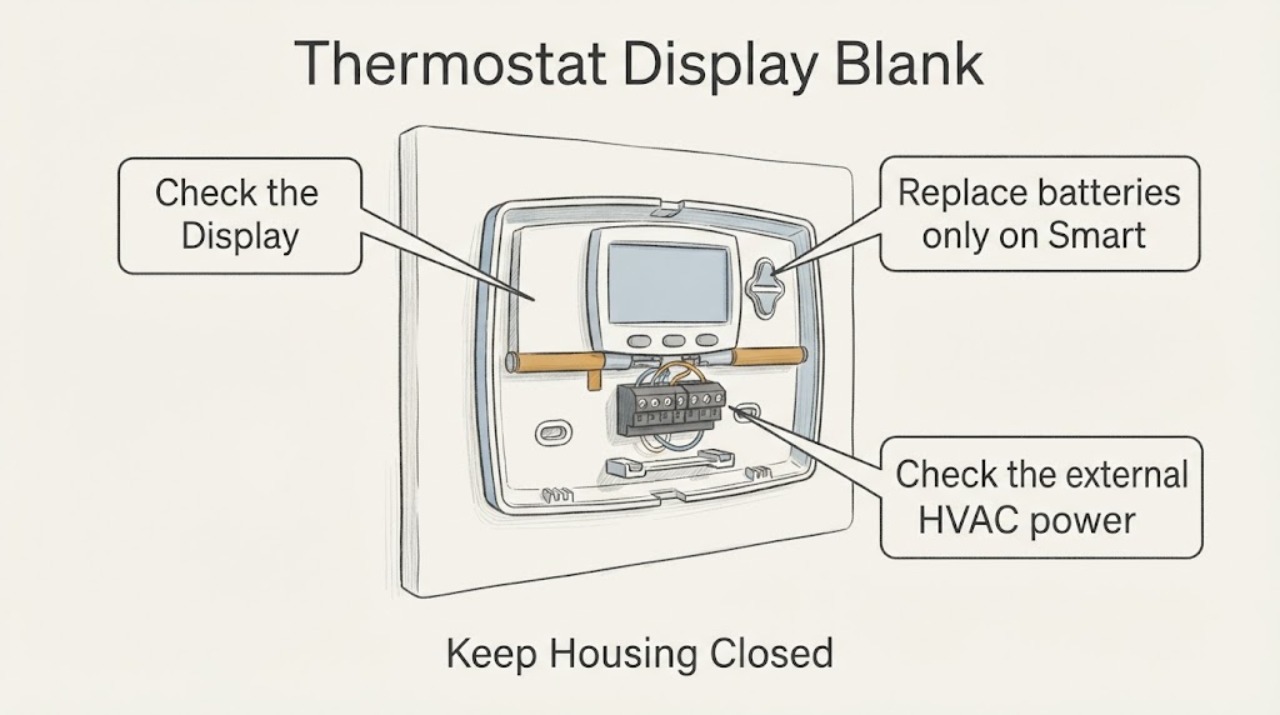
Work through in order
Diagnostic checks
Use only checks that match the exact appliance or system and its official guide.
-
Identify the Sensi model and display symptom
Find the model name or number on the thermostat, packaging, app, or official Copeland manual directory. Record whether it is Sensi Smart, Sensi Lite, Sensi Touch, or Sensi Touch 2, and whether the screen is completely dark, partial, frozen, or showing a lock icon.
Expected result: The model has a battery compartment; it is a Touch or Touch 2 touchscreen; the display is partial or frozen; a lock icon is visible; or the model cannot be identified.
Next step: Use the exact Sensi model guide for the next check. If the model is unknown, do not remove the faceplate or move wiring just to identify it.
Stop if: Do not guess the model from appearance, press installer-only controls, or use a reset sequence from another Sensi family.
Why this matters
Why: Smart and Lite models use batteries, while Touch and Touch 2 models depend on HVAC power and a C wire. A lock icon can be a keypad-lockout state rather than a power failure; a completely dark touchscreen points first toward system power.
-
Replace batteries only on Smart or Lite models
If the identified Sensi Smart or Sensi Lite model uses batteries, remove them according to the model instructions and inspect for leakage or corrosion without touching residue. Install a fresh matching set with the correct orientation, then reseat the cover as the guide shows.
Expected result: The display returns; batteries were depleted or poorly seated; the compartment has corrosion or leakage; or the screen stays blank with fresh batteries.
Next step: If the screen returns, confirm the app and local controls and make one normal HVAC call. If it stays blank or the battery compartment is damaged, stop and arrange Sensi or HVAC service.
Stop if: Do not install batteries in a Touch or Touch 2, mix battery types, scrape corrosion into the thermostat, or keep using a leaking compartment.
Why this matters
Why: A restored screen makes the battery or contact path more likely. Corrosion, leakage, or a persistent blank display suggests damage or another thermostat fault. Touch and Touch 2 models do not use battery backup, so battery substitution does not apply to them.
-
Check the external HVAC power state
From a dry, safe position, check whether the HVAC equipment switch and the labeled breaker are on. Look for a recent outage, a breaker in an abnormal position, a furnace or air-handler panel that is not closed, or visible smoke, scorching, water, or a burning odor. Do not open the equipment panel.
Expected result: The breaker or switch is off; the breaker trips again; an equipment panel is open or loose; other HVAC functions are also dead; or external power appears normal while the screen remains blank.
Next step: If an external switch or breaker is clearly off and no hazard is present, follow the HVAC equipment instructions for one safe restoration attempt. If it trips again or the display remains blank, leave the system off and call qualified HVAC or electrical service.
Stop if: Do not repeatedly reset the breaker, touch wet or scorched equipment, or remove an HVAC panel.
Why this matters
Why: Sensi Touch and Touch 2 can go blank when system power is lost. A repeated trip, damaged connection, water, smoke, or odor is a safety or equipment fault rather than a normal thermostat reset.
-
Review C-wire and faceplate conditions without moving wires
For Touch or Touch 2, use the Sensi support article and the exact model guide to determine the C-wire requirement. Look only for an obviously unseated faceplate, bent contact pin visible without disassembly, or recent installation or rewiring. Do not pull the thermostat off its base, tug conductors, or expose the HVAC control board.
Expected result: The touchscreen model has no known C-wire connection; the blank screen began after installation; a faceplate is visibly not seated; a contact pin or base is damaged; or the installation history is unknown.
Next step: Stop at the visual check and have the installer or qualified HVAC technician verify the C-wire path, terminals, base, system power, and configuration.
Stop if: Do not move wires, bridge terminals, measure voltage, add an external transformer, or open the HVAC control board as a trial.
Why this matters
Why: Missing system power, an incorrect C-wire connection, poor faceplate seating, or a damaged base can prevent a Touch display from starting. A visual check cannot prove the low-voltage circuit is safe or correctly wired.
-
Check lockout, app visibility, and local response
If any portion of the display is visible, look for a padlock or other lockout indication and open the Sensi app to see whether the thermostat is online and responding. Do not assume that a missing Wi-Fi connection is the same as loss of HVAC control; compare what the wall unit and app each show.
Expected result: A padlock icon is shown; the app can change the setpoint while the wall controls are locked; the app and wall unit are both offline; or the display is completely dark and cannot show status.
Next step: Use the app to disable an intended lockout or follow the model guide. If the app and display remain unavailable, continue to power and reset checks rather than changing HVAC wiring.
Stop if: Do not bypass a lockout with installer settings, repeatedly change setpoints, or use an unverified third-party control method.
Why this matters
Why: Keypad Lockout can prevent local changes without removing thermostat power. A dark display combined with an offline app points more toward power, battery, or thermostat failure; a visible display with app control points toward lockout or local input behavior.
-
Perform one model-specific reset
Record the model, current visible settings, battery or breaker observations, and installation history. If Sensi support directs a reset, follow the exact procedure for that model once: the Smart and Lite button or battery procedure differs from the Touch and Touch 2 app menu procedure. Be prepared to reconnect Wi-Fi or restore settings afterward.
Expected result: The display returns and stays on; it returns briefly then goes dark; it remains blank; Wi-Fi or HVAC configuration is lost; or the screen is still partial or frozen.
Next step: If the display remains blank, goes blank again, or the HVAC does not respond after the reset, stop resetting and arrange qualified HVAC or Sensi support service.
Stop if: Do not factory-reset repeatedly, guess at HVAC configuration, or use a reset sequence from a different model.
Why this matters
Why: A one-time recovery can indicate a transient control state, but recurrence points toward power, C wire, base, display, wiring, or HVAC control trouble. A reset that clears settings does not prove the original cause was fixed.
-
Separate a display fault from an HVAC fault
If the display returns, make one ordinary mode or setpoint change at the wall unit and observe whether the HVAC system responds. If the screen stays blank, record whether the furnace, air handler, or cooling equipment also lost operation; do not remove the thermostat or swap wires as a test.
Expected result: The display works but the HVAC does not respond; the HVAC operates while the display is blank; both thermostat and HVAC are dead; or the display repeatedly reboots.
Next step: Arrange qualified HVAC service with the model, power and battery observations, configuration, reset result, and whether the equipment or display failed first. Do not assume a thermostat replacement will repair the HVAC system.
Stop if: Do not bypass the thermostat, apply external power, test live terminals, or open furnace or air-handler wiring compartments.
Why this matters
Why: A working display with no HVAC response points toward equipment power, wiring, configuration, or HVAC controls. A blank screen while equipment power is otherwise present points toward the thermostat, base, C-wire path, or low-voltage supply.
Use your observations
Decision map
Find the observation that best matches what you see, then follow the next safe action.
-
PATH 01Next step
What you see
A Sensi Smart or Lite display returns after correct fresh batteries or the model-approved battery reset.
Do this next
Confirm the model settings and make one normal HVAC call. Arrange service if the screen goes blank again, the compartment is damaged, or the HVAC does not respond.
Why this path and its safety boundary
Why it matters: Depleted batteries, poor contact, or a transient battery-powered state was more likely than a C-wire power fault.
-
PATH 02Next step
What you see
A Sensi Touch or Touch 2 screen is completely blank and the HVAC breaker, equipment switch, panel, or C-wire supply appears off or unstable.
Do this next
Restore only a clearly off external switch or breaker when safe and permitted. If power is absent, the breaker trips, or the screen remains blank, use qualified HVAC or electrical service.
Why this path and its safety boundary
Why it matters: Loss of HVAC system power or the C-wire supply is more likely than a failed touchscreen.
-
PATH 03Next step
What you see
The screen shows a lock icon or partial status, the Sensi app is available, and local buttons or touch input do not work.
Do this next
Check the lockout in the Sensi app and follow the model-specific power-cycle or reset support instruction once. Escalate if the display remains partial or unresponsive.
Why this path and its safety boundary
Why it matters: Keypad Lockout, a frozen interface, or a model-specific display state is more likely than a complete loss of power.
-
PATH 04Safety boundary
What you see
The display went blank after Sensi installation or rewiring, the Touch model has no confirmed C-wire path, or the faceplate or base is not seated normally.
Do this next
Stop moving conductors and have the installer or qualified HVAC professional verify the Sensi base, C wire, power, terminal configuration, and equipment panel.
Why this path and its safety boundary
Why it matters: A missing or incorrect C-wire connection, loose terminal, base contact, or system configuration issue is more likely than unrelated display failure.
Safety stop: Do not pull wires, bridge terminals, or expose the control board.
-
PATH 05Safety boundary
What you see
The display remains blank after correct battery or one model-approved reset, goes blank again, the breaker trips, the base or wiring is damaged, or smoke, water, scorching, or a burning odor is present.
Do this next
Leave the HVAC system off and request qualified HVAC or electrical service. For smoke, active arcing, or suspected fire, leave the area and contact emergency services from a safe location.
Why this path and its safety boundary
Why it matters: A thermostat, low-voltage supply, HVAC control, or electrical fault remains possible and cannot be separated safely with more homeowner testing.
Safety stop: Do not continue resetting, bypass the thermostat, open panels, or touch wet, scorched, or exposed electrical parts.
Helpful context
Understand the symptom
The Sensi model changes the diagnosis
A blank Sensi Smart or Sensi Lite display commonly calls for a battery check, while a Sensi Touch or Touch 2 screen depends on power supplied by the HVAC system. Copeland's support pages list the model families and direct owners to use the exact model instructions. Do not apply battery steps to a touchscreen or assume that the small installation light on a Touch sub-base proves that the thermostat has operating power.
Check system power before blaming the screen
A touchscreen can go blank when the HVAC system loses power, a breaker is off, an equipment panel is not seated, or the C-wire supply is missing or interrupted. Check only the external switch and labeled breaker from a safe, dry position. Do not expose a furnace or air-handler control board to prove a voltage reading; wiring and low-voltage diagnosis belong with a qualified professional.
A partial display is not the same as a Wi-Fi problem
Sensi notes that a keypad lockout can prevent local changes while the display still shows a lock icon, and a partial or frozen display may need a model-specific power cycle or support. Wi-Fi loss does not necessarily remove local HVAC control on every model. Record what is visible, whether the app can connect, and whether the HVAC still responds before resetting anything.
Reset once, then escalate if the symptom returns
Sensi's reset procedures differ among Smart, Lite, Touch, Touch 2, and room-sensor products. A reset may clear settings or require the app to reconnect. It can clear a transient state, but it cannot repair a missing C wire, loose terminal, failed HVAC transformer, tripped safety device, or damaged thermostat. Repeated resets can also obscure the original configuration, so stop after one documented attempt.
Safety boundary
Stop conditions
- Stop and seek qualified help for smoke, burning odor, arcing, exposed wiring, a hot or damaged connection, water near electrical equipment, or a breaker that trips again.
- Do not bridge thermostat terminals, test live voltage or continuity, open furnace or air-handler panels, pull or move conductors, or add a C wire or transformer as a trial.
- Do not install batteries in a Touch or Touch 2, mix battery types, scrape corrosion into a battery compartment, or keep using a leaking compartment.
- Do not repeatedly reset the thermostat, guess at HVAC configuration, bypass keypad lockout, or use a reset sequence from another Sensi model.
- Arrange qualified HVAC or electrical service when a correct battery or model-approved reset does not restore the display, when the screen repeatedly goes blank, or when the HVAC system does not respond.
Only after diagnosis
Potential parts
- Sensi thermostat batteries
Consider this category only if the exact Sensi model has a battery compartment and the display behavior or manual supports battery replacement.
Confirm the complete Sensi model and specified battery type; Touch and Touch 2 models do not have battery backup. - Sensi thermostat or faceplate
Consider replacement only after correct power or batteries, one model-approved reset, and qualified diagnosis indicate a failed thermostat, display, or faceplate.
Confirm the exact model, HVAC system configuration, and approved replacement; a blank screen alone does not prove thermostat failure. - thermostat base or C-wire connection component
Consider this category only when qualified inspection confirms a damaged base, C-wire path, terminal, or low-voltage connection after safe external power checks.
Confirm the exact Sensi and HVAC equipment configuration; low-voltage wiring and base repairs require qualified service.
When checks do not resolve it
Need a professional?
Arrange qualified HVAC or Sensi support service when a Smart or Lite display stays blank after correct batteries and its documented reset, when a Touch or Touch 2 screen has no system power or C-wire supply, when the display repeatedly resets, when the HVAC does not respond, or when installation, wiring, base, display, or control-board problems are possible. Use qualified electrical service for unstable or damaged power. Stop immediately for smoke, arcing, exposed wiring, a hot connection, water near electrical parts, or repeated breaker trips.
Safety scope: This article supports identifying the model, replacing batteries in a battery-designated Sensi, checking an external labeled switch or breaker from a safe position, checking visible faceplate seating without moving conductors, reviewing app lockout, and using one model-approved reset. A qualified professional should handle C-wire and terminal verification, live electrical testing, HVAC panels, control boards, wiring, and power diagnosis.
Common questions
FAQ
Why is my Sensi thermostat display blank?
The first check depends on the model. Sensi Smart and Lite use batteries; Sensi Touch and Touch 2 depend on HVAC power and a C wire. Check the model, batteries where applicable, and the external HVAC switch or labeled breaker from a safe position before considering a reset.
Do Sensi Touch and Touch 2 thermostats use batteries?
No. Sensi's blank-screen guidance says Touch and Touch 2 models do not have battery backup and require system power and a C wire. If one is blank, check HVAC power and have the C-wire path verified rather than trying to add batteries.
What should I check if my Sensi Smart or Lite screen is blank?
Confirm the model has a battery compartment, install the specified fresh batteries with correct orientation, and reseat the cover according to the model instructions. If the display stays blank, the compartment is damaged, or the HVAC does not respond, stop and arrange service.
Can a tripped breaker make a Sensi thermostat screen go blank?
Yes, especially on Touch and Touch 2 models that depend on HVAC system power. Check the labeled breaker and equipment switch safely, and make sure the HVAC panel is closed. If the breaker trips again or the screen remains blank, use qualified HVAC or electrical service.
What if my Sensi display is partial or shows a lock icon?
A lock icon may indicate Keypad Lockout, which can be managed in the Sensi app. A partial or frozen display may need the model-specific power-cycle instruction. Record the visible state and use one official reset only when support directs it; persistent display problems need service.
When should I call a professional for a blank Sensi thermostat?
Call when fresh batteries or one model-approved reset do not restore the display, when a Touch or Touch 2 lacks system power or a confirmed C-wire path, when installation or wiring is recent, when the HVAC does not respond, or when the breaker trips, wiring is damaged, or water, smoke, arcing, or a burning odor is present.
Read the exact guide
Official sources
- Call for ServiceSensi by Copeland · Official Sensi US support guidance; cited for the service boundary when the display or HVAC system does not respond normally.
- How to reset your Sensi thermostatSensi by Copeland · Official Sensi US support page; it advises resetting only when support instructions recommend it and notes model-specific behavior.
- Thermostat ManualsCopeland · Copeland's official thermostat manual directory; use the full model number to choose the applicable Sensi instructions.
- My screen is blank (Sensi Touch, Touch 2)Sensi by Copeland · Official Sensi US support guidance for Touch and Touch 2 touchscreen models; other Sensi families have different battery and power arrangements.
- Why Isn't My Cooling Turning On?Sensi by Copeland · Official Sensi US support guidance across Sensi models; used here for the thermostat-versus-HVAC response boundary, not as a substitute for model wiring instructions.
- Troubleshooting Sensi thermostat with a frozen displaySensi by Copeland · Official Sensi US support guidance covering multiple Sensi models; exact model instructions control the reset and battery procedure.
Community feedback
Share a repair observation
Share a plain-text repair observation. Accepted observations are published automatically; this page may take a moment to update.