
Repair problem
Display Blank Troubleshooting Guides
Published FixGraph guidance for diagnosing and responding to display blank.
Matching published guides
Choose a guide that matches the service, equipment, and conditions you are seeing.
-
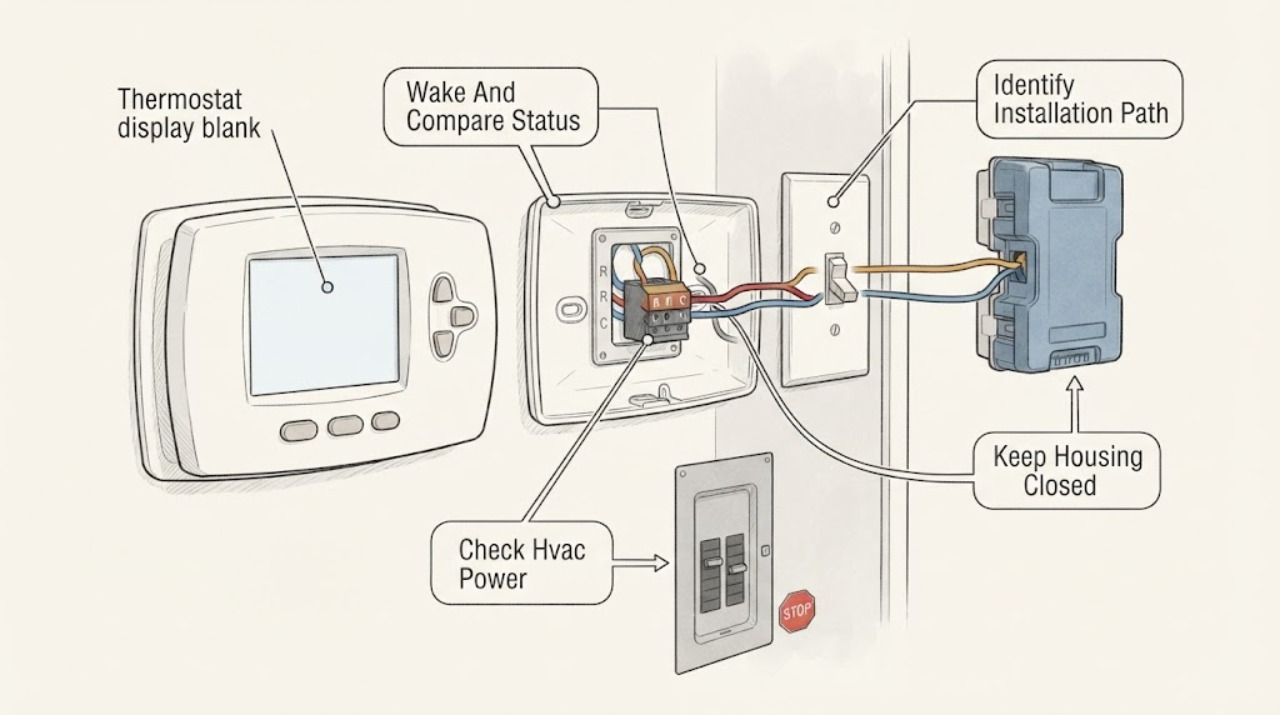
Ecobee thermostat display blank: What to Check and What to Do Next
First determine whether the ecobee screen is asleep or truly without power: approach it, tap the display, and check the ecobee app only as a status comparison. If it remains blank, check the HVAC service switch and the correct breaker from a safe position, and make sure the furnace or air-handler cover is seated.
-
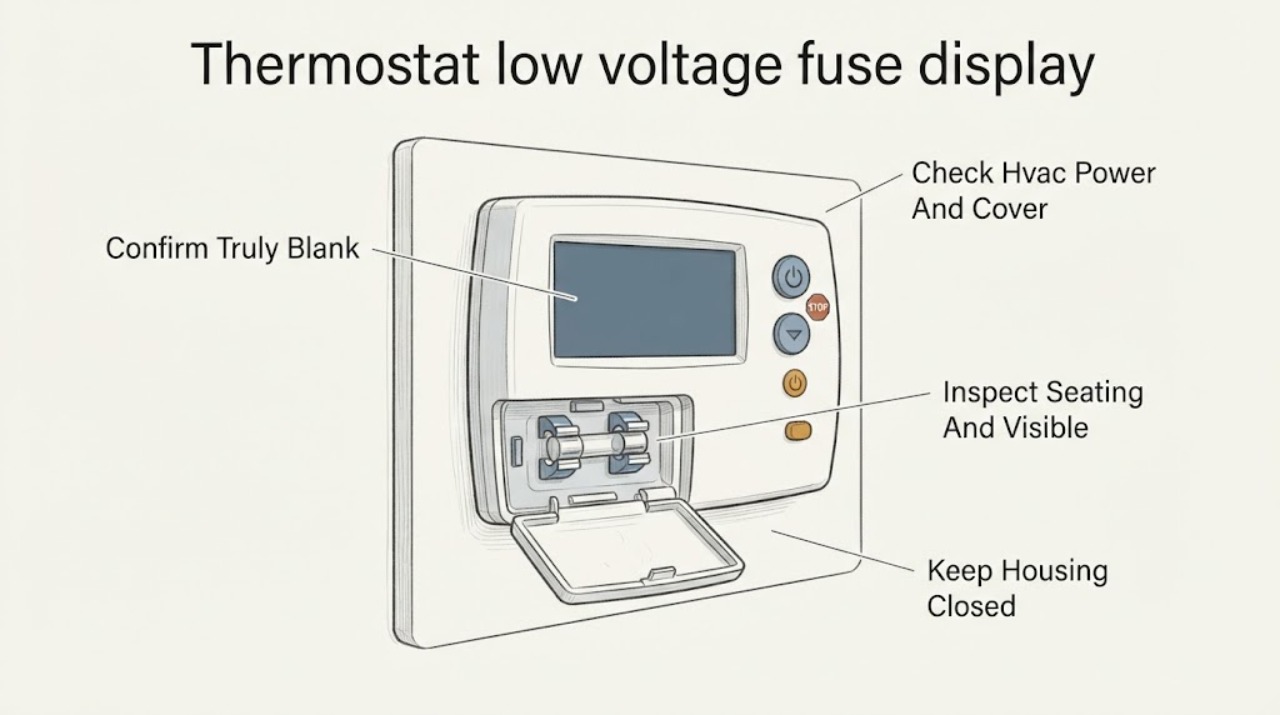
Ecobee thermostat low voltage fuse display blank: What to Check and What to Do Next
A completely blank ecobee display usually means the thermostat has lost its low-voltage power path, not that the screen alone has failed. First wake the display normally, then check the HVAC breaker, nearby system switch, and whether the furnace or air-handler cover is fully closed.
-
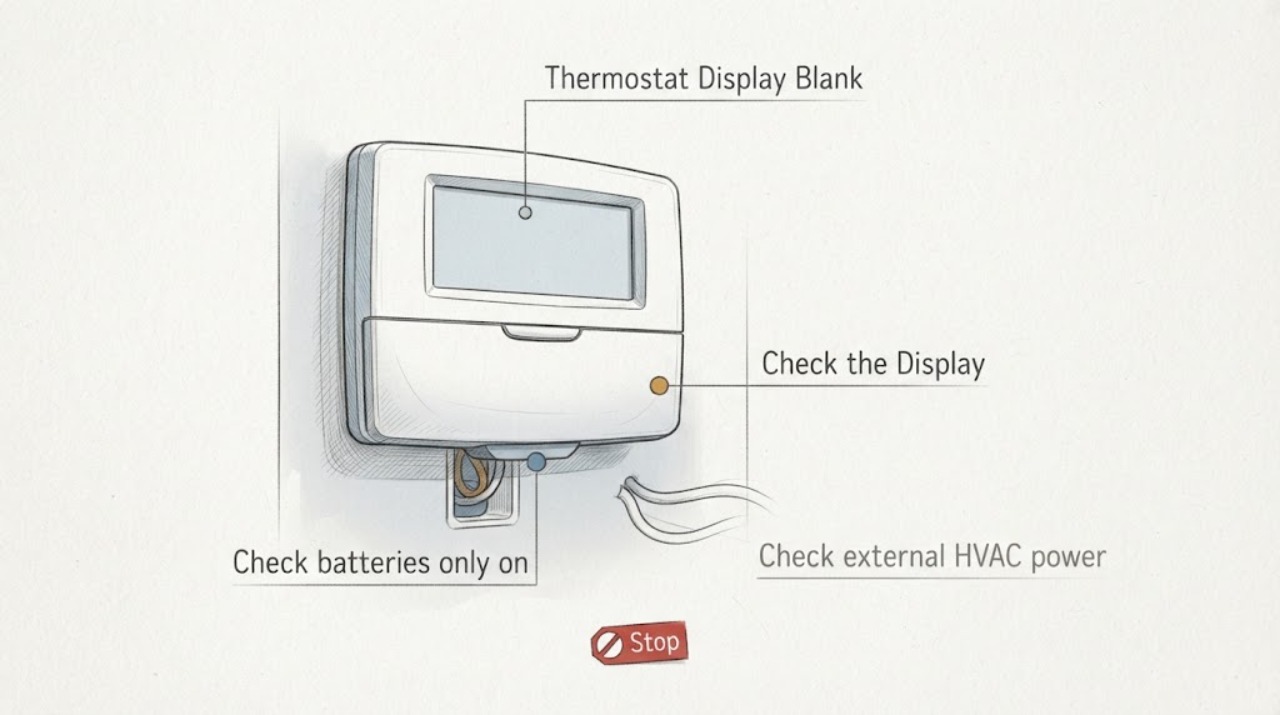
Emerson Thermostat Display Blank: What to Check and What to Do Next
Start by identifying the Emerson thermostat model. A battery-powered model may have dead or poorly seated batteries, while a touchscreen or other model may depend on HVAC power and a correctly connected C wire.
-
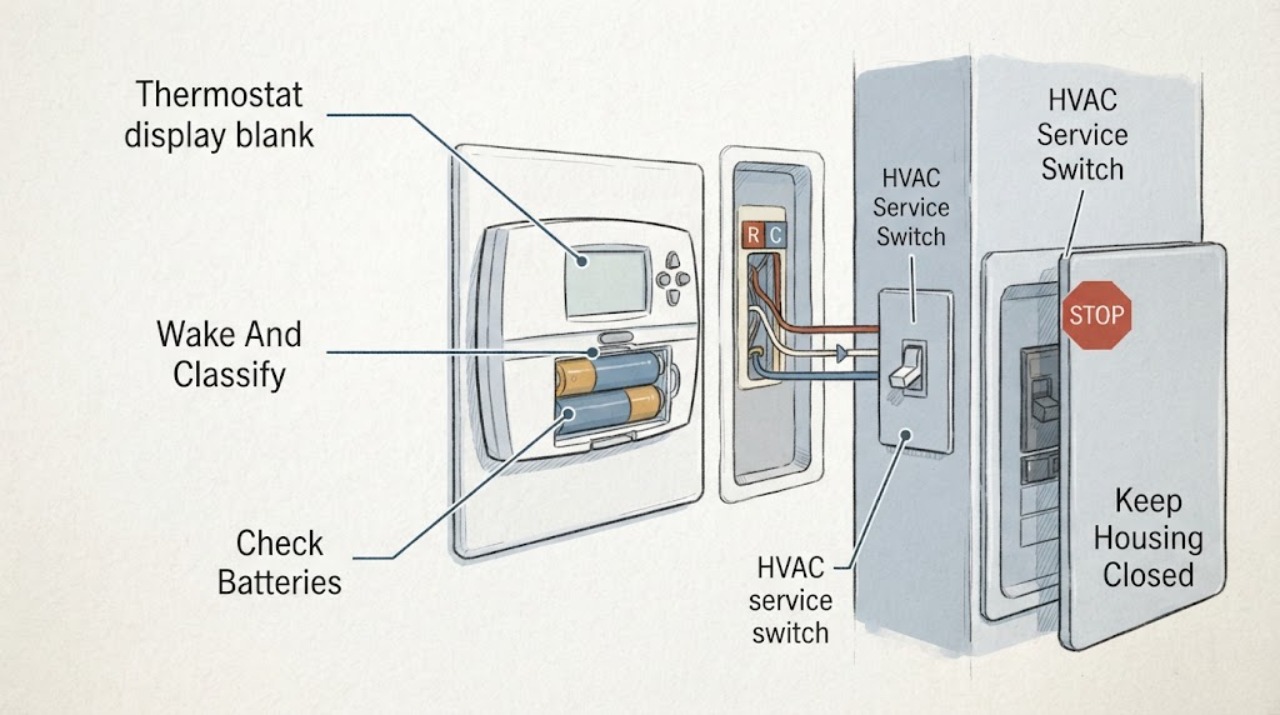
Honeywell thermostat display blank: What to Check and What to Do Next
First determine whether the Honeywell thermostat screen is asleep or truly without power: approach it, tap it, and check the owner app only as a comparison. For a battery-powered model, install fresh batteries of the type and orientation shown in its manual.
-
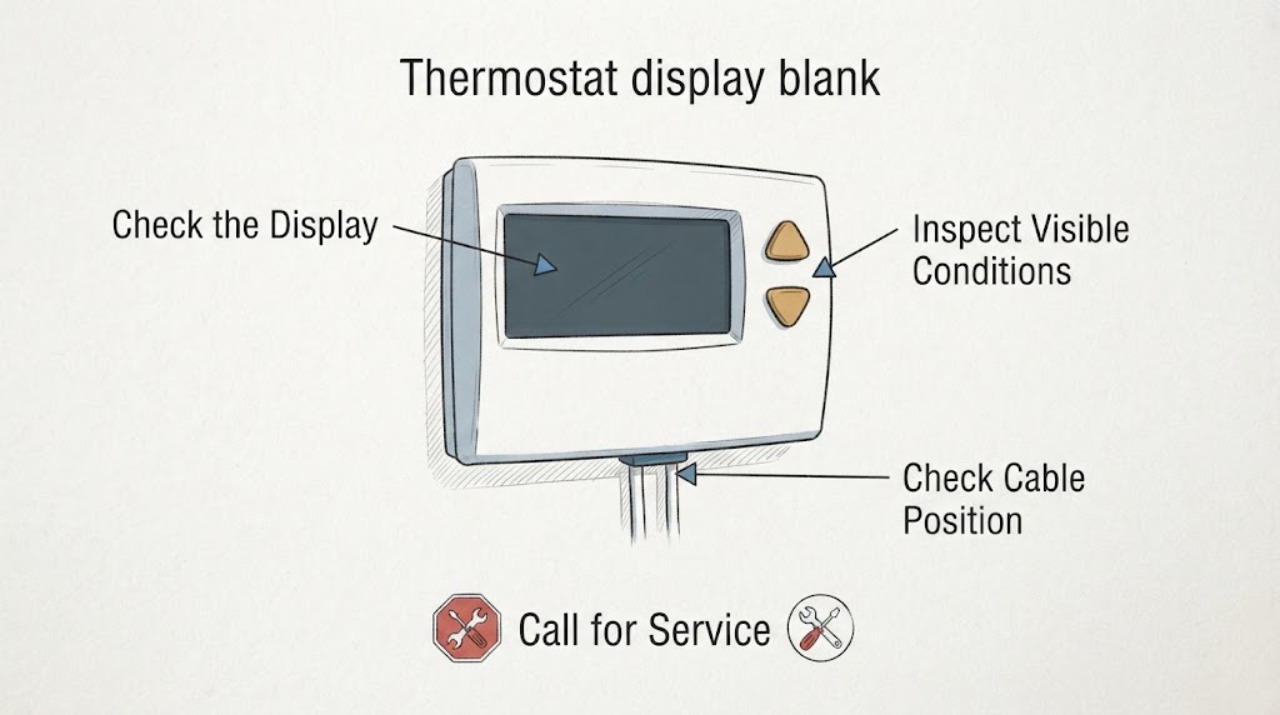
Nest thermostat display blank: What to Check and What to Do Next
A Nest display that is dark may simply be asleep, but a blank screen that stays unresponsive usually means the thermostat has lost power, its battery has drained, the display is not seated, or the system wiring or equipment is not supplying enough power. First wake it from the app or by approaching or tapping it, then note whether the display returns, shows a red or yellow charging light, shows a green startup light, or has no light at all.
-
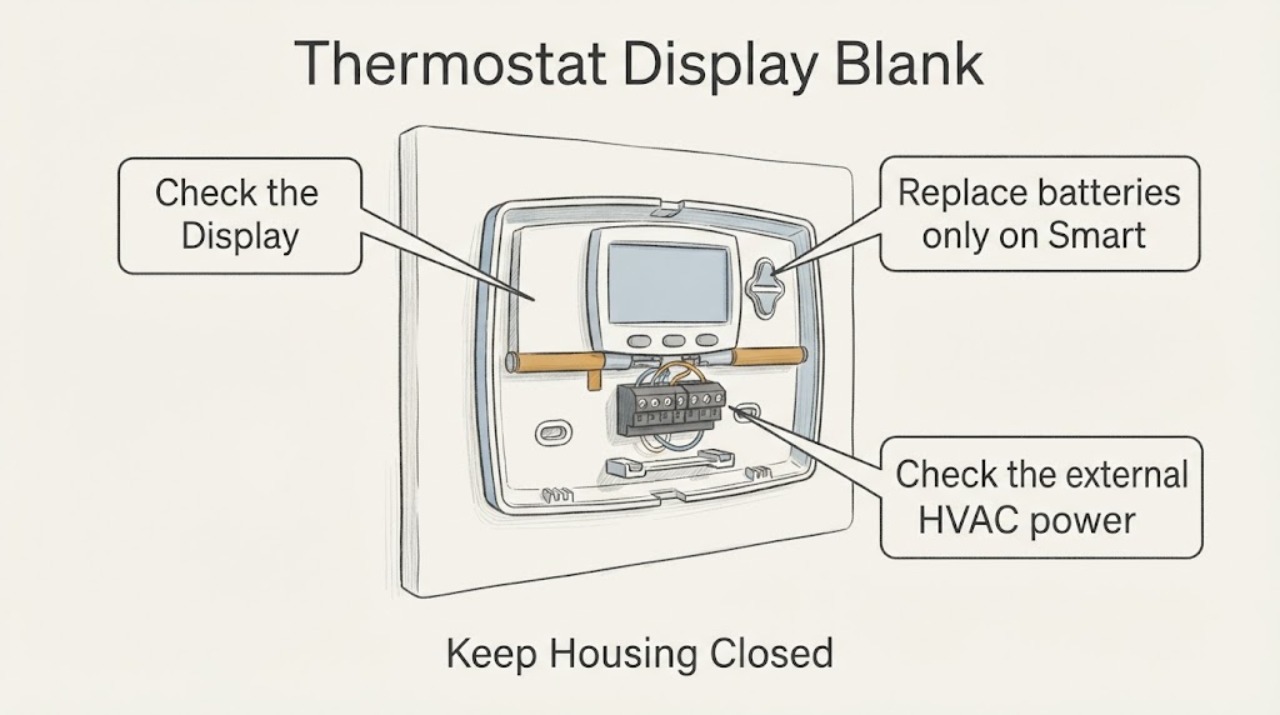
Sensi Thermostat Display Blank: What to Check and What to Do Next
Identify the Sensi model before troubleshooting. Sensi Smart and Sensi Lite models use batteries, while Sensi Touch and Touch 2 touchscreen models do not have battery backup and depend on HVAC power and a C wire.
-
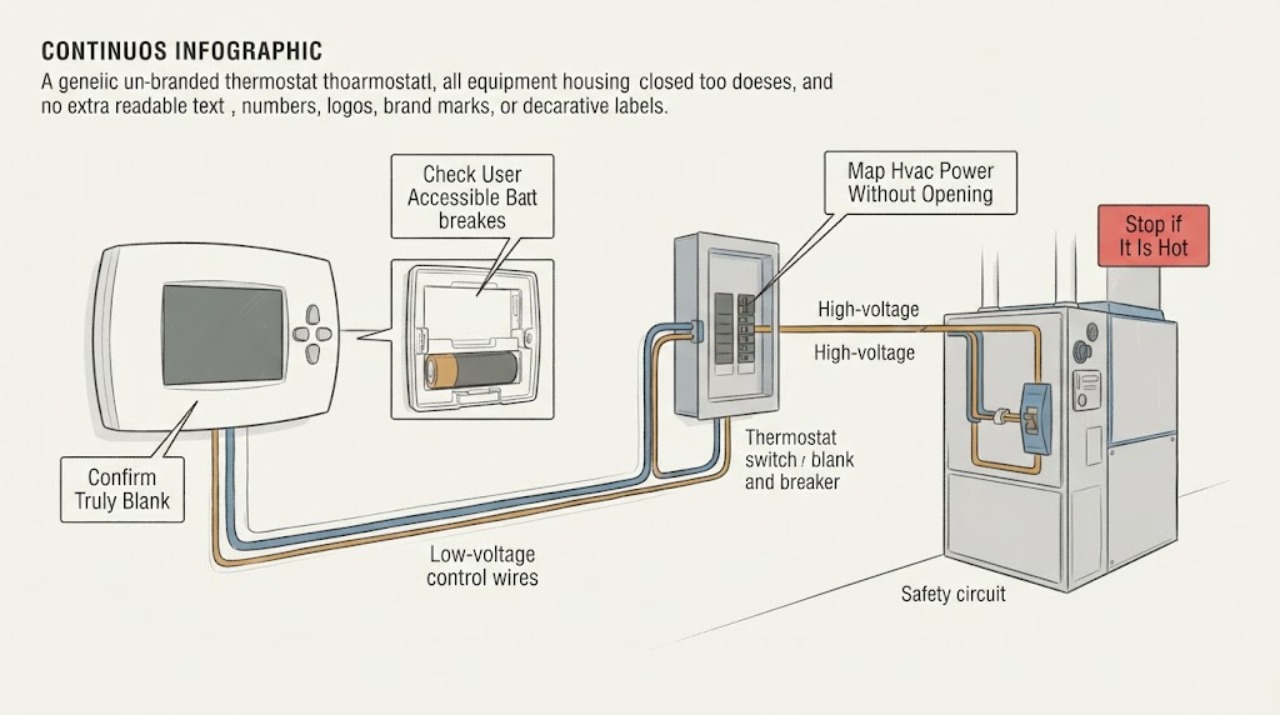
Thermostat display blank and breaker status is unknown: What to Check and What to Do Next
A thermostat display that is truly blank and does not respond usually means the thermostat is not receiving power, but a screen that only sleeps is different from a dead display. First tap or press the control once and check for a response; if the model uses replaceable batteries, use only its normal battery access and the exact battery instructions.
-
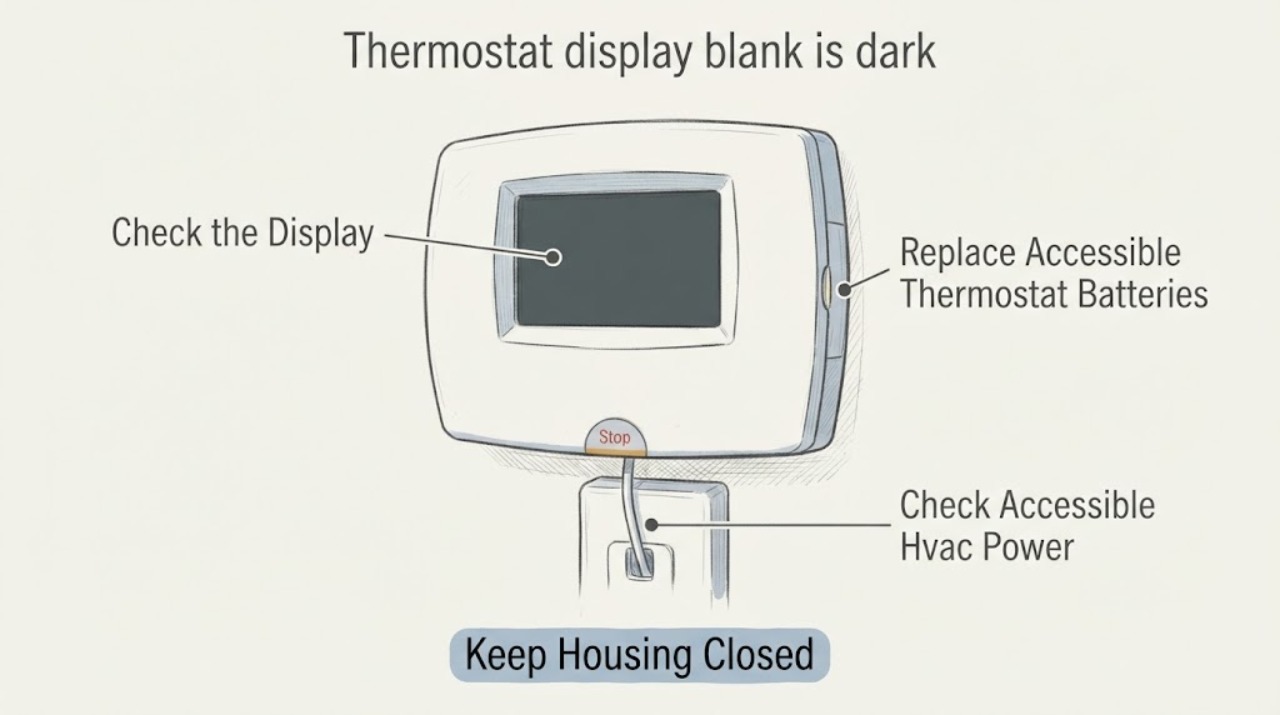
Thermostat display blank is dark: What to Check and What to Do Next
A dark thermostat display most often means depleted batteries, a tripped HVAC breaker or service switch, a loss of low-voltage power, or a thermostat or wiring fault. If the model uses accessible batteries, replace them with the type specified in its manual, then check the accessible HVAC breaker or service switch without opening covers.
-
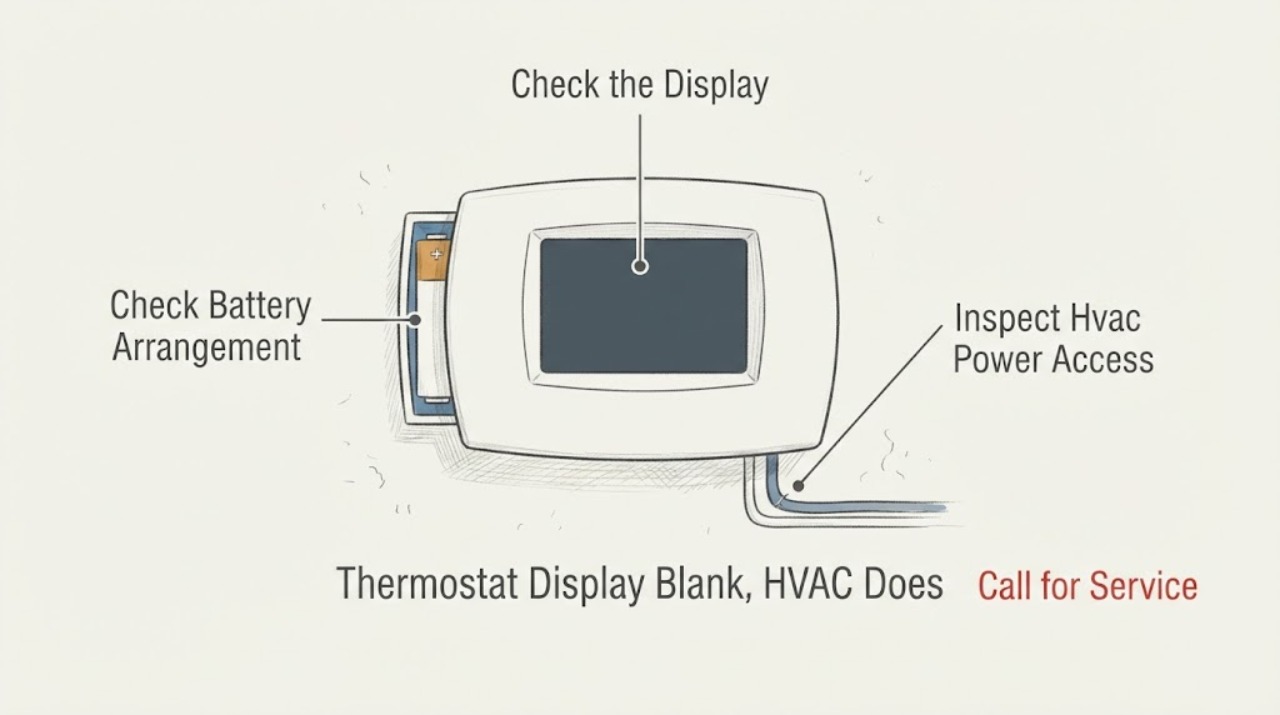
Thermostat Display Blank, HVAC Does Not Respond: What to Check and What to Do Next
A completely blank thermostat usually means the thermostat has lost power, commonly from exhausted batteries on a battery-powered model, a tripped HVAC breaker or equipment switch, a wiring or control-power problem, or a failed thermostat. First identify whether the thermostat uses batteries or equipment power, then check or replace batteries according to its manual and inspect the HVAC breaker and accessible equipment power switch without repeatedly resetting a trip.
-
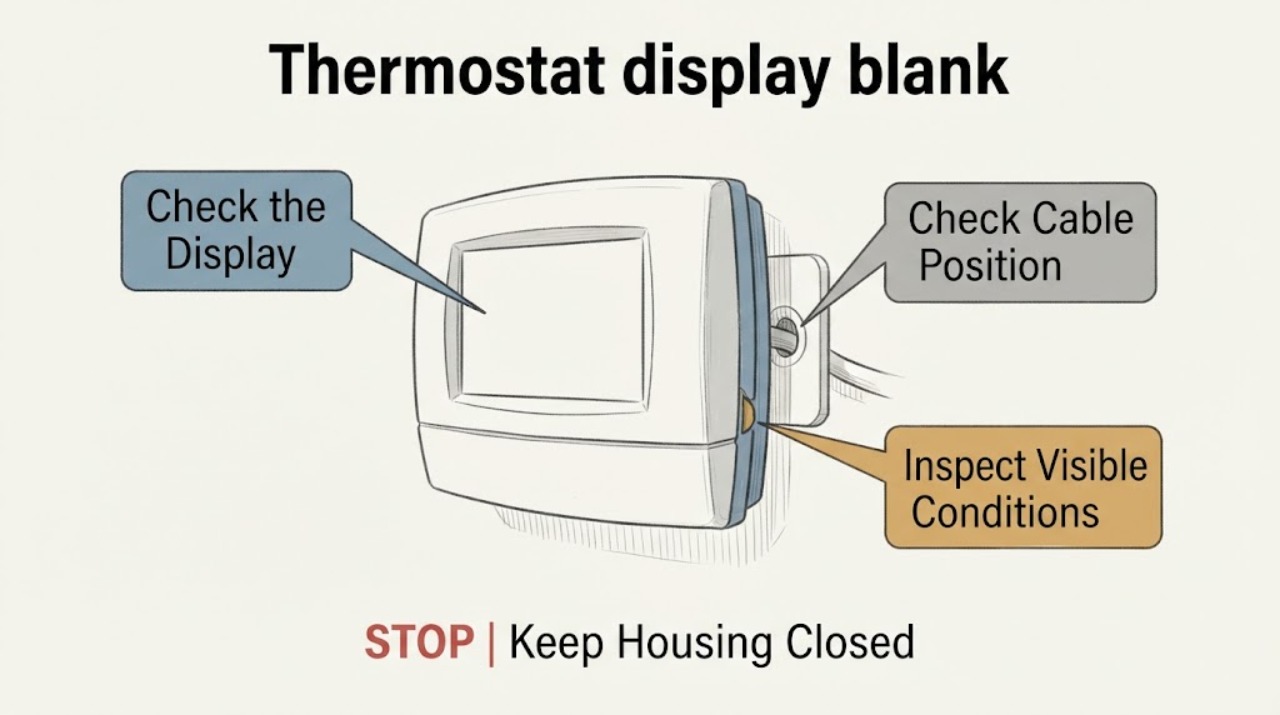
Thermostat display blank: What to Check and What to Do Next
A thermostat screen can be blank because the display is asleep, its user-replaceable batteries are depleted, the thermostat is not receiving system power, or the HVAC system has a fault. First try the normal wake control, then check only an accessible battery compartment and visible system or app status.