
On this page
Start here
Quick answer
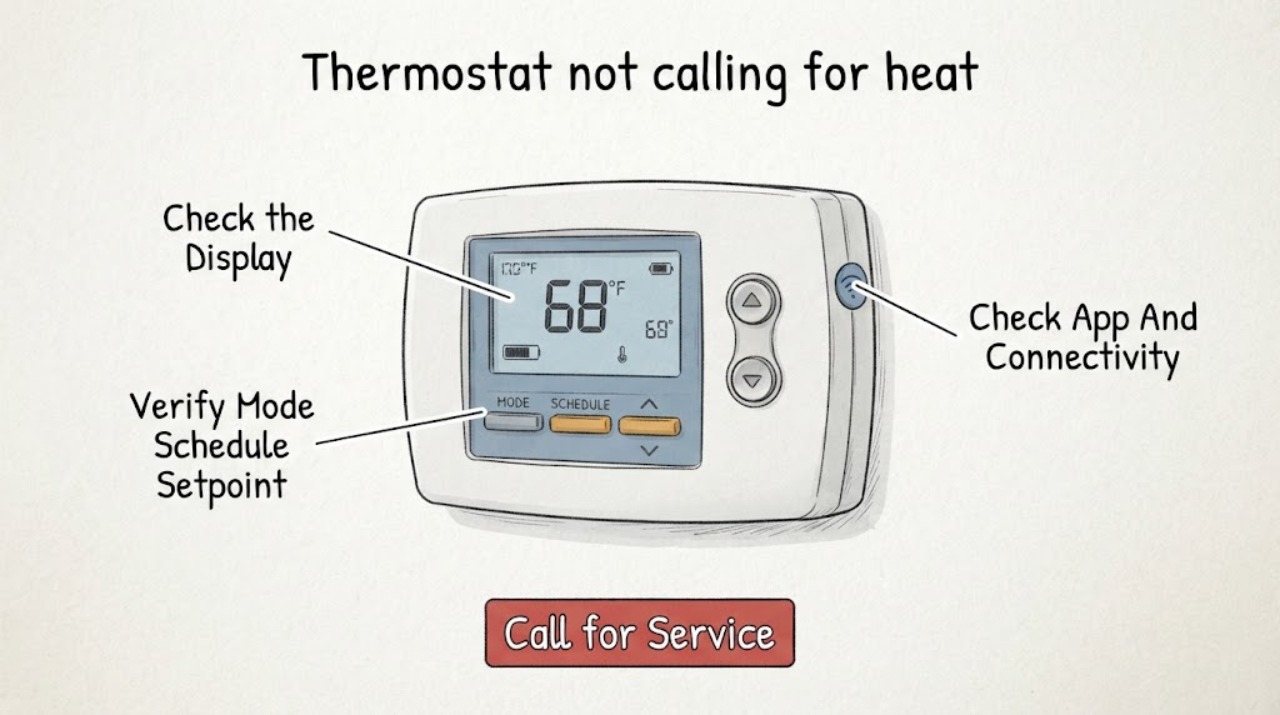
If a thermostat is not calling for heat or cooling, first check its display, mode, schedule or hold state, setpoint, app connection, and any visible HVAC status without opening the thermostat or touching wires. Select the intended Heat or Cool mode and make one ordinary setpoint adjustment within the thermostat's instructions; then observe whether a call or system status appears. If the display is blank, the setting will not hold, both modes fail, or the system does not respond, arrange qualified HVAC service. Never remove the thermostat base, bridge or short terminals, perform a live test, or substitute wiring.
Work through in order
Diagnostic checks
Use only checks that match the exact appliance or system and its official guide.
-
Check 1
Read the thermostat display from its normal position and note whether it is on, blank, dim, showing a battery or service message, or reporting a system status.
Expected result: Record the displayed room temperature, selected mode, fan state, schedule or hold indicator, and any error or delay message without removing the thermostat from the wall.
Next step: Photograph or write down the display and follow only the manufacturer's normal user controls; do not access the base or terminals.
Stop if: Stop if the display or housing is hot, damaged, wet, loose, sparking, or smells burned.
Why this matters
Why: A blank or unstable display changes the next step toward qualified thermostat or HVAC service; a normal display means configuration and system-response checks can continue without opening the device.
-
Check 2
Use the thermostat's normal interface to verify that the intended Heat or Cool mode is selected and that a schedule, away setting, or hold is not preventing a call.
Expected result: Note whether the screen shows Heat, Cool, Off, Auto, a schedule or hold, and whether the requested setpoint is on the expected side of the displayed room temperature.
Next step: If needed, make one ordinary mode or setpoint correction according to the thermostat instructions and record the resulting status; do not change wiring or configuration beyond the user controls.
Stop if: Stop if the control will not accept the setting, immediately reverts, shows a fault, or requires access behind the thermostat.
Why this matters
Why: An incorrect mode, schedule, hold, or setpoint can make a healthy system appear not to be calling; a correct setting with no call points toward a control or equipment issue.
-
Check 3
If the thermostat has an app or remote control, compare the app's current mode, room reading, schedule, connection state, and last reported equipment status with the wall display.
Expected result: Note whether the app is offline, stale, showing a different setpoint, reporting a delay, or showing a call that the wall display does not show.
Next step: Record the exact message and use the manufacturer's normal account or connectivity guidance; arrange HVAC service if both interfaces show a call but the equipment does not respond.
Stop if: Stop if the app requests wiring changes, a factory reset that could erase required configuration, or any live electrical test.
Why this matters
Why: A mismatch or stale connection can explain a remote-control symptom, while agreement between the app and wall display makes a system-side response issue more likely.
-
Check 4
After one ordinary Heat or Cool request has been made through the thermostat interface, observe from a safe location whether the indoor unit, outdoor unit, airflow, or system status changes.
Expected result: Record no sound, fan-only response, a visible status such as waiting or delay, airflow without the expected temperature change, or an equipment fault message; do not open equipment panels.
Next step: Give the HVAC professional the mode, setpoint, display message, sound, airflow, and timing; leave the system in the safest normal state available.
Stop if: Stop immediately for gas odor, smoke, burning odor, arcing, unusual heat, water near electrical equipment, or repeated equipment cycling.
Why this matters
Why: A thermostat call with no equipment response points beyond a simple setpoint issue and may involve power, safety controls, equipment, condensate protection, or control communication.
-
Check 5
Record whether the missing call affects Heat, Cool, or both, along with recent battery, power, filter, condensate, renovation, or service history that is already known.
Expected result: Note whether one mode still responds, the display resets, the issue began after a power interruption or thermostat change, and whether any visible HVAC status is abnormal.
Next step: Share the timeline and display photos with a qualified HVAC technician and do not attempt a terminal test or wire substitution.
Stop if: Stop all troubleshooting if the thermostat is loose, exposed, wet, damaged, or if any person suggests bridging wires to test it.
Why this matters
Why: Both-mode failure suggests a shared control or power path, while one-mode failure can narrow the professional assessment; the history is not enough to justify opening the thermostat.
Use your observations
Decision map
Find the observation that best matches what you see, then follow the next safe action.
-
PATH 01Safety boundary
What you see
The thermostat display is blank, unstable, hot, wet, loose, damaged, or shows a burning or electrical warning.
Do this next
Leave the thermostat undisturbed and arrange qualified HVAC service; use emergency help for smoke, fire, arcing, or immediate danger.
Why this path and its safety boundary
Safety stop: Do not remove the faceplate, open the base, touch wires, or perform a live test.
-
PATH 02Safety boundary
What you see
The display was in Off, the wrong mode, a schedule or hold, or an unsuitable setpoint, and one normal user-control correction restores the expected call.
Do this next
Monitor the system without further changes and schedule service if the state reverts or the equipment fails to respond normally.
Why this path and its safety boundary
Safety stop: Do not open the thermostat or bridge terminals even if the correction did not last.
-
PATH 03Safety boundary
What you see
The thermostat shows the intended call but the HVAC equipment does not start or does not produce the expected response.
Do this next
Arrange qualified HVAC service and provide the mode, setpoint, status message, timing, sounds, airflow, and recent history.
Why this path and its safety boundary
Safety stop: Do not repeatedly cycle the system or bypass a safety control.
-
PATH 04Safety boundary
What you see
Heat works but Cool does not, or Cool works but Heat does not.
Do this next
Record the working and non-working modes and request HVAC diagnosis of the mode-specific equipment and control path.
Why this path and its safety boundary
Safety stop: Do not assume a thermostat wire or terminal is the cause and do not change wiring.
-
PATH 05Safety boundary
What you see
Neither Heat nor Cool produces a call or equipment response after the normal external checks.
Do this next
Leave the system in the safest normal state and arrange high-priority HVAC service for the shared control, power, or equipment path.
Why this path and its safety boundary
Safety stop: Do not short, bridge, jumper, or otherwise bypass thermostat terminals.
Helpful context
Understand the symptom
What a missing call can mean
The thermostat may be showing an incorrect mode, schedule, hold, connectivity, or temperature state, or it may be unable to communicate with the HVAC equipment. A normal-looking screen does not prove that the equipment, low-voltage controls, power, condensate protection, or wiring are healthy. ENERGY STAR notes that thermostat settings and HVAC starting controls belong in a safe maintenance check, while electrical connections and equipment controls are contractor work.
Keep the thermostat checks external
Use only the thermostat's normal buttons, touchscreen, app, and visible status messages. Do not remove the faceplate or base, expose terminals, bridge wires, measure live voltage, or change wiring. If the display is blank or the thermostat is loose, leave it undisturbed and request qualified service.
Compare both modes without forcing the equipment
A failure in both Heat and Cool points toward a shared control, power, configuration, or communication issue, while one-mode failure may point to equipment or configuration specific to that mode. Do not repeatedly cycle the system to force a response; record what the thermostat displays and what the equipment visibly does.
Only after diagnosis
Potential parts
- HVAC thermostat
Only consider a replacement if a qualified HVAC professional confirms that the thermostat is defective and identifies the equipment type and control requirements.
Compatibility depends on the heating and cooling equipment, stages, power arrangement, and configuration; do not select by appearance or symptom alone. - thermostat temperature sensor
Only relevant if the professional identifies a sensor fault or a supported remote-sensor configuration issue rather than a call, power, or equipment fault.
Confirm the thermostat and system support the sensor and follow the manufacturer's compatibility requirements. - thermostat wire kit
Only relevant if a qualified technician finds damaged, missing, or inadequate control wiring and specifies a safe wiring remedy.
Do not use a wire kit to bridge terminals or improvise a live test; the technician must verify routing, insulation, terminals, and system compatibility.
When checks do not resolve it
Need a professional?
Arrange high-priority HVAC service when the thermostat is blank or damaged, both modes fail, the display shows a call but equipment does not respond, settings revert, or the system has abnormal sounds, odors, water, smoke, or electrical signs.
Have this ready
- Share display and app photos, selected mode, setpoint, schedule or hold state, status messages, timing, equipment response, whether one or both modes fail, and recent battery, power, filter, condensate, renovation, or service history.
Common questions
FAQ
Why does the thermostat show the right temperature but not call for heat or cooling?
A schedule, hold, mode, setpoint, app state, delay, power, control, or equipment issue can produce that symptom. Check normal display and app settings, then arrange HVAC service if the call or equipment response is absent.
Can I remove the thermostat from the wall to check the wires?
No. Leave the faceplate, base, terminals, and wires untouched. A qualified HVAC professional should inspect control wiring and perform any electrical testing.
Can I connect two thermostat wires together to test the system?
No. Do not bridge, jumper, short, or bypass thermostat terminals. Record the display and system response and call a qualified HVAC technician.
What if the thermostat app is offline but the wall display works?
Record the app and wall-display states and follow only normal manufacturer connectivity guidance. If the wall thermostat also fails to call or the system does not respond, request HVAC service.
Read the exact guide
Official sources
- Maintenance ChecklistENERGY STAR, U.S. Environmental Protection Agency · Supports checking normal thermostat settings and leaving electrical connections, equipment controls, and unsafe HVAC conditions to contractors.
- Smart ThermostatsENERGY STAR, U.S. Environmental Protection Agency · Supports checking the displayed mode, schedule, app state, and system compatibility through normal user controls; it does not authorize wiring or live testing.
Community feedback
Share a repair observation
Share a plain-text repair observation. Accepted observations are published automatically; this page may take a moment to update.