
On this page
Start here
Quick answer
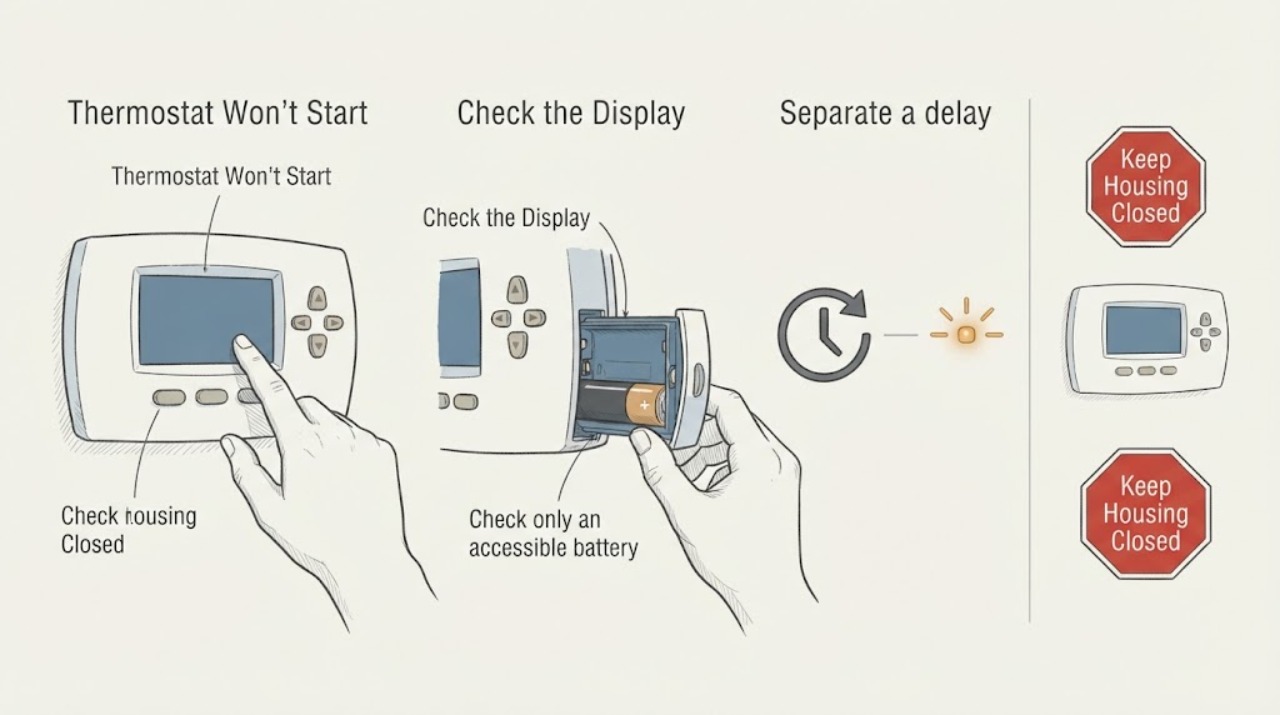
If a thermostat won't start, first distinguish a sleeping display from a dead or unpowered thermostat. Wake it with the normal screen, button, dial, or app control, then record whether the display is blank, dim, showing a low-battery notice, showing an error, or showing a delay. If the model has user-accessible batteries, check or replace them only as its manual directs; you may also check the HVAC system's accessible breaker or service switch once if there is no sign of danger. Do not remove the base, move thermostat wires, open the HVAC cabinet, inspect a fuse, or test energized wiring. If the display stays dead, the equipment does not respond, an alert returns, a breaker trips again, or wiring or internal power needs inspection, arrange qualified HVAC or electrical service.
Work through in order
Diagnostic checks
Use only checks that match the exact appliance or system and its official guide.
-
Wake the thermostat with its normal control
Tap the screen, press the normal button, turn the dial, or use the authorized app control once, without removing the thermostat or changing wiring.
Expected result: The display wakes and accepts input; it stays blank; it shows a low-battery message or indicator; it shows an error; or it shows a delay or startup message.
Next step: Follow the matching branch below and record the exact message or light pattern. Do not repeat control presses rapidly or bypass a displayed delay.
Stop if: Stop and keep the system unused if the thermostat is hot, smells burnt, is wet, sparks, or shows physical damage.
Why this matters
Why: A display that wakes may have been asleep rather than failed. A blank display points toward battery or system power. A delay, error, or startup message is a model-specific diagnostic state rather than proof that the thermostat itself is defective.
-
Check only an accessible battery compartment
If the thermostat model has a user-accessible battery compartment, inspect the battery indicator or compartment as described in that model's manual. Match polarity and use only the battery type specified by the manual; do not pry off the base or expose wall wiring.
Expected result: The batteries are visibly depleted, missing, corroded, incorrectly seated, or not user-replaceable; or the display remains blank after a correctly specified battery check.
Next step: Correct a simple battery installation issue only within the manual's scope, then allow the thermostat its normal startup time. If it remains blank, arrange service and do not open the housing.
Stop if: Stop if there is leakage, corrosion that needs scraping, heat, swelling, a damaged compartment, or any need to remove the base or reach wires.
Why this matters
Why: A low or missing battery can prevent startup on battery-powered models. Corrosion, a non-user-serviceable design, or a blank display after the permitted check points to a service diagnosis rather than another battery experiment.
-
Separate a delay from a failed start
If the display works, read the mode, set point, schedule or hold state, and any ‘Delayed’ or ‘Starts in’ message without repeatedly changing settings.
Expected result: The thermostat is in an off or incompatible mode, is following a schedule, shows a delay countdown, or shows a normal call for heating or cooling but no equipment response.
Next step: Make at most one ordinary user-setting correction allowed by the manual, then observe the stated delay or call. If the call remains unanswered, stop changing settings and request HVAC service.
Stop if: Stop if the display reports a wiring, power, high-temperature, or equipment safety alert, or if the system starts and stops repeatedly.
Why this matters
Why: A mode, schedule, or deliberate compressor-protection delay can make a normal thermostat appear not to start. A normal call with no equipment response shifts suspicion to HVAC power, equipment, communication, or control wiring rather than the display alone.
-
Observe the HVAC response without opening equipment
After one normal heating or cooling request, listen and look from a safe location for the indoor fan, outdoor unit, or other expected response. Do not remove a furnace or air-handler cover and do not reach into any equipment.
Expected result: The equipment starts normally, the thermostat call remains visible but equipment is silent, the system starts and stops rapidly, or an unusual sound, odor, or visible fault appears.
Next step: If there is no response or rapid cycling, record the exact sequence and arrange HVAC service. If there is an odor, smoke, sparking, or unsafe movement, stop use and leave the area as appropriate.
Stop if: Stop immediately for smoke, burning odor, gas odor, sparking, water near electrical equipment, shock, or an unfamiliar loud mechanical event.
Why this matters
Why: Normal equipment response means the thermostat may have started and the original concern was interface timing. No response or rapid cycling can indicate an HVAC-side power, control, or equipment issue; unusual sound or odor is a safety escalation.
-
Check the visible system power control once
From a dry, stable position, look for the clearly labeled HVAC breaker or service switch that is accessible without opening the equipment. If it is visibly tripped and there is no hazard, restore it once using the normal control; do not remove a panel or inspect a fuse.
Expected result: The control is on, visibly tripped, cannot be identified confidently, trips again, or is accompanied by heat, odor, moisture, or other warning signs.
Next step: If the control was restored and the thermostat returns, record the event and monitor for recurrence. If it trips again, remains off, or cannot be safely identified, leave it alone and call qualified service.
Stop if: Stop before touching the control if the area is wet, damaged, hot, arcing, or smells burnt; stop after one repeat trip and do not keep resetting it.
Why this matters
Why: A tripped control can explain a blank thermostat or unresponsive system, but a repeat trip or warning sign suggests an electrical or equipment fault. An unidentified control should not be guessed at.
-
Capture messages and recent history
Read the thermostat or authorized app for a help code, wiring notice, connectivity status, schedule change, or recent alert. Photograph or transcribe the exact text without clearing the history or changing wiring.
Expected result: There is a specific code, a no-power or wiring notice, a communication loss, a recent update or restart, or no recorded alert.
Next step: Provide the exact message, model, and time of the event to the manufacturer support channel or qualified HVAC professional. Do not invent a meaning for a code from a different model.
Stop if: Stop if the app requests an electrical test, wiring change, equipment access, or a procedure outside the model manual's ordinary user controls.
Why this matters
Why: A code or no-power notice gives the service provider a model-specific starting point. No alert does not rule out a supply, control, or equipment fault; it only limits what can be inferred from the interface.
-
Document the handoff condition
Record the thermostat model if safely visible, whether it is battery-powered or system-powered if known, the display state, any light pattern, the HVAC mode and call, breaker or switch observations, and what changed immediately before the failure.
Expected result: The symptom is repeatable, intermittent, tied to an outage or breaker event, limited to the thermostat display, or present at both the thermostat and HVAC equipment.
Next step: Send the record to a qualified HVAC professional; use an electrician when the concern is house wiring, repeated breaker operation, or other electrical work. Keep the system off if it behaves unpredictably.
Stop if: Stop all DIY checks if diagnosis would require touching conductors, opening covers, testing live circuits, inspecting a fuse, or bypassing a thermostat control.
Why this matters
Why: A repeatable blank display with no system response points toward a power or control investigation; an illuminated thermostat with no equipment response points toward HVAC-side diagnosis. Intermittent symptoms make the timeline and alerts especially useful.
Use your observations
Decision map
Find the observation that best matches what you see, then follow the next safe action.
-
PATH 01Safety boundary
What you see
The screen was asleep but wakes and responds to a normal control.
Do this next
Use the thermostat normally and watch whether it completes the requested heating or cooling call. If the display repeatedly sleeps unusually or loses settings, record that pattern and request model-specific support.
Why this path and its safety boundary
Safety stop: Do not remove the thermostat or alter wiring to prevent the screen from sleeping.
-
PATH 02Safety boundary
What you see
The display is blank or dim and the model has an accessible low-battery indication or battery compartment.
Do this next
Follow the manual's battery check or replacement procedure once. If the display does not recover, treat the remaining fault as a service issue.
Why this path and its safety boundary
Safety stop: Do not pry off the base, scrape corrosion, or expose wall wiring.
-
PATH 03Safety boundary
What you see
The thermostat displays a delay, schedule, hold, or off-mode state.
Do this next
Confirm the ordinary user setting and allow the displayed delay to finish. If it still will not call or the delay repeats unexpectedly, provide the message to HVAC service.
Why this path and its safety boundary
Safety stop: Do not defeat a delay by repeated resets or by changing wiring.
-
PATH 04Safety boundary
What you see
The thermostat shows a heating or cooling call, but the indoor or outdoor equipment does not respond.
Do this next
Stop user-level testing after the single observation and arrange HVAC service for system power, control, communication, and equipment checks.
Why this path and its safety boundary
Safety stop: Do not open the furnace, air handler, condenser, or thermostat base to chase the call.
-
PATH 05Safety boundary
What you see
The HVAC breaker or service switch trips again, will not stay on, or cannot be safely identified.
Do this next
Leave the control alone and arrange qualified HVAC or electrical service to find the cause.
Why this path and its safety boundary
Safety stop: Do not keep resetting the control or inspect a fuse or panel as a homeowner troubleshooting step.
-
PATH 06Safety boundary
What you see
There is smoke, a burning or gas odor, sparking, water near electrical equipment, heat, shock, or visible damage.
Do this next
Stop using the system, move people away if it can be done safely, and follow local emergency guidance or qualified service instructions.
Why this path and its safety boundary
Safety stop: Do not touch the thermostat, wiring, breaker, or HVAC equipment while a hazard is present.
-
PATH 07Safety boundary
What you see
The display remains dead after the permitted battery and visible power checks, or the fault returns after a temporary recovery.
Do this next
Book a qualified HVAC service visit and provide the model, display state, power-control history, alerts, and last known normal operation.
Why this path and its safety boundary
Safety stop: Do not replace a thermostat, jumper controls, or move wires solely from the symptom.
Helpful context
Understand the symptom
What ‘won't start’ can mean
A thermostat can look inactive because its screen is asleep, its batteries are low, or it has lost power from the heating and cooling system. A thermostat that lights up but does not begin a heating or cooling call is a different problem from a blank, unresponsive display. Some models also show a startup or delay message instead of an immediate equipment response. The model manual and the exact message determine the correct next step.
Keep the check at the user-control level
Use only the normal user controls, an accessible battery compartment identified by the manual, and a visible system power control that can be checked without opening equipment. Do not pull the thermostat from its base, move conductors, remove an HVAC cover, open a fuse compartment, or measure wiring. Electrical Safety First advises leaving electrical work to professionals and switching off power before work near wiring; a dark screen is not proof that every circuit is safe.
Record the symptom before service
Write down the thermostat brand and model if visible without disassembly, the exact display or app message, whether the screen is blank or merely inactive, any light pattern, the last time the HVAC system worked, and whether a breaker or switch had tripped. These observations help a technician separate a user-interface issue from a system power, wiring, or equipment fault without a risky trial-and-error repair.
When checks do not resolve it
Need a professional?
Arrange qualified HVAC service when the thermostat stays blank, shows a recurring power or wiring alert, calls for heating or cooling without equipment response, repeatedly loses power, or does not recover after the model-approved battery and visible power checks. Use an electrician for house-wiring concerns or a breaker that trips again. Seek urgent local help for smoke, gas odor, sparking, shock, fire, or water near electrical equipment.
Have this ready
- Provide the thermostat brand and model if safely visible, exact screen or app message, display or light state, battery observations, mode and set point, whether the equipment responded, any breaker or service-switch event, recent outage or installation work, and a photo of the display or label taken without disassembly.
Common questions
FAQ
Why is my thermostat blank when it won't start?
A blank screen can result from a sleeping display, depleted battery on models that use one, loss of system power, a control fault, or damage. Wake it normally, check only the model-approved accessible battery or visible power control, and arrange service if it remains blank.
Should I reset the breaker when the thermostat will not start?
If the HVAC breaker or service switch is clearly identifiable, accessible from a dry safe position, and visibly tripped with no warning sign, one normal reset may be reasonable. If it trips again, will not stay on, or cannot be identified, stop and use qualified HVAC or electrical service.
Can I remove the thermostat face and reconnect the wires?
Do not remove the base or move wires as a general troubleshooting step. Wiring work can damage equipment or expose you to electrical hazards; provide the exact symptom and model to qualified service instead.
What if the thermostat turns on but the HVAC system does not?
A lit thermostat with a normal heating or cooling call but no equipment response points beyond the display to HVAC power, control, communication, or equipment diagnosis. Stop repeated testing, record what the fan or outdoor unit did, and arrange HVAC service.
Read the exact guide
Official sources
- Electrical Safety Advice for DIY-ersElectrical Safety First · Electrical-safety guidance used for keeping this article at visible, low-risk controls and escalating wiring, panel, fuse, moisture, heat, and damaged-equipment concerns to qualified professionals.
- Learn to fix strange heating or cooling issuesGoogle Home and Nest Help · Manufacturer guidance used for distinguishing delayed starts, error messages, repeated cycling, and a thermostat call with a system response issue; apply model and regional limits before using it for another thermostat.
- Troubleshoot when your thermostat won’t turn onGoogle Home and Nest Help · Manufacturer guidance used for display-sleep behavior, power and battery symptoms, delay or error handling, and professional escalation. The article's battery and wiring details are not universal to every thermostat model.
Community feedback
Share a repair observation
Share a plain-text repair observation. Accepted observations are published automatically; this page may take a moment to update.