
On this page
Start here
Quick answer
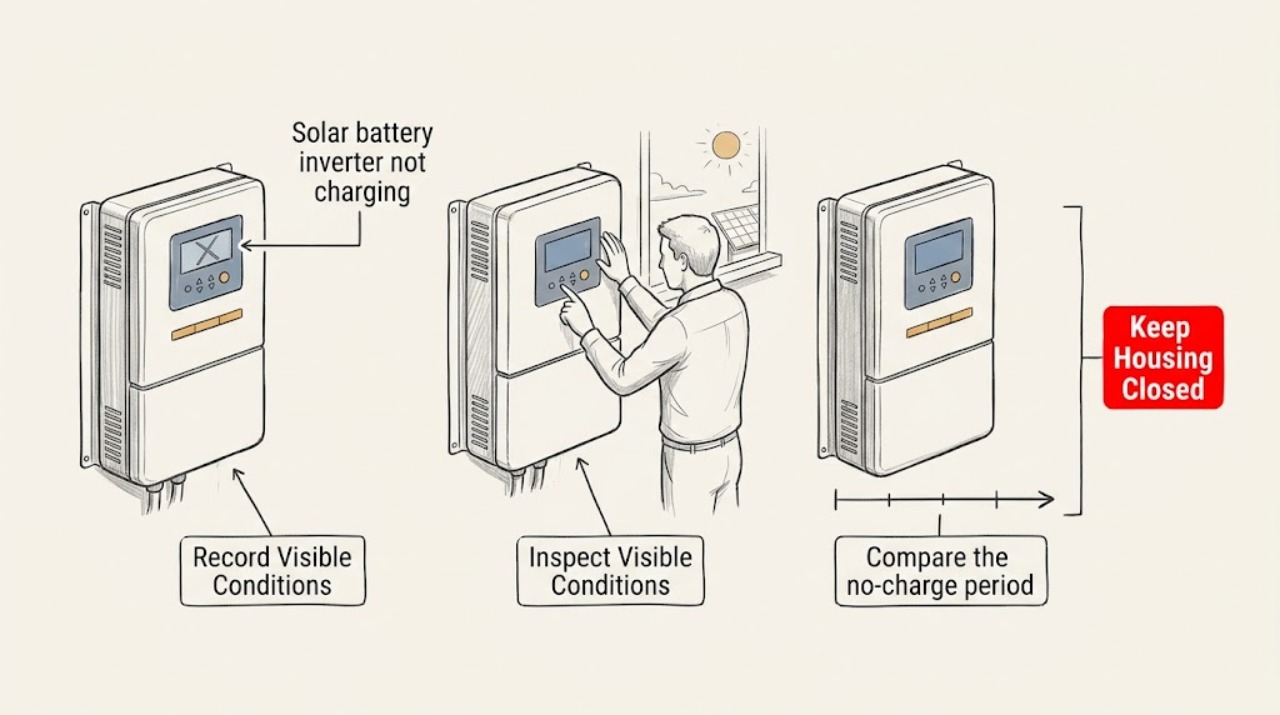
Start with the monitoring app or visible system status, not the battery or inverter enclosure. Record the battery state of energy, charge status, solar or grid power flow, reserve setting, alerts, and the time the problem began. A high reserve, scheduled operating mode, no solar production, a communication fault, or an inverter or battery fault can all look like 'not charging.' Do not open the battery or inverter, perform live DC testing, rebuild the battery, bridge or reset wiring, or repeatedly toggle equipment. Escalate to the installer or a qualified solar technician for any persistent or unsafe condition.
Work through in order
Diagnostic checks
Use only checks that match the exact appliance or system and its official guide.
-
Check 1
Open the system's normal monitoring app or customer portal and record the battery state of energy, charge or standby status, current power-flow direction, reserve target, and any alert text.
Expected result: Note whether solar is producing, the battery is at or near its reserve or full target, power flow is missing, the status is offline, or an inverter or battery warning is displayed.
Next step: Save a screenshot and the timestamp, then continue only with external observations; do not change advanced settings or repeatedly restart the system.
Stop if: Stop if the app reports a safety fault, heat damage, smoke, burning smell, isolation fault, battery fault, or an emergency condition.
Why this matters
Why: A reserve target, operating mode, absent solar input, or communication state can explain a pause without proving hardware failure. A persistent fault, missing telemetry, or a battery that remains very low and does not charge needs professional review.
-
Check 2
Compare the no-charge period with the normal solar and grid context shown in the app, weather history, and household operating mode without touching electrical equipment.
Expected result: Record whether the panels are producing, the grid is out, the system is in backup or storm mode, a schedule is active, or a recent event changed the operating state.
Next step: Add the context to the service report and wait for normal conditions only if the manufacturer explicitly identifies the state as expected; do not force a mode change.
Stop if: Stop troubleshooting during a grid outage, extreme weather, visible equipment damage, or any condition that makes approaching the system unsafe.
Why this matters
Why: An inverter may stop or change power flow when grid conditions or system modes change. A lack of solar production is not evidence that the battery or inverter is defective, and a grid outage is not a safe time for user troubleshooting.
-
Check 3
From a safe distance, observe the inverter, battery, gateway, and disconnect area without opening, touching, pressing hidden controls, or removing labels or covers.
Expected result: Note visible status lights, a dark or abnormal indicator, beeping, condensation, water, bulging, scorch marks, loose conduit, or unusual heat or odor from outside the enclosure.
Next step: Photograph only from a safe position and provide the observation to the installer or technician; keep people and pets away from the equipment.
Stop if: Stop immediately for smoke, burning smell, unusual heat, hissing, fluid, swelling, arcing, damaged enclosure, or water near electrical equipment.
Why this matters
Why: A missing status light or communication sound may indicate a power or gateway state, while heat, odor, water, damage, or bulging is a safety escalation. External appearance cannot diagnose internal DC or battery faults.
-
Check 4
Review recent app alerts, status-history entries, and the time the charge behavior changed, without clearing alerts, repeating resets, or changing wiring or battery settings.
Expected result: Record whether the event follows an update, outage, maintenance visit, weather event, reserve change, communication loss, or a prior fault that returned.
Next step: Export or photograph the history and give the exact alert text and timestamps to the manufacturer or certified installer.
Stop if: Stop if the system is repeatedly faulting, the battery remains at a critically low state, or recovery would require a reset loop or access to the enclosure.
Why this matters
Why: Timing can separate a configuration or communication state from a persistent equipment problem, but an alert history cannot confirm a safe repair or identify a failed component by itself.
-
Check 5
Check the user-visible system configuration summary for the battery's enabled mode, reserve setting, charge source, and whether the inverter or gateway is shown as connected; do not edit advanced controls.
Expected result: Note a reserve target that prevents further charging, a disabled charge source, an installer-only setting, a stale connection, or a status that agrees with normal charging conditions but never increases.
Next step: Provide the configuration summary and model information to the installer and ask them to confirm the intended operating mode before any change is made.
Stop if: Stop if the app requests service mode, wiring changes, live measurements, breaker manipulation, or any action not explicitly marked as a normal user control.
Why this matters
Why: Configuration and communication can suppress or hide charging, while a stable no-charge state under confirmed charging conditions points to a technician-level diagnosis. The same label can mean different things on different systems.
-
Check 6
Confirm whether the battery begins charging normally after the system returns to a confirmed normal operating condition, without repeatedly toggling the inverter or battery.
Expected result: Answer yes if the app shows sustained charging and the state of energy rises normally; answer no if it remains unchanged, the status is offline, or a fault returns.
Next step: Keep the system in its existing safe state and schedule installer or manufacturer support with the screenshots, alerts, timeline, and external observations.
Stop if: Stop all troubleshooting for heat damage, smoke, burning odor, arcing, fluid, swelling, emergency alerts, or any unsafe electrical condition.
Why this matters
Why: A no result requires professional service because the cause may involve the inverter, battery, meter, gateway, configuration, or grid connection. A temporary return does not prove the system is repaired.
Use your observations
Decision map
Find the observation that best matches what you see, then follow the next safe action.
-
PATH 01Next step
What you see
The app shows the battery at its configured reserve or full target, or a documented schedule is intentionally pausing charge.
Do this next
Treat the state as configuration-related until the installer confirms otherwise; do not override advanced settings without the manufacturer's guidance.
-
PATH 02Next step
What you see
Solar production is absent, the grid is out, or the system is in an outage or weather-related operating mode.
Do this next
Do not troubleshoot the hardware during the event; record the status and follow the system's normal customer guidance until conditions are safe.
-
PATH 03Next step
What you see
The app is offline, power-flow data is missing, or a gateway or meter alert is present.
Do this next
Provide the exact alert and history to the installer or manufacturer; do not open the gateway, inverter, or battery or repeatedly reset them.
-
PATH 04Next step
What you see
The battery remains very low and does not charge when solar or grid conditions are confirmed normal.
Do this next
Request prompt certified solar service for inverter, battery, meter, and configuration diagnosis; do not perform live DC testing or attempt a rebuild.
-
PATH 05Next step
What you see
There is smoke, heat damage, burning odor, fluid, swelling, arcing, or an unsafe enclosure condition.
Do this next
Keep people away, do not approach or touch the equipment, and contact appropriate emergency or qualified electrical/solar service.
Helpful context
Understand the symptom
Separate a normal operating state from a fault
A storage system may intentionally pause charging because it reached a reserve target, follows a time-of-use schedule, has no usable solar generation, or is waiting for a grid or temperature condition. The app's power-flow history and alerts are more useful than guessing from a single battery percentage. Record what the system reports before changing any settings.
Keep the hardware boundary closed
Solar batteries and inverters can contain hazardous stored energy even when the display appears inactive. This article limits the reader to the monitoring app, normal user controls, and external visual or audible observations. A technician must handle isolation, DC measurements, enclosure access, fault clearing, and component decisions.
Only after diagnosis
Potential parts
- energy-monitor
Consider only if a certified installer confirms that monitoring hardware is missing or failed and that the system supports the proposed device; an energy monitor does not repair a charging fault.
Verify the inverter, battery, gateway, communications protocol, utility interconnection, and installer requirements before ordering.
When checks do not resolve it
Need a professional?
Call the certified installer or manufacturer when charging remains absent under normal conditions, the battery stays very low, an inverter, gateway, meter, or battery alert appears, status data is missing, or any external heat, odor, fluid, swelling, or damage is visible.
Have this ready
- Provide the system brand and model, app screenshots, state-of-energy trend, reserve and mode settings, charge-source context, alert text and timestamps, weather or outage context, and safe-distance equipment photos.
Common questions
FAQ
Can a solar battery pause charging without being broken?
Yes. A reserve target, operating schedule, absent solar production, grid condition, or communication state can pause or hide charging. Confirm the app status and have the installer interpret persistent no-charge behavior.
Can I open the inverter or battery to test why it is not charging?
No. Do not open the enclosure, perform live DC tests, bridge wiring, rebuild the battery, or reset equipment repeatedly. Provide app and external observations to a certified installer.
What should I capture before calling solar support?
Capture the state-of-energy trend, power-flow direction, mode and reserve, exact alert text, timestamps, solar or grid context, visible status lights, and any external heat, odor, fluid, swelling, or damage from a safe distance.
When is a battery charging problem urgent?
Treat it as urgent for smoke, burning odor, unusual heat, fluid, swelling, arcing, damaged enclosure, unsafe weather, or a persistent low battery that threatens backup availability. Keep people away and obtain appropriate emergency or qualified solar service.
Read the exact guide
Official sources
- Solar Integration: Inverters and Grid Services BasicsU.S. Department of Energy · Government technical context explaining that solar-plus-battery systems rely on inverter controls; it is not a live-testing or repair procedure.
- Get Help and Service for Your PowerwallTesla · Manufacturer support workflow illustrating how to submit app evidence and route a persistent battery issue to the installer or service team.
- Troubleshooting Your PowerwallTesla · Manufacturer guidance for Powerwall systems used as an example of app-visible charging, reserve, communication, and safety states; other systems differ.
Community feedback
Share a repair observation
Share a plain-text repair observation. Accepted observations are published automatically; this page may take a moment to update.