
On this page
Start here
Quick answer
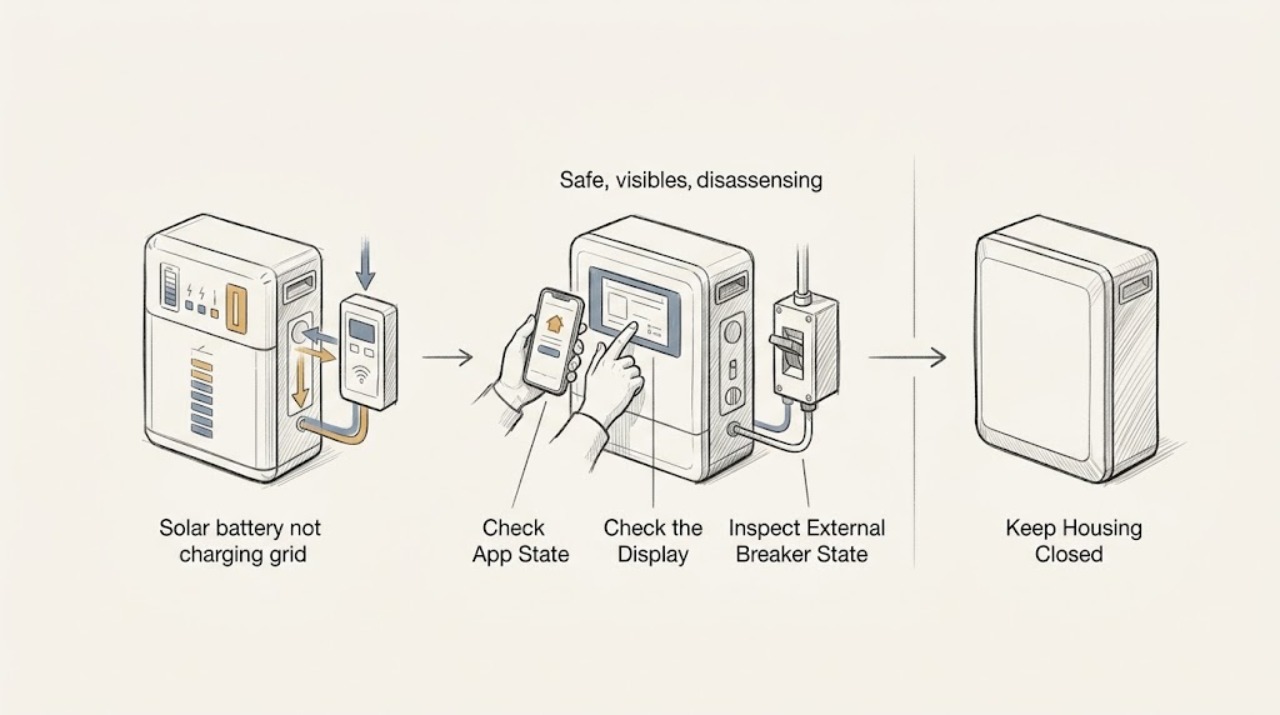
When a solar battery is not charging while grid power is available, first confirm the operating state rather than assuming a failed battery. Use the app or display to record battery state of charge, backup-reserve status, schedule or operating mode, alerts, and last communication; view status lights and breaker indicators only from outside. A reserve hold or charging schedule, stale communication, an inverter fault, a battery fault, and a real grid-status mismatch lead to different next steps. Do not open the battery or inverter, test AC or DC, operate unknown disconnects, or change wiring. Stop for heat, smoke, odor, swelling, arcing, or a safety alert and request qualified solar service.
Before you begin
Safety first
- User checks stop at the app, display, exterior indicators, and visual breaker indication. Do not open the battery or inverter, test live AC or DC, operate unknown disconnects, clear alerts, or alter wiring.
Work through in order
Diagnostic checks
Use only checks that match the exact appliance or system and its official guide.
-
Check 1
Open the solar system app or read the normal user-facing display and record the battery state of charge, charging or idle label, backup-reserve setting, schedule or operating mode, alert text, and last-update time. Do not change settings during this check.
Expected result: The app may show reserve hold, scheduled or mode-limited operation, active charging, an inverter or battery alert, grid unavailable, stale data, or no clear state.
Next step: Save a screenshot and the time observed, then compare the app with the exterior status indicators.
Stop if: Stop if the app requests an unsafe reset, if a safety warning appears, or if further diagnosis would require opening equipment or changing settings.
Why this matters
Why: A battery held for backup reserve or deferred by a time-of-use or self-consumption schedule may intentionally show no charging; an explicit battery or inverter fault is a different path. A stale update points first to communication rather than a confirmed battery failure.
-
Check 2
From a safe distance, view the exterior status lights or display on the inverter and battery enclosure without opening covers or touching terminals; record whether each is normal, off, flashing, or showing a fault indicator. Do not interpret an unlabeled light by guesswork.
Expected result: The indicators may agree with the app, show a different state, be off, flash, display a fault, or be unreadable.
Next step: Photograph the indicators only when readable from a safe position and record their timing against the app screenshot.
Stop if: Stop for heat, smoke, burning or chemical odor, swelling, liquid, arcing, damaged enclosure, or any need to remove a cover.
Why this matters
Why: Agreement between the app and exterior indicators supports the displayed operating state; a mismatch can indicate stale communication, an inverter state issue, or a battery-side fault that needs professional diagnosis.
-
Check 3
Do any externally visible breaker windows or labeled disconnect indicators appear tripped or off while grid power is otherwise available? Inspect the indication only; do not operate the breaker or disconnect.
Expected result: Answer yes, no, or unclear from the exterior indication.
Next step: Record the label and indicator position and give it to the installer or qualified electrician; do not reset an unknown device.
Stop if: Stop immediately for a hot enclosure, buzzing, arcing, damaged cover, exposed conductors, or water near electrical equipment.
Why this matters
Why: A yes result can explain why the battery system sees no grid path, but the indication does not identify whether the cause is utility-side, wiring, inverter, or equipment protection. An unclear result needs professional inspection.
-
Check 4
Compare the timeline of grid availability, solar production, battery demand, app updates, schedule windows, and any utility or weather event without forcing a test. Note whether the battery ever charged during the same grid-available period.
Expected result: The no-charge state may follow a schedule, begin after an update or utility event, occur only at certain times, or persist continuously.
Next step: Send the timeline, screenshots, indicator observations, and grid-status context with the service request.
Stop if: Stop for repeated alarms, thermal warnings, smoke, odor, arcing, or any instruction to test live or internal circuits.
Why this matters
Why: Charging only during a configured window supports a dispatch or mode explanation; a stale app during otherwise normal operation supports communication trouble; a persistent fault indication despite grid availability points toward inverter or battery service.
-
Check 5
Does the app or exterior indicator identify an inverter fault, battery fault, thermal warning, or communications failure while the grid remains available? Use the displayed wording only and do not clear the alert.
Expected result: Answer yes for a displayed fault or warning, no when both interfaces show no fault, or unclear when the message is missing or unreadable.
Next step: Preserve the exact alert, timestamp, model information, and indicator state for the installer or service professional.
Stop if: Stop using the system as directed by its safety alert and keep clear for heat, smoke, odor, swelling, liquid, or arcing.
Why this matters
Why: A communications failure calls for monitoring or network/service review; an inverter or battery fault requires qualified solar service, and a thermal or physical warning takes priority over continued operation.
Use your observations
Decision map
Find the observation that best matches what you see, then follow the next safe action.
-
PATH 01Safety boundary
What you see
The app shows backup reserve, minimum state-of-charge protection, or another normal reserve hold with no fault.
Do this next
Record the reserve state and compare it with the manufacturer or installer’s normal user-facing mode description; request service if the state is unexpected or cannot be changed through documented user controls.
Why this path and its safety boundary
Why it matters: The system may be preserving energy for backup rather than indicating a failed charging circuit.
Safety stop: Do not open equipment or override a reserve protection state.
-
PATH 02Safety boundary
What you see
The app shows a schedule, time-of-use window, self-consumption mode, or dispatch setting that postpones charging while the grid is available.
Do this next
Record the mode, schedule window, and time of observation; ask the installer or service provider to confirm the intended behavior.
Why this path and its safety boundary
Why it matters: A dispatch or operating mode can intentionally defer charging even though the utility is present.
Safety stop: Do not change advanced settings or firmware as a troubleshooting experiment.
-
PATH 03Safety boundary
What you see
The app data is stale or disagrees with the exterior status light or display.
Do this next
Preserve timestamps and screenshots and request communications or monitoring diagnosis; do not rewire or open network or power equipment.
Why this path and its safety boundary
Why it matters: The battery may be operating while the app is not receiving current data, or a system controller may be reporting an incomplete state.
Safety stop: Stop if the app requests an unsafe reset or if any physical warning appears.
-
PATH 04Safety boundary
What you see
A breaker or disconnect indicator appears tripped or off, or the system reports grid unavailable while utility power is available elsewhere in the property.
Do this next
Do not operate the device; request qualified solar or electrical service and provide the label, indicator position, and property grid context.
Why this path and its safety boundary
Why it matters: The battery system may not be seeing the expected grid signal or protected circuit state; the visual indication does not identify the fault location.
Safety stop: Stop for heat, buzzing, arcing, water, damaged enclosures, or exposed conductors.
-
PATH 05Safety boundary
What you see
The inverter shows a fault or shutdown state while the battery and grid appear otherwise available.
Do this next
Arrange high-priority qualified solar service and provide the exact code or display text, time, and exterior indicator state.
Why this path and its safety boundary
Why it matters: The inverter controls the conversion and grid interaction, so an inverter state can prevent charging without proving the battery is defective.
Safety stop: Do not reset, open, or test the inverter internally.
-
PATH 06Safety boundary
What you see
The battery shows a fault, thermal warning, physical damage, swelling, liquid, heat, smoke, odor, or repeated failure to charge with no mode explanation.
Do this next
Stop use as appropriate, keep people away, and contact the installer or qualified emergency service according to the warning.
Why this path and its safety boundary
Why it matters: A battery-side or safety condition requires professional handling and may make continued operation unsafe.
Safety stop: Do not approach a hot, damaged, leaking, smoking, or arcing battery enclosure.
-
PATH 07Safety boundary
What you see
App, indicator, breaker, and timeline observations show no clear reserve, mode, communication, inverter, battery, or grid explanation.
Do this next
Arrange qualified solar service and provide the complete observation packet rather than repeating tests.
Why this path and its safety boundary
Why it matters: User-level observation cannot isolate the charging path without electrical and equipment diagnostics.
Safety stop: Do not perform live AC/DC measurements, battery opening, internal resets, or wiring changes.
Helpful context
Understand the symptom
Classify the operating state first
Grid power being available does not mean the battery should charge at every moment. Backup-reserve protection, schedules, and dispatch modes can defer charging, while a stale app can make a working system look inactive. Start with the user-facing state and its timestamp.
Separate controls, communications, and hardware
Compare the app with exterior inverter or battery indicators and the visible breaker state. A communication mismatch, grid-status mismatch, inverter fault, and battery fault are separate service paths; none can be safely confirmed by opening the equipment.
Stay outside the electrical boundary
This is an observation-only check. Do not open the battery or inverter, test live AC or DC, operate unknown disconnects, clear alerts, change advanced settings, or alter wiring. Heat, smoke, odor, swelling, liquid, arcing, or a safety warning requires immediate escalation.
Only after diagnosis
Potential parts
- energy-monitor
Consider this only when a qualified assessment identifies missing or unreliable monitoring as the problem and confirms compatibility.
Confirm the monitoring architecture, communications path, system model, and installer recommendation before ordering; a monitor cannot repair a charging, inverter, battery, or grid-path fault.
When checks do not resolve it
Need a professional?
Call qualified solar service when no-charge persists with grid available, the app and indicators disagree, a breaker or grid-status mismatch appears, an inverter or battery fault is shown, or the cause is not explained by a documented reserve or schedule mode. Escalate immediately for heat, smoke, odor, swelling, liquid, arcing, or a safety warning.
Safety scope: User checks stop at the app, display, exterior indicators, and visual breaker indication. Do not open the battery or inverter, test live AC or DC, operate unknown disconnects, clear alerts, or alter wiring.
Have this ready
- Screenshots with timestamps showing state of charge, reserve, schedule or mode, alerts, and last communication
- Exterior indicator photos and visible breaker labels or positions
- Model and installer information, grid availability context, and when charging last worked
- Timeline of solar production, loads, utility events, and repeated no-charge periods
- Any heat, smoke, odor, swelling, liquid, arcing, or access concern
Common questions
FAQ
What should I check when the solar battery is not charging with grid power available?
Record the app state of charge, reserve status, schedule or mode, alert wording, last-update time, exterior indicators, and visible breaker position without operating equipment.
Does no charging prove the battery is defective?
Not necessarily. A reserve hold or schedule can defer charging, and stale communications can hide a current state. Compare the app timestamp with the exterior indicator before assuming a battery failure.
Can an inverter fault stop charging while the grid is on?
It can. An inverter controls grid interaction and conversion, so an inverter fault may prevent charging even when the battery and utility appear available. Preserve the exact alert and call qualified service.
Can I reset or test the battery myself?
Do not open the battery or inverter, test AC or DC, operate an unknown disconnect, clear a fault, or change wiring. Stop for heat, smoke, odor, swelling, liquid, arcing, or a safety warning.
What should I give the solar technician?
Provide screenshots with timestamps, state-of-charge and reserve or schedule information, indicator photos, visible breaker labels and positions, model details, grid status, and when charging last worked.
Read the exact guide
Official sources
- Solar Integration: Inverters and Grid Services BasicsU.S. Department of Energy · General DOE solar and storage guidance; exact equipment, settings, utility state, and qualified service determine the diagnosis.
- Solar Integration: Solar Energy and Storage BasicsU.S. Department of Energy · General DOE solar and storage guidance; exact equipment, settings, utility state, and qualified service determine the diagnosis.
- Solar and Resilience BasicsU.S. Department of Energy · General DOE solar and storage guidance; exact equipment, settings, utility state, and qualified service determine the diagnosis.
Community feedback
Share a repair observation
Share a plain-text repair observation. Accepted observations are published automatically; this page may take a moment to update.