
On this page
Start here
Quick answer
Start with the monitoring app and the visible system status, not the battery enclosure. Record whether the app shows charging, waiting for solar, an outage, a communication fault, or a service-required alert; compare that with current daylight, weather, grid status, and the solar-production indicator. A low battery can be normal during an outage or low-solar period, while a persistent no-charge state, repeated fault, offline gateway, or visible heat, smoke, damage, or water exposure needs the installer or manufacturer service team. Do not open the battery or inverter, take electrical measurements, change live switches, or rebuild the battery.
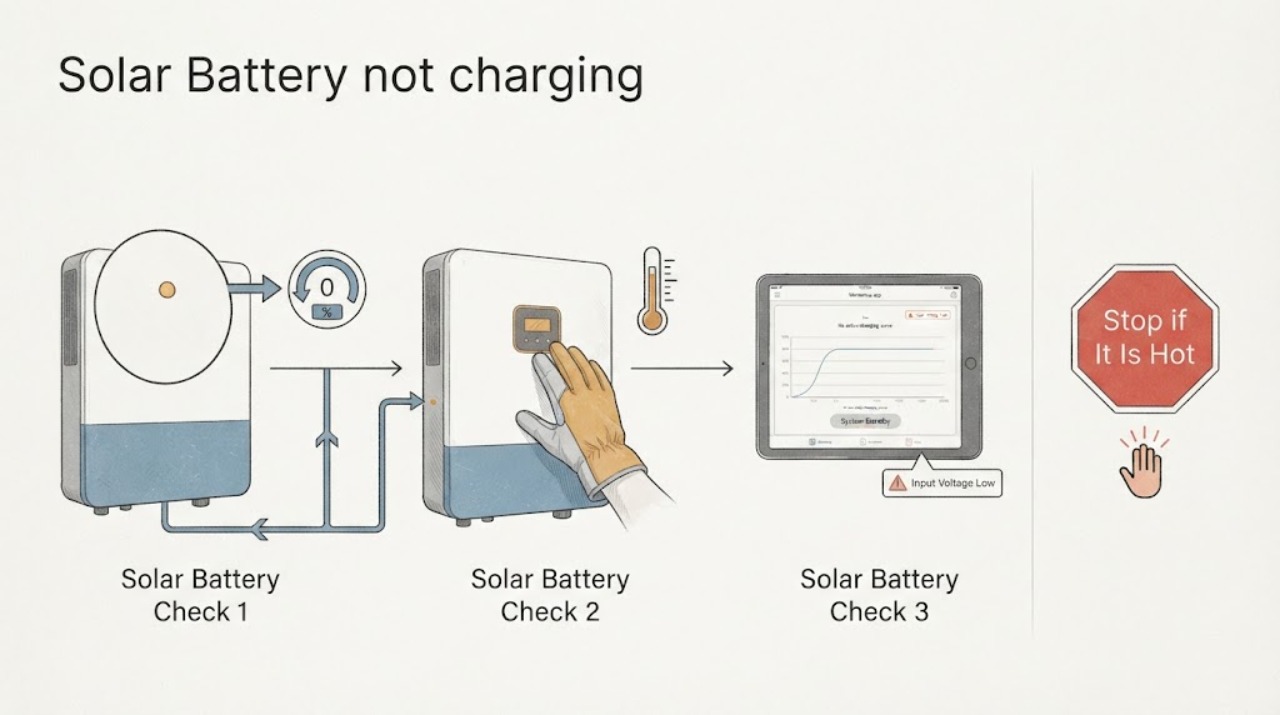
Work through in order
Diagnostic checks
Use only checks that match the exact appliance or system and its official guide.
-
Check 1
Open the manufacturer-approved monitoring app or installed display, if available, and record the battery state, charging or idle message, solar-production status, connection status, alert text, and the time of the observation. Do not enter service mode or change settings.
Expected result: A message such as waiting for solar, grid outage, calibration, reserve protection, communication loss, or service required points to different next steps. A stale screen, missing power-flow data, or offline gateway indicates that displayed charging behavior may not reflect the equipment’s actual state.
Next step: Save a screenshot or exact wording and continue with the daylight, weather, and grid-context check. Follow only the manufacturer’s displayed support path; do not improvise a reset.
Stop if: Stop if the app reports a fault, high temperature, smoke, burning smell, damaged enclosure, or a required site visit; contact the installer or manufacturer service team.
Why this matters
Why: The status message is the system’s first diagnostic branch. It can distinguish an expected operating condition or data problem from a fault that needs installer attention without opening energized equipment.
-
Check 2
From the app and ordinary surroundings, compare the no-charge period with daylight, heavy cloud, snow, shading, a utility outage, storm activity, or a recent change in household demand. Do not measure panel, inverter, battery, or utility voltage or current.
Expected result: No charging during darkness, very low solar, or an active outage may match the system’s operating mode. Continued charging failure during ordinary daylight with a normal grid state and a healthy solar-production indication is more significant and should be reported.
Next step: Record the date, approximate time, weather, outage status, and app solar indicator. If the same no-charge status persists when conditions normalize, move to the visible-safety and service check.
Stop if: Stop the observation during severe weather, flooding, smoke, or any condition that makes the equipment area unsafe to approach.
Why this matters
Why: Solar input and grid state can limit charging without proving a battery failure. The comparison tells the service team whether the symptom is time- or condition-linked.
-
Check 3
From a safe distance and normal ground-level access, look at the outside of the battery, inverter, gateway, and nearby conduit for smoke, burning odor, unusual heat radiating from the enclosure, swelling, impact, water intrusion, loose exterior parts, or visible damage. Do not touch the equipment or remove a cover.
Expected result: Any smoke, burning odor, water intrusion, impact, bulging enclosure, or other damage is a safety issue rather than a charging-optimization problem. A normal-looking exterior does not rule out an internal or control fault.
Next step: Keep people away from a hazardous system and use the installer or manufacturer’s emergency instructions. For a normal-looking system with a persistent fault, send the status record and photos to qualified service.
Stop if: Stop immediately for smoke, fire, hissing, burning odor, rapid heating, fluid, severe damage, or water near electrical equipment; do not approach or operate switches.
Why this matters
Why: Visible hazards require the area to be left alone and escalated. The absence of visible damage supports collecting app evidence but cannot certify the battery or inverter.
-
Check 4
Review the system’s recent app history, installer handoff documents, and service notifications for a commissioning step, firmware or communication event, utility restriction, outage, or prior fault. Note whether the symptom began after a storm, outage, app change, or service visit.
Expected result: A new symptom after an outage or service event may be tied to a system status or communication change. A repeated no-charge condition across normal solar periods, or a status that returns after the manufacturer’s documented process, supports a qualified service call.
Next step: Send the timeline, screenshots, system make and model if known, installation company, and visible observations to the installer or manufacturer support. Ask for the approved next diagnostic step or a site visit.
Stop if: Stop self-troubleshooting if the system history calls for service, the app cannot identify the system, or the next suggested step involves opening equipment or accessing live electrical parts.
Why this matters
Why: History helps the installer distinguish a one-time state from a recurring storage, control, or solar-input issue; it does not authorize changing wiring or rebuilding the battery.
Use your observations
Decision map
Find the observation that best matches what you see, then follow the next safe action.
-
PATH 01Next step
What you see
The app shows waiting for solar, an outage, reserve protection, or another expected operating state and there is no visible hazard
Do this next
Record the state and conditions, then follow the manufacturer’s normal status guidance without changing hardware or settings.
-
PATH 02Next step
What you see
Smoke, burning odor, rapid heat, visible damage, fluid, or water is present
Do this next
Leave the area, keep others away, and use the manufacturer or local emergency instructions; do not approach the equipment or operate switches.
-
PATH 03Next step
What you see
No-charge persists during normal daylight and the app shows normal solar input but no charging
Do this next
Provide the evidence to a qualified solar-battery installer or manufacturer support team and request an approved diagnosis or site visit.
Helpful context
Understand the symptom
A low battery is not automatically a failed battery
Solar-plus-storage systems coordinate panels, an inverter, a battery-management system, the utility connection, and a monitoring app. Charging can pause while the system is waiting for enough solar, responding to an outage or operating mode, completing a manufacturer-controlled process, or reporting stale data. The app state and recent conditions are more useful first evidence than trying to access the equipment.
Keep the check at the user interface and outside of the equipment
Use only the manufacturer-approved app or display and safe visual observations from a normal standing position. Do not remove covers, open a battery cabinet, open an inverter, probe terminals, measure live DC or AC, change breakers or switches, or perform a reset unless the manufacturer’s qualified support process specifically directs an authorized person to do so.
Safety boundary
Stop conditions
- Do not open the battery, inverter, gateway, or electrical enclosure; do not rebuild a battery or probe terminals.
- Do not take live DC or AC measurements, change breakers or switches, or perform a reset unless a manufacturer-authorized qualified service process directs it.
- Stop immediately and leave the area if there is smoke, burning odor, unusual heat, hissing, fluid, swelling, impact, flooding, or any other visible electrical hazard.
Only after diagnosis
Potential parts
- Energy monitor
Only consider an external monitor if the installer confirms that the existing system lacks a supported way to observe solar and battery status.
Confirm the system architecture, communications protocol, installer approval, and utility or warranty requirements before adding monitoring equipment.
When checks do not resolve it
Need a professional?
Contact the installer or manufacturer service team when the app shows a fault or service-required alert, the battery remains not charging during normal solar conditions, data is persistently offline, or the problem follows an outage or service event. Provide the system make and model if known, screenshots, alert wording, times, weather and outage context, and safe exterior observations.
Have this ready
- Provide the installation address, system and app identity, battery state and alert wording, screenshots, dates and daylight or outage conditions, solar-production indicator, recent service history, and any visible exterior hazard.
Common questions
FAQ
Can a solar battery stop charging without being broken?
Yes. An outage, insufficient solar, reserve or operating mode, communication problem, or manufacturer-controlled state can pause charging. Check the approved app and conditions first, but persistent faults still need qualified service.
What should I do if the app says the battery is not charging?
Record the exact alert, battery state, solar indicator, time, daylight and outage context, and any recent service event. Follow only the manufacturer’s displayed support path and contact the installer or manufacturer if the state persists.
Can I open the battery or inverter to check why it is not charging?
No. Do not open enclosures, take electrical measurements, operate unapproved switches, or rebuild the battery. These checks require authorized qualified service.
When is a solar battery not charging an emergency?
Leave the area and use appropriate emergency or manufacturer instructions for smoke, burning odor, rapid heat, hissing, swelling, fluid, impact, flooding, or other visible electrical hazards.
Read the exact guide
Official sources
- Get Help and Service for Your PowerwallTesla Support · Official manufacturer example used for the safe escalation pattern: use the app’s support path, provide the issue, and schedule a site visit when service determines one is needed.
- Solar and Resilience BasicsU.S. Department of Energy · Official DOE overview used for explaining that residential solar and storage coordinate with an inverter and grid state, and that battery storage can support power during outages.
- System Alerts and NotificationsTesla Support · Official manufacturer example used only to illustrate how an installed battery system may report waiting for solar, outages, communication or service alerts in an app; exact messages vary by manufacturer and model.
Community feedback
Share a repair observation
Share a plain-text repair observation. Accepted observations are published automatically; this page may take a moment to update.