
On this page
Start here
Quick answer
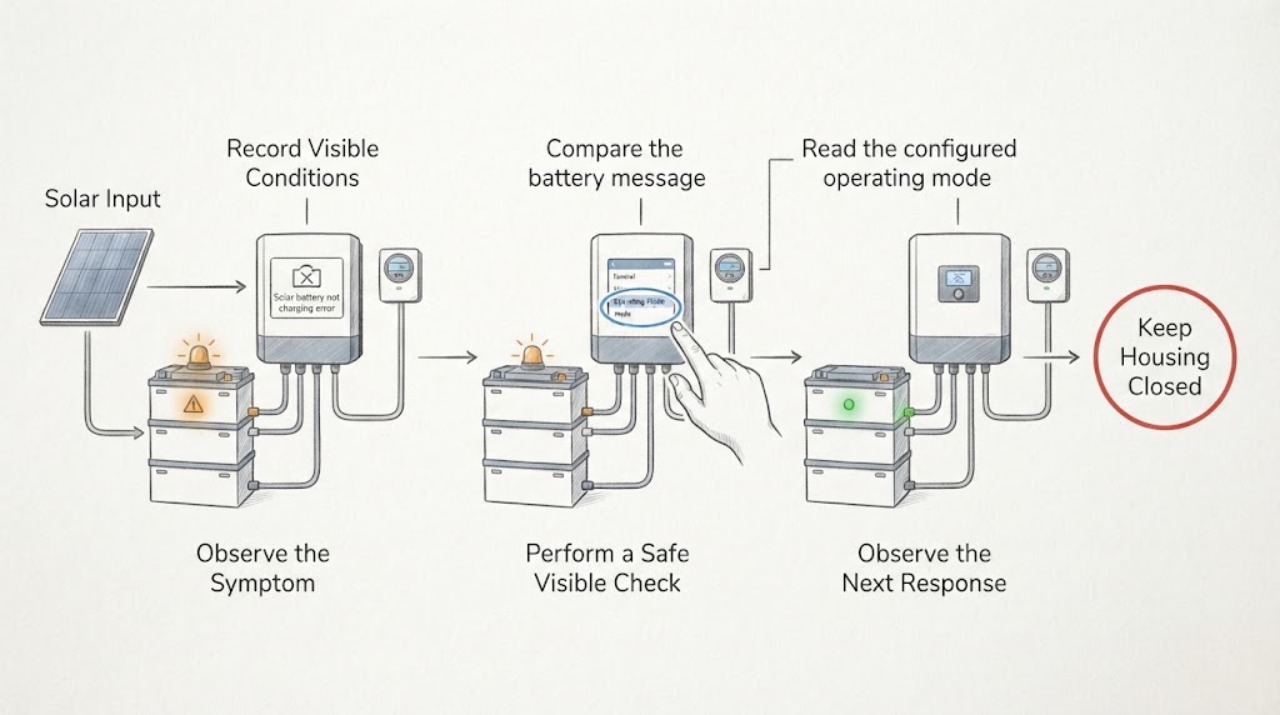
When a solar battery says it is not charging, save the exact error text and the time, then compare the battery state with solar production, state of charge, operating mode, and the local status indicator from a safe location. A full reserve, no excess solar, low-temperature startup, calibration, overload, stale app telemetry, an open system path, or a real equipment fault can look similar; the exact message and model manual decide which path applies. Do not open the battery, inverter, gateway, or junction boxes, probe wiring, or copy a reset sequence from another system. If the message repeats while solar is available, the battery remains idle with a low state of charge, or any heat, smoke, swelling, arcing, water intrusion, or exposed conductor is present, stop and arrange qualified solar service.
Before you begin
Safety first
- Observation from normal user controls only. No covers, live testing, DC/AC wiring, CT rewiring, breaker experimentation, forced reset, bypass, or battery handling.
Work through in order
Diagnostic checks
Use only checks that match the exact appliance or system and its official guide.
-
Check 1
From the normal app or display, copy the complete error or alert text and record when it appeared. Also record the battery state of charge, whether the screen says charging, idle, standby, waiting for solar, waiting for grid, or calibrating, and whether the message returns after it is dismissed.
Expected result: The message is a one-time notification, a repeatable not-charging alert, a low-energy or waiting state, a communication/offline warning, or a fault indicator; the state of charge may be full, partly depleted, or unavailable.
Next step: Save a screenshot and the timestamp, then use the exact model manual or installer support instructions for that wording. Do not guess an error-code meaning or clear the alert by changing protected settings.
Stop if: Stop if the display reports a thermal, isolation, arc, smoke, water, or emergency condition, or if the enclosure looks damaged.
Why this matters
Why: A full reserve or waiting state can be normal behavior, while a repeatable fault or a low state of charge with no charge activity needs a different diagnostic path. Missing telemetry does not prove that the battery cells are failing.
-
Check 2
Compare the battery message with the system's solar-production indication during a period when sunlight would normally be available. Note cloud, shade, snow, utility outage, recent storm, or an inverter message, and inspect only ground-level, clearly accessible surroundings; do not climb onto the roof or touch array or wiring.
Expected result: The system shows no solar production, solar production is present but the battery sees no excess, the grid is out, or production appears normal while the battery remains idle.
Next step: Record the solar and battery readings together and let the exact installer documentation define the next safe check. Do not alter array wiring, inverter settings, or meter/current-transformer connections.
Stop if: Stop for roof access, damaged panels, exposed conductors, water in electrical equipment, smoke, or an arc-fault or isolation warning.
Why this matters
Why: No usable solar or no excess after household loads can explain no charging without a battery failure. Normal solar with a persistent not-charging state shifts attention toward mode, metering, enable/breaker state, temperature, or storage equipment.
-
Check 3
Read the configured operating mode and reserve target without changing protected settings. Note whether the battery is at its reserve or full limit, whether the home is importing power, whether a calibration or temperature state is shown, and whether a recent installation or cold-start event was reported.
Expected result: The battery is full or held at reserve, the site is importing rather than exporting excess solar, the system is waiting for solar or grid, or a protected temperature/calibration state is active.
Next step: Keep the documented mode unchanged unless the exact manufacturer instructions authorize a user adjustment. Give the installer the mode, reserve, state-of-charge, and timing rather than selecting a replacement part.
Stop if: Stop if changing the setting would require installer credentials, opening equipment, disabling a protection, or overriding a shutdown.
Why this matters
Why: These states can intentionally prevent charging or postpone it. If the battery is below its configured limit and solar is available but the message persists, a control, metering, enable path, or equipment fault becomes more likely.
-
Check 4
Compare the app's last-update time and power-flow view with the battery's visible status indicator and any user-visible gateway or inverter alert. Look only at labeled, normally accessible indicators; do not open a deadfront, remove a cover, operate an unfamiliar breaker, or inspect CT wiring.
Expected result: The app is blank or stale while the local status is normal, the local indicator is off or flashing, a breaker-open or gateway/meter alert is shown, or both app and local indicators agree that charging is disabled.
Next step: Record the indicator state, alert text, last update, and any visible label. Contact the installer when the mismatch persists or a system path appears open; do not perform a generic power cycle because the order is model- and installation-specific.
Stop if: Stop immediately for exposed wiring, heat damage, water, burning odor, arcing, or a damaged enclosure; do not touch the equipment.
Why this matters
Why: A stale app or missing power flow can be a communications, gateway, or meter problem rather than a battery-cell fault. An off or fault indicator, or matching disabled states, requires system-level diagnosis.
-
Check 5
After the safe observations above, note whether the error appears only when large household loads run, during an outage, or continuously during ordinary daylight. Reduce only ordinary plug-in loads if doing so is safe and convenient; do not change battery protection settings or deliberately create a backup event.
Expected result: Charging resumes when the system has excess solar or loads are lower, the battery remains in low-energy or backup standby, or the error continues despite normal solar and modest household demand.
Next step: Document the load, solar condition, battery state, and time of recovery. If the error persists or returns, stop user troubleshooting and request qualified service with the screenshots and model information.
Stop if: Stop using the system for smoke, burning odor, abnormal heat, swelling, arcing, water intrusion, or any sign of battery damage.
Why this matters
Why: High demand, outage behavior, or low-energy standby can explain a temporary pause. A repeatable error under normal conditions makes a persistent control, meter, inverter, or battery fault more likely.
Use your observations
Decision map
Find the observation that best matches what you see, then follow the next safe action.
-
PATH 01Next step
What you see
The battery is full or at its configured reserve, the app says waiting for solar or grid, or the system is in a documented calibration or temperature state.
Do this next
Leave protected settings unchanged, monitor one normal operating window described by the model manual, and escalate if the state does not clear when its documented condition is met.
Why this path and its safety boundary
Why it matters: The evidence favors an intentional operating state over an immediate battery-part failure.
-
PATH 02Next step
What you see
Solar production is absent or household demand is consuming the available production, while the battery and app otherwise report a normal state.
Do this next
Record the production and load readings, then reassess under the system's normal charging conditions. Escalate if solar is later available and the exact error remains.
Why this path and its safety boundary
Why it matters: There may be no surplus energy available for charging; this pattern is less consistent with a battery fault than normal solar or a battery-specific error would be.
-
PATH 03Next step
What you see
The app is stale or blank but the local indicator appears normal, or the app and local indicator disagree about charging.
Do this next
Provide the installer with screenshots, last-update time, local indicator state, and model details. Do not open the gateway or copy a reset sequence from another product.
Why this path and its safety boundary
Why it matters: Communication, gateway, meter, or data-flow trouble is more likely than a confirmed battery-cell failure; the app cannot by itself prove the physical charge state.
-
PATH 04Next step
What you see
The battery is below its configured limit, solar is available, the error repeats, and the local indicator is off/flashing or the system reports an open path or fault.
Do this next
Stop at external observation, preserve the exact error and timeline, and arrange qualified solar service. Do not open equipment, probe conductors, rewire CTs, or repeatedly toggle breakers or system switches.
Why this path and its safety boundary
Why it matters: The pattern is no longer explained by reserve or lack of excess solar and needs qualified diagnosis of the battery, inverter/charger, gateway, meter, or protection system.
-
PATH 05Next step
What you see
Smoke, burning odor, unusual heat, swelling, arcing, water intrusion, exposed conductors, or physical enclosure damage is present.
Do this next
Keep people away without approaching the equipment, follow the installed system's emergency instructions if they can be followed without contact, and call emergency or qualified service as appropriate. Do not touch, move, open, or restart the system.
Why this path and its safety boundary
Why it matters: This is a battery/electrical safety event, not a user troubleshooting branch.
Helpful context
Understand the symptom
An error message is a state report, not a part diagnosis
Solar batteries can intentionally stop charging when they are full, waiting for usable solar, in a protected temperature or calibration state, or unable to see the expected energy flow. The same app wording can also be stale when the gateway or meter is offline. Start with the complete message, battery percentage or state of charge, solar production, selected operating mode, and the local indicator; do not infer a failed cell, inverter, or charger from one screen.
Use the installed system's manual for any control action
Powerwall, Enphase IQ Battery, and other storage systems do not share the same switch names, indicator meanings, reserve settings, or restart procedure. Read the manual for the exact model and installer configuration. A battery cabinet, inverter, gateway, and meter can remain energized even when the app says idle or disconnected, so observation from normal user controls is the safe limit unless the manufacturer explicitly documents an external user step.
Keep high-voltage and thermal faults in the service lane
Do not remove covers, inspect terminals, change current-transformer wiring, test DC or AC conductors, or bypass a shutdown or interlock. If there is smoke, a burning smell, unusual heat, swelling, arcing, water at the equipment, a damaged enclosure, or an exposed conductor, keep people away and follow the manufacturer's emergency guidance or contact emergency help as appropriate.
Safety boundary
Stop conditions
- Do not open the battery, inverter, gateway, meter, junction boxes, or deadfront covers; do not probe or rewire AC/DC conductors or current transformers.
- Do not copy a reset sequence, repeatedly toggle breakers, bypass a shutdown or interlock, or handle the battery based only on an app message.
- Stop immediately for smoke, burning odor, unusual heat, swelling, arcing, water intrusion, exposed conductors, or enclosure damage; keep people away and obtain emergency or qualified service as appropriate.
Only after diagnosis
Potential parts
- solar battery module or battery assembly
Consider only when qualified diagnosis finds a battery-side fault after charging conditions, reserve, telemetry, and system protection states have been checked.
Battery chemistry, enclosure, firmware, certifications, and installer configuration are model- and region-specific; confirm fitment with the manufacturer or certified installer. - inverter/charger or system controller
Consider only when solar is available and the battery remains below its limit but the inverter/charger or controller reports a persistent charge-path fault.
Do not assume an inverter or controller is interchangeable; confirm the exact system architecture and approved replacement through qualified service. - gateway, meter, or energy-monitoring component
Consider only when app telemetry, local indicators, power-flow readings, or an open meter/gateway path disagree with the observed battery state.
Metering and communications parts depend on the installed battery, inverter, gateway, CT arrangement, and local configuration; a visible alert is not enough to select a part.
When checks do not resolve it
Need a professional?
Call a qualified solar installer when the error repeats in normal daylight with the battery below its configured limit, when the system reports an open breaker/path or persistent fault, when app and local indicators disagree, or when the exact model requires installer-level controls.
Safety scope: Observation from normal user controls only. No covers, live testing, DC/AC wiring, CT rewiring, breaker experimentation, forced reset, bypass, or battery handling.
Common questions
FAQ
Can an error message prove that the solar battery is bad?
No. It identifies a reported state, not a failed part. Full reserve, no excess solar, low-energy or calibration states, stale telemetry, metering, and system protection can all produce a no-charge symptom. Record the exact wording and use the model-specific service path.
Why does the battery not charge even though the panels are producing?
Panel production does not necessarily mean excess solar is available for storage. The battery may be full or at reserve, the site may be importing because household loads consume production, the operating mode may defer charging, or the system may not be reading solar flow correctly. Persistent errors need qualified diagnosis.
Should I turn the battery breaker or enable switch off and on?
Do not use a generic sequence. Some manufacturers document a model-specific external reset, but the order and prerequisites can differ, especially when solar is interconnected. Use only the exact manual or installer instruction; never open the equipment or operate an unfamiliar electrical device.
What if the app says the battery is not charging but the local light looks normal?
Treat that as a telemetry or gateway/meter mismatch until proven otherwise. Capture the app's last-update time, power-flow screen, local indicator, and complete alert, then send them to the installer. Do not assume the cells are failed or open the gateway.
When is a solar-battery charging error an emergency?
Smoke, burning odor, unusual heat, swelling, arcing, water intrusion, exposed conductors, or a damaged enclosure changes this from troubleshooting to a safety event. Keep people away, do not touch or restart the system, and use the manufacturer's emergency guidance or emergency service as appropriate.
Read the exact guide
Official sources
- System Alerts and NotificationsTesla Support · Directly applies to Tesla Powerwall systems; used for examples of low energy, waiting states, overload, breaker, calibration, and fault escalation.
- Best Practices During Power OutagesTesla Support · Directly applies to Tesla Powerwall systems; used for the distinction between outage/backup standby, high household loads, and normal solar recharge behavior.
- Powerwall / Powerwall+ is Not Charging from SolarTesla Energy Library · Directly applies to Tesla Powerwall/Powerwall+ installations; used here for documented examples of reserve, solar excess, status, temperature, and metering decision points.
- TroubleshootingTesla Energy Library · Directly applies to Tesla Powerwall and Gateway systems; used for indicator, communication, and service-boundary examples.
Community feedback
Share a repair observation
Share a plain-text repair observation. Accepted observations are published automatically; this page may take a moment to update.