
On this page
Start here
Quick answer
For missing solar monitoring data after an upgrade, first compare the last complete timestamp and first gap with the upgrade date, then separate actual production from the app's telemetry. Use only the app, account pages, utility records, accessible displays, and readable equipment labels to distinguish gateway, meter, inverter, account migration, historical backfill, and real production issues. A gateway or meter can be incompatible or assigned to the wrong site while the array still produces; a blank production record can also mean generation needs separate diagnosis. Do not open equipment, change breakers, climb to panels or a roof, touch wiring, factory-reset hardware, or delete an old site. Provide the exact timeline and records to a qualified solar installer or platform support.
Before you begin
Safety first
- Request a solar monitoring upgrade review that separates actual production from telemetry, checks gateway, meter, and inverter compatibility and commissioning, repairs account or site migration, determines historical backfill or export options, and diagnoses generation separately when independent production evidence is absent. All hardware, wiring, firmware recovery, and rooftop work belongs to qualified service.
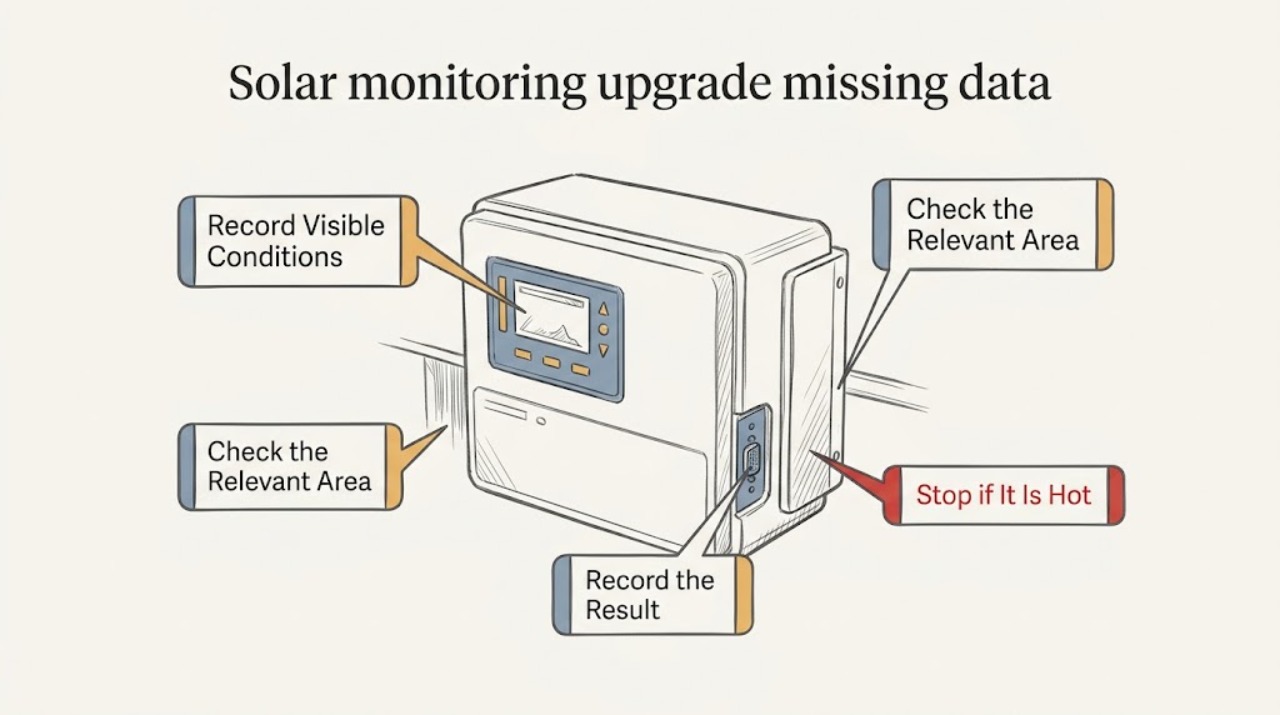
Work through in order
Diagnostic checks
Use only checks that match the exact appliance or system and its official guide.
-
Check 1
In the monitoring app or web portal, compare the data immediately before and after the monitoring upgrade. Record the last complete timestamp, the first gap, whether the gap is continuous or intermittent, which channels are missing, and whether the site or equipment list changed.
Expected result: Record missing production, consumption, meter, battery, or status data separately and note whether current-day values, alerts, and the site itself are still visible.
Next step: Save screenshots or export the visible timeline and note the upgrade date, installer, account, and site name. Do not change settings repeatedly while the boundary is being documented.
Stop if: Stop if the next check asks for opening a gateway or inverter, touching wiring, climbing to panels or a roof, changing a breaker, or altering a communications device physically.
Why this matters
Why: A gap that begins at the upgrade points toward migration, configuration, or communication continuity; an older gap that predates the upgrade may be a separate historical issue, while a current gap does not by itself mean the array stopped producing.
-
Check 2
Separate actual production from monitoring display data using only safe, already available records: an accessible inverter or gateway display, the utility or net-meter portal, and the monitoring app. Do not open equipment or perform an electrical test.
Expected result: Record whether current production is visible, only an old last update is shown, the utility portal differs, or no safe production record is available.
Next step: Capture the date, time, production indication, and source of each record and tell the installer whether the question is missing telemetry, missing history, or possible lost generation.
Stop if: Do not touch disconnects, breakers, meter wiring, inverter covers, or rooftop equipment to obtain a reading; stop for any alarm, heat, smoke, exposed conductors, or water intrusion.
Why this matters
Why: Production or utility records continuing while the app has a gap suggests a telemetry, gateway, account, or cloud-history issue; no independent production evidence means an installer must also assess system operation, not just the monitoring upgrade.
-
Check 3
From app menus, account pages, and readable exterior labels only, compare the installed gateway or communications device, meter, inverter family, and site equipment list with the upgrade documentation. Record model names, firmware or software labels when shown, and whether each device is listed as online or missing.
Expected result: Record a matching inventory, an added or missing device, duplicate equipment, unknown model, stale status, or a device that appears online while one data channel remains absent.
Next step: Send the exact labels and equipment list to the installer or platform support and ask them to confirm compatibility, commissioning status, communication path, and any required configuration.
Stop if: Do not remove covers, open a combiner or inverter, disconnect a meter, change firmware manually, or access roof or electrical equipment for identification.
Why this matters
Why: A gateway, meter, or inverter that is not listed, unsupported by the upgrade path, or assigned to the wrong site can create a data gap even when the array produces; model compatibility cannot be inferred from a similar-looking device.
-
Check 4
Check the account and site association in the monitoring portal without changing wiring or device settings. Confirm the login email, site name or identifier, owner versus installer access, migration notices, and whether the upgraded system appears under a new site or account.
Expected result: Record the original site present, new site present, both sites present, no site, read-only access, or a site with current data but missing older history.
Next step: Record the exact site and account labels and ask the installer or platform support to link the upgraded equipment to the intended account without creating a second migration or deleting history.
Stop if: Do not delete a site, reset ownership, share credentials, factory-reset equipment, or follow a physical pairing step that requires opening or touching hardware.
Why this matters
Why: A new or duplicated site, missing permissions, or an incomplete account migration can hide current and historical data even when the gateway and inverter are communicating.
-
Check 5
Compare historical charts and reports before and after communication returns, looking for a backfilled interval, a permanent blank span, shifted timestamps, or duplicate data. Use the portal's normal date controls only and do not assume a blank chart is recoverable history.
Expected result: Record complete backfill, partial backfill, no backfill, duplicate interval, shifted interval, or current data present with historical data absent.
Next step: Save the exact missing date range, timezone or timestamp behavior, and any backfilled versus non-backfilled channels and request a documented history-recovery or export decision.
Stop if: Do not factory-reset, uninstall, re-pair, or overwrite the gateway or account while historical recovery is unresolved.
Why this matters
Why: Some platforms retain data locally or in a gateway and may backfill after reconnection, while an upgrade can also leave a permanent history or time-association gap; the provider must determine what records still exist.
-
Check 6
Prepare a service handoff that separates upgrade timing, actual production evidence, gateway or meter or inverter inventory, account migration state, missing date ranges, and historical backfill results. Include screenshots without passwords or personal credentials.
Expected result: Confirm which data is missing and which production evidence remains, and list every device or account detail that could not be checked without opening equipment or performing electrical work.
Next step: Request a written plan naming the responsible platform or installer, the compatibility decision, the account and site correction, the backfill or export expectation, and how actual production will be verified safely.
Stop if: Stop DIY troubleshooting when the proposed fix involves inverter, meter, gateway, wiring, firmware recovery, roof access, or any live electrical work.
Why this matters
Why: This separation lets the installer decide between account repair, communication configuration, compatibility review, history recovery, and production diagnosis instead of replacing a monitoring device for a generation problem or vice versa.
Use your observations
Decision map
Find the observation that best matches what you see, then follow the next safe action.
-
PATH 01Next step
What you see
The gap begins at the upgrade date, while the inverter or utility record still shows current production.
Do this next
Treat the primary path as migration or communication continuity. Provide the timeline and screenshots to the installer or platform support and ask them to restore telemetry without changing electrical hardware.
-
PATH 02Next step
What you see
The app is missing data and no independent safe record shows current production, or production is visibly low as well as absent from the portal.
Do this next
Do not label this a monitoring-only fault. Request qualified solar service to assess generation and monitoring together; the reader should not open the inverter, test wiring, or access the roof.
-
PATH 03Next step
What you see
The gateway, meter, or inverter is absent, duplicated, unsupported, or stale in the post-upgrade site inventory.
Do this next
Ask the installer to confirm hardware and firmware compatibility and commissioning state for the exact models. Do not disconnect, rewire, or manually upgrade a device.
-
PATH 04Next step
What you see
The upgraded equipment appears under a new site, the old site lacks current data, or the account has lost owner or installer association.
Do this next
Treat this as an account migration or site-linking issue. Preserve both site records and contact the installer or platform support; do not delete the old site or create repeated pairings.
-
PATH 05Next step
What you see
Current data has returned but a dated historical interval remains blank, duplicated, shifted, or only partly backfilled.
Do this next
Request a documented backfill, local-history recovery, or export determination for the exact interval. Do not factory-reset or overwrite the gateway or account while history is being investigated.
-
PATH 06Next step
What you see
The data gap is intermittent, spans only one channel, or affects the meter but not production, or production but not consumption.
Do this next
Provide channel-specific timestamps and device status to the installer. A single missing stream may be a meter or mapping path rather than a complete gateway outage, so do not replace the monitoring system by guesswork.
-
PATH 07Next step
What you see
The only available check requires roof or panel access, an opened inverter or meter, breaker changes, exposed wiring, or a live electrical test.
Do this next
Stop at the app, account, labels, and safe records and arrange qualified solar service. Escalate immediately for smoke, heat, arcing, damaged equipment, or other electrical danger.
Helpful context
Understand the symptom
Separate the upgrade gap from lost generation
After a solar monitoring upgrade, start by placing the missing data on a timeline. Compare the last complete record and first gap with the upgrade date, and separate production, consumption, meter, battery, and status channels. A blank app chart is not proof that the array stopped producing, while a missing production record does not prove the gateway is the only fault.
Check communication and account identity
Use the app, account pages, readable equipment labels, an accessible display, and utility records only. Compare gateway, meter, and inverter inventory; check whether the account points to the old or new site; and note whether current values, alerts, or only historical data are missing. Do not open equipment, change breakers, climb to panels, or perform an electrical test.
Treat historical backfill as its own decision
A platform may backfill some history after communication returns, or it may leave a permanent interval that needs provider recovery or export. Give the installer exact dates, screenshots, device compatibility details, account migration state, and independent production evidence. A qualified provider can then choose account repair, communication configuration, compatibility work, history recovery, or a separate production diagnosis.
Only after diagnosis
Potential parts
- energy monitor
Consider this only after the installer confirms that the existing gateway, meter, and inverter cannot provide the required monitoring and that the proposed monitor is compatible; it cannot restore lost history or prove current generation by itself.
Match the exact system architecture, meter inputs, communications path, account platform, and installer requirements; installation and electrical connections are not user tasks.
When checks do not resolve it
Need a professional?
Arrange qualified solar service when the post-upgrade gap persists, production cannot be independently confirmed, a gateway, meter, or inverter is missing or incompatible, account history moved, or backfill is incomplete. Stop immediately for smoke, heat, arcing, damaged equipment, exposed wiring, or any request for unsafe access.
Safety scope: Request a solar monitoring upgrade review that separates actual production from telemetry, checks gateway, meter, and inverter compatibility and commissioning, repairs account or site migration, determines historical backfill or export options, and diagnoses generation separately when independent production evidence is absent. All hardware, wiring, firmware recovery, and rooftop work belongs to qualified service.
Have this ready
- Upgrade date, last complete timestamp, first gap, missing channels, and whether the gap is continuous, intermittent, shifted, or duplicated
- Screenshots of app graphs, alerts, equipment inventory, account or site pages, and safe production or utility records without passwords or personal credentials
- Gateway, meter, and inverter model labels or firmware details visible without opening equipment, plus old and new site names or identifiers
- Account migration state, owner or installer access, current versus historical data, and any backfill or recovery already observed
- Confirmation that no roof access, cover removal, breaker change, rewiring, factory reset, or live electrical test was attempted
Common questions
FAQ
What should I check first when solar monitoring loses data after an upgrade?
Compare the last complete timestamp and first gap with the upgrade date, then separate missing production, consumption, meter, battery, and status channels. Check safe app, account, utility, and accessible display records without opening equipment.
Does missing monitoring data mean my solar system stopped producing?
Not necessarily. The array or inverter may still produce while telemetry, the gateway, meter mapping, account, or cloud history is missing. Use safe independent records and ask the installer to verify production separately.
How do I check gateway, meter, and inverter compatibility?
Compare the exact gateway, meter, and inverter labels shown in the app or on accessible exterior labels with the upgrade documentation. The installer must confirm compatibility and commissioning; do not open or rewire the equipment.
What if my account changed during the monitoring upgrade?
Look for a new site, duplicate site, changed login, lost permissions, migration notice, or current data attached to a different account. Preserve both records and ask support to link the intended site rather than deleting history.
Can historical solar data be restored after an upgrade?
Some platforms may backfill after communication returns, but the result depends on what was retained locally or in the cloud. Record the exact blank interval and ask the installer or platform support for recovery or export options.
Read the exact guide
Official sources
- Monitoring Platforms for Solar Photovoltaic SystemsU.S. Department of Energy · Official DOE guidance supporting the distinction between PV monitoring platforms, gateway or network connections, inverter and meter instrumentation, measured production, and reporting history; it is not a model-specific upgrade procedure.
- PV Production and System IssuesSolarEdge · Official SolarEdge owner guidance used only as an example that a manufacturer separates inverter communication status from production status and directs electrical or inverter repair to certified service; controls and labels vary by manufacturer.
Community feedback
Share a repair observation
Share a plain-text repair observation. Accepted observations are published automatically; this page may take a moment to update.