
On this page
Start here
Quick answer
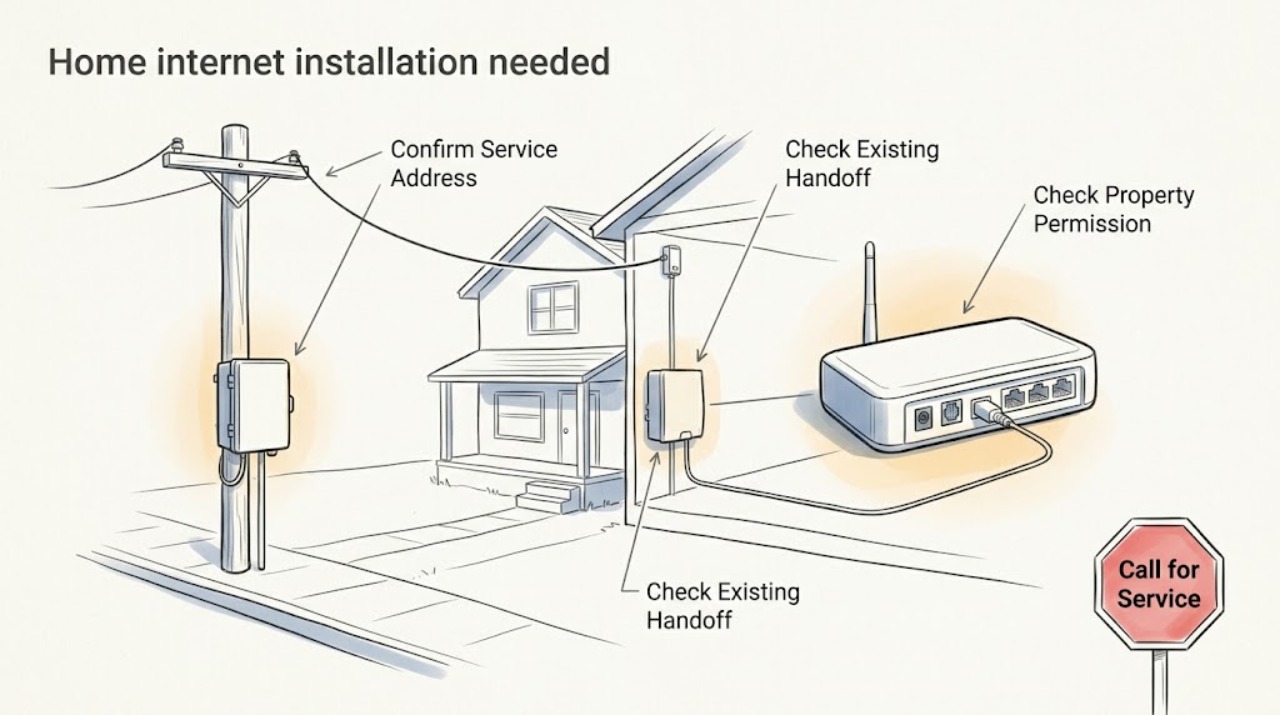
Treat an installation-needed message as a new-service readiness question, not as an outage or billing problem. First confirm the exact service address and unit, then check whether service is reported at that location and whether the home already has the provider's network handoff or wall plate. From a safe, accessible place, note the likely equipment area, a nearby working power outlet, and any landlord or HOA access requirement; do not drill, open utility boxes, alter wiring, or move building equipment. If the address is eligible but there is no installed handoff, or the provider requires a technician, schedule the installation and ask what equipment and adult access are required. Keep the appointment information and have a responsible adult present if the provider requires one.
Work through in order
Diagnostic checks
Use only checks that match the exact appliance or system and its official guide.
-
Confirm the serviceable address and unit
Read the proposed installation address exactly as it appears on the order or provider availability page, including apartment, suite, building, or unit information; do not submit a neighboring address as a substitute.
Expected result: Record whether the address is accepted, whether the correct unit or building is selectable, and whether the result identifies a fixed service location or only a general area.
Next step: If the address or unit is accepted, save the result and continue to the property-readiness check. If it is missing or clearly wrong, ask the provider to review the service location or use the FCC location or availability challenge process; do not create an order for another address.
Stop if: Stop if the address result conflicts with the lease, deed, building records, or provider order, or if the site is a shared or multi-unit property whose unit identity is unclear; get the property manager or provider to resolve the location before scheduling.
Why this matters
Why: The FCC says its map uses address-level location points and can show providers, technologies, and reported service at that location. A missing or wrong unit can make an otherwise serviceable property appear unavailable, while a map result still does not guarantee an installable handoff at the home.
-
Look for an existing provider handoff without opening anything
From ordinary room access, visually identify whether the home has a labeled fiber jack, Ethernet wall plate, coaxial outlet, or provider-supplied gateway already left for this address; do not remove plates, open enclosures, or touch building wiring.
Expected result: Note whether a compatible-looking handoff is present, absent, inaccessible, damaged, or assigned to a different unit, and photograph only labels that do not expose private account information.
Next step: Tell the provider whether a handoff is present and what type it appears to be. Follow only the provider's official kit instructions if the provider explicitly confirms self-installation; otherwise choose a professional appointment.
Stop if: Stop if the plate or enclosure is loose, damaged, warm, wet, sparking, or inaccessible, or if identifying it would require removing a cover or moving wiring; leave it untouched and request provider or building-professional help.
Why this matters
Why: Google Fiber states that self-installation eligibility depends on an existing Fiber Jack or Ethernet plate connected to its network, while some plans require a professional installation. The visible presence of a plate is therefore a readiness clue, not proof that service is active or compatible.
-
Check landlord, HOA, and access constraints
Review the lease, building rules, and any HOA or property-manager instructions for technician access, exterior equipment, shared utility spaces, and appointment-day entry; ask the responsible property contact what approval is required.
Expected result: Record whether written permission, a building escort, a key, a gate code, an adult occupant, or an approved equipment location is required, and whether the provider has described an exterior receiver or other building-visible equipment.
Next step: Obtain the required permission and give the provider the correct access instructions when scheduling. Do not promise a drilling location or approve a building alteration on behalf of a landlord, HOA, or manager.
Stop if: Stop scheduling physical work if the property owner, manager, HOA, or building access contact has not approved the relevant method or if no authorized person can provide entry; ask the provider for a non-invasive or rescheduled option.
Why this matters
Why: Verizon's professional-setup guidance says tenants or HOA residents should confirm installation-related restrictions before ordering and that some setups may place equipment indoors or outdoors. Requirements vary by property and provider, so permission must be settled before the appointment rather than inferred from a general service result.
-
Observe a safe equipment location and appointment readiness
Choose a dry, accessible indoor area where provider equipment could reasonably sit, and verify visually that a working power outlet and a path for the technician to reach the area are available; do not install wiring, drill, or move an existing handoff.
Expected result: Note whether the area is reachable, dry, ventilated, free of stored items, and close enough to the existing handoff or provider-specified location, and whether the household can provide the Wi-Fi setup information and an unlocked test device when requested.
Next step: Clear only movable household items, preserve access, and confirm with the provider what equipment will arrive and who must be present. If a new cable route, wall penetration, exterior mount, or utility-space access is proposed, let the provider and property authority decide the method.
Stop if: Stop if the proposed location is wet, obstructed, unsafe, near heat or exposed wiring, or would require drilling or utility work; do not improvise a different connection and ask the provider for an approved alternative.
Why this matters
Why: Verizon says its professional setup includes choosing equipment placement, activation, and testing, and requires an adult to be present who can agree to placement and connect a device. Google Fiber likewise distinguishes kit eligibility from professional installation. These are appointment-readiness conditions, not instructions to perform the provider's physical work.
Use your observations
Decision map
Find the observation that best matches what you see, then follow the next safe action.
-
PATH 01Next step
What you see
The exact address or apartment/unit is missing, rejected, or does not match the property.
Do this next
Pause the installation request and have the provider or property manager correct the service location. Do not order service against a neighboring or approximate address.
-
PATH 02Next step
What you see
The provider confirms eligibility and an intact provider handoff or network plate is already present.
Do this next
Ask whether the plan permits self-installation or still requires a technician, then follow the provider's current kit instructions or schedule the appointment. Do not open the plate or change wiring.
-
PATH 03Next step
What you see
The address is serviceable but no provider handoff is visible, or the provider marks the location for professional installation.
Do this next
Schedule a qualified provider installation and confirm access, equipment, adult presence, and property permission requirements. Leave all building wiring and utility enclosures untouched.
-
PATH 04Next step
What you see
The home is rented, in an HOA, in a managed building, or the proposed setup could affect an exterior or shared area.
Do this next
Obtain the required landlord, HOA, manager, or building approval before the appointment and share the approved access instructions with the provider.
-
PATH 05Next step
What you see
The home already has active internet service and the request is actually about a sudden outage, existing-account support, billing, or cancellation.
Do this next
Do not use this installation flow. Use the provider's separate account, outage, billing, or cancellation channel for that existing service.
Helpful context
Understand the symptom
What installation needed usually means
A new home connection may need an address-level order, an outside-to-inside service handoff, provider equipment, or a scheduled technician. The FCC's National Broadband Map can show reported fixed services at a location, but an availability result is not the same as a completed installation. Provider instructions determine whether a home is eligible for self-installation or needs professional work.
Keep preparation observational
You can verify the address, identify an existing network jack or provider-installed handoff, clear visual access to the proposed equipment area, and collect property permissions. Do not drill walls, open a telecommunications enclosure, move a fiber or cable handoff, run new utility wiring, climb, or alter building infrastructure. A technician or the provider's instructions must determine any physical installation method.
Separate installation from an existing-service problem
This page is for getting a new home connection ready. If an already active service suddenly stops working, use the provider's outage or repair support instead of placing a duplicate installation order. Do not cancel a service or change billing details as a troubleshooting step.
Only after diagnosis
Potential parts
- Ethernet cable
Only consider a replacement or extra cable if the provider confirms the installation method and cable category, length, and connector are appropriate; many installation kits already include the required cable.
Confirm the provider's equipment, connector type, and required specification before buying; do not substitute a cable for a missing provider handoff or building wiring. - Wi-Fi router
Only consider customer-owned router equipment if the provider confirms that the plan supports it and states the required compatibility or activation conditions; a provider gateway may already be supplied.
Compatibility depends on the provider, access technology, plan, and activation process. Confirm support before purchase and do not connect unknown equipment to a building handoff.
When checks do not resolve it
Need a professional?
Contact the provider or qualified installation service when the address is eligible but no handoff is present, a professional appointment is required, the unit or property rules are unclear, the kit is missing, or the installation method needs confirmation. Use a separate existing-service support route for an outage, billing issue, cancellation, or account problem.
Common questions
FAQ
How do I know whether my address needs a technician?
Confirm the exact address and ask the provider whether the home already has its network handoff and whether the selected plan permits self-installation. A general availability result cannot confirm the physical readiness of your unit.
What should I look for before the installer arrives?
Verify the unit and access instructions, look for an existing provider handoff without opening or moving anything, identify a dry accessible equipment area and nearby power, and confirm any adult, landlord, HOA, or building requirements.
Do I need to drill or run cable myself?
No. Do not drill, alter wiring, open utility enclosures, or move a network handoff. If a new cable route or exterior equipment is needed, the provider and authorized property contact must determine the method.
What if the home already has internet but it stopped working?
That is an existing-service outage or support issue, not a new-installation request. Use the provider's separate outage or account-support process rather than placing a duplicate installation order.
Read the exact guide
Official sources
- Verizon 5G Home Internet Professional Setup FAQsVerizon · Provider-specific example of property permissions, equipment placement, technician testing, and adult presence; it is not a universal installation promise.
- How to Use the FCC's National Broadband MapFederal Communications Commission Broadband Data Collection Help Center · Use for checking the exact property location and reported fixed-service availability; the map is not a completed installation appointment.
- Google Fiber Internet Support & Customer ServiceGoogle Fiber · Provider-specific example of how an existing network handoff affects self-installation eligibility; other providers and plans may differ.
Community feedback
Share a repair observation
Share a plain-text repair observation. Accepted observations are published automatically; this page may take a moment to update.