
On this page
Start here
Quick answer
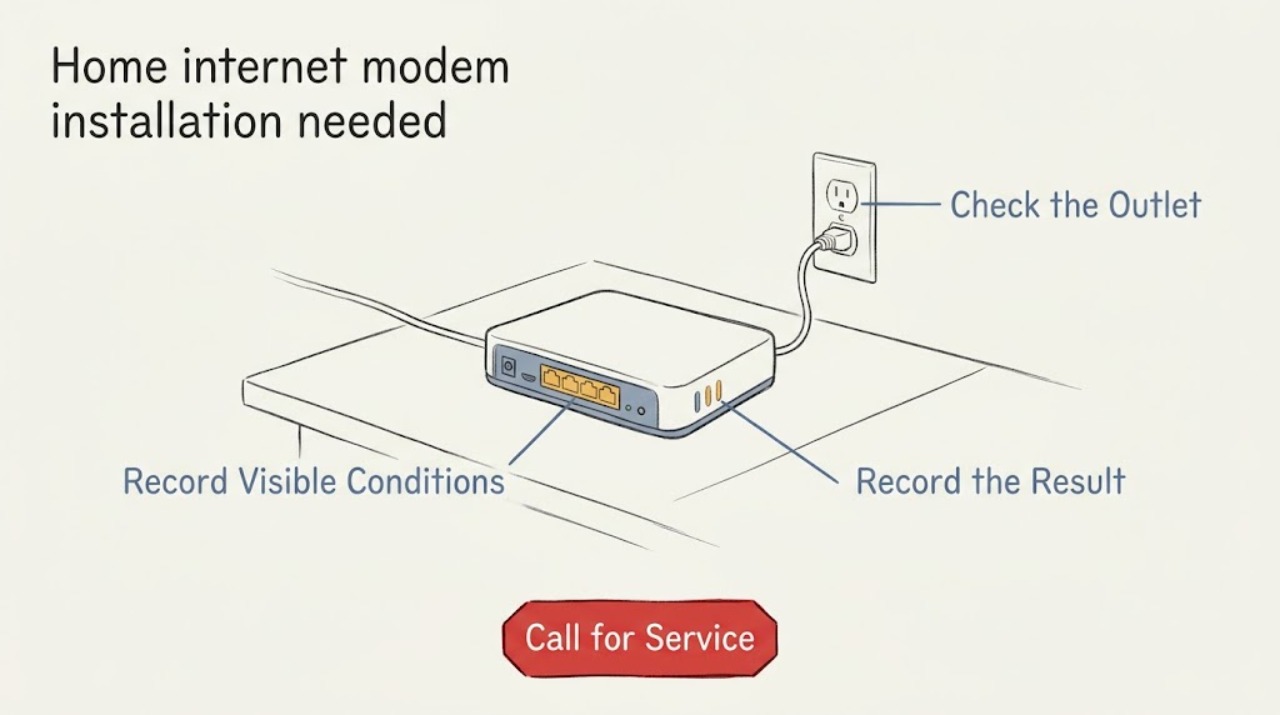
For a new home-internet modem installation, first confirm that service can be ordered at the exact property and identify the provider's incoming line or wall jack. Then gather the modem or gateway details, a compatible Ethernet cable and router if needed, a safe powered location, and any provider or building access requirements. Do not open a network enclosure, alter wiring, change advanced settings, or troubleshoot an existing service as part of this preparation. Give the service provider your observations so the installer can confirm the line, equipment, activation, and handoff.
Work through in order
Diagnostic checks
Use only checks that match the exact appliance or system and its official guide.
-
Check 1
Confirm the exact service address and requested connection type with the new-service provider, and record whether the property is a house, apartment, dormitory, or another managed building.
Expected result: Note whether the provider confirms service availability and identifies a cable, DSL, fiber, or Ethernet handoff, or says that an installer must locate or activate the entry point.
Next step: Save the provider's new-installation confirmation and ask what the installer will supply, what the resident must provide, and which locations are approved for the handoff.
Stop if: Stop if the address or connection type is unclear; do not guess the line type or order equipment until the provider confirms it.
Why this matters
Why: The incoming medium determines whether a modem is required and what equipment the installer must bring. A wall Ethernet jack may be the handoff in some buildings, while a coax, DSL, or fiber line may require provider-specific equipment.
-
Check 2
From a normal, safe position, inspect only visible network entry points and labels: a wall Ethernet jack, coax outlet, DSL jack, fiber termination enclosure, or provider-labeled modem location.
Expected result: Record the jack or enclosure location, visible connector type, label text, and whether the point is accessible without removing a cover or entering a restricted utility area.
Next step: Send the location and clear photos of labels to the provider through its approved support or installation channel, while keeping covers closed and wiring undisturbed.
Stop if: Stop if inspection would require opening a panel, removing a wall plate, touching exposed conductors, entering a locked area, or working near water or electrical hazards.
Why this matters
Why: A visible handoff helps the installer plan the visit, but a connector's appearance does not prove that the line is active, correctly provisioned, or compatible with a particular modem.
-
Check 3
Read the existing or newly supplied modem, gateway, and router labels from the outside and record the model, input type, visible port names, power requirements, and whether the device is a combined gateway.
Expected result: Compare those details with the provider's confirmed connection type and equipment list; note any mismatch, missing label, damaged connector, or equipment that was previously used on another service.
Next step: Ask the provider to confirm equipment compatibility and activation responsibility before connecting or replacing anything.
Stop if: Stop if a label is missing, a connector is damaged, the equipment is hot or has an odor, or confirmation would require opening the device.
Why this matters
Why: A modem and router can be separate devices or combined, and a device intended for one incoming medium may not accept another. A model label alone does not establish provider approval or activation eligibility.
-
Check 4
Check the proposed equipment location without changing wiring: observe a reachable household outlet, adequate ventilation, a stable dry surface, and enough room for the provider's line and Ethernet connection.
Expected result: Note whether the outlet and location are accessible to the installer and whether the modem, gateway, and router can remain visible and ventilated without being placed in a closed cabinet or near water.
Next step: Clear ordinary household clutter and tell the provider about access limits, building rules, or a required utility-room escort; leave wiring and outlets unchanged.
Stop if: Stop if the only location is wet, overheated, obstructed, electrically unsafe, or accessible only by altering the building.
Why this matters
Why: A prepared location reduces installation delays, but it does not validate the incoming line or authorize new electrical or wall work. The provider may require another handoff location or additional equipment.
-
Check 5
After the provider has connected and authorized the equipment, observe the outside labels and indicator lights without changing settings or repeatedly cycling power, and note what the provider's guide says each light represents.
Expected result: Record whether the modem or gateway powers on, whether the expected connection indicator appears, and whether the provider's setup screen or app recognizes the equipment; do not infer a universal meaning from a color or blink pattern.
Next step: Give the provider the exact light labels, app message, model, and connection type for the installation handoff; let the provider direct any activation step.
Stop if: Stop if the device becomes hot, smells burnt, shows physical damage, exposes wiring, or the next step calls for live electrical work, enclosure access, or repeated resets.
Why this matters
Why: Power without a provider connection can mean that activation, line handoff, equipment approval, or configuration remains incomplete. A router's local Wi-Fi state does not independently prove that the provider connection is active.
Use your observations
Decision map
Find the observation that best matches what you see, then follow the next safe action.
-
PATH 01Safety boundary
What you see
The provider confirms the address, connection medium, equipment responsibility, and an accessible handoff point.
Do this next
Prepare the safe location, documents and visible equipment details, and give the installer the photos and access notes.
Why this path and its safety boundary
Why it matters: The installation is ready for scheduling or provider-directed activation, subject to the provider's exact equipment and building requirements.
Safety stop: Do not alter wiring, open enclosures, or change advanced network settings during preparation.
-
PATH 02Safety boundary
What you see
The building has a visible Ethernet jack or managed handoff and the provider says no separate modem is required.
Do this next
Ask the provider which device is the primary router, what setup information is required, and who controls the building-side equipment.
Why this path and its safety boundary
Why it matters: The property may use a building-provided handoff rather than a customer modem, but the provider still must confirm activation and compatible router equipment.
Safety stop: Do not remove the wall plate, enter a utility room, or assume an unlabelled jack is active.
-
PATH 03Safety boundary
What you see
The visible line, jack, modem type, or router equipment does not match the provider's confirmed installation details.
Do this next
Pause equipment changes and send the provider the model, connector type, photos, and exact mismatch for a compatibility decision.
Why this path and its safety boundary
Why it matters: The connection may need provider equipment, an approved gateway, an activation change, or an installer to identify the handoff; the mismatch cannot be safely resolved by guessing.
Safety stop: Do not substitute cables, bridge devices, alter WAN settings, or reset equipment as a workaround.
-
PATH 04Safety boundary
What you see
The equipment powers on but the expected provider connection or setup confirmation does not appear.
Do this next
Report the exact indicator label or app message and the connection type to the provider; keep the equipment connected only as directed and do not run repeated reset cycles.
Why this path and its safety boundary
Why it matters: Power is present, but activation, line status, equipment approval, or the provider's setup workflow may still be incomplete.
Safety stop: Stop if there is heat, odor, physical damage, exposed wiring, moisture, or a request to perform live electrical or concealed-cable work.
Helpful context
Understand the symptom
What “installation needed” usually means
A modem converts an incoming connection such as coax, DSL, or fiber into Ethernet for a router. Some providers supply a combined modem-router gateway, while some buildings provide an Ethernet jack that does not need a separate modem. Because the connection type and activation method vary, a new installation is a readiness and handoff question rather than a reason to change settings on an existing network.
Stay within safe preparation
Use only visible labels, normal household outlets, already accessible jacks, and provider instructions for the exact equipment. Do not open a utility enclosure, remove wall plates, drill, run new cable through walls, alter building wiring, or repeatedly reset equipment. Stop and ask the provider or a qualified installer whenever the line, access point, equipment type, or connection standard is uncertain.
Only after diagnosis
Potential parts
- ethernet-cable
Consider this category only if the provider confirms a separate modem-to-router Ethernet handoff and the required cable is not supplied or the existing cable is visibly damaged.
Confirm the provider's equipment instructions and connector condition; a cable cannot replace an inactive line, incompatible modem, or missing activation. - wifi-router
Consider a separate router only if the provider confirms that the modem is not a gateway, the service supports customer router equipment, and the router is appropriate for the confirmed connection handoff.
Confirm provider approval, WAN connection type, required setup method, and whether the provider or installer supplies a gateway before selecting equipment.
When checks do not resolve it
Need a professional?
Request new-installation service when the provider must confirm address availability, locate or activate the incoming line, approve a modem or gateway, connect the handoff, or complete activation.
Have this ready
- Provide the service address, confirmed or uncertain connection type, photos of visible jacks and labels, modem or gateway model, proposed equipment location, indicator labels after authorized connection, and building access restrictions.
Common questions
FAQ
Do I always need a separate modem for new home internet?
No. A provider may supply a combined modem-router gateway, and some managed buildings provide an Ethernet handoff that does not need a separate modem. Confirm the incoming medium and equipment responsibility with the provider before buying or connecting anything.
What should I have ready before a modem installation?
Have the confirmed service address, connection type, provider equipment instructions, visible jack or line location, model labels, a safe powered location, and any building access requirements ready. Do not open enclosures or alter wiring to prepare.
Why can a modem power on but still need installation?
Power only shows that the device is receiving power. The incoming line, activation, equipment approval, connection type, and provider setup handoff may still be incomplete. Report the exact light label or setup message and equipment model to the provider.
Read the exact guide
Official sources
- What is a modem?Google Home and Nest Help · General networking explanation; Google device guidance does not replace a provider's installation requirements.
- Set up Nest Wifi Pro or Nest WifiGoogle Home and Nest Help · Example of a specific router setup; use only the general readiness concepts unless the equipment is a matching Google product.
Community feedback
Share a repair observation
Share a plain-text repair observation. Accepted observations are published automatically; this page may take a moment to update.