
On this page
Start here
Quick answer
A new home-internet router installation is ready when the provider confirms service at the exact address, the service handoff is present and active, the router is compatible with that handoff, and there is a safe location with power and a suitable Ethernet path. First identify whether the handoff is a cable or DSL modem, a fiber ONT or Fiber Jack, or another provider device; then record its visible labels and status without opening or repairing it. Confirm which port is the router WAN port and whether the provider requires special equipment or settings such as VLAN support. If the modem or ONT is missing, not activated, inaccessible, or the provider cannot confirm compatibility, book a new-customer installation or provider-assisted setup rather than treating it as an outage or attempting hidden wiring work.
Before you begin
Safety first
- The homeowner scope is planning, safe external observation, visible cable routing, and documented setup connections when the provider and equipment guide allow them. Do not enter billing or outage support, open or repair provider equipment, drill or open walls, perform live electrical or network repair, guess advanced settings, or alter hidden utility wiring.
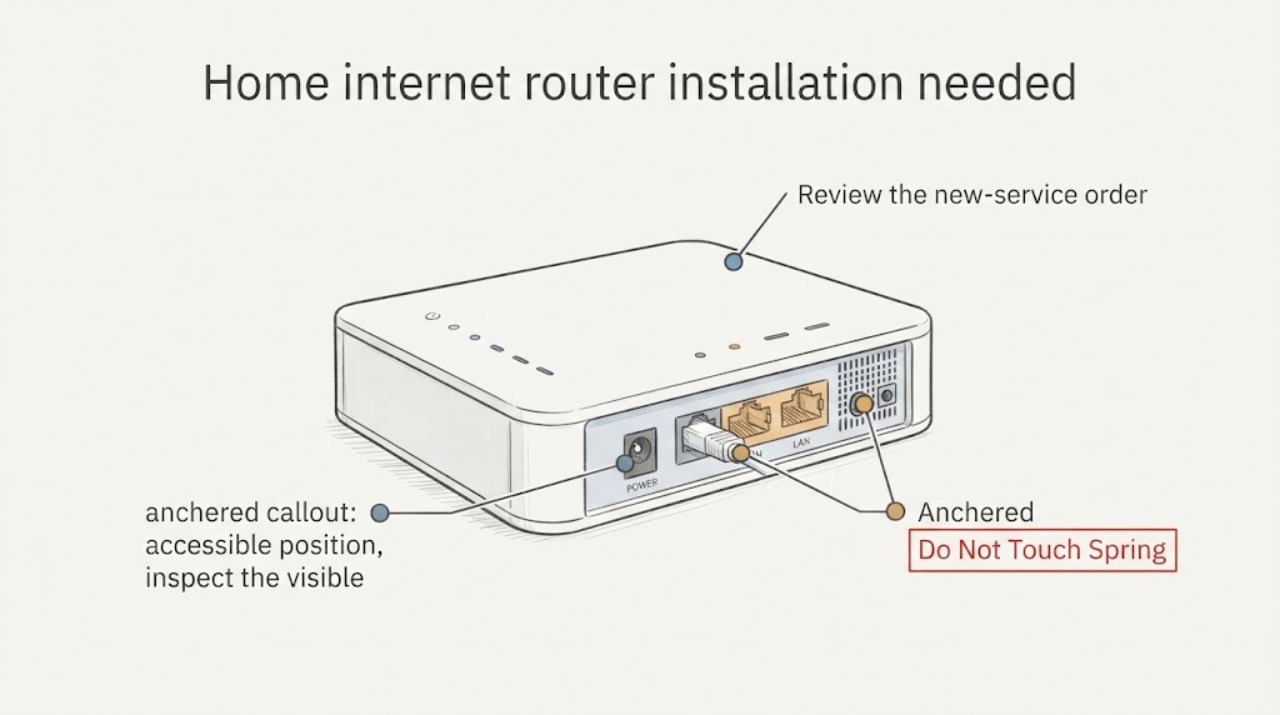
Work through in order
Diagnostic checks
Use only checks that match the exact appliance or system and its official guide.
-
Check 1
Review the new-service order or installation instructions and confirm the exact service address, the requested service type, whether the provider expects self-installation or a visit, and whether a modem, gateway, or optical network terminal is included or already present. Do not enter billing or existing-account support flows.
Expected result: Record whether the provider has confirmed service availability and an installation path, whether equipment is supplied or present, and whether the address requires a technician for the service handoff.
Next step: If the handoff or installation eligibility is unclear, ask the provider's new-customer installation team to confirm it before buying or wiring equipment. If it is confirmed, continue with the equipment and location check.
Stop if: Stop if the address, service type, equipment ownership, or installation eligibility cannot be confirmed without account changes, billing work, or a provider-side action.
Why this matters
Why: A confirmed handoff and clear installation path support router setup; a missing, unconfirmed, or provider-controlled handoff means the router is not yet the first problem to solve.
-
Check 2
From a safe, accessible position, inspect the visible service-entry area for a modem, gateway, fiber ONT or Fiber Jack, coax or fiber termination, Ethernet jack, power adapter, and readable model or status labels. Do not open, move, reset, or disconnect the provider equipment.
Expected result: Note which handoff device exists, which ports and cables are visibly available, whether it has power, and whether the provider has stated that it is active for the new service.
Next step: Photograph or transcribe only the external model and port labels, then give them to the installer or provider. Keep the service-entry area unobstructed and do not attempt live repair.
Stop if: Stop for exposed conductors or fiber, damaged cables, moisture, heat, unusual odor, a sealed provider enclosure, or any need to open, relocate, reset, or repair the handoff device.
Why this matters
Why: A visible and provider-confirmed modem or ONT creates the upstream handoff a router needs; an absent, unpowered, damaged, inaccessible, or unconfirmed device requires provider installation or assessment.
-
Check 3
Inspect the proposed router and its documentation without connecting unknown equipment: record the router manufacturer and model, identify the port labeled WAN or Internet, confirm its power adapter, and check whether the provider names requirements such as VLAN tagging, authentication, or a supplied gateway.
Expected result: The router may have a clearly identified WAN port and a provider-supported setup path, or it may lack the required handoff, documentation, or compatibility confirmation.
Next step: Send the exact router model and the visible modem or ONT model to the provider for compatibility confirmation. Do not guess at bridge mode, VLAN values, credentials, or a double-router arrangement.
Stop if: Stop if the router model is unknown, the provider requires unsupported equipment, the handoff uses a non-Ethernet interface the router does not accept, or setup would require entering undocumented credentials or advanced settings.
Why this matters
Why: A WAN port is the router's upstream connection, but port names alone do not prove compatibility. Provider-specific tagging, authentication, gateway, or voice and television requirements can change the installation design.
-
Check 4
Choose a safe indoor router location and trace a visible, accessible route from the modem or ONT to that location without drilling, opening walls, climbing, moving utility equipment, or running cable through a wet or damaged area.
Expected result: Record whether there is a nearby power outlet, enough ventilation and open space, a practical Ethernet path, and a location that keeps the router accessible for provider setup and status checks.
Next step: Share the proposed router location and cable route with the installer. Use only provider-approved placement and cable guidance, and keep the route clear until setup is complete.
Stop if: Stop if the route would require drilling, wall opening, ladder work, contact with electrical or utility wiring, outdoor placement, or a cable extension through water or a trip hazard.
Why this matters
Why: A workable location reduces installation delays; a route that depends on hidden wiring, construction, unsafe access, or a provider-controlled termination requires an installer or qualified network professional.
-
Check 5
When the provider confirms the handoff is active and the equipment guide permits customer setup, connect the handoff device's Ethernet output to the router's WAN or Internet port, connect the router's supplied power, and follow the provider or manufacturer setup screen. Do not change hidden wiring or repeatedly reset provider equipment.
Expected result: Note whether the router powers on, the setup process recognizes the WAN connection, and the provider or setup app confirms the new network. Do not interpret a missing connection as permission to change advanced settings.
Next step: Record the exact screen message or visible status, router and handoff models, and cable path. Ask the new-installation provider to complete activation or compatibility work when the setup does not confirm.
Stop if: Stop for heat, odor, sparks, damaged power supplies, water, exposed fiber or wiring, an unsafe cable path, or any prompt to open equipment or perform live network or electrical repair.
Why this matters
Why: A successful setup confirms the local handoff and router path; failure before provider activation, with an absent handoff link, or at a provider-specific requirement should be returned to the provider rather than treated as a generic Wi-Fi fault.
-
Check 6
Prepare the information an installer needs: exact service address, building or unit access instructions, provider-confirmed service medium, modem or ONT model and location, router model, WAN cable availability, proposed router location, power access, and any need for visible cable routing or additional equipment.
Expected result: A complete handoff description lets the provider distinguish an address or service-entry task from a router-placement task; missing model, location, or access information leaves the installation plan uncertain.
Next step: Provide the record through the provider's new-customer installation channel and follow its equipment-specific instructions. Keep the router and handoff accessible for the scheduled setup.
Stop if: Stop planning DIY work if the provider must activate service, install or test an ONT or modem, add a jack, route cable through a wall, or certify equipment compatibility.
Why this matters
Why: Installation readiness depends on the upstream service and physical handoff as much as on the router. A clear record reduces the chance of an incompatible device or an incomplete appointment.
Use your observations
Decision map
Find the observation that best matches what you see, then follow the next safe action.
-
PATH 01Safety boundary
What you see
The provider confirms service at the address, an active modem or ONT handoff is present, the router model is supported, and a safe visible cable path exists.
Do this next
Follow the provider and router manufacturer's new-installation sequence: handoff Ethernet to the router WAN port, power the router, and complete the approved setup flow.
Why this path and its safety boundary
Safety stop: Stop if the provider handoff is not active, a setup message indicates a compatibility requirement, or any cable or power condition is unsafe.
-
PATH 02Safety boundary
What you see
The address or service handoff is not confirmed, or the modem, gateway, ONT, or Fiber Jack is missing, unpowered, damaged, sealed, or inaccessible.
Do this next
Arrange provider-assisted new-customer installation and provide the address, service medium, visible equipment details, and access constraints.
Why this path and its safety boundary
Safety stop: Do not open, move, reset, repair, or bypass provider equipment or attempt to create a service handoff from an unknown wall jack.
-
PATH 03Safety boundary
What you see
The router has no confirmed compatibility with the modem or ONT, or the provider mentions VLAN tagging, authentication, a gateway requirement, or bundled voice or television equipment.
Do this next
Ask the provider to confirm the supported topology and required equipment for the exact router and service. Use the provider's documented setup path rather than guessing advanced settings.
Why this path and its safety boundary
Safety stop: Do not invent VLAN values, credentials, bridge-mode settings, or a second-router arrangement.
-
PATH 04Safety boundary
What you see
A router powers on but the WAN handoff is not recognized during a new installation.
Do this next
Record the router and handoff models, port labels, visible status, and exact setup message, then return the case to the provider's new-installation or compatibility support route.
Why this path and its safety boundary
Safety stop: Do not treat this as an outage workflow, repeatedly reset the provider equipment, swap hidden wiring, or open either device.
-
PATH 05Safety boundary
What you see
The proposed location or cable path needs drilling, wall access, ladder work, utility routing, outdoor placement, or construction changes.
Do this next
Ask the installer or a qualified network professional to design and perform the visible or concealed route safely.
Why this path and its safety boundary
Safety stop: No wall opening, utility work, unsafe extension, or improvised cable route.
-
PATH 06Safety boundary
What you see
The customer is actually reporting an existing-service outage, billing concern, cancellation, or account change rather than a new installation.
Do this next
Use the provider's appropriate existing-account support route; this installation-readiness article does not diagnose or change that service.
Why this path and its safety boundary
Safety stop: Do not alter account settings or promise that a new router will resolve an unrelated provider issue.
Helpful context
Understand the symptom
Separate installation readiness from an outage
This page is for a new router and service handoff. It does not diagnose an existing-account outage, billing issue, or cancellation. A router cannot create service when the address is not provisioned, the modem or optical network terminal is absent, or the provider handoff has not been activated. Confirm that prerequisite first, then plan the local router connection.
The service handoff matters
A modem translates the provider connection into Ethernet for a router. On a fiber installation, an optical network terminal may perform that handoff; a provider may call it an ONT or Fiber Jack. The device and terminology vary, so use the provider's installation record and the equipment labels rather than assuming a generic router can connect directly to every wall jack.
Plan the physical setup before the appointment
Choose an indoor, dry, ventilated router location in plain view and near the service handoff and power. Keep the proposed cable path visible and accessible. Do not drill, open walls, move an ONT, open a modem, work near utility wiring, or ask the customer to perform a hidden cable repair as part of this readiness check.
Only after diagnosis
Potential parts
- ethernet-cable
Consider this category only when the provider confirms an Ethernet handoff and the existing cable is missing, damaged, or unsuitable for the documented router setup; a cable cannot replace a missing or inactive modem or ONT.
Confirm connector type, required category, length, and any provider-specific guidance for the exact handoff and router before ordering. - wifi-router
Consider this category only after the provider confirms that customer-supplied routing is supported and identifies any required WAN, authentication, VLAN, voice, television, or gateway capabilities.
Match the exact provider handoff, service features, regional wireless rules, and router model documentation; do not assume any router works with every modem, ONT, or provider service.
When checks do not resolve it
Need a professional?
Use the provider's new-customer installation route when service availability, the modem or ONT handoff, activation, equipment compatibility, or cable entry is not confirmed. Use an installer or qualified network professional for provider equipment, concealed cable routing, additional jacks, or unsafe access.
Safety scope: The homeowner scope is planning, safe external observation, visible cable routing, and documented setup connections when the provider and equipment guide allow them. Do not enter billing or outage support, open or repair provider equipment, drill or open walls, perform live electrical or network repair, guess advanced settings, or alter hidden utility wiring.
Have this ready
- Provide the exact service address, building access details, service medium, modem or ONT and router models, visible port labels, handoff location, power and cable-path observations, provider setup message, and whether the router is customer-supplied or provider-supplied.
Common questions
FAQ
Do I need a modem before installing a home Wi-Fi router?
Usually the router needs a provider handoff such as an active modem, gateway, or fiber ONT that presents the connection it supports. Some services use a provider-specific wall device instead. Confirm the handoff with the provider before connecting or buying equipment.
Which router port connects to the modem or ONT?
The provider handoff normally connects to the router port labeled WAN or Internet, following the exact device guide. Do not assume a similarly shaped LAN port or connect through another router without provider confirmation.
Can I use my own router for a new internet installation?
Only if the provider confirms customer-supplied routing and the router supports the service handoff and any required features. Share the exact router and modem or ONT models with the provider before the installation.
What if there is fiber at the house but no obvious modem?
The service may use an optical network terminal or Fiber Jack as the fiber-to-Ethernet handoff. Do not open or move it. Ask the provider whether it is present, powered, activated, and ready for the router connection.
What should I prepare for a router installation appointment?
Prepare the exact address and access instructions, provider-confirmed service type, visible modem or ONT details, router model, WAN cable, power location, proposed router placement, and a safe visible cable route. Keep provider equipment accessible and do not perform wall or utility work.
Read the exact guide
Official sources
- Set up Nest Wifi Pro or Nest WifiGoogle Home and Nest Help · The connection and placement examples are for Google Nest Wifi products; use them as terminology and topology context, while the customer's provider and exact router manual control compatibility.
- Glossary of termsGoogle Fiber Help · Google Fiber-specific terminology used to explain an ONT-style service handoff; other providers may use different device names or activation requirements.
Community feedback
Share a repair observation
Share a plain-text repair observation. Accepted observations are published automatically; this page may take a moment to update.